An add-on is an optional extra a customer picks alongside a product — a dedicated IP, extra RAM, a backup plan, a managed-support tier. Each add-on holds a list of options, and each option is priced separately for every billing cycle. This article is for operators.
Before you start #
- Create the billing cycles you will price against — the add-on pricing grid has one column per active cycle and is unusable without them.
- If the add-on should change something on the server (RAM, disk, location), create the custom field the panel reads first, so you can link the add-on to it.
Note: Requires the
manage_addonspermission. See Roles & Permissions.
How add-ons are put together #
There are two levels, and getting them the right way round matters:
- The add-on is the question — “Extra Memory”, “Backup Plan”.
- Its options are the answers — “2 GB”, “4 GB”, “8 GB”. Each option carries a label (what the customer reads), a value (what gets sent to the panel) and a price per billing cycle.
The customer sees one dropdown per add-on on the order page, defaulting to “None”. Prices come from the option, never from the add-on itself.
Warning: All add-on pricing lives on the options. An add-on with no options, or an option with no price row for the cycle a customer chose, cannot be charged for — the checkout stops rather than giving it away. The add-on list flags an add-on with no options as Empty.
Creating an add-on #
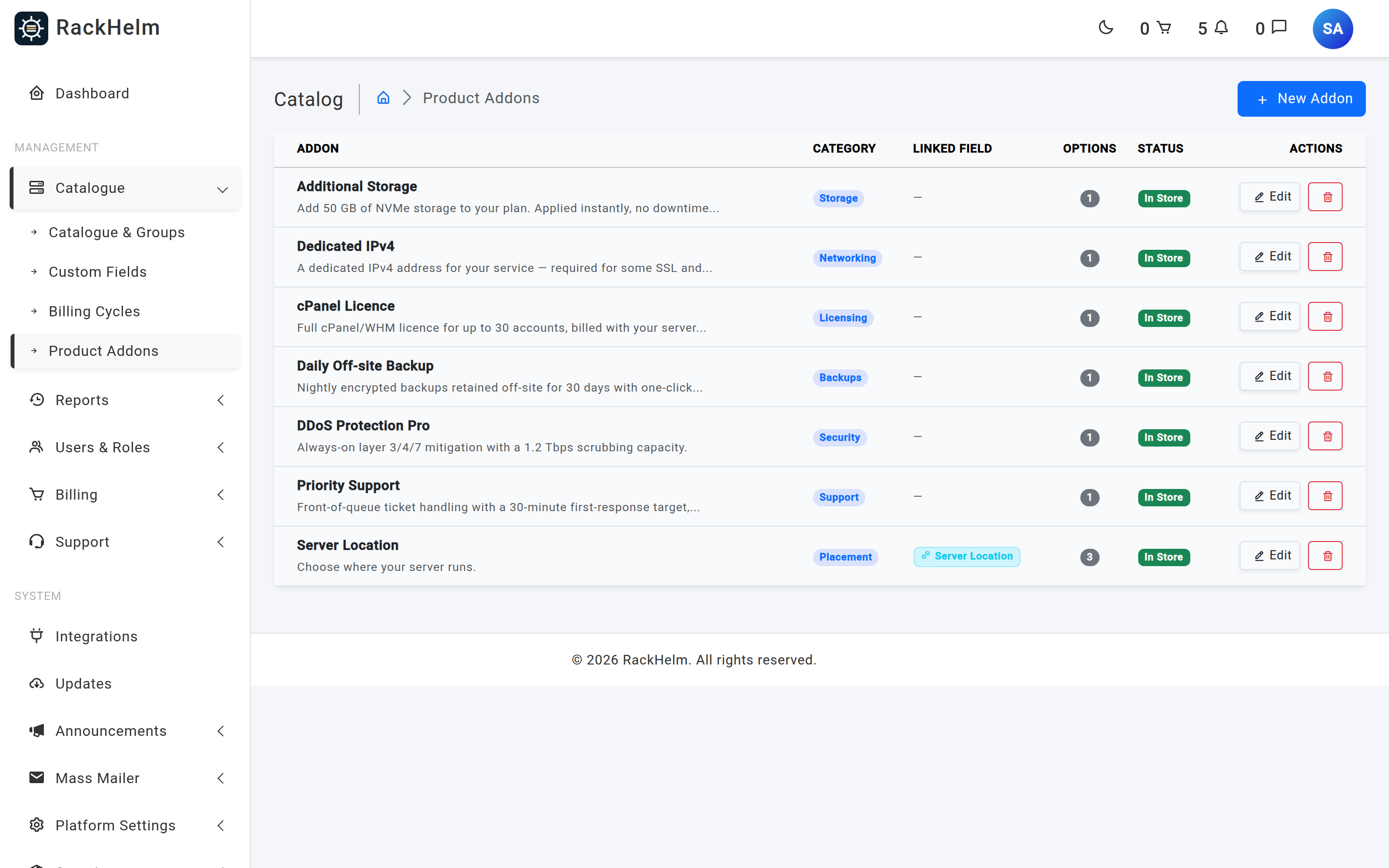
Open Catalogue → Product Addons (/admin/product-addons) and click New Addon. Creation is a two-step flow: you set the add-on’s identity first, then land on the configuration screen to add options and pricing.
Add-on settings #
| Field | What it does |
|---|---|
| Addon Name | Required, up to 255 characters. Shown to the customer above the options dropdown. |
| Category | Free text, for your own grouping in the admin list (for example “Network”, “Resources”). Shown as a pill on the list. |
| Description | A short summary shown to customers under the add-on name. |
| Linked Custom Field | Optional. The custom field this add-on populates — for example an Operating System or Server Memory field. This is how the selected option’s value reaches the provisioner. |
| Needs provisioning | Defaults to on. Marks the add-on as something that has to be acted on when the order is placed. |
| Manual (staff setup) | Defaults to off. When on, placing an order containing this add-on opens a support ticket for your staff — see below. |
| Include in store | Defaults to on. When off, the add-on is hidden from customers and cannot be purchased; it stays attached to products so you can bring it back. |
| Advanced Settings (JSON) | Raw JSON for add-on-specific overrides, validated as JSON on save. Used by features that read their own limits from here, for example {"ai_seo_scan_limit": 10, "ai_seo_scan_reset_days": 30}. |
Options and pricing #
The configuration screen puts every option on one row, with one price column per active billing cycle. Add rows with Add Option, remove them with the bin icon, then press Save Configuration.
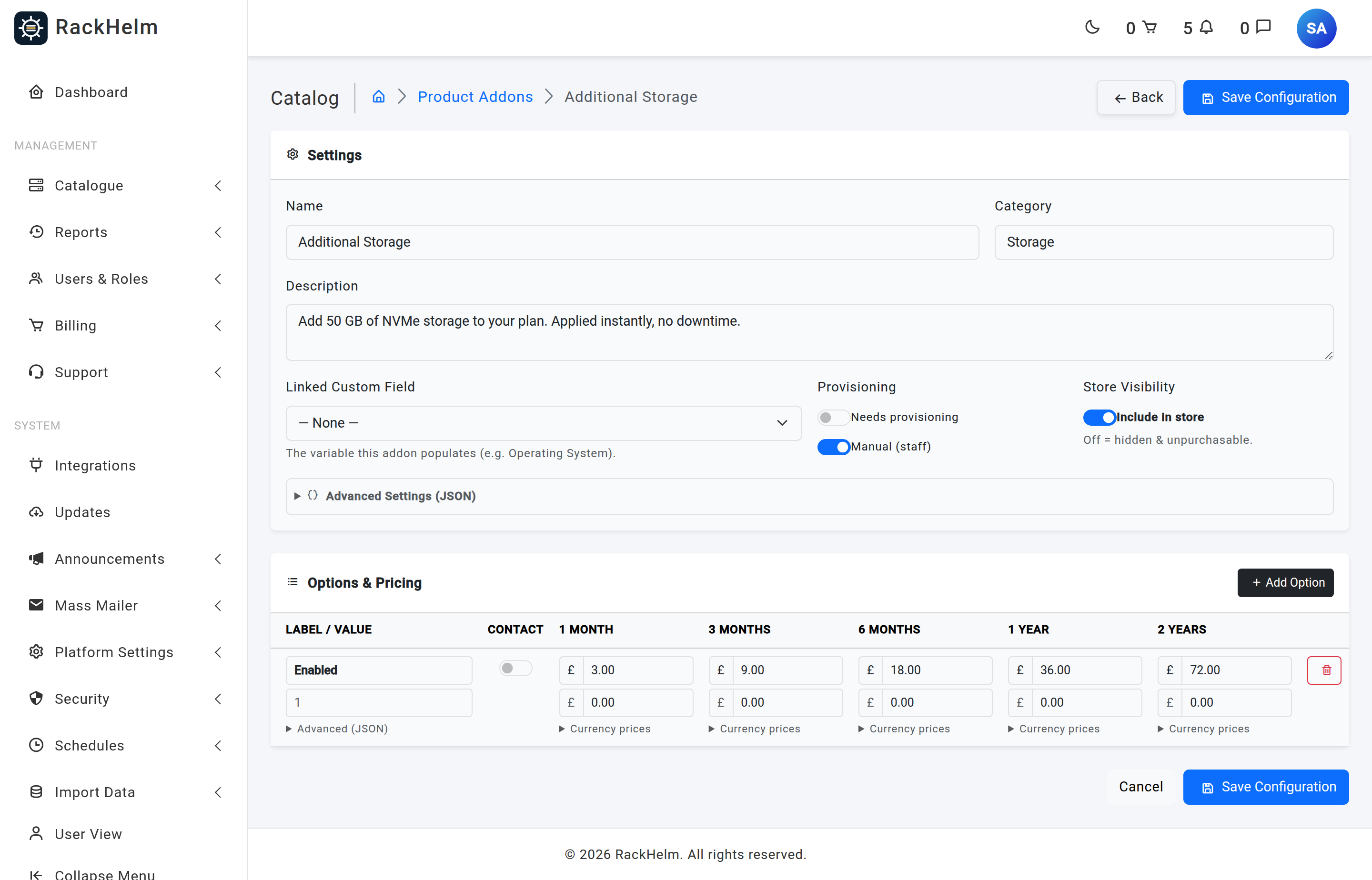
| Per-option field | What it does |
|---|---|
| Label | Required. What the customer reads in the dropdown — “8 GB RAM”. |
| Value | Required. What is handed to the provisioner through the linked custom field — “8192”. |
| Advanced (JSON) | Optional per-option JSON, collapsed behind an “Advanced (JSON)” toggle. Opens automatically when the option already has settings. Unlike the add-on-level box it is not validated, so invalid JSON is dropped without an error. |
| Contact switch | Marks the option as needing a human. Ordering it opens a support ticket rather than expecting an automated fulfilment. |
| Price (per cycle) | The recurring amount for this option on that term. Leave blank to make the option unavailable on that cycle. |
| Setup (per cycle) | A one-off fee charged on the first invoice for that cycle. |
Row order in the table is the order the customer sees; it is saved from the on-screen position, so reordering means deleting and re-adding the rows.
Warning: An option whose price and setup fee are both zero for the chosen cycle is treated as unpriceable, not as free — an explicit
0.00is indistinguishable from a mistyped cell, so the checkout refuses it. Leave a cell blank to mean “not sold on this term”; never type0to mean “free”.
Tickets for manual add-ons #
When an order contains either an option with Contact switched on, or an add-on with Manual (staff setup) switched on, RackHelm opens a single support ticket for the whole order, titled “Addon Setup Request – Order #number“, at medium priority. The first message lists the order number, the customer’s name and email, and every add-on and option requested with its quantity and any configuration values the customer supplied.
Attaching add-ons to products #
An add-on becomes purchasable only once it is attached to something. There are three routes:
- Per product — open the product, go to Options & Add-ons, tick the add-on. Available on an existing product only.
- Per group — add-ons attached to a product group are inherited by every product in it, without being ticked on each product.
- Mass assign — on Catalogue → Catalogue & Groups, use a group’s ⋯ → Mass Assign Addons to attach or detach one add-on across every product in that group at once. Assigning skips products that already have it; unassigning ignores products that do not.
On the order page a customer is offered the union of the product’s own add-ons and its group’s add-ons, filtered to those that are active and marked Include in store.
Deleting an add-on #
Deleting an add-on removes its options and all of their pricing. The confirmation dialog says so. There is no check for existing orders, so prefer switching Include in store off when the add-on has been sold.
Troubleshooting #
| Symptom | Cause and fix |
|---|---|
| “No active billing cycles. Create one before pricing options.” | The pricing grid draws one column per active cycle and there are none. Create cycles, or reactivate the ones you need. |
| The add-on shows “Empty” in the list. | It has no options. Open it and add at least one option with a price. |
| Customer does not see the add-on on the order page. | Check three things: Include in store is on; the add-on is attached to the product or its group; and it has at least one option priced for a cycle the product sells. |
| Checkout fails with an add-on pricing error. | The chosen option has no price row for the order’s billing cycle, or the row is zero on both price and setup. Fill in that cycle’s cell. |
| The add-on’s value never reaches the control panel. | Linked Custom Field is unset, or its system key is not the key the integration reads. Check the custom field’s key on Catalogue → Custom Fields. |
| Saving reports an invalid JSON error. | The add-on’s Advanced Settings (JSON) box is validated as JSON and rejects anything else. The per-option Advanced (JSON) box is not validated — bad JSON there is silently discarded rather than reported, so check the box still holds what you typed after saving. Leave both empty rather than putting a note in them. |
| An add-on cannot be priced for a one-off product. | Add-on prices are stored against a billing cycle, so an order with no cycle has nothing to resolve against. Sell add-ons only on products that use a billing cycle. |


