Email routing turns a mailbox into a ticket queue. RackHelm polls each mailbox you configure, files new messages as tickets in a department you choose, and threads replies back onto the ticket they belong to. It speaks IMAP, POP3 and the Microsoft 365 Graph API. This article is for whoever sets a mailbox up and has to work out why mail is not arriving.
Before you start #
Note: Support → Email Routing requires the
manage_email_routespermission. It is deliberately withheld from the built-in Administrator role — a mailbox credential is a sensitive thing to hand out — so only Super Admin has it after a fresh install. Grant it per install from the Roles screen. See Roles & Permissions.
Tip: The sidebar link is shown only to Super Admin. If you have granted
manage_email_routesto another role and the menu entry is missing, the screen itself still works — go straight to/admin/email-routes.
You will need:
- At least one department to route mail into.
- A dedicated mailbox —
support@yourdomain— with its credentials, or an Azure AD app registration for Microsoft 365. - The Laravel scheduler cron and a running queue worker on the server. Nothing is polled without them.
- Your mail server’s authserv-id, if it stamps
Authentication-Resultsheaders. See Sender authentication below — this one is easy to miss and stops mail arriving. It is not needed for a Microsoft 365 (Graph) route.
Warning: Sender authentication is required by default. On an IMAP or POP3 route, mail is only bound to a customer account if RackHelm can find an
Authentication-Resultsheader stamped by your own MTA — and it cannot recognise one until you have setinbound_mail_trusted_authserv_id. Until then every message becomes an [UNVERIFIED SENDER] ticket owned by a placeholder account. Set the authserv-id before you enable the schedule, or you will spend your first afternoon reattributing tickets by hand.
Adding a route #
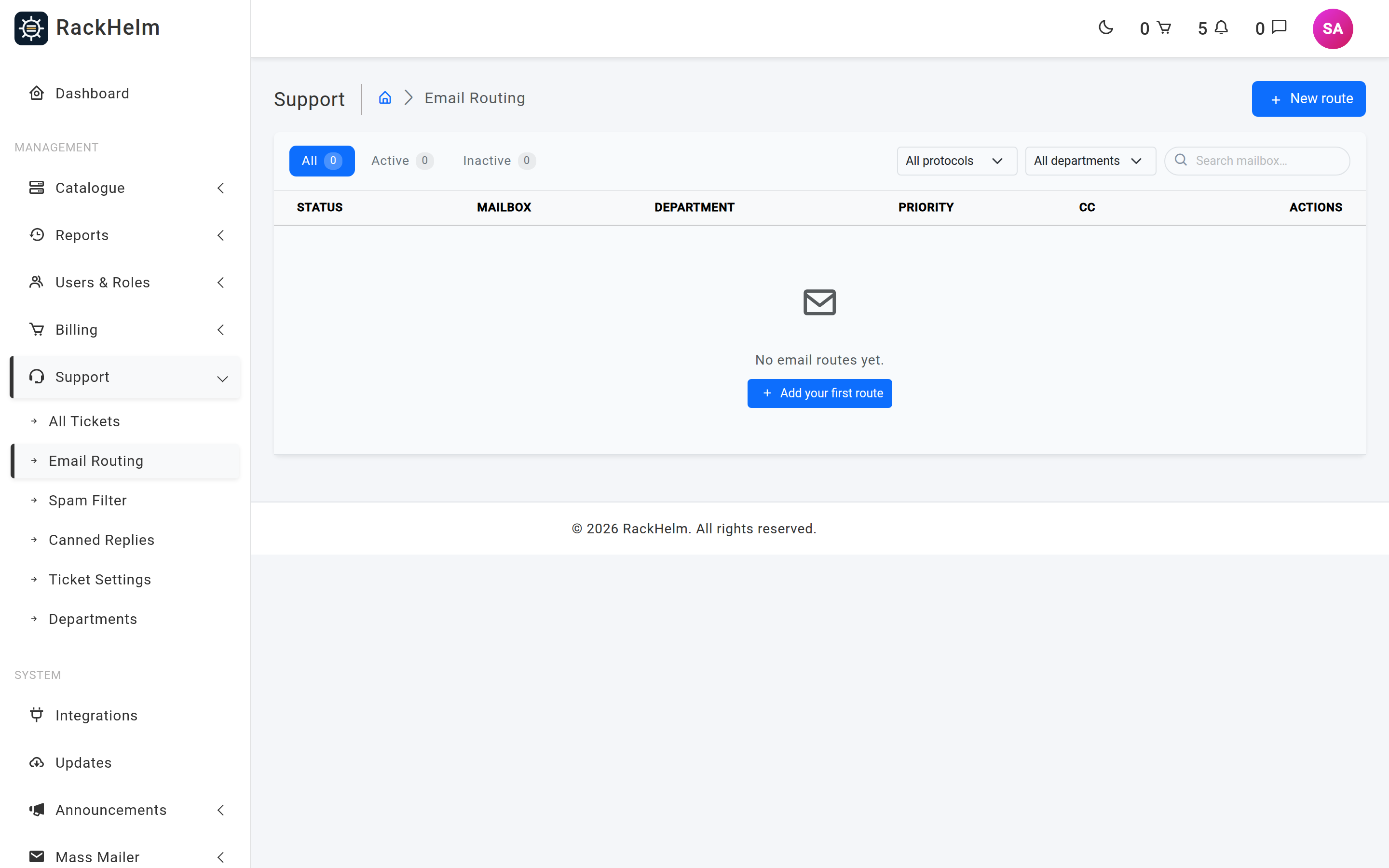
Press New route and pick a Protocol — the form then shows only the fields that protocol needs, grouped as Source, Routing and Post-processing.
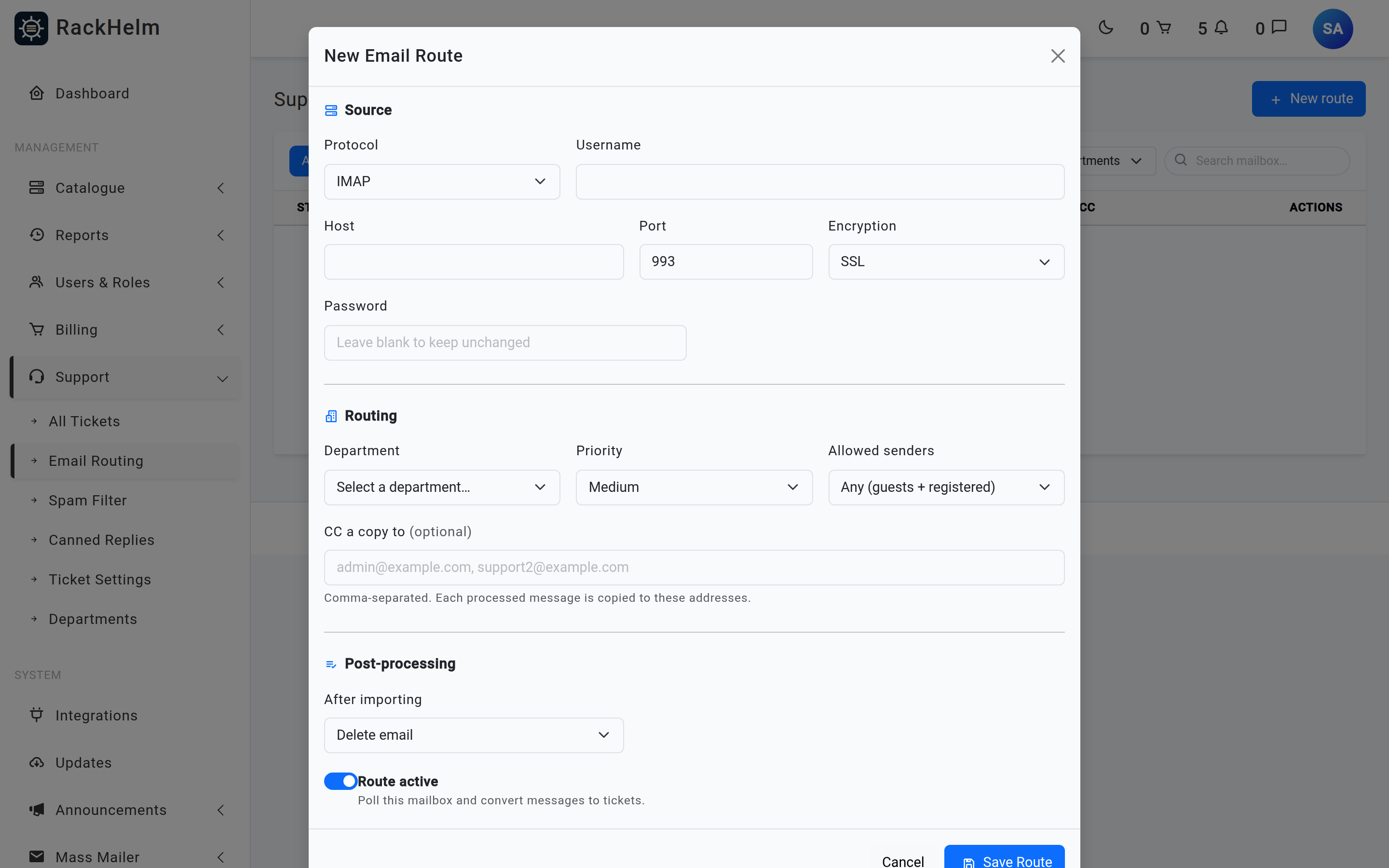
Source — IMAP and POP3 #
| Field | What it does |
|---|---|
| Protocol | IMAP, POP3 or Microsoft 365 (Graph). |
| Username / Email Address | The mailbox login — the label changes to Email Address for Microsoft 365. Required for every protocol. |
| Host | Mail server hostname, e.g. mail.yourdomain.com. Required for IMAP and POP3. |
| Port | Required for IMAP and POP3. The usual values are 993 for IMAP over SSL, 143 for IMAP with STARTTLS, 995 for POP3 over SSL and 110 for POP3 with STLS. |
| Encryption | SSL (encrypted from the first byte), TLS (connect in the clear, then upgrade) or None. None is not offered for POP3. |
| Password | Stored encrypted and never displayed again. Leave blank when editing to keep the current password. |
Warning: A POP3 route set to None is rejected — it would put the mailbox password on the wire in the clear — and RackHelm aborts rather than falling back to plaintext if a TLS upgrade is declined. Certificates are validated on both protocols, so a self-signed certificate on your mail server will fail the connection.
Source — Microsoft 365 #
Register an application in Azure AD and grant it the Mail.ReadWrite and Mail.Send application permissions (not delegated). Then put the mailbox address in Username and fill in Client ID, Tenant ID and Client Secret; the secret is stored encrypted, and a blank field on an edit keeps the existing one. Host, port, encryption and password are cleared automatically when you save a Graph route, and the Graph fields are cleared if you switch a route back to IMAP.
Routing #
| Field | What it does |
|---|---|
| Department | Required. Every ticket from this mailbox lands here, quarantined ones included. |
| Priority | Low, Medium or High — the priority given to new tickets from this mailbox. |
| Allowed senders | Registered users only discards mail from addresses with no account. Any creates a guest account for an unknown sender. |
| CC a copy to | Comma-separated addresses. |
| Route active | Only active routes are polled. |
Warning: Two fields on this form do nothing in the current build. CC a copy to is stored but the copies are not sent — the code that would send them is commented out — so use Ticket settings → BCC notifications to if you want a copy of ticket mail. And Allowed senders only distinguishes Registered users only from everything else, so Guests only behaves exactly like Any.
Post-processing #
A message left in the inbox is imported again on the next poll, creating duplicate tickets. Choose Delete email, or Move to folder and name a folder. On IMAP the importer creates the folder if it is missing; on Microsoft 365 the folder must already exist, or the move is skipped and logged as “Graph: Could not find folder”.
Note: POP3 has no folders, so this section is hidden for POP3 routes and imported messages are always deleted from the server. Bear that in mind if something else reads the same mailbox.
Scheduling the fetch #
Polling is driven by a scheduled job called Email to Tickets, listed under Schedules in the admin sidebar (/admin/system-schedules, requires manage_schedules). It ships disabled, so enable it. The seeded schedule is */5 * * * * — every five minutes, UTC. While you are setting a route up, switch on Enable File Logging on the schedule: it writes a running commentary of every connection, message and decision to the application log, which is by far the fastest way to diagnose a route.
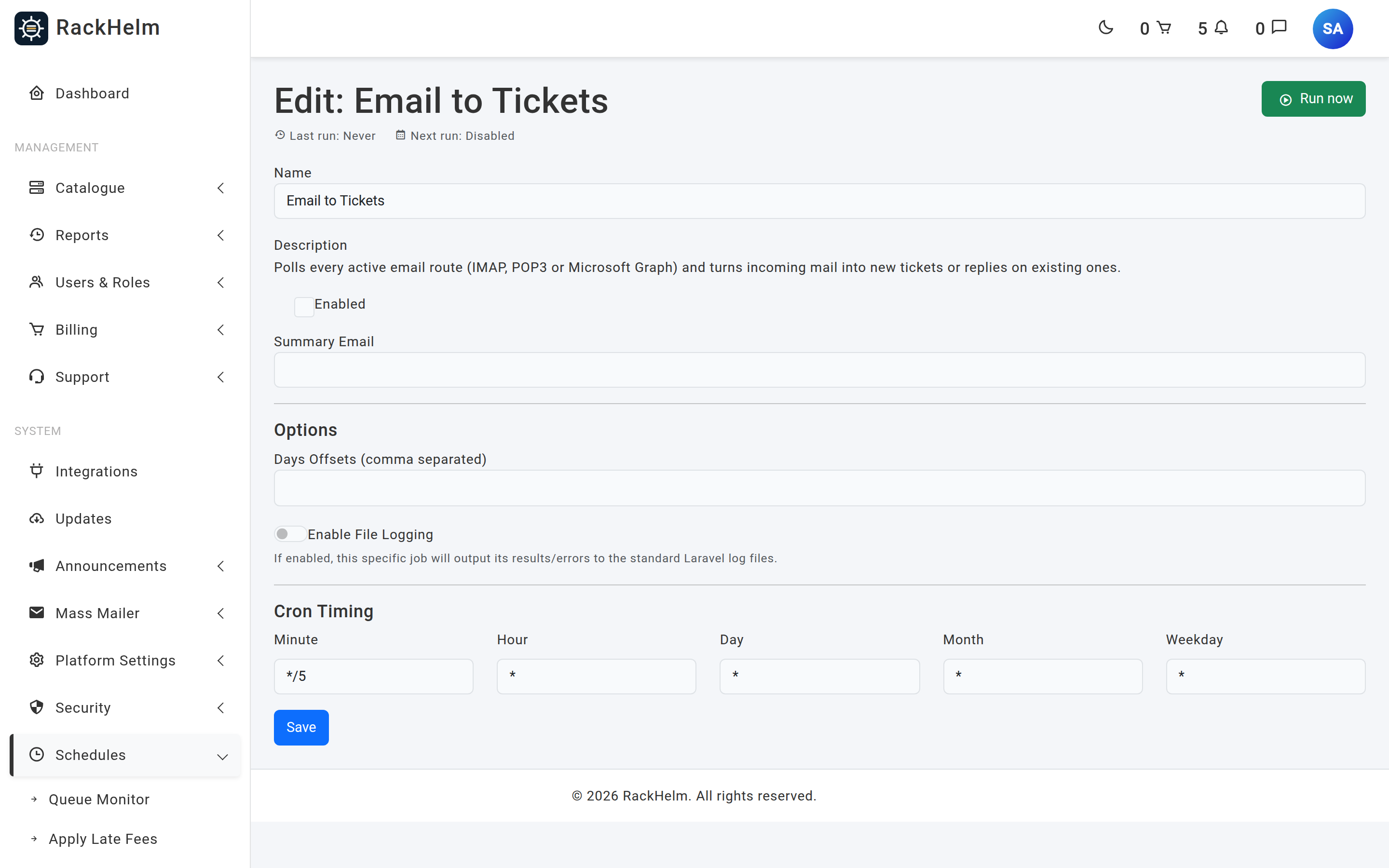
Note: The schedule only fires if the server’s cron is running Laravel’s scheduler, and the job itself is queued, so a queue worker must be running too. If both are missing, the route list will look perfectly healthy while nothing is ever fetched.
What happens to each message #
- Spam check. If the From address is on the blocklist, the message is dropped without becoming a ticket. It is still deleted or moved by the post-processing step. See The spam filter.
- Threading. The subject is searched for
#followed by your ticket prefix and a number —#ORB-1042. If that ticket exists, the message is treated as a reply. - Sender authentication. See below. Mail that cannot be vouched for is quarantined rather than attributed to a customer.
- New ticket, or reply. A new ticket takes the route’s department and priority and opens as Open; a reply is appended to the existing thread, and reopens it if it was closed. Attachments are saved subject to the limits in Ticket attachments.
- Post-processing deletes or moves the message.
How a reply is threaded back onto a ticket #
Threading depends entirely on the reference in the subject line. RackHelm’s own notification emails carry it — a reply notification has the subject “Update on Ticket #ORB-1042: …” — and mail clients preserve the subject when the customer hits Reply. Two further checks then apply: the From address must match the ticket owner’s address, case-insensitively (anything else is dropped and logged as “Reply denied: … does not own Ticket #…”), and sender authentication must pass. Ticket numbers are sequential and printed in every notification, so ownership cannot rest on a forgeable From header alone.
A reply whose sender cannot be authenticated is logged as “Reply denied: sender authentication failed for … on Ticket #…” and then quarantined as its own ticket rather than discarded, so a genuine customer behind a mail server that stamps nothing does not simply vanish — they just cannot write into somebody else’s thread.
Warning: If you set a ticket prefix, the reference in the subject must include it. Closure and auto-close notifications are sent with the bare number rather than the prefixed reference, so a customer replying to one of those emails will open a new ticket instead of continuing the old one. Tell customers to reply to the update email, or leave the prefix empty.
Guest accounts created from mail #
On a route that accepts unregistered senders, an unknown address gets a guest account. It is named from the sender’s From display name, split on the first space into first and last name, falling back to the local part of the address when the client sends no display name. The display name is attacker-controlled text, so it is scrubbed of invalid UTF-8, bidi overrides, zero-width characters, control characters and line separators, and capped at 255 characters — a strict MySQL install rejects the row otherwise, and the whole ticket is lost with it. See Guest tickets and the contact form.
Sender authentication #
Because a From header is trivial to forge, RackHelm will not bind an inbound message to a customer account on the strength of it. On an IMAP or POP3 route it reads the Authentication-Results header your own mail server stamps, and trusts only a header bearing your server’s authserv-id — the token before the first semicolon, typically the MX hostname. Two settings govern this; neither has a field in the admin UI.
| Setting | Effect |
|---|---|
inbound_mail_trusted_authserv_id( MAIL_TRUSTED_AUTHSERV_ID in .env) |
Your MTA’s authserv-id, e.g. mx.example.com. Required for IMAP and POP3 routes. While it is unset, no message on those routes can be authenticated. |
inbound_mail_require_authentication( MAIL_REQUIRE_AUTHENTICATED_SENDER in .env) |
What to do when a message cannot be authenticated: quarantine it, or accept it on the From header alone. Defaults to quarantine. |
Only the topmost header stamped by your own authserv-id is read, and only that one — any further copies are the sender’s own and are ignored. With no authserv-id configured, RackHelm logs “No trusted authserv-id configured (setting ‘inbound_mail_trusted_authserv_id’); treating mail from … as unauthenticated. Configure it to enable sender authentication.” and treats the message as unauthenticated. It does not fall back to the topmost header of any kind: on a plain Postfix that stamps nothing, the only header present would be the sender’s own forged one, which is exactly the spoof this check exists to stop.
Warning:
inbound_mail_require_authenticationnow fails closed. An unset or blank setting falls back to themail.require_authenticated_senderdefault, which istrue, so an install that has never saved the value quarantines unauthenticated mail rather than accepting it. Only an explicit boolean —0orfalse— turns the check off, and only do that if your MTA genuinely cannot stampAuthentication-Results, understanding that it restores the ability to spoof any sender. This is the reverse of the behaviour in 1.0.0.x, where an unsaved setting read as off.
Microsoft 365 (Graph) routes are judged differently #
Mail read over Graph was received by Exchange Online, not by whatever MTA you run for your other routes, so your configured authserv-id is deliberately not used on a Graph route — no server that strips forged copies of that id ever handled the message, so a sender could stamp it themselves. Exchange Online Protection writes Authentication-Results with no authserv-id at all, which is why the trusted-id lookup could never find its header and why, when sender authentication was first switched on, every single Graph message ended up quarantined.
Two properties of Exchange stand in for the missing id:
- Exactly one
X-MS-Exchange-Organization-AuthAsheader, readingAnonymous. The header firewall stripsX-MS-Exchange-Organization-*from mail arriving from outside the organisation and transport stamps its own, so a singleAnonymousmeans the message came in from the internet through EOP — which stamps anAuthentication-Resultsverdict on every such message. Internal and connector-relayed mail carries no EOP verdict and is not trusted here, logged as “Mail from … did not arrive anonymously from the internet (X-MS-Exchange-Organization-AuthAs: …), so it carries no Exchange Online Protection verdict to trust.” - Every
Authentication-Resultsheader on the message must pass. A sender can add headers of their own but cannot remove the one EOP stamped, so a forgeddmarc=passcan never outvote the genuine verdict wherever Exchange happens to place it.
Microsoft 365 quarantine notices #
Exchange Online generates its own “You have messages in quarantine” digests inside the tenant, so they never pass through EOP and carry no Authentication-Results to judge. Every one of them used to be filed as an unverified sender.
RackHelm now recognises them and accepts them as genuine. The test is narrow on purpose: the message must be on a Graph route, the From address must be exactly quarantine@messaging.microsoft.com, and Exchange must have stamped exactly one X-MS-Exchange-Organization-AuthAs: Internal and exactly one X-MS-Exchange-Organization-AuthMechanism: 10 — headers a sender on the internet cannot supply, because the header firewall strips them. Other internal mail, such as a mailbox user’s own submissions (AuthMechanism 04), still has to authenticate normally. The acceptance is logged as “Mail from … is a Microsoft 365 quarantine notice generated inside the tenant; accepting it on Exchange’s own AuthAs/AuthMechanism stamp.”
Note: A quarantine notice becomes an ordinary ticket in the route’s department, but nothing is emailed back: neither the “Support Ticket Created” acknowledgement nor the route’s autoresponder is sent. Acknowledging one would only mail Microsoft’s unattended address every day.
Quarantined mail #
A message that fails authentication, on a route that requires it, still becomes a ticket you can read — but it is not attributed to anyone. Its subject is prefixed [UNVERIFIED SENDER] and truncated to 250 characters, it is owned by a disabled placeholder account (unverified-sender@unverified.invalid) so it can never surface in a real customer’s portal, it lands in the route’s department at the route’s priority, and no autoresponder is sent back at that possibly forged address. Its activity log records the address the message claimed to be from: “Inbound mail claimed to be from … , but the receiving mail server did not confirm SPF/DKIM/DMARC for it. The ticket is not attributed to that address and no autoresponder was sent.” The quarantine itself is logged as “Quarantined unauthenticated mail claiming to be from … as ticket #…”.
On a route set to Registered users only, unauthenticated mail from an address with no account is discarded outright instead, logged as “Unauthenticated mail from … discarded: this route only accepts registered users.” Unauthenticated mail claiming to be a registered customer is always kept — those are the impersonation attempts staff need to see.
Warning: If the address
unverified-sender@unverified.invalidis ever held by a real, enabled account, RackHelm refuses to file quarantined mail against it — “The unverified-sender placeholder address is held by a real account; refusing to file quarantined mail against it.” — and the message is lost. Never create or enable an account on that address; if you find one, it was planted to read other people’s quarantined mail.
Note: Two more behaviours have no field on the form. A route can carry an autoresponder template that is emailed back to the sender when a new ticket is created, but there is nowhere to select one in the current build. And on IMAP the importer tries to create a folder named
Processedeach time it connects, whatever your post-processing choice — an emptyProcessedfolder appearing in the mailbox is expected and harmless.
Troubleshooting #
| Symptom | Cause and fix |
|---|---|
| No tickets at all, no log entries | The Email to Tickets schedule is disabled, or the scheduler cron / queue worker is not running. |
| “IMAP Connection Failed” in the log | Host, port, encryption or credentials are wrong, or the certificate does not validate. Certificate checking cannot be turned off. |
| “POP3 STLS refused” or “POP3 TLS negotiation failed” | The server does not support STLS on that port. Use SSL on 995 instead. |
| Every message on an IMAP or POP3 route becomes an [UNVERIFIED SENDER] ticket | inbound_mail_trusted_authserv_id is unset or does not match what your MTA stamps, and requiring authentication is on by default. Read a raw message’s Authentication-Results header and copy the token before the first semicolon. |
| “No trusted authserv-id configured …” in the log | Same cause. The setting is empty and no message on that route can be authenticated. |
| “No Authentication-Results header stamped by ‘…’ on mail from …” | The id is set but does not match. Compare it against a raw message, character for character; the comparison is case-insensitive but otherwise exact. |
| Mail on a Graph route is quarantined although SPF and DMARC pass | Check X-MS-Exchange-Organization-AuthAs. Anything other than a single Anonymous — internal mail, or mail relayed in over a connector — carries no EOP verdict to trust. |
| Replies open new tickets instead of threading | The subject has lost the #PREFIX1234 reference, or the customer replied from a different address, or they replied to a closure notification. |
| The same email arrives as a ticket repeatedly | Post-processing is failing. Check the log for “IMAP Action Failed” and confirm the account may delete or create folders. |
| Mail from unknown addresses vanishes silently | The route is set to Registered users only. |
| A mailbox stopped importing after a password change | Edit the route and enter the new password; a blank field keeps the old one. |
| Microsoft 365 route returns nothing | The Azure app is missing Mail.ReadWrite/Mail.Send as application permissions, or admin consent has not been granted. |


