Customers and agents can attach files to any ticket message, and files arriving on inbound email are imported too. Attachments are stored privately, outside the web root, and served only through an authorised download route. This article covers the limits, where the files live, and what happens when a file is rejected.
Before you start #
Note: The limits are set in Support → Ticket Settings → Attachments, which requires
edit_support_settings. They apply desk-wide — there is no per-department or per-product override. See Ticket settings.
The three limits #
| Setting | Effect | Default |
|---|---|---|
| Allow attachments | Master switch. With it off, the file field disappears from every ticket form and any file that is posted anyway is discarded before the message is stored. | On |
| Allowed extensions | Comma-separated list, no dots. | png,jpg,jpeg,gif,zip,txt,log,pdf |
| Max upload size | Megabytes, per file. A message with four files may total four times this. | 10 |
RackHelm falls back to jpg,jpeg,png,pdf and 10 MB if the extension list or size is somehow blank, so uploads never end up completely unrestricted on a portal form.
How the extension check works on uploads #
For files uploaded through a form — the customer’s new-ticket page, a customer reply, the contact form, an agent’s reply — the check is on the file’s real type, not its name alone. A file is accepted only if its detected type matches one of the extensions you listed.
Tip: This means renaming
payload.exetopayload.pngdoes not get it past the filter, and it also means a genuinely mislabelled file — a.logthat is really a zip, say — will be rejected. If customers hit that, ask them to zip the file, assumingzipis on your list.
Note: Common pairs need listing separately.
jpgandjpegare different entries, as arehtmandhtml. The seeded list already covers the JPEG pair.
Attaching a file #
The file field appears on:
- the customer’s Open a Support Ticket form;
- the customer’s reply box on an open ticket;
- the public contact form at
/contact; - the agent’s reply composer on the admin ticket screen.
All of them accept multiple files in one go. The two client-portal forms print the allowed types and the size cap under the field and pre-filter the file picker to those extensions, so most rejections are avoided before submission. The contact form prints the same limits but does not pre-filter the picker, and the agent composer shows neither.
Note: Internal staff notes have no attachment field — notes are plain text only.
Attachments on inbound email #
The mail importer applies the same two limits, with two differences worth knowing:
- The check is on the file extension in the name, not the detected type, because the message has already been accepted by your mail server.
- Every rejection is recorded on the ticket’s activity log with an
attachment_droppedentry naming the file and the reason, so an agent reading the thread can see that something was stripped. The same happens when attachments are switched off entirely.
Warning: If Allowed extensions is left empty, the extension check on inbound email is skipped altogether and any attachment type is imported. Always keep a list in that field, even if it is a long one.
Imported files are stored under a random 40-character name with the original extension preserved. The original filename is kept in the database and is what agents and customers see — the random name only exists on disk, so a hostile filename cannot influence where the file lands.
Where files are stored #
Attachments go on the private local disk, not the public one:
storage/app/private/tickets/<ticket-id>/attachments/Nothing under storage/app/private is reachable over the web. The only way to retrieve a file is the download route, /tickets/attachments/{id}/download, which requires a signed-in session and then checks the same rule as opening the ticket itself: a customer must own the ticket, and a staff member must be able to see it under the department scoping described in How the helpdesk works.
Note: Files uploaded by very early versions of RackHelm may sit on the public disk instead. The download route checks the private location first and falls back to the public one, so old attachments keep working. New files are always written privately.
Contact-form attachments #
Files submitted with the public contact form are parked privately under storage/app/private/pending-tickets/<id>/ and only moved into the ticket when the sender confirms their email address. Anything never confirmed is deleted along with the submission by an hourly clean-up. See Guest tickets and the contact form.
Reading and downloading #
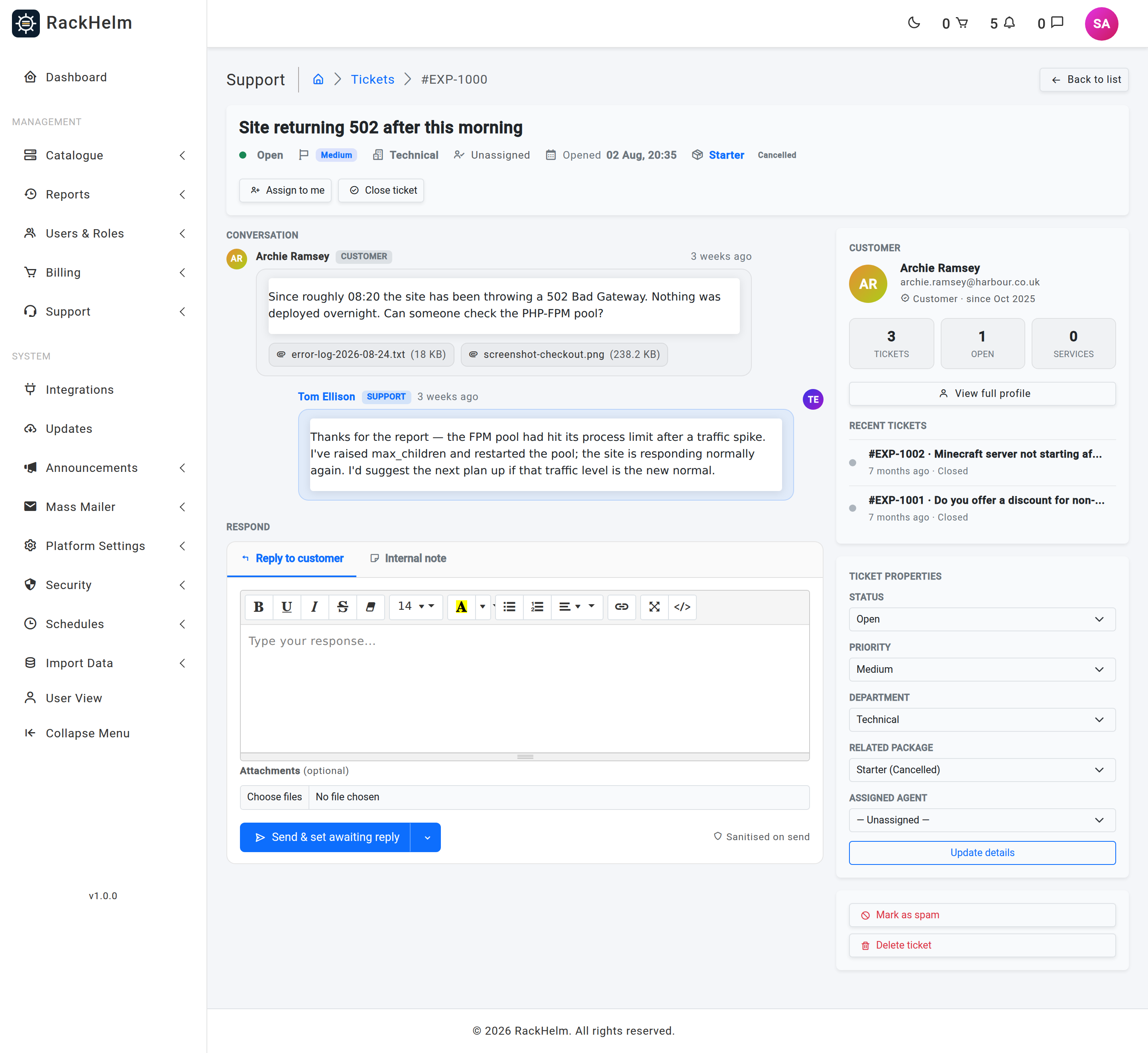
On the admin ticket screen, attachments appear as chips beneath the message they arrived on, showing the original filename and the size in KB. In the client portal they are listed under the message body in the same way. Clicking one downloads it under its original name.
Warning: RackHelm does not scan attachments for malware. A ticket attachment is a file a stranger sent you. Treat customer-supplied archives and executables with the same suspicion you would apply to any inbound email, and consider leaving executable extensions off the allowed list entirely.
Retention #
Attachments are never pruned automatically. Deleting a ticket is a soft delete, so the thread and its files remain on disk and come back intact if the ticket is restored. Plan disk capacity accordingly — a busy desk with a 10 MB cap and screenshots on most tickets accumulates steadily.
Troubleshooting #
| Symptom | Cause and fix |
|---|---|
| “The attachments must be a file of type: …” | The file’s real type is not in Allowed extensions. Add the extension, or ask for it zipped. |
| “The attachments may not be greater than …” | Over the per-file cap. Raise Max upload size or ask for a smaller file. |
| No file field on any form | Allow attachments is off. |
| Large uploads fail with a blank or generic error before validation runs | PHP’s own upload_max_filesize and post_max_size are lower than your setting. Raise them in the server’s PHP configuration to at least the cap you have configured, plus headroom for several files per message. |
| An email arrived with an attachment but the ticket shows none | Check the ticket’s activity log for an attachment_dropped entry — it names the file and whether the extension or the size was the problem. |
| Downloading returns “File not found on server.” | The database row exists but the file is missing from disk — usually a restore that copied the database without storage/app/private. |
| Downloading returns a 403 | The ticket is outside your departments, or a customer is trying to fetch a file from someone else’s ticket. |


