The store is where you choose and configure a new service. You can browse it without signing in — an account is only needed at checkout. This article covers finding a product, choosing a billing cycle, filling in configuration options and picking addons.
Browsing the store #
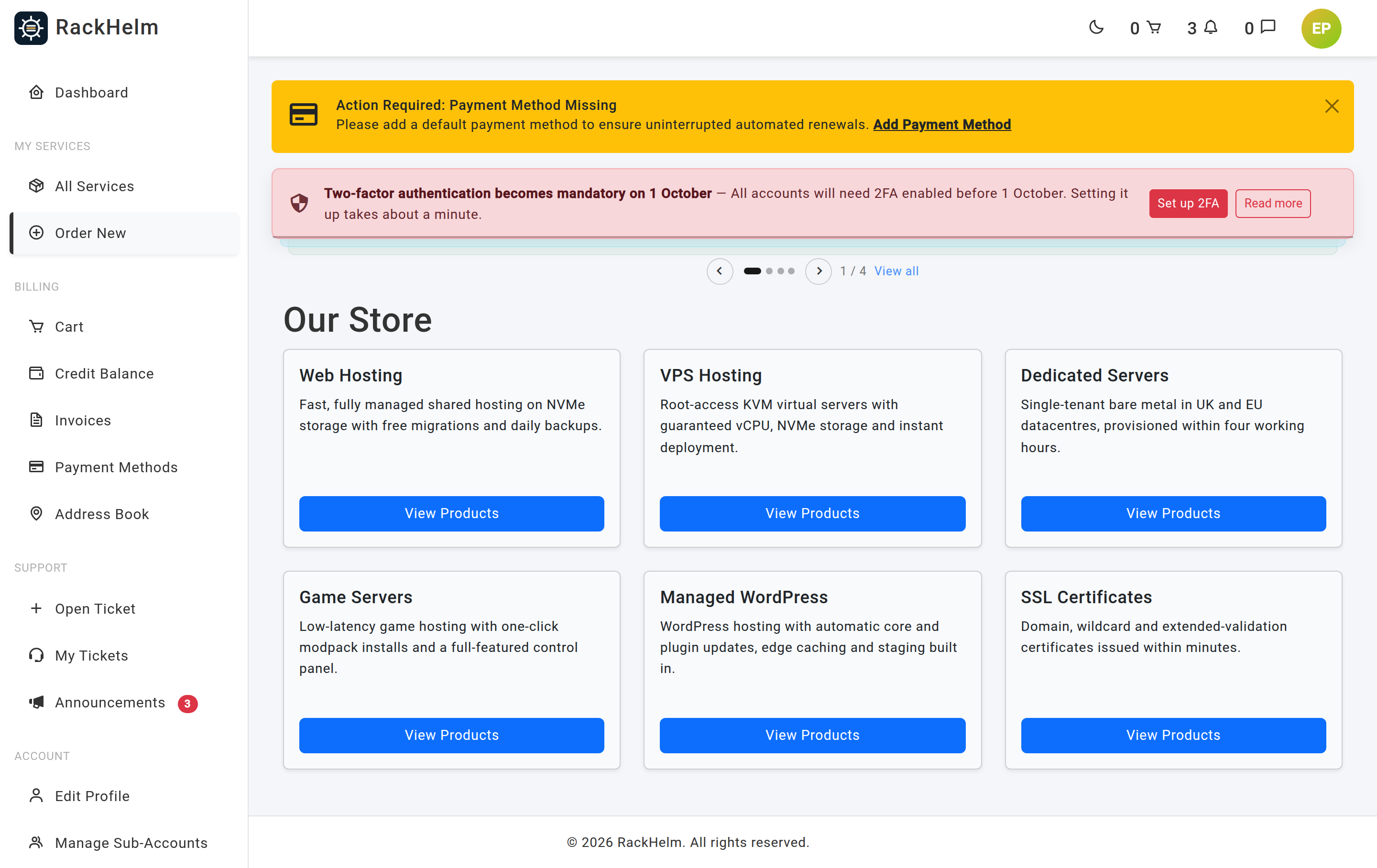
- Open Order New in the sidebar, or go to
/store. - Each card is a product group, such as web hosting or domain names. Select View Products to see what is inside.
- Where a group contains only one product, the card links straight to it and reads Order <product> instead.
Note: Some products are quote-only. Inside a group their button reads Request Quote; where the group holds a single product, the store card reads Enquire about <product> instead. Either way you land on a new support ticket with the subject already filled in as Quote Request: <product>.
Configuring a product #
Selecting a product opens its configuration page at /order/{group}/{product}. The page has up to three sections.
1. Billing cycle #
Choose from the Billing Cycle list. Each entry shows the cycle name and its price, plus any setup fee in brackets. Where your provider has enabled it, longer cycles also show how much you save against the shortest one, as Save £x.
If a product has no recurring cycles, the page shows One-Time Payment with the price and any setup fee instead, and there is nothing to choose.
2. Configuration #
Products can ask for details needed to set the service up — a hostname, a username, a location, a password. Fields marked with a red asterisk are required. The field type decides what you see:
| Field type | What you get |
|---|---|
| Text | A single-line box. |
| Number | A numeric box. The value must be zero or greater. |
| Text area | A three-row box for longer text. |
| Password | A masked box. What you type is never written to the provider’s logs. |
| Date | A date picker. |
| Dropdown | A list of preset choices. Only the listed values are accepted. |
| Checkbox / toggle | A switch. If it is required, it must be turned on. |
Options your provider has locked are not shown at all — they are set for you from the product’s own defaults, and any value you tried to send would be ignored.
3. Addons #
Extras appear under Available Addons, one dropdown each, starting at None. Choosing an option adds it to the order.
- Addon prices follow the billing cycle you picked, so change the cycle first — the options and their prices update automatically.
- An addon option with no price for the chosen cycle disappears from its dropdown. If a selected option vanishes, the dropdown resets to None.
Select Add to Cart when you are done. Each pass through the page adds one unit of the product; add it again if you need more.
Adding an addon to a service you already own #
You do not have to reorder the whole service. On the dashboard, open the Manage menu for the service and choose Purchase Addon. The addon is priced against that service’s existing billing cycle and lands in your cart as a separate line, marked For Service: <product>. Addons you already have are not offered again.
Troubleshooting #
| Symptom | Cause and fix |
|---|---|
| “Please select a billing cycle.” | The product is priced per cycle and one must be chosen. If the list is empty, the product is not fully priced — raise a ticket. |
| “This field is required.” on a configuration option | A required field was left blank, or a required switch was left off. Required fields carry a red asterisk. |
| “The selected option is invalid.” | The dropdown value did not match the configured choices — usually a stale page. Reload and choose again. |
| An addon disappears when you change cycle | That addon option has no price for the new cycle. Pick a different option, or go back to the previous cycle. |
| A product page returns “not found” | The product has been retired or hidden by your provider. Retired products are not viewable even by direct link. |
| The button says Request Quote rather than Order Now or Configure | The product is quote-only. Selecting it opens a pre-filled support ticket so your provider can price it for you. |
| An addon you want is missing from Purchase Addon | Either you already own it, or it is not published to the store. Ask your provider through a ticket. |
Once everything is in your cart, continue to The cart and checkout. If you are buying a domain, read Registering or transferring a domain first.


