The client portal is what your customers see after they sign in. It is a completely separate set of screens from the staff area, with its own sidebar, and nothing in it needs a permission — any signed-in customer with a verified e-mail address gets the whole thing. This article walks that sidebar so you can answer “where do I find…” questions without logging in as the customer.
The article is written for operators. Where a menu entry only appears in certain conditions, those conditions are stated, because “the customer cannot see it” is usually the answer.
Before you start #
Staff can see exactly what a customer sees in two ways: the User View link at the bottom of the staff sidebar, which shows your own account’s portal, or impersonation from the user’s record, which requires the login_as_client permission. The staff side is mapped in A tour of the admin area.
Note: The customer sidebar described here is the built-in default. If you have saved a menu for the Customer Sidebar location under Platform Settings → Navigation, that menu renders instead and the layout below no longer applies. Deleting the saved menu restores this default.
Dashboard #
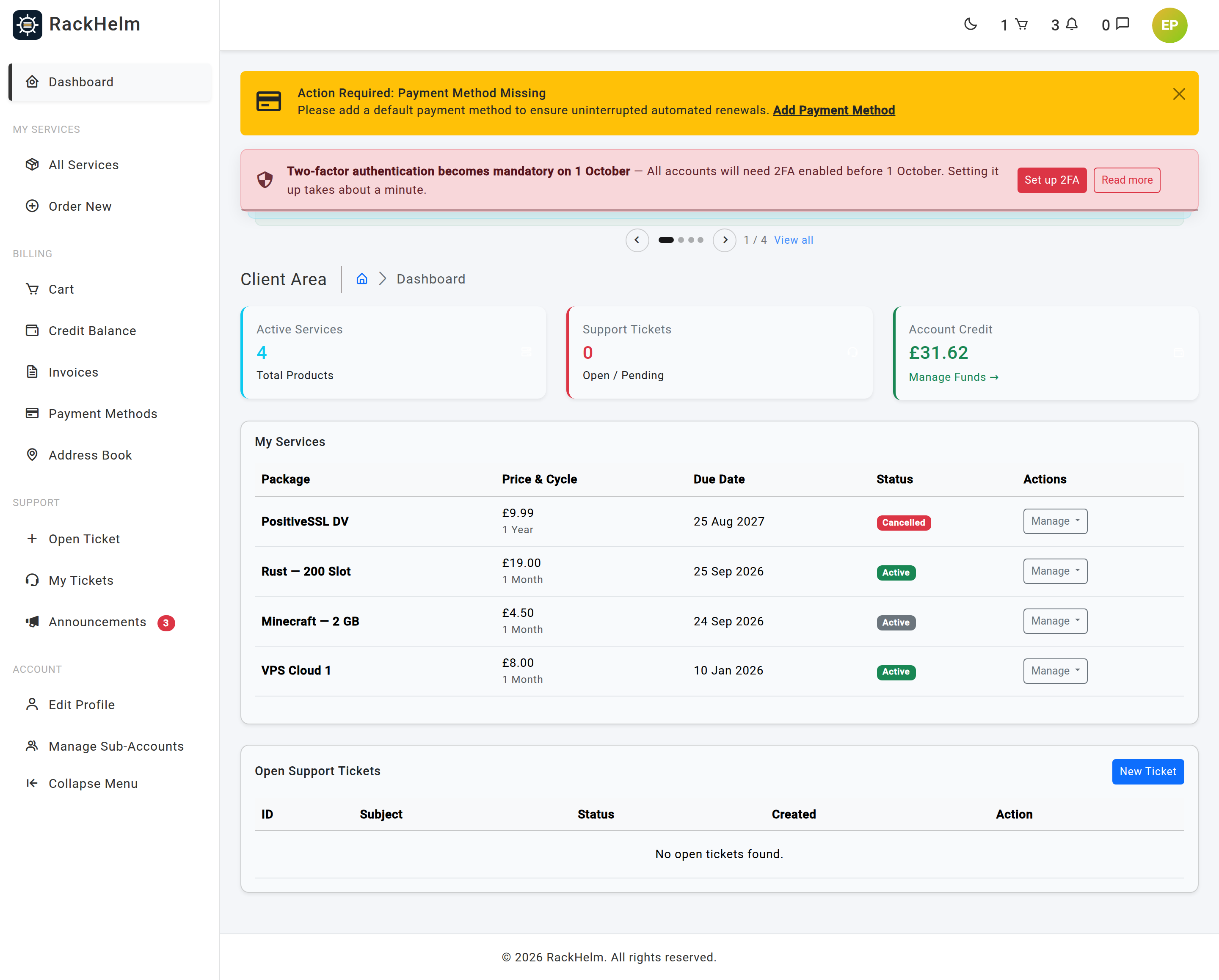
The landing page at /dashboard. Three summary cards across the top — Active Services, Support Tickets (open and pending) and Account Credit, with a Manage Funds link — then a My Services table and an Open Support Tickets table.
Each row of My Services carries a Manage dropdown, and this is where most customer self-service happens:
- The first entry links to the console for that service type, and is labelled for the destination — Manage Server, Manage Website, Manage Domain, Configure Certificate, View Certificate or View Service. When the service is not manageable yet the link is muted and labelled with the reason instead (Setting up, Suspended, Cancelled, Terminated), and when there is genuinely nowhere to go the entry is disabled and reads No Management Page.
- Renew (Pay Invoice) — appears only when there is a pending invoice for the service. Otherwise the entry reads No Due Invoices and is disabled.
- Cancel Package — hidden once the service is already cancelled or pending cancellation.
- Change Billing Cycle — appears when the product has at least one billing-cycle price row.
- Upgrade / Downgrade — appears only when the product has upgrade paths configured against it.
- Purchase Addon — appears only when the product has addons the customer has not already bought.
Addons are listed underneath their parent service, each with its own cancel action.
My Services #
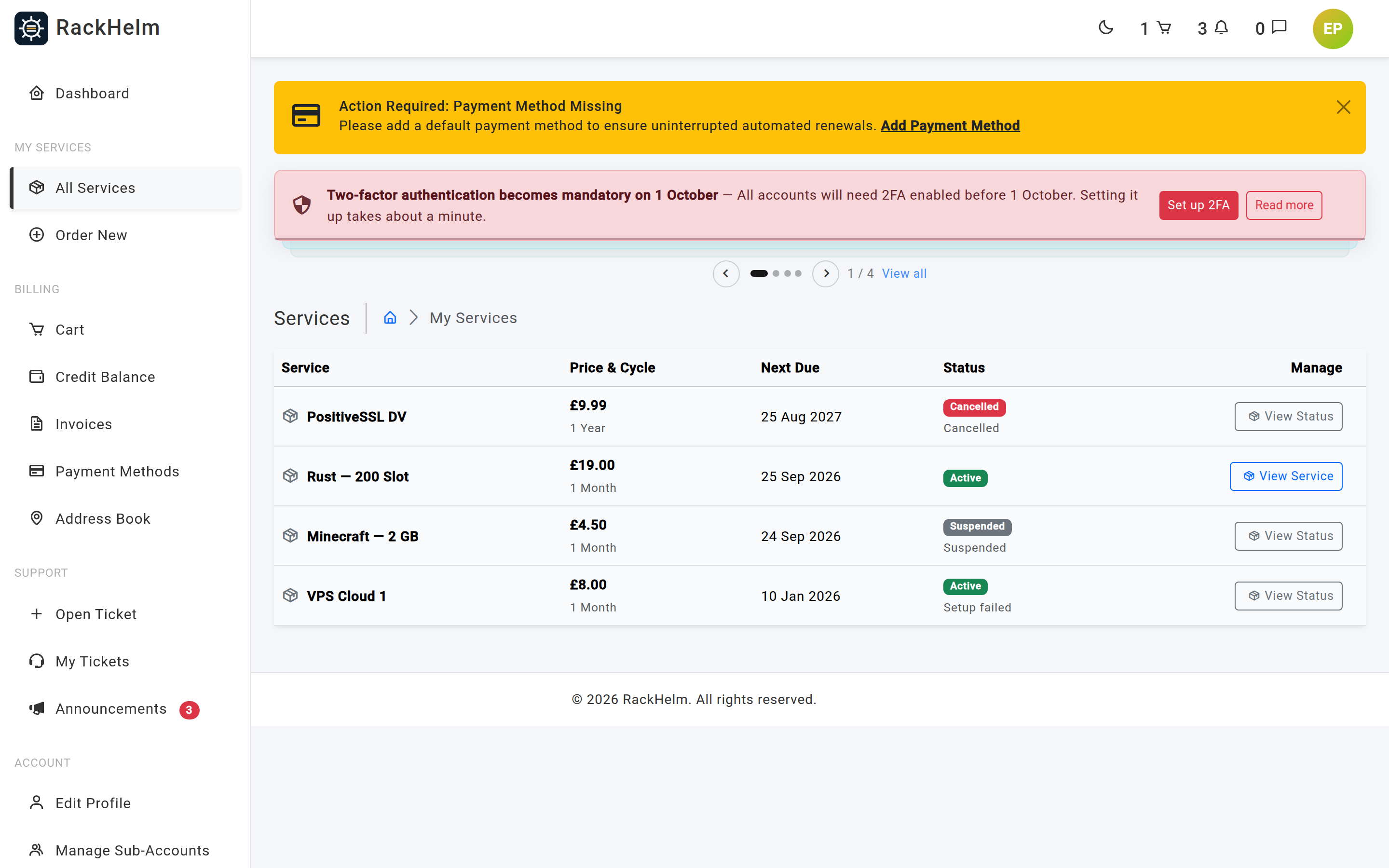
Most of the entries in this section are conditional: the four type-specific ones only appear when the customer actually owns something of that kind, so a customer with hosting only never sees a domains menu. All Services and Order New are always shown, and My Reviews depends on a setting rather than on what the customer owns.
| Entry | Path | Appears when |
|---|---|---|
| All Services | /services |
Always. This is the catch-all list that includes every provisioned item, including types with no console of their own. |
| My Servers | /servers |
The customer holds a live item on a game panel (Pterodactyl). |
| My Sites | /sites |
The customer holds a live item on a web control panel — Enhance, cPanel, Plesk, DirectAdmin, CyberPanel or ISPmanager. |
| My Domains | /domains |
The customer holds a live domain from any configured registrar. |
| My SSL Certificates | /ssl |
The customer holds an SSL certificate product. |
| My Reviews | /reviews |
The Reviews module is switched on under Platform Settings → General & System. |
| Order New | /store |
Always. Sends the customer back into the store. |
“Live” here means the item is active or pending cancellation — a cancelled service stops producing its menu entry. Those statuses are explained in Key concepts and glossary.
Inside All Services #
The services list opens with filter chips. All is always there; the built-in chips — Servers, Websites, Domains and SSL Certificates — and the one-per-Custom-API chips are only drawn for types this customer actually owns, so most customers see two or three chips rather than the full set. Each row shows the service, its status badge and a link through to whatever console applies.
Opening a single service shows the details the integration returned — service attributes such as licence keys or panel URLs, with secret values hidden behind a reveal action that re-asks for the account password.
Note: The Refresh button on the service details card is not wired up yet. Pressing it returns a “not available yet” message rather than re-reading the remote system, and there are no per-integration action buttons on this screen at present.
Billing #
| Entry | Path | What it does |
|---|---|---|
| Cart | /cart |
The current basket, and the way through to checkout. |
| Credit Balance | /credit |
Shows the account balance and its transaction history. Topping up is only offered when credit deposits are enabled under Billing → Settings. |
| Invoices | /invoices |
All invoices, with pay, pay-with-credit and PDF download. |
| Payment Methods | /settings |
Stored cards used for automatic renewal billing. |
| Address Book | /addresses |
Billing addresses, with one marked default. |
Note: Payment Methods and Edit Profile both point at
/settings. They are two entries into the same account-settings screen, not two screens.
Support #
- Open Ticket — the new ticket form at
/tickets/create, where the customer picks a department and optionally attaches files. - My Tickets — the customer’s ticket list at
/tickets, with the conversation view and reply box behind each one.
Customers who are not signed in have a separate route: the public contact form at /contact, which raises a guest ticket after the e-mail address is confirmed.
Account #
- Edit Profile — name, e-mail, password, two-factor setup, stored payment methods and a control to sign out of all other devices.
- Manage Sub-Accounts — additional logins for colleagues. This entry is hidden from users who are themselves sub-accounts, so a sub-account cannot create more.
- Admin Panel — a shortcut into the staff area. See the warning below.
- Collapse Menu — narrows the sidebar to icons.
Warning: The Admin Panel shortcut is gated on an ability named
staff_panel, which is not one of the seeded permissions. In practice that means only Super Admins see it. Other staff reach the admin area by going to/admindirectly — their access is not affected, only the shortcut.
The header #
Above the sidebar, the portal header carries a cart icon linking to /cart and a user dropdown with Profile, Dashboard and Logout. For visitors who are not signed in, the public header instead offers Store, Cart, Log in and Register, plus a Support link to the guest contact form — that last one only when guest tickets are enabled in Support → Ticket Settings.
Troubleshooting #
| Symptom | Cause and fix |
|---|---|
| A customer bought hosting but has no My Sites entry. | The entry keys off the product’s integration type, not the product name. Confirm the product has an active integration of a web-panel type on its Provisioning tab. Until then the service is still visible under All Services. |
| A domain was registered but My Domains is missing. | Same cause: the item must be provisioned through one of the registrar integrations, and it must be active or pending cancellation. A cancelled domain stops producing the menu entry. |
| The Manage link on the dashboard is greyed out and says “Setting up”. | The item is still in flight — pending, queued or processing. It resolves itself once provisioning completes; if it never does, check Users & Roles → Pending Provisioning. |
| A customer cannot top up their credit balance. | Credit deposits are off by default. Tick Enable User Credit Deposits under Billing → Settings. |
| My Reviews does not appear even though the module looks enabled. | The setting has to have been saved at least once. Open Platform Settings → General & System, tick Enable Reviews Module and save the form. |
| The cart badge in the sidebar never shows a count. | The built-in sidebar’s cart badge is inert. If you want a live count, build a menu for the Customer Sidebar location under Platform Settings → Navigation and attach the Items in the cart badge to the cart item. |
| You changed the customer menu and now it looks wrong. | Delete the saved menu for that location. The built-in default is a separate code path and renders again immediately, so it is always the recovery route. |


