Support runs on tickets rather than email threads, so every message, attachment and status change stays in one place you can refer back to. This article covers opening a ticket, attaching files, replying, and what the statuses mean.
Opening a ticket #
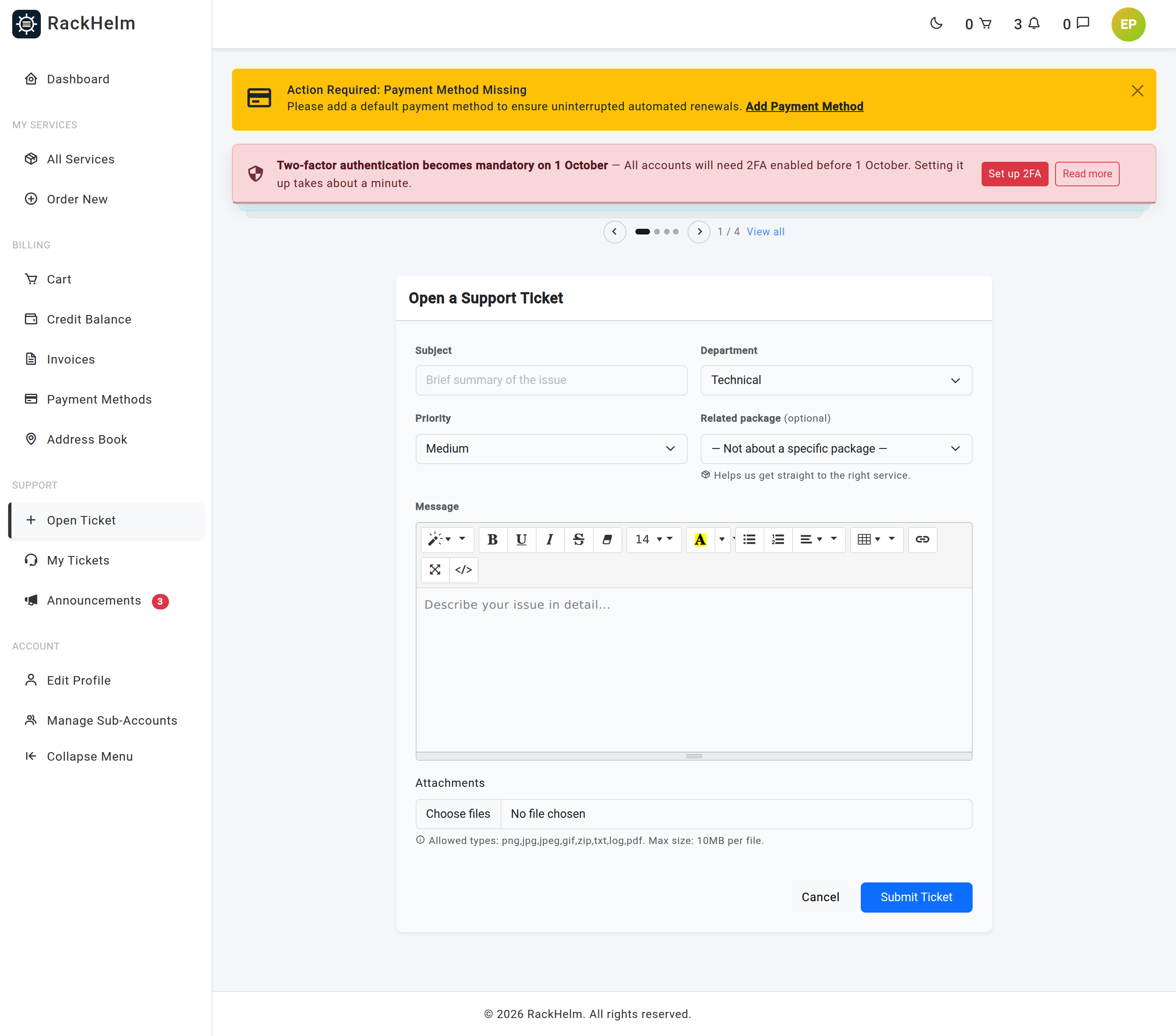
- Select Open Ticket in the sidebar, or New Ticket from the dashboard, or go to
/tickets/create. - Enter a Subject — a short summary, up to 191 characters.
- Choose a Department. Departments route the ticket to the right team, so pick carefully.
- Set a Priority: Low, Medium (the default) or High.
- Describe the problem in Message. The editor supports bold, italic, lists, links and tables — paste log output as plain text rather than a screenshot where you can.
- Add files under Attachments if the section is shown.
- Complete the CAPTCHA if one appears, then select Submit Ticket.
Tip: Include the service or domain name, what you expected, what actually happened and when it started. It usually saves a whole round trip.
Attachments #
Uploads appear only when your provider allows them. The form states the permitted extensions and the maximum size per file — the defaults are jpg,jpeg,png,pdf at 10 MB each, but your provider may change both. You can attach several files at once, on the first message and on any reply. Attachments are stored privately and can only be downloaded by people on the ticket.
Following a ticket #
Open My Tickets in the sidebar or go to /tickets. Tickets are listed with the most recently updated first, fifteen to a page. Closed tickets are hidden by default — turn on Show closed to include them.
Select View to open the conversation. The page shows every message in order, with any attachments listed underneath and their size in KB. The sidebar shows Department, Priority and when the ticket was Opened.
Replying #
- Type into the Post a Reply box at the bottom of the ticket.
- Add attachments if you need to.
- Select Send Reply.
Your provider is notified. When they reply, you are emailed.
Whether you can answer by email depends on your provider. If they have connected a support mailbox to the portal, a reply that keeps the ticket number in the subject line (for example #EXP-1042) is matched back to the thread and posted as your message, attachments included. If they have not, email replies go nowhere — open the ticket in the portal and answer there.
Ticket statuses #
| Status | What it means |
|---|---|
| Open | Raised and with the support team. |
| Pending | Being worked on, or waiting on something. |
| Awaiting reply | The team has answered and needs a response from you. |
| On hold | Paused, usually pending a third party. |
| Closed | Finished. No further replies can be posted. |
Closing a ticket #
Select Close Ticket in the sidebar of the ticket. You are emailed a confirmation, and the reply box is replaced by This ticket is closed. Please open a new ticket if you need further assistance. Closed tickets stay readable — turn on Show closed to find them.
Asking for a quote #
Products your provider prices individually show Request Quote instead of an order button — or Enquire about <product> on the store page where the group holds only that one product. Selecting it opens a new ticket with the subject pre-filled as Quote Request: <product>. Add your requirements and submit as usual.
If you cannot sign in #
The public contact page at /contact takes a message without an account, when your provider has left it switched on. Give your First Name, Last Name, Email Address, a Department, a Subject and your Message. Every submission is held until you click a confirmation link emailed to that address — nothing is created before then, whether or not the address already has an account, which stops people raising tickets in someone else’s name. Use this route for sign-in problems, verification emails that never arrive, and lost two-factor devices.
Troubleshooting #
| Symptom | Cause and fix |
|---|---|
| The file is rejected on upload | It is either an extension your provider does not accept or larger than the per-file limit. Both are shown under the attachments box. Compress large logs, or paste text into the message. |
| There is no attachments box | Your provider has turned uploads off. Paste the detail into the message instead. |
| “Captcha verification failed. Please try again.” | The challenge expired or failed. Reload the page and complete it again — your text is kept. |
| The subject is rejected as too long | Subjects are capped at 191 characters. Shorten it and put the detail in the message. |
| A ticket you expected is missing from the list | It may be closed — turn on Show closed. Submissions through /contact that were never confirmed by email are not created at all. |
| You cannot reply | The ticket is closed. Open a new one and reference the old ticket number. |
| A permission error opening a ticket or attachment | It belongs to another account. Sub-accounts see the billing account’s tickets; nothing beyond that. |
| “File not found on server.” | The stored attachment is missing. Ask the sender to upload it again. |
| The dashboard ticket counter disagrees with your list | The counter only counts tickets in the Open state. My Tickets is the complete view. |


