The spam filter is a blocklist of email addresses. Any inbound message from an address on the list is discarded before it can become a ticket or a reply. It is deliberately simple: exact addresses only, no patterns, no domains, no scoring.
Before you start #
Note: Support → Spam Filter is gated by the
edit_company_settingspermission, which the built-in Administrator role does not hold — so on a fresh install it is Super Admin only. The sidebar link is likewise shown only to Super Admin; if you have granted the permission to another role and the menu entry is missing, go straight to/admin/spam-emails. See Roles & Permissions.
What the filter actually does #
The blocklist is consulted at exactly one point: when the inbound mail importer picks a message off a mailbox. If the message’s From address is on the list, the message is logged as blocked and dropped — no ticket is created, no reply is appended, no autoresponder is sent. The message is still deleted from or moved out of the mailbox by the route’s post-processing setting, so it does not pile up.
Warning: The filter applies to inbound email routes only. It does not stop a signed-in customer opening a ticket in the client portal, and it does not stop the public contact form. Blocking an address is not a way to bar someone with an account from contacting you.
Matching is on the exact address. spammer@example.com does not block spammer+new@example.com, and there is no way to block a whole domain.
Blocking an address #
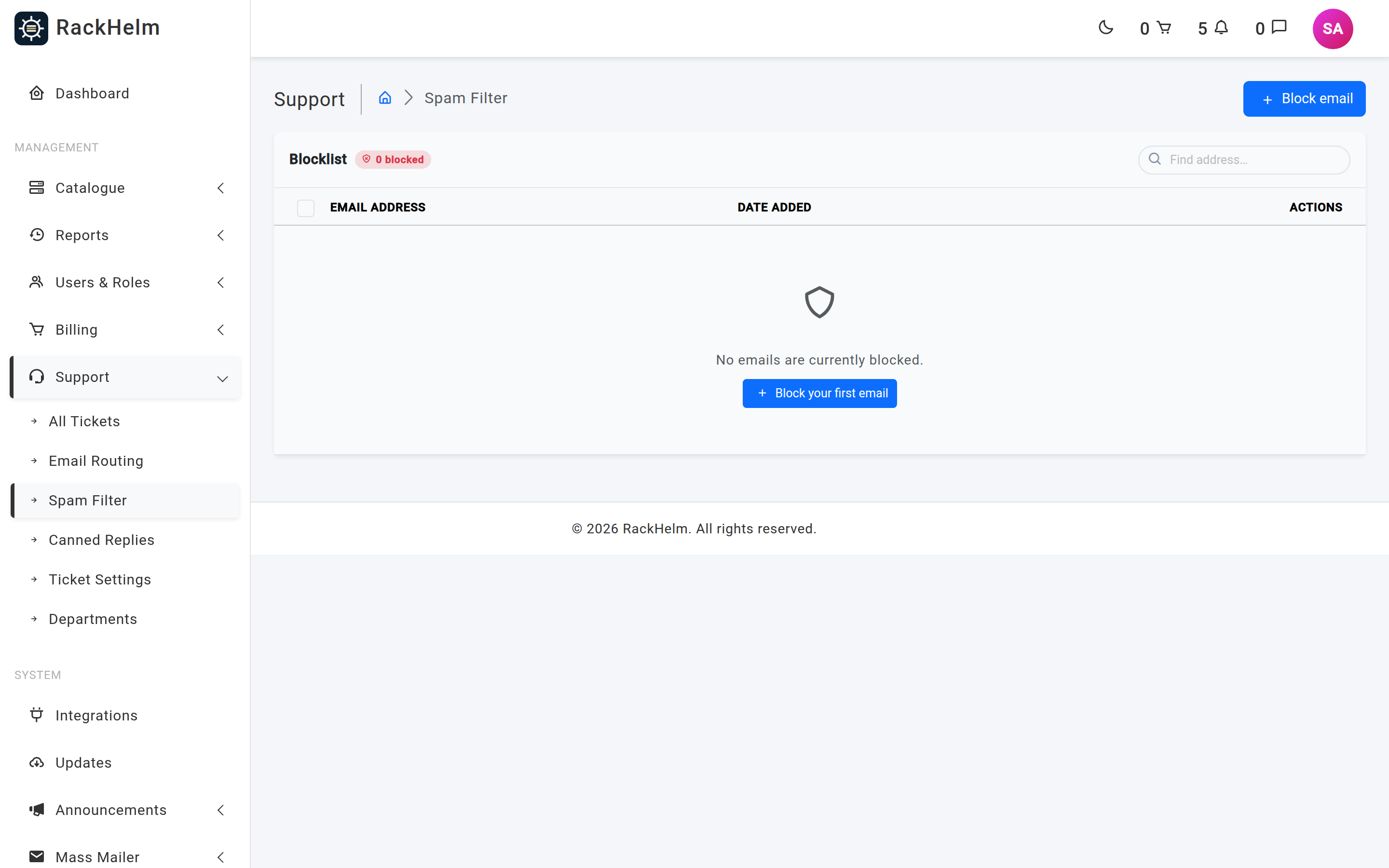
There are two ways in.
From this screen #
- Open Support → Spam Filter.
- Press Block email.
- Enter the address. It must be a valid email address and must not already be on the list.
- Press Block email in the modal.
From a ticket #
On an open ticket, Mark as spam adds the ticket owner’s email address to this list and closes the ticket in one action. It requires close_tickets and membership of the ticket’s department. The confirmation prompt names the address that is about to be blocked — read it before you accept.
Warning: Mark as spam is global. It blocks that address for every department and every mailbox, not only the one you work in, and it does so silently — the sender gets no bounce and no autoresponder, so a mistake here looks to the customer like you are ignoring them. If the ticket is merely unwanted rather than spam, close it instead.
Reviewing and unblocking #
| Control | What it does |
|---|---|
| Find address… | Partial match on the address. Useful for checking whether a complaining customer is on the list. |
| blocked badge | The total number of addresses on the list, regardless of the current search. |
| Date added | Relative time; hover for the exact timestamp. |
| Remove | Unblocks a single address, with a confirmation prompt. |
| Row checkboxes + Remove selected | Unblocks several at once. |
Removing an address takes effect on the next poll. It does not resurrect anything that was already discarded — blocked messages are not stored anywhere, so there is nothing to recover.
Tip: Search this list first whenever a customer says “I emailed you and heard nothing”. An address blocked months ago by a well-meaning agent is one of the more common causes.
What this filter is not #
RackHelm has no content scoring, no Bayesian filter, no rate limiting per sender and no domain rules. It is a manual blocklist for individuals who have made themselves a nuisance. Genuine spam volume should be handled where it belongs — on the mail server that hosts the support mailbox, with the usual tools — so that RackHelm never sees it.
Note: Separately from this list, RackHelm quarantines inbound mail whose sender your mail server could not authenticate, filing it under an [UNVERIFIED SENDER] subject rather than attributing it to a customer. That is a forgery control rather than a spam control, and it is described in Email routing and IMAP piping.
Troubleshooting #
| Symptom | Cause and fix |
|---|---|
| A customer’s emails never arrive | Search the blocklist for their address and remove it. |
| A blocked sender still gets tickets in | They are using a different address, or they are signed in to the client portal — the filter only covers inbound email. |
| “The email has already been taken” | The address is already on the list. |
| Marking as spam returned “Could not find a valid email address for this user.” | The ticket’s owner record has no email address. Block the address by hand from this screen. |
| Blocked mail is filling the mailbox | The route’s post-processing is not deleting or moving messages. See Email routing and IMAP piping. |


