A billing cycle is a term you sell on — monthly, quarterly, annually. Every recurring price in RackHelm hangs off one, for products and for add-on options alike, so this is the first screen to visit on a new install. This article is for operators.
Before you start #
Note: The route is gated by
edit_products, and the controller additionally checks anadmin_panelcapability that is not one of the seeded permissions — so in a default install only Super Admin can open and change this screen. The sidebar link itself is shown undermanage_products, which is also not seeded. See Roles & Permissions.
Warning: A fresh install has no billing cycles. Until you create at least one, the product editor’s pricing table shows “No billing cycles defined yet” and the add-on editor refuses to price anything.
The Billing Cycles screen #
Open Catalogue → Billing Cycles (/admin/billing-cycles). It is a single table, and both creating and editing happen in the same modal.
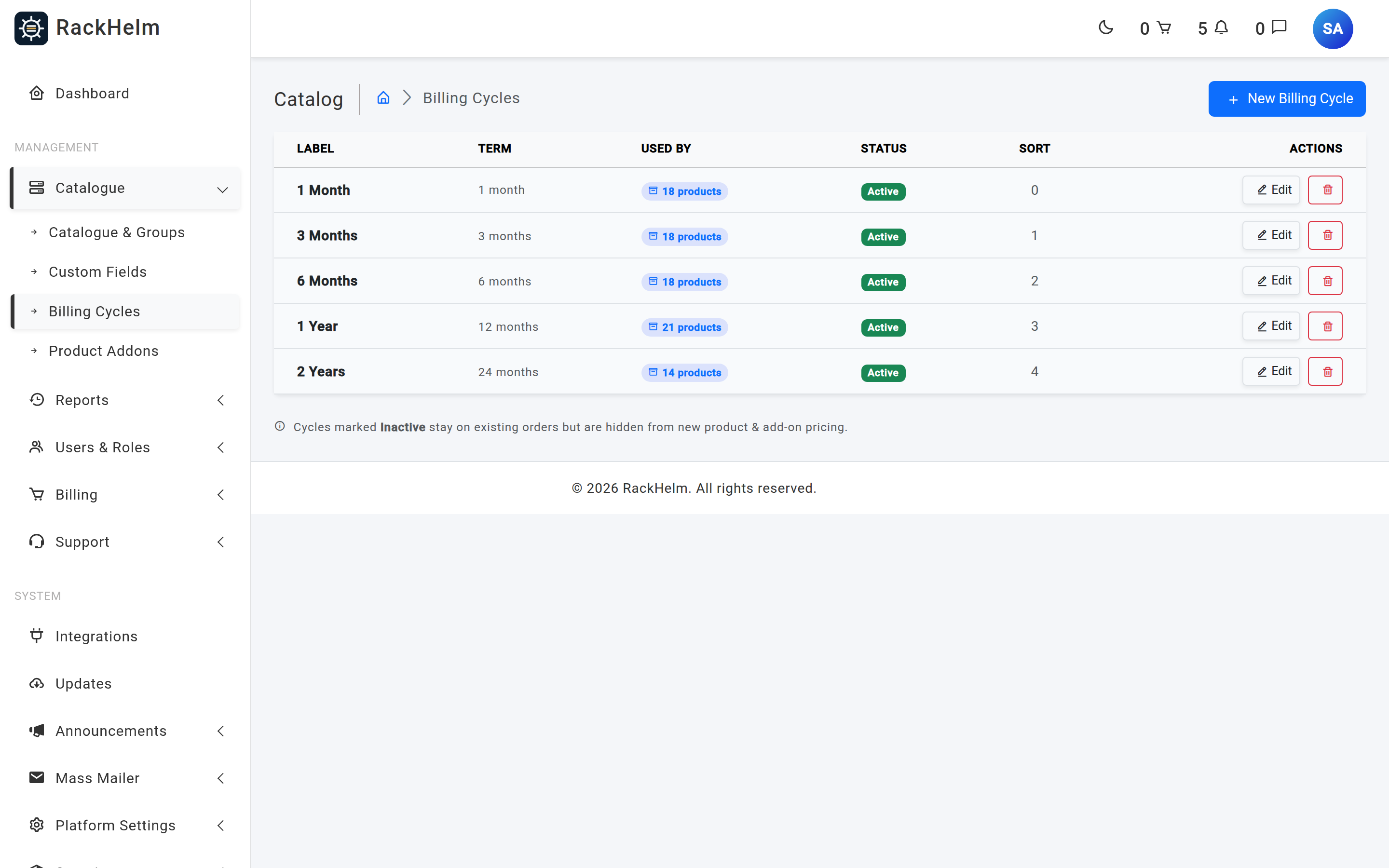
| Column | Shows |
|---|---|
| Label | The customer-facing name. |
| Term | The length in months, rendered as “12 months”. A cycle stored with a term of zero renders as “One-time”. |
| Used By | “N products” — the number of product price rows pointing at this cycle. Cycles with none read “Unused”. |
| Status | Active or Inactive. |
| Sort | The sort order value. |
Creating or editing a cycle #
Click New Billing Cycle, or Edit on a row. The same modal serves both; it retitles itself and pre-fills from the row you clicked.
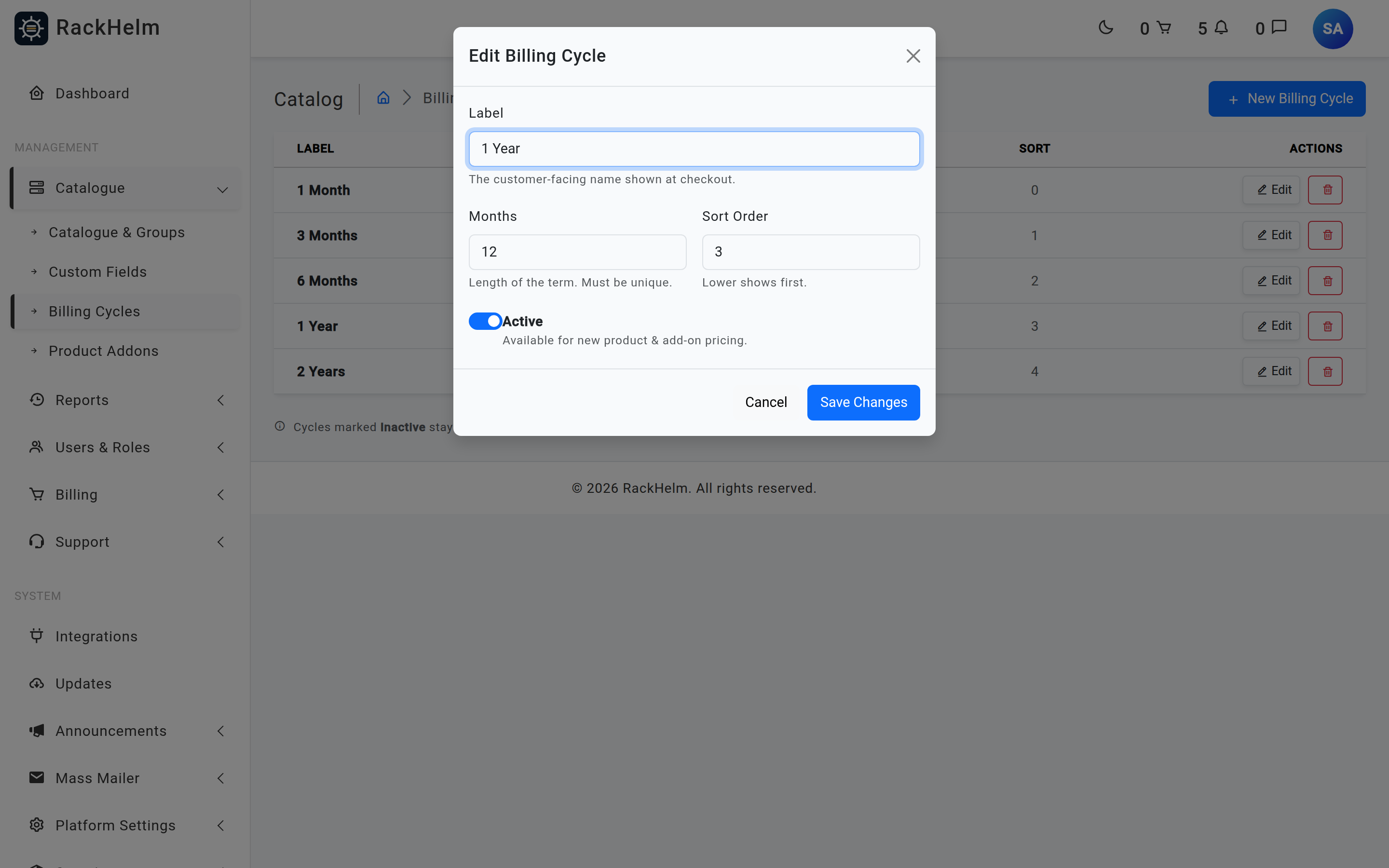
| Field | Rules and effect |
|---|---|
| Label | Required, up to 255 characters. This is what customers see at checkout and in the cycle selector, so write it the way you want it read — “Annually”, “1 Year”, “Every 3 months”. |
| Months | Required whole number, minimum 1, and unique — you cannot have two cycles of the same length. This drives renewal scheduling and the savings calculator, so it must be the real term, not a label. |
| Sort Order | Optional integer, minimum 0, defaults to 0. Lower numbers appear first in the Billing Cycles list, the product editor’s pricing table and the customer’s cycle selector. The add-on pricing grid ignores it and orders its columns by term length instead. |
| Active | Defaults to on for a new cycle. See below for exactly what it gates. |
Note: Because Months has a minimum of 1, you cannot create a genuine one-off (zero-month) cycle through this form, even though the list will render one correctly if it exists in the database. Model one-off charges as a product with a base price and no billing cycle instead — but be aware that add-ons can only be priced against a cycle, so a one-off product cannot carry priced add-ons.
What Active actually controls #
The Active flag is a soft retirement switch, not a kill switch:
- Inactive cycles are excluded from the add-on editor’s pricing grid, so you cannot add new add-on pricing against them.
- Inactive cycles still appear in the product editor’s billing-cycle table, so an existing product’s pricing for that cycle stays visible and editable.
- Existing orders and invoices already on the cycle are unaffected — nothing is re-priced or migrated.
The screen states this in its own words at the foot of the table: cycles marked Inactive stay on existing orders but are hidden from new product and add-on pricing.
Deleting a cycle #
There is no protective check. Deleting a cycle removes it immediately. Add-on option prices for that cycle are cascade-deleted by the database; the product price rows have no foreign key, so they survive as orphans pointing at a cycle that no longer exists — invisible in the product editor and unusable at checkout, which amounts to the same loss. The confirmation dialog tells you how many products are affected before you commit:
Warning: Deleting a cycle that is in use permanently loses the pricing for every product and every add-on option priced against it. There is no undo. If your intent is “stop selling this term”, set it Inactive and clear its prices from the products instead.
Choosing a sensible set #
A cycle is cheap to add but disruptive to remove, so decide the shape up front. A common hosting set:
| Label | Months | Sort Order |
|---|---|---|
| Monthly | 1 | 0 |
| Quarterly | 3 | 1 |
| Semi-Annually | 6 | 2 |
| Annually | 12 | 3 |
| Biennially | 24 | 4 |
Domain products usually need 1, 2, 3, 5 and 10 years — that is 12, 24, 36, 60 and 120 months, each as its own cycle.
Tip: Turn on Show Cycle Savings on a product group once you have more than one cycle priced. The order page then works out and displays the saving of each longer term against the shortest priced term of a month or more.
Troubleshooting #
| Symptom | Cause and fix |
|---|---|
| “The months has already been taken.” | Another cycle already uses that term length. Terms are unique — edit the existing cycle’s label rather than creating a duplicate. |
| The Billing Cycles link is missing from the sidebar. | It is shown under the manage_products key, which has no permission record and so cannot be granted from the Roles screen — only Super Admin sees it. Navigate to /admin/billing-cycles directly. |
| A new cycle does not appear in an add-on’s pricing grid. | The add-on editor lists active cycles only. Reopen the cycle and switch Active on. |
| Prices vanished from several products after a delete. | Their price rows still point at the deleted cycle, so nothing can resolve them. Restore from a database backup — the application has no undo for this. |
| Cycles appear in the wrong order at checkout. | The customer’s cycle selector orders purely by Sort Order. Give each cycle a distinct sort order. |
| An add-on cannot be priced at all. | Add-on prices are stored per cycle and the cycle reference is mandatory, so an order with no billing cycle has nothing for its add-ons to price against. Sell add-ons only alongside products that use a billing cycle. |


