General & System is the screen that tells RackHelm who you are. Your trading name, contact address and company registration details are read from here by invoices, legal pages, outgoing email and the public store, so it is normally the first screen you complete after installing. It is an operator-only screen.
Before you start #
Note: The page is gated by the
edit_company_settingspermission. The sidebar link itself is wrapped in amanage_settingscheck — a key that does not exist in RackHelm’s permission list — so in practice only a Super Admin sees the menu entry. See Roles & Permissions.
Open Platform Settings → General & System, or go straight to /admin/company-settings/general. Everything on the page saves with the single Save General Settings button at the bottom.
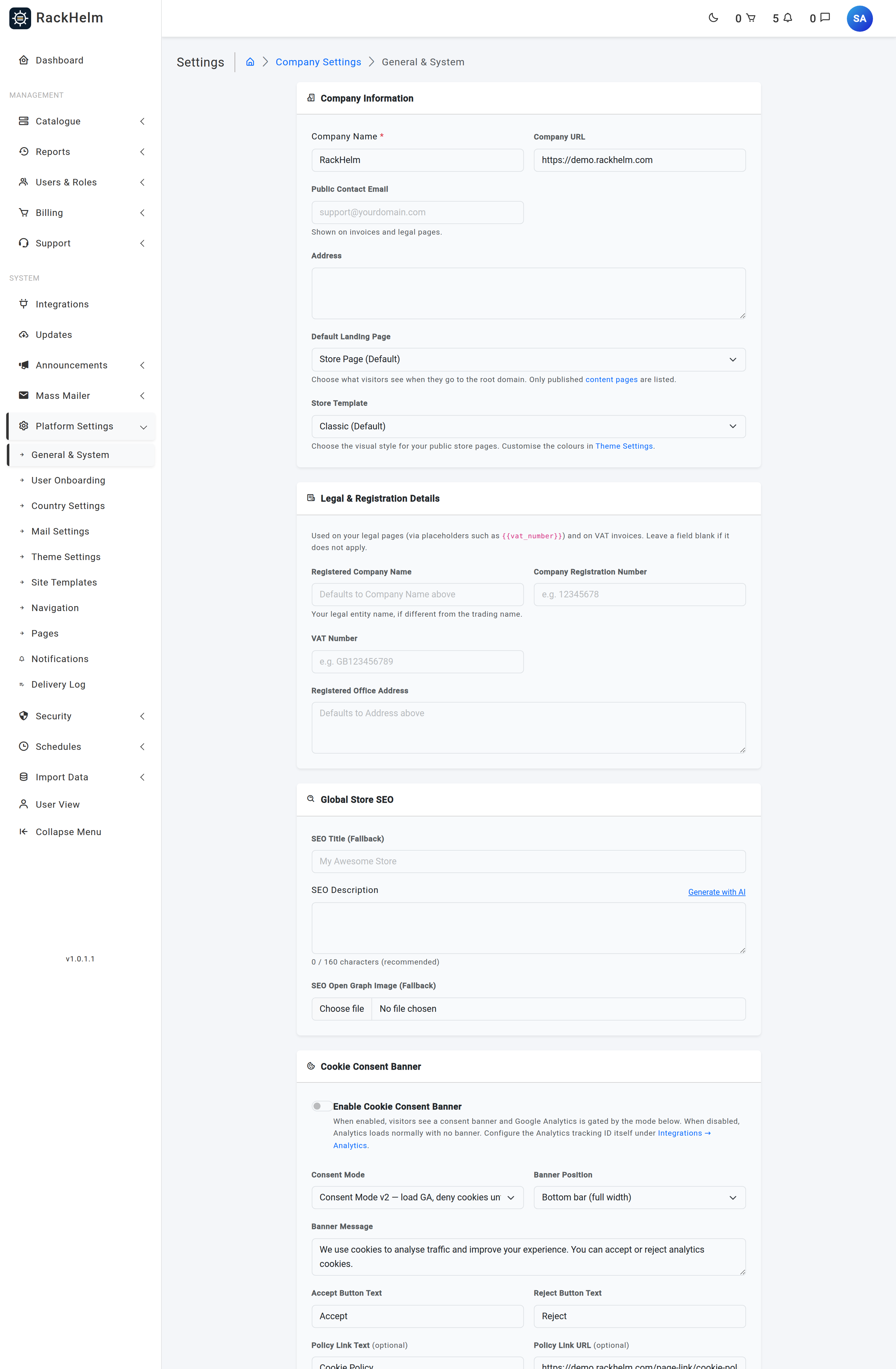
Company information #
These four fields are the ones most of the rest of the platform reads.
| Field | What it does |
|---|---|
| Company Name | Your trading name. It becomes the application name everywhere, including the browser title, and it is the From name on every outgoing email. |
| Company URL | The canonical address of the portal. Must be a valid URL. It is used to build links in emails and to pin the trusted host, so it must match the address customers actually use. |
| Public Contact Email | Shown on invoices and legal pages. Must be a valid address, up to 255 characters. |
| Address | Your trading address, free text over several lines. |
Warning: Changing Company URL changes the host RackHelm trusts and the root URL used to build password-reset and verification links. Set it to the exact public address of the portal, including
https://, and change it only when the portal genuinely moves.
Default landing page #
Default Landing Page decides what a visitor sees at the root of your domain. The choices are the store, or any published content page — drafts are deliberately not offered because they would be rejected at request time.
The switch underneath, Show this page at / without redirecting, controls how that page is served:
- Off —
/redirects the visitor to the page’s own URL. - On — the page is rendered at
/and the address bar stays there. The page’s own URL keeps working and points search engines back at/.
Store Template picks the visual style of the public store: Classic (Default), Modern Dark or Modern Clean. The colours for the two modern templates are edited on the theme screen — see Theme and Branding.
Legal & registration details #
These are the fields that go on VAT invoices and into your legal pages. Leave any of them blank if it does not apply to your business.
| Field | What it does |
|---|---|
| Registered Company Name | Your legal entity name where it differs from the trading name. Falls back to Company Name when blank. Max 255 characters. |
| Company Registration Number | Companies House (or equivalent) number. Max 50 characters. |
| VAT Number | Your VAT registration number. Max 50 characters. |
| Registered Office Address | The registered address, where it differs from the trading address. Falls back to Address when blank. |
These values fill the {{token}} placeholders on content pages #
Content pages — the seeded legal templates in particular — are written brand-agnostic and carry placeholders that RackHelm substitutes when the page is rendered. That is why the templates never need editing when your company details change: you change them here, once.
| Placeholder | Filled from |
|---|---|
{{company_name}} / {{site_name}} |
Company Name |
{{company_registered_name}} |
Registered Company Name, falling back to Company Name |
{{company_number}} |
Company Registration Number |
{{vat_number}} |
VAT Number |
{{company_address}} |
Address |
{{company_registered_address}} |
Registered Office Address, falling back to Address |
{{company_email}} |
Public Contact Email |
{{company_url}} |
Company URL |
{{last_updated}} / {{effective_date}} |
The page’s own last-modified date |
Both spacings are accepted, so {{ vat_number }} works as well as {{vat_number}}. If a detail is not set, the page shows a red [Vat Number]-style marker rather than a broken raw token — that marker is your cue to come back to this screen.
Global store SEO #
Fallback metadata for store pages that do not define their own. SEO Title (Fallback) is capped at 255 characters, SEO Description is free text with an on-screen counter recommending 160 characters, and SEO Open Graph Image (Fallback) accepts a JPEG, PNG, GIF or WebP image up to 2 MB.
Cookie consent banner #
The banner lives here rather than with the analytics integration because it governs the whole site’s cookie policy — though what it actually gates is Google Analytics. Enable it with Enable Cookie Consent Banner, then choose a Consent Mode:
| Mode | Behaviour |
|---|---|
| Consent Mode v2 | Loads Analytics but denies cookies until the visitor accepts. The recommended setting. |
| Hard block | Does not load Analytics at all until the visitor accepts. |
| Opt-out | Tracks by default and offers an opt-out. Not EU/UK compliant. |
Banner Position is a full-width bottom bar or a box in the bottom left or bottom right. The message is capped at 500 characters; the accept, reject and policy-link labels at 50 each; the policy link must be a valid URL. Six colour pickers under Appearance set the banner background and text, and the two button backgrounds and their text colours.
With the banner disabled, Analytics loads normally and no banner is shown. The tracking ID itself is configured under Integrations → Analytics.
System & security #
| Field | What it does |
|---|---|
| Maintenance Mode (Disable Non-Staff Logins) | Blocks logins for everyone who is not staff. Staff accounts continue to sign in normally, so you never lock yourself out. |
| Maintenance Message | The message a blocked customer sees. Left blank, RackHelm uses “Login for users is currently disabled due to server maintenance”. |
| Enable Reviews Module | Turns the customer reviews dashboard and widget on or off for every client, and controls whether the reviews navigation item appears. |
| External IP | The outbound IP of this server. Registrar integrations that require an IP allowlist (eNom, Namecheap) read it from here. |
| Trusted Proxies | Comma-separated IPs or CIDR ranges of your reverse proxies. Blank means trust nothing. |
| Application Error Notification Email(s) | Comma-separated addresses that receive system error alerts and failed-job notifications. The built-in notification subscriptions point their audience at this key, so editing it here redirects everything they cover. |
Warning: Only fill Trusted Proxies in if the portal really does sit behind a reverse proxy, and list only that proxy. Once an address is trusted, anything arriving from it controls the client IP RackHelm records for login throttling, audit logs and fraud screening.
Troubleshooting #
| Symptom | Cause and fix |
|---|---|
| Saving rejects a trusted proxy entry as “not a valid proxy” | Each entry must be a literal IP address, or a CIDR range with a prefix of at least 8. Wildcards, 0.0.0.0/0 and the keywords REMOTE_ADDR, PRIVATE_SUBNETS and private_ranges are all refused. The on-screen hint that mentions * is out of date — the validator will not accept it. |
| “Choose the store, or a published content page.” | The page you picked is no longer published. Publish it under Platform Settings → Pages, or choose another landing target. |
Legal pages show red [Company Number] markers |
That detail is blank. Fill in the matching field under Legal & Registration Details. |
| Emails still show the old company name | The From name comes from Company Name, not from the mail screen. Check you saved this page, and see Mail Settings and the Email Log. |
| Customers report being logged out or unable to sign in | Check whether Maintenance Mode is still on. Staff logins are unaffected by it, so it is easy to leave switched on by accident. |
| The Open Graph image upload fails | The file must be a JPEG, PNG, GIF or WebP and no larger than 2 MB. |


