A product group is the folder your products live in, and it is also the page customers land on in the store. Groups decide how a set of products is presented — as a pricing grid or as a domain search box — they carry the icon on the group’s store card, and they hold settings that every product inside them inherits. This article is for operators working in the admin area.
Before you start #
Note: Viewing the catalogue requires
view_products. The create, edit and delete routes sit behindedit_products, andProductGroupControllerthen checks astaff_panelcapability that has no permission record at all — it is not aPermissionEnumcase, so it is never seeded and cannot be ticked on the Roles screen. In a default install only Super Admin can save a group. See Roles & Permissions.
Where groups live #
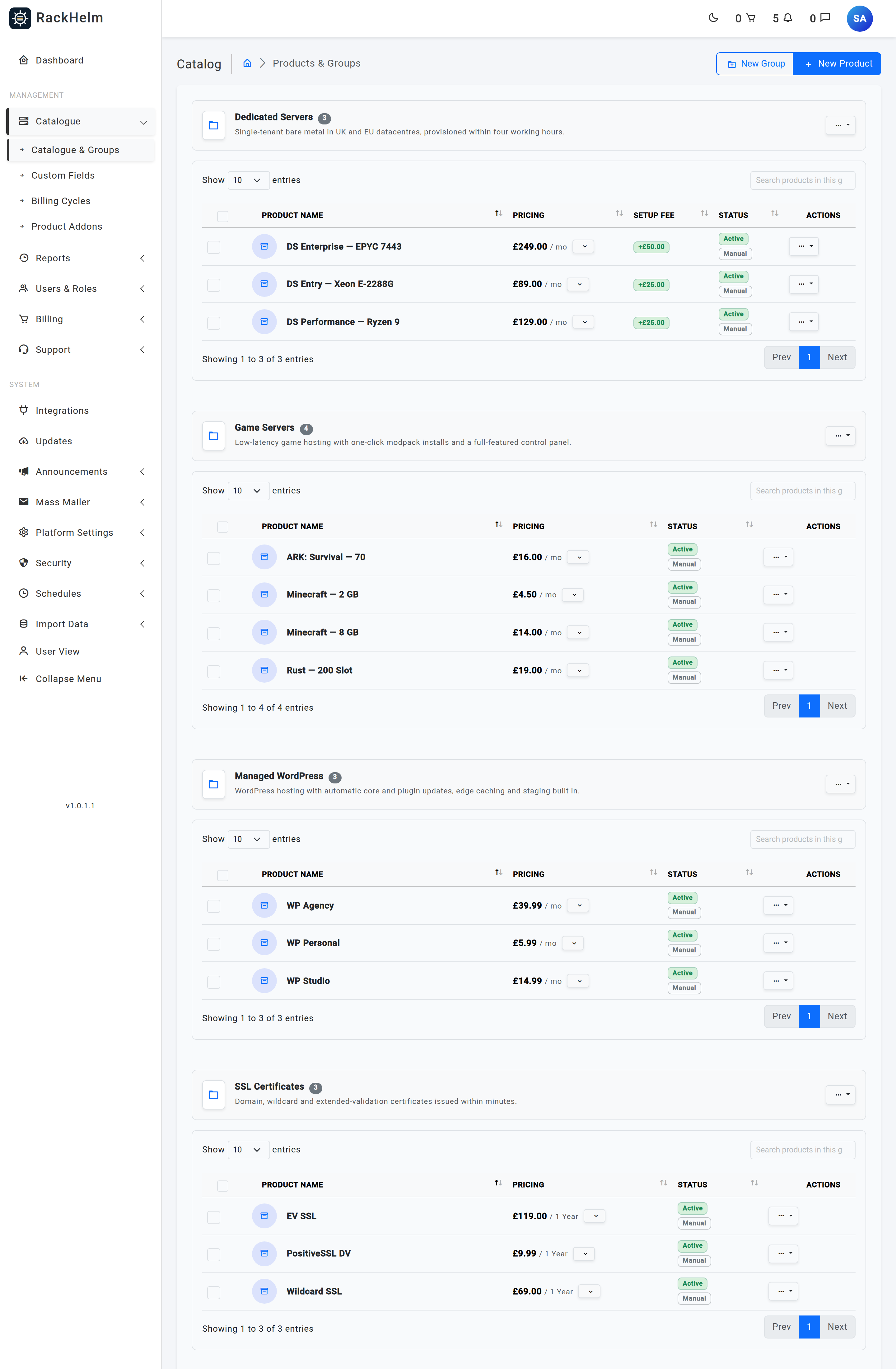
Groups are not a separate screen. Open Catalogue → Catalogue & Groups (/admin/products) and you get one panel per group, each with its own product table, plus a final Uncategorized Products panel for anything with no group. Creating and editing a group both happen in a modal on this page, opened with the New Group button in the top right or Edit Group in a group’s ⋯ menu.
Note: A group literally named
Systemis filtered out of this screen and cannot be used as a bulk-move destination. It is created at install with Include in Store off and holds internal products such as Credit Deposit. The breadcrumb on this page reads Catalog / Products & Groups while the sidebar entry reads Catalogue & Groups; they are the same screen.
Creating a group #
- Open Catalogue → Catalogue & Groups.
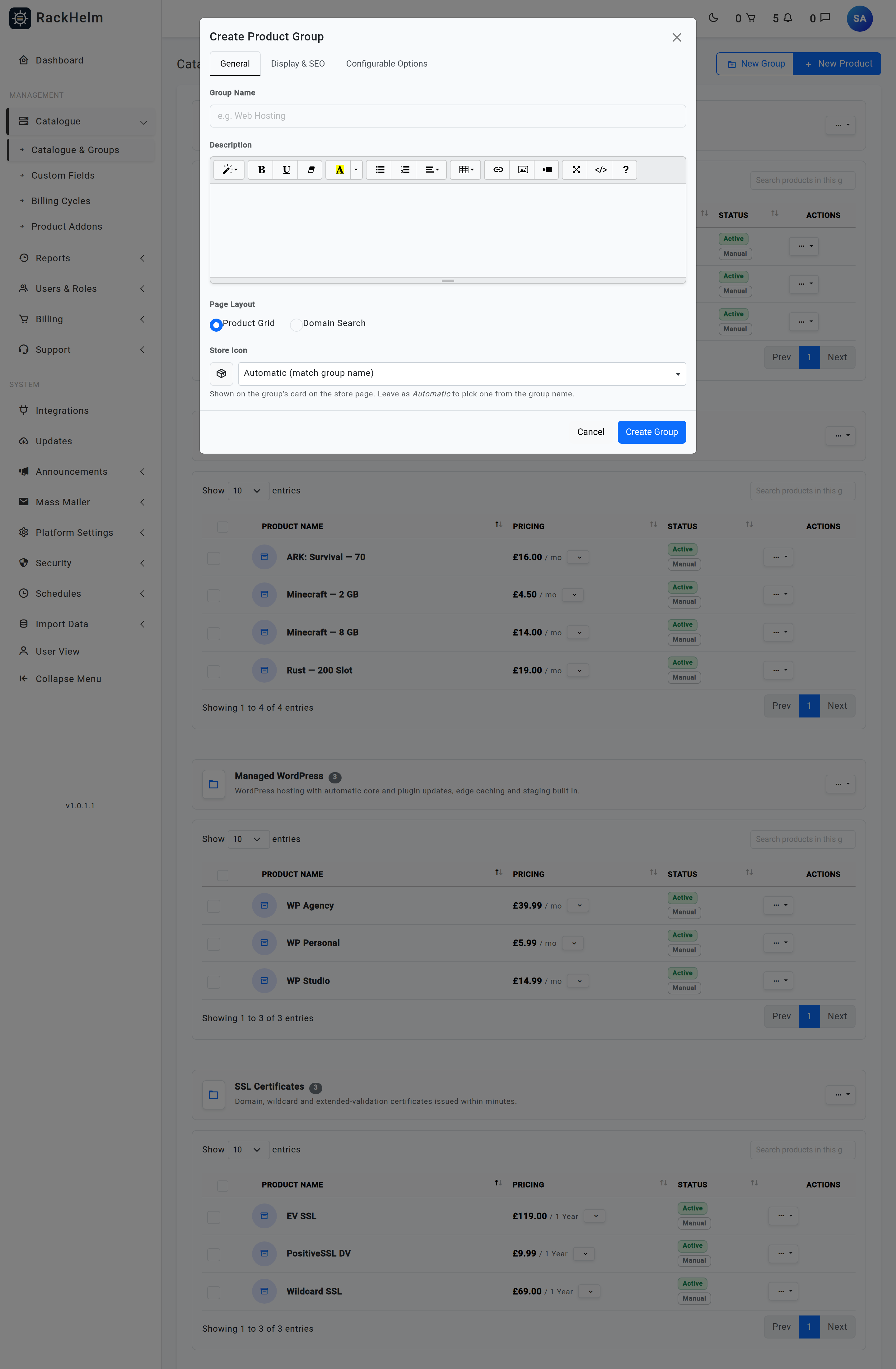
- Click New Group. The modal has three tabs: General, Display & SEO and Configurable Options. It always reopens on General.
- Give the group a Group Name and, optionally, a Description (a rich-text editor — the HTML is sanitised on save).
- Choose a Page Layout: Product Grid or Domain Search.
- Pick a Store Icon, or leave it on Automatic (match group name).
- On Display & SEO, set the sort order, the visibility switches and any search-engine metadata.
- On Configurable Options, tick any custom fields every product in the group should ask for. See Configurable Options.
- Click Create Group. You are returned to the catalogue list with “Product group “…” created.”
The Store Icon #
The Store Icon field on the General tab sets the glyph on the group’s card on /store. It is a searchable picker over the same Boxicons catalogue the navigation editor uses, with a live preview swatch to the left of the field. The help text reads: “Shown on the group’s card on the store page. Leave as Automatic to pick one from the group name.”
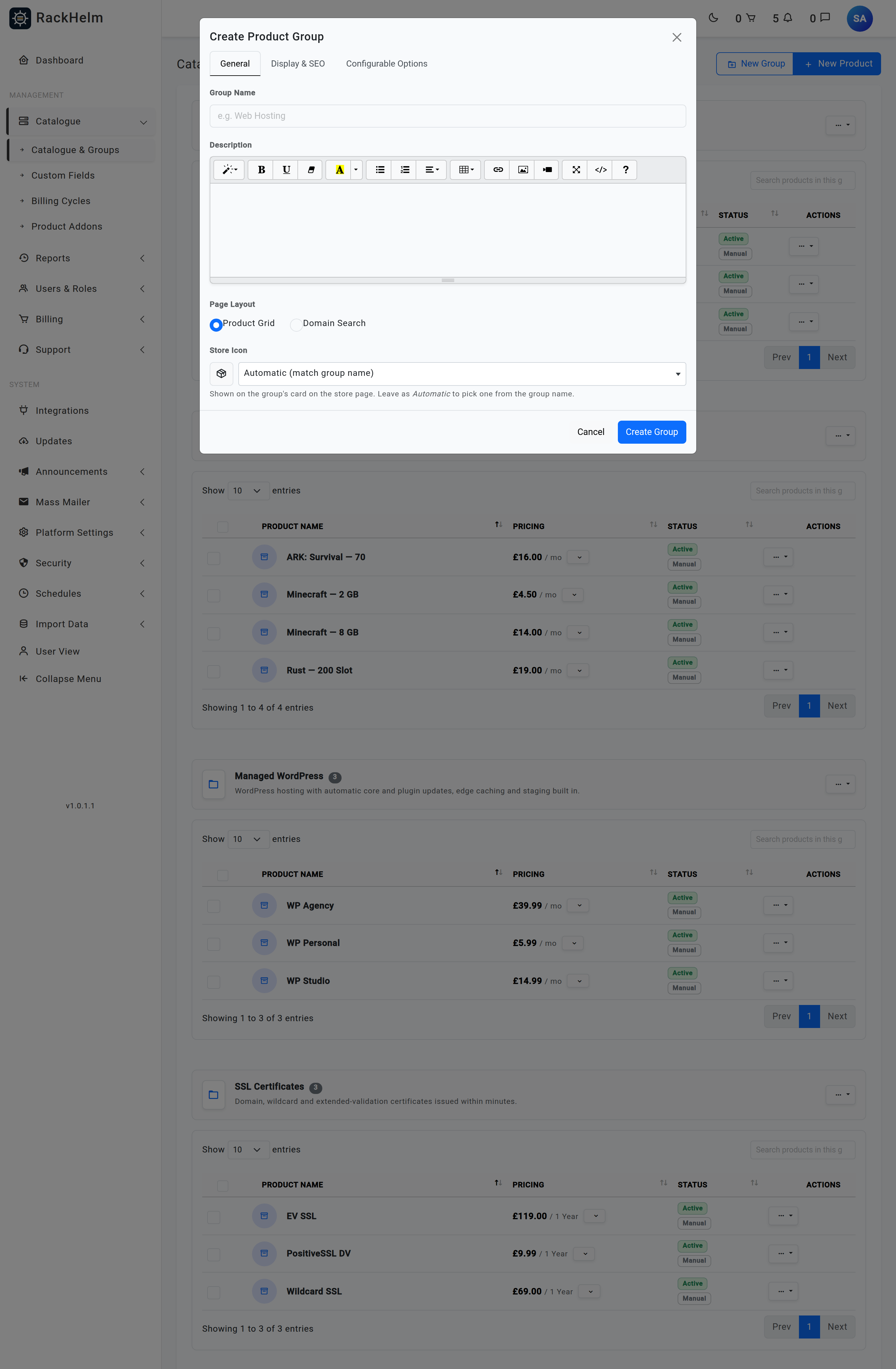
Left on Automatic (match group name), the icon is matched against the group’s name, first fragment wins:
| If the group name contains… | Icon used |
|---|---|
| domain | bx bx-globe |
| ssl, certificate | bx bx-lock-alt |
| security | bx bx-shield-quarter |
| email, mail | bx bx-envelope |
| reseller | bx bx-store-alt |
| dedicated | bx bx-hdd |
| vps | bx bx-chip |
| cloud | bx bx-cloud |
| game, minecraft | bx bx-joystick |
| backup | bx bx-data |
| licen (licence / license) | bx bx-key |
| web, hosting, server | bx bx-server |
| anything else | bx bx-package |
The list is longer than this — seo, marketing, design, develop, website, support and maintenance all have their own defaults — but the shape is the same: the first fragment found in the name wins, so Dedicated Servers gets the hard-disk icon rather than the generic server one.
Warning: The store card only has a slot for the icon on the Modern Dark and Modern Clean store templates. On Classic (Default) the cards carry no icon at all, so picking one changes nothing a customer can see. The template is chosen under Platform Settings → General & System → Store Template. Choosing an icon while the store is on Classic is not an error and nothing warns you.
Note: The icon lands in a
classattribute, so it is restricted to letters, digits, spaces, underscores and hyphens, up to 100 characters. A value outside that set is discarded on save and the group silently reverts to Automatic. The icon also does not change the admin catalogue: the group header on Catalogue & Groups keeps a fixed folder glyph either way.
Page Layout: Product Grid vs Domain Search #
This is the single most consequential setting on a group, because it changes the customer-facing page completely.
| Layout | Stored as | What the customer sees at /store/{group} |
|---|---|---|
| Product Grid | show_type = 0 |
A row of pricing cards, one per product with Include in Store on. Products with Highlight Product set get a “Most Popular” badge. |
| Domain Search | show_type = 1 |
A “Search for your new domain” box that queries the registrar products in this group and returns availability and pricing, each result badged Available or Taken. |
Domain Search also changes how configurable options behave: in a Domain Search group every assigned custom field is offered on the order page, regardless of its per-assignment Show on Order Page switch. That is what keeps the DomainName field visible.
Currency badges on the group page #
Since multi-currency pricing arrived in 1.0.1.1, a product that is not sold in the currency the visitor is browsing in still appears on the group page, but with its price shown in the first currency it is sold in and a badge in place of the order button:
- Sold in USD only (with the relevant code) — plus a Shop in USD button that switches the visitor’s currency, where they are allowed to switch.
- A customer who cannot switch because their account holds credit sees “Your account holds credit in GBP; contact support to switch.” instead of the button.
- Not currently available — the product has no price in any active currency.
These are product settings, not group settings; the group page is simply where they surface. A single-currency store shows none of this.
How groups drive store URLs #
Groups and products are addressed by their internal UUIDs, not by a text slug:
| URL | Shows |
|---|---|
/store |
Every group with Include in Store on, ordered by Group Sort Order. A group containing exactly one visible product shows that product’s name and description and links straight to it instead of to the group page. |
/store/{group} |
The group page in the layout chosen above. |
/order/{group}/{product} |
The order/configuration page for one product. This is the link the product editor’s Direct Link to Product box gives you. |
Two switches control who can reach these:
- Include in Store — the group appears on
/store. - Allow Direct Link — the group page can still be reached by its URL even when it is not listed.
With both switches off, /store/{group} returns a 404. Turning either one on makes the group page reachable; only Include in Store also lists it on /store. Use “hidden but linkable” for a group you want to send to a specific customer without publishing it.
Group settings reference #
| Field | What it does |
|---|---|
| Group Name | Required. Shown as the store page heading and as the panel title in the admin catalogue. Also what Automatic matches the store icon against. |
| Description | Rich text, shown under the heading on the group’s store page. Sanitised on save, and shown tag-free (140 characters) in the admin panel header. |
| Page Layout | Required. Product Grid or Domain Search — see above. |
| Store Icon | Boxicons class for the group’s card on /store. Automatic (match group name) by default. Modern Dark and Modern Clean templates only. |
| Group Sort Order | Integer, default 0. Lower numbers appear first on /store. |
| Include in Store | Default on. Lists the group on /store. |
| Allow Direct Link | Default on. Lets the group page be opened by URL when it is not listed. |
| Show Cycle Savings | Default off. On a product’s order page, works out and shows how much a longer billing cycle saves against the shortest priced cycle with a term of at least one month. The create modal labels it Show Cycle Savings Calculator and the edit modal Show Cycle Savings; it is the same setting. |
| SEO Title | Up to 255 characters. Overrides the page title on the group’s store page. |
| SEO Description | Meta description. The counter targets 160 characters; a Generate with AI button can draft one from the group name and description. |
| SEO Image (Open Graph) | JPEG, PNG, GIF or WebP, maximum 2 MB. Used as the social preview image. Leave blank when editing to keep the existing image. |
| Configurable Options | Custom fields inherited by every product in the group, each with its own Show on Order Page, Show in Admin and User Changeable switches. |
Group-level actions #
The ⋯ menu on a group header gives you:
- Add Product — opens the product editor with this group pre-selected.
- Mass Assign Addons — attach or detach one add-on across every product in the group in a single operation. Assigning skips products that already have it; unassigning ignores products that do not. An empty group answers “There are no products in this group to modify.”
- Edit Group — reopens the tabbed modal against this group.
- Delete Group — see the warning below.
Ticking product rows inside a group reveals a bulk bar with Move and Delete. Move sends the ticked products to another group or to — Uncategorized —; only rows ticked on the page you are looking at are affected.
Troubleshooting #
| Symptom | Cause and fix |
|---|---|
| The delete confirmation says products will be uncategorised, but deleting fails. | The confirmation text — “Delete this group? Products inside will be uncategorized.” — is out of step with the actual rule. A group that still contains any product is refused with “You can’t delete this group because it still contains products. Move or delete them first.”, and a group whose products belong to an order in paid, active or processing status is refused first with “You can’t delete this group because N product(s) in it are assigned to active customers. Move/archive those products first.” Move the products to another group, then delete. |
Opening /admin/product-groups gives a server error. |
Those routes have no views. Manage groups from the modals on Catalogue & Groups. |
| The store icon I picked does not appear. | The store is on the Classic (Default) template, which has no icon slot. Switch to Modern Dark or Modern Clean under General & System → Store Template, or accept that the icon is inert. |
| The store icon reverted to the automatic one after saving. | The value contained a character outside A–Z a–z 0–9, space, underscore and hyphen and was discarded. Pick from the drop-down rather than pasting a class. |
| The icon picker’s search box will not accept typing. | Reload the page. The picker is a select2 inside a Bootstrap modal; if the page’s scripts loaded out of order the modal’s focus trap can swallow the search field. |
A group is missing from /store. |
Include in Store is off. That is the only test /store applies to groups — a group with no visible products still gets a card, and the reserved System group is hidden because it ships with Include in Store off. |
/store/{group} returns 404. |
Both Include in Store and Allow Direct Link are off. Turn one on. |
| The Domain Search box returns nothing. | A Domain Search group only works when it contains products wired to a registrar integration. Check the product’s Provisioning tab. |
| Saving a group gives a 403. | The group controller checks a staff_panel capability that has no permission record, so it cannot be granted from the Roles screen and only Super Admin passes it. Sign in as a Super Admin. |
| Products in a group show “Sold in USD only” instead of an order button. | Those products are limited to currencies that do not include the one the visitor is browsing in. Fix it on the product, under its currency pricing, not on the group. |
| The savings figures do not appear on the order page. | Show Cycle Savings is a group setting, not a product one, and it needs at least two priced cycles with a term of one month or more to compare. |


