A payment gateway is the connection between RackHelm and the company that actually moves the money. RackHelm ships drivers for five: Stripe, PayPal, Square, Authorize.net and Bank Transfer. This article is the overview: the gateway list, adding a gateway, the two settings that apply to every gateway (the name customers see and who may use it), how test and live mode behave, where the payment webhook lives, and how to remove one. The credential-by-credential detail for each card and wallet provider lives in its own article, linked below. It is written for operators.
Before you start #
- The screen is Billing → Payment Gateways (
/admin/payment-gateways). The routes sit inside theedit_company_settingsgroup and the controller adds astaff_panelcheck, which is not a seeded permission — in a default install that means only a Super Admin can open it. The sidebar link itself is shown undermanage_settings. - Have your gateway credentials to hand before you start. They are stored encrypted, and the forms deliberately never show a stored secret back to you.
- Only these five providers exist. There is no plugin mechanism for adding a sixth without code.
The gateway list #
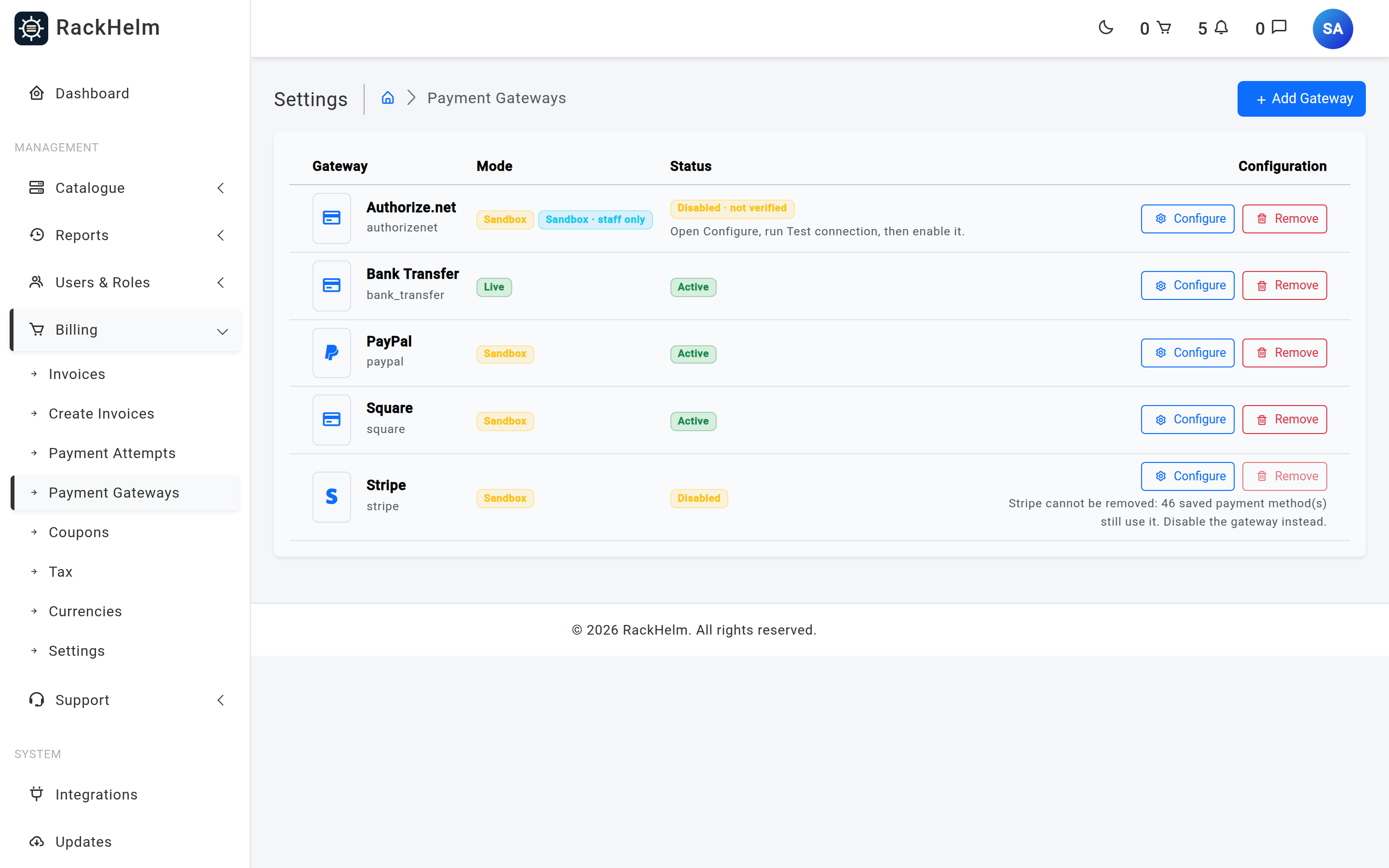
Each configured gateway is one row, showing:
| Column | What it shows |
|---|---|
| Gateway | The provider’s name and the internal slug (stripe, paypal, square, bank_transfer, authorizenet). The slug is what appears on orders and invoices. If you have given the gateway a customer-facing name, a second line reads Customers see “…”. |
| Mode | Sandbox or Live. A gateway that customers are not offered also carries a Staff only badge (an Authorize.net row in sandbox reads Sandbox · staff only). |
| Status | Active, Disabled, or — for Authorize.net before its first passing connection test — Disabled · not verified with the line “Open Configure, run Test connection, then enable it.” |
| Configuration | Configure opens the settings dialog; Remove deletes the gateway after a confirmation. Remove is greyed out, with the reason printed beside it, when the gateway cannot safely be deleted — see Removing a gateway. |
Add a gateway #
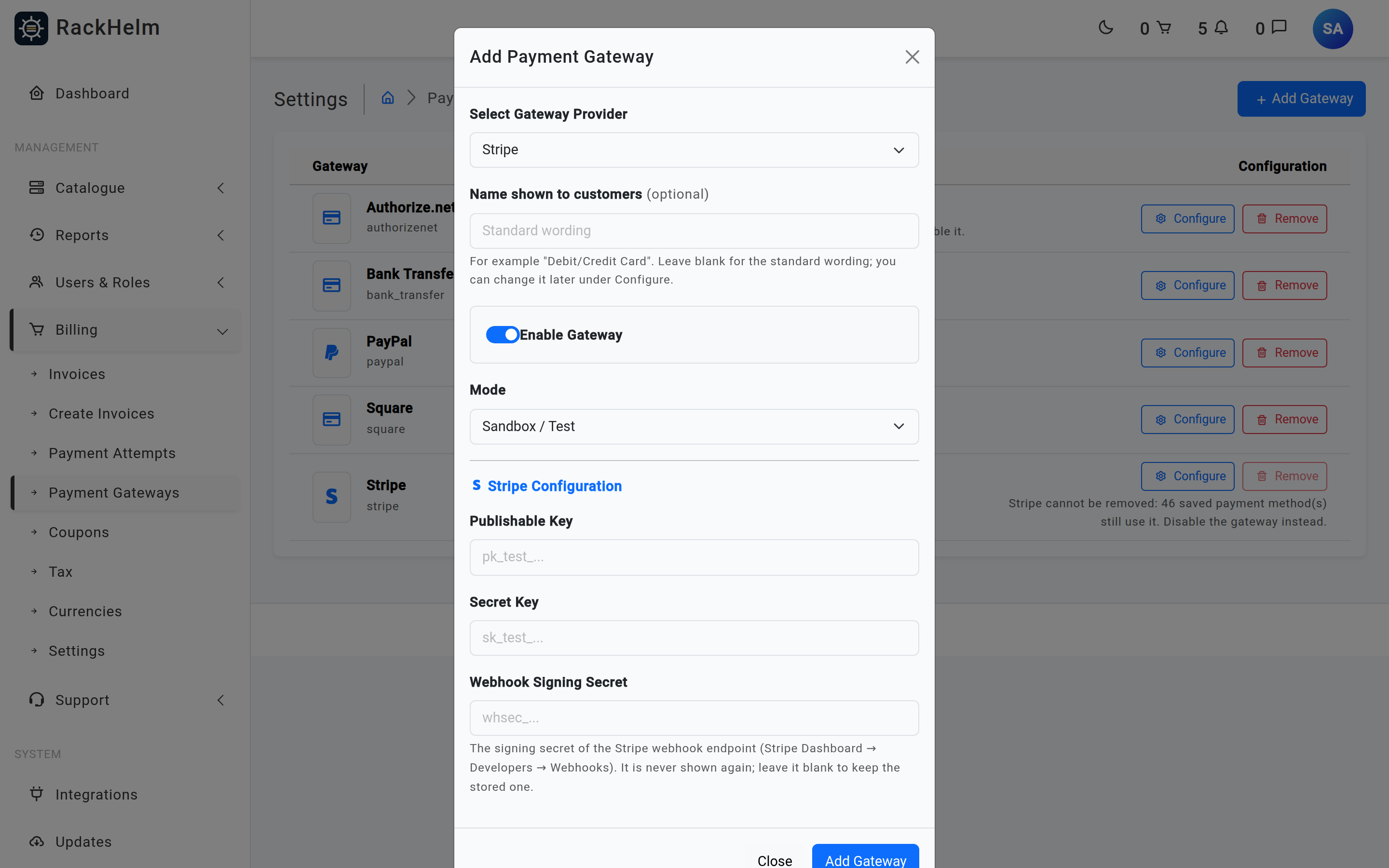
- Select Add Gateway.
- Choose the provider under Select Gateway Provider. The credential fields for that provider appear and the save button unlocks.
- Optionally fill in Name shown to customers — see The name customers see. Leave it blank for the standard wording.
- Leave Enable Gateway ticked to make it available immediately, or untick it to configure it quietly first.
- Set Mode to Sandbox / Test or Live / Production. The mode you choose here is the mode that is stored.
- Fill in the credentials and select Add Gateway.
Note: Each provider can only be added once — the slug is unique. All five always appear in the dropdown, but adding one that already has a row is rejected by validation; use Configure on the existing row instead.
Warning: Enable Gateway is ignored for Authorize.net. That gateway is always created switched off, and the confirmation says so: “It is switched off: run Test connection, then enable it from Configure.” Its credentials are verified against Authorize.net before the row can go active.
The name customers see #
Every gateway has a Name shown to customers field, on the Add dialog and again under Configure. It is at most 60 characters and it changes nothing but wording: the checkout tab and the label on a saved payment method. Staff pages — the gateway list, orders, invoices, reports — keep the provider’s own name and the slug.
The obvious use is Stripe, whose checkout tab reads Credit Card out of the box. Setting the display name to “Debit/Credit Card” renames that tab without touching anything else. Leave the field blank and each page falls back to its own standard wording, exactly as before.
Note: The name is per gateway, not per page. If you run two card gateways — Stripe and Authorize.net, say — give them names customers can tell apart, or the checkout shows two tabs with the same word on them.
Who may use it #
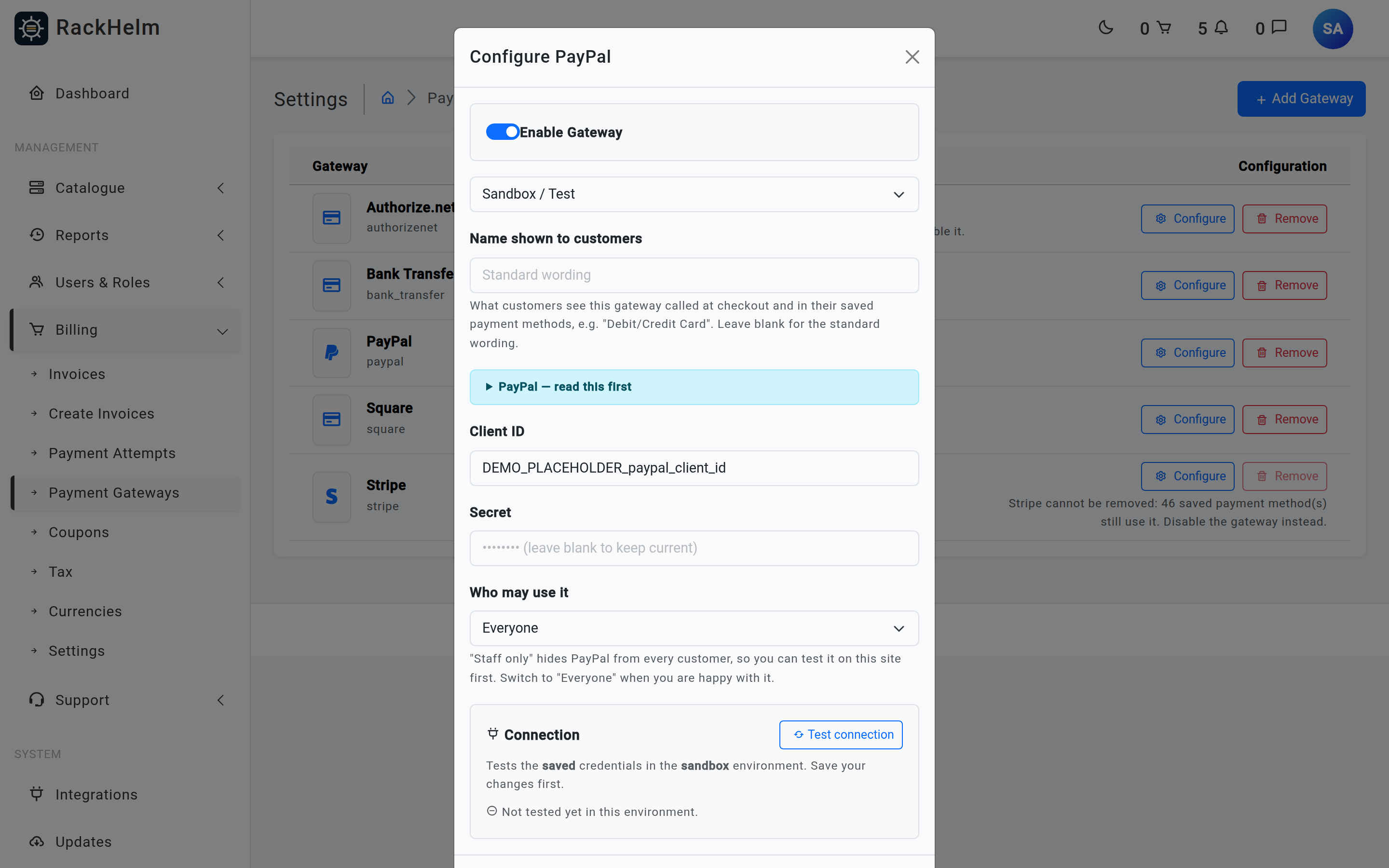
PayPal, Square and Authorize.net each carry a Who may use it setting inside Configure, with two values:
- Everyone — the gateway is offered to customers as normal.
- Staff only — the gateway is hidden from every customer. Staff accounts still see it, so you can put a real payment through it on the live site before anyone else can. The list shows a Staff only badge on the row.
The gate is applied to the payer — the account the money comes from — not to whoever clicks the button. It hides the checkout tab, refuses the gateway if it is posted anyway, and withholds saved payment methods that belong to it, so a restricted gateway never leaves a customer looking at a saved card with nothing behind it.
Orders paid through a staff-restricted gateway are treated as tests: they are excluded from the income figures.
Warning: A PayPal or Square gateway added from the Add dialog is stored as Staff only. It is fully configured, it shows as Active, and customers still cannot see it. Nothing prompts you later — open Configure and set Who may use it to Everyone when you are ready to sell through it.
Note: Stripe and Bank Transfer have no such control on their forms; they are offered to everyone whenever they are active. Authorize.net is restricted in a stronger way: while it is in sandbox it is staff-only whatever you choose, and only staff accounts a Super Admin has explicitly enrolled as sandbox testers may pay through it.
Per-gateway setup #
Stripe #
| Field | Value |
|---|---|
| Publishable Key | Your pk_test_… or pk_live_… key. Sent to the browser, so it is not a secret. |
| Secret Key | Your sk_test_… or sk_live_… key. Stored encrypted and never rendered back into the form; leave it blank to keep the existing one. |
| Webhook Signing Secret | The whsec_… signing secret of your Stripe webhook endpoint (Stripe Dashboard → Developers → Webhooks). The label carries a configured or not configured badge so you can see at a glance whether one is stored. Never shown again; leave it blank to keep the stored one. |
Stripe’s setup has enough moving parts to deserve its own article: see Stripe setup.
PayPal #
| Field | Value |
|---|---|
| Client ID | The REST app client id from the PayPal Developer Dashboard (Apps & Credentials). Published to the checkout page for the PayPal JavaScript SDK. |
| Secret | The matching secret. Stored encrypted; blank keeps the current value. |
| Who may use it | Staff only or Everyone — see above. A new PayPal gateway starts Staff only. |
Customers can always pay with PayPal, but a PayPal account can only be kept for automatic renewals when the REST app has the Save payment methods (vaulting) feature switched on; in live mode PayPal has to approve that for your business account. PayPal is also only offered on orders and invoices in a currency PayPal supports, and your PayPal account must be set to accept that currency. Full setup, including the vaulting and currency checks, is in PayPal setup.
Square #
| Field | Value |
|---|---|
| Application ID | Your application id from the Square Developer Dashboard. Published to the checkout page for the Square Web Payments SDK. A sandbox Application ID starts with sandbox-. |
| Access Token | The API access token. Stored encrypted; blank keeps the current value. |
| Location ID | The Square location payments are attributed to. Required — Square charges fail without it. |
| Who may use it | Staff only or Everyone — see above. A new Square gateway starts Staff only. |
A Square location takes payments in its own currency only, so Square is offered only on orders and invoices in that currency. Test connection reads the location’s currency and records it; until it has run, the store’s base currency is assumed. Full setup is in Square setup.
Authorize.net #
Authorize.net is a card gateway in beta, for US and Canadian merchants. It has more setup than any other gateway here — an API Login ID, a Transaction Key, an optional Signature Key, a Public Client Key, a single processing currency, a mandatory connection test before it can be enabled, and two Super-Admin-only sandbox hygiene actions. All of it is in Authorize.net setup. Do not enable it from this page without reading that article first.
Bank Transfer #
Bank Transfer is a manual gateway: nothing is ever pulled automatically. Its configuration is only the text and account details printed on the invoice.
| Field | What it does |
|---|---|
| Message Header | Free text shown above the bank details. |
| Account Name | The account the customer should pay. |
| Account Number | The account number. |
| Account Sort Code | The sort code (stored internally as routing_code). |
| Message Footer | Free text shown below the bank details — a good place for “please quote your invoice number”. |
When a customer’s default method is Bank Transfer, the automatic charge run does not attempt a charge. Instead it sets the invoice to unpaid, emails the customer asking them to pay manually, and raises an operator alert titled “Bank transfer awaiting confirmation: Invoice #…”. You settle it later with Mark as Paid — see Recording payments, refunds and marking paid.
Test connection #
PayPal, Square and Authorize.net each have a Connection panel inside Configure with a Test connection button. It tests the saved credentials in the gateway’s current mode, so save your changes first — nothing you have typed into the form is sent by it.
- PayPal — checks the credentials and reports whether the app may keep PayPal accounts for renewals. A pass reads “Save payment methods is on”; a fail reads “Save payment methods is off: customers can pay with PayPal, but cannot keep PayPal for automatic renewals.”
- Square — checks the credentials and the location, and records the location’s currency, country and name. The panel then reads, for example, “Location … takes payments in GBP”.
- Authorize.net — checks the credentials, the account’s currencies, whether the account is in Test Mode, and whether the Transaction Details API is on. A pass stamps the verification, which is what allows the gateway to be enabled at all.
What a test records is tied to exactly the credentials, location and mode it ran against. Change any of them and the recording is dropped, with the warning “The connection details changed: run Test connection again.” — for Square that means the location currency goes with it and the base currency is assumed again. If the settings are altered by somebody else mid-test, nothing is recorded and the message reads “The gateway settings were changed while the test was running, so nothing was recorded. Run the test again.”
Note: Test connection is rate limited to six attempts a minute. Stripe and Bank Transfer have no test button.
Saving settings #
A save merges what the form posted into what is already stored, so keys the form does not carry are kept. That is what lets Stripe’s webhook secret, a Square location’s recorded currency and the Authorize.net verification stamps survive an unrelated edit. A blank secret field always means “keep the stored one”, never “clear it”.
Switching Enable Gateway on or off takes effect at once: the cached list of active gateway slugs is dropped on every add, save and remove.
Warning: If
APP_KEYhas been rotated, a gateway’s stored settings can no longer be decrypted. The Configure dialog says so in red, and a save is refused with: “This gateway’s stored settings cannot be read (was APP_KEY changed?). Nothing was saved. Re-enter EVERY field, including each secret key, and save again.” A partial edit will not replace the unreadable settings — only a complete re-entry of every credential will.
Test versus live mode #
| Gateway | What Mode changes |
|---|---|
| PayPal | Sandbox uses https://api-m.sandbox.paypal.com; Live uses https://api-m.paypal.com. |
| Square | Sandbox uses https://connect.squareupsandbox.com; Live uses https://connect.squareup.com. |
| Authorize.net | Sandbox uses https://apitest.authorize.net and loads Accept.js from https://jstest.authorize.net; Live uses https://api.authorize.net and https://js.authorize.net. Switching mode also drops the verification, so the gateway has to be tested again before it can be enabled. |
| Stripe | Nothing. Stripe has one API host and the key itself decides the environment. The Mode badge on a Stripe row is cosmetic — a sk_live_ key takes real money whatever it says. |
| Bank Transfer | Nothing — there is no remote call to make. |
Webhooks #
RackHelm exposes exactly one payment webhook:
POST https://your-portal.example.com/webhooks/paymentThat endpoint is Stripe-specific. It loads the active Stripe gateway, verifies the Stripe-Signature header against the stored Webhook Signing Secret, and acts on payment_intent.succeeded events. With no secret stored it answers Webhook secret not configured and does nothing. PayPal, Square, Authorize.net and Bank Transfer have no webhook receiver — their payments are recorded on the return trip from checkout, or manually. Configuration details and the exact events to subscribe to are in Stripe setup.
Warning: Because there is no webhook or poll for PayPal, Square or Authorize.net, a card payment that is held for review, or whose outcome never came back, is not resolved for you. It freezes its invoice and waits for a human under Billing → Payment Attempts. Check that page; nothing else will chase it.
Note: The portal’s other
/webhooks/…endpoints (Enhance, SEO, AI) are unrelated to billing and use their own authentication schemes.
Removing a gateway #
Remove deletes the gateway row and its stored credentials permanently. It is refused, and the button is disabled with the reason shown beside it, when deleting would break something:
- “<Gateway> cannot be removed: N saved payment method(s) still use it. Disable the gateway instead.” — any gateway with customer cards or accounts saved against it.
- “Authorize.net cannot be removed: N sandbox invoice(s) are still paid. Run “Void sandbox invoices” first.“
- “Authorize.net cannot be removed: N invoice(s) and M checkout(s) have a card payment that is still being confirmed. Resolve them under Billing → Payment Attempts first.“
Prefer unticking Enable Gateway, or setting Who may use it to Staff only, to taking a gateway out of service. A charge against a saved method whose gateway is gone or inactive fails with “Payment Gateway [slug] is not active or does not exist”.
Troubleshooting #
| Symptom | Cause and fix |
|---|---|
| A gateway is Active but no customer is offered it | Who may use it is Staff only. The list shows a Staff only badge on the Mode column. Set it to Everyone under Configure. |
| A gateway does not appear at checkout for anyone | It is not active, its public identifier is blank, or it cannot take the checkout’s currency. PayPal needs a Client ID and Secret; Square needs an Application ID, Access Token and Location ID; Authorize.net additionally needs a Public Client Key and a passing connection test in its current mode. |
| Square only appears on orders in one currency | By design — a Square location takes its own currency only. Run Test connection so RackHelm learns which; until then it assumes the store’s base currency. |
| PayPal is missing on some invoices only | PayPal is not offered in currencies PayPal does not support. |
| Authorize.net shows Disabled · not verified | It has never passed a connection test in its current mode. Open Configure, run Test connection, then enable it there. |
| “Payment Gateway [x] is not active or does not exist” | The gateway was disabled or removed while customers still had saved methods on it. Re-enable it, or ask the customer to add a method on a live gateway. |
| A secret field looks empty when you reopen Configure | Correct and deliberate — secrets are never rendered back. The placeholder reads “•••••••• (leave blank to keep current)” when one is stored. |
| Square charges fail with a location error | Location ID is missing or belongs to the other environment. Sandbox and production locations are different values. |
| Customers can pay with PayPal but renewals never charge | The REST app cannot vault. Run Test connection: it reports “Save payment methods is off”. PayPal has to switch that on for the live account. |
| The Remove button is greyed out | Deleting would strand saved payment methods, sandbox invoices or an unresolved payment. The reason is printed beside the button; see Removing a gateway. |
| A gateway’s stored settings cannot be read | APP_KEY was changed. Re-enter every field, including each secret, in one save. |
Payment SDKs and the security policy #
RackHelm sends a Content Security Policy on every page. The base policy permits Stripe’s hosts (https://js.stripe.com, https://hooks.stripe.com, https://api.stripe.com) alongside Google Tag Manager, Google Analytics and Cloudflare Turnstile, because half the portal loads Stripe.
PayPal, Square and Authorize.net are handled differently and need no configuration from you. Their hosts change with the gateway’s test/live flag and each pulls in several directives, so instead of widening the policy for every storefront visitor, the controller rendering a page that carries one of those forms widens the policy on that response only. The pages that do this are checkout, the invoice payment page, the saved payment methods page and the onboarding wizard.
The .env escape hatches still exist for anything else you need to allow:
CSP_SCRIPT_SRC="https://example.com"
CSP_FRAME_SRC="https://example.com"
CSP_CONNECT_SRC="https://example.com"
Values are space- or comma-separated and are merged into the base policy. On an install with a cached configuration, run:
php artisan config:cacheWarning: Never add a second Content Security Policy header in your web server configuration. Browsers intersect two policies, so an extra header silently blocks everything the RackHelm policy allows — including the per-page widening that makes the PayPal, Square and Authorize.net forms work.


