A custom field is one piece of information you collect from a customer at order time, or one setting you hand to a control panel when the service is created — a domain name, a server hostname, an operating system, a location. Fields are defined once, centrally, then assigned to as many products and groups as you like. This article is for operators.
Before you start #
Note: Requires the
manage_custom_fieldspermission. See Roles & Permissions.
Fields are a shared library. Defining one does nothing on its own — it has to be assigned to a product or a group before a customer ever sees it. See Configurable Options for the assignment step.
The Custom Fields screen #
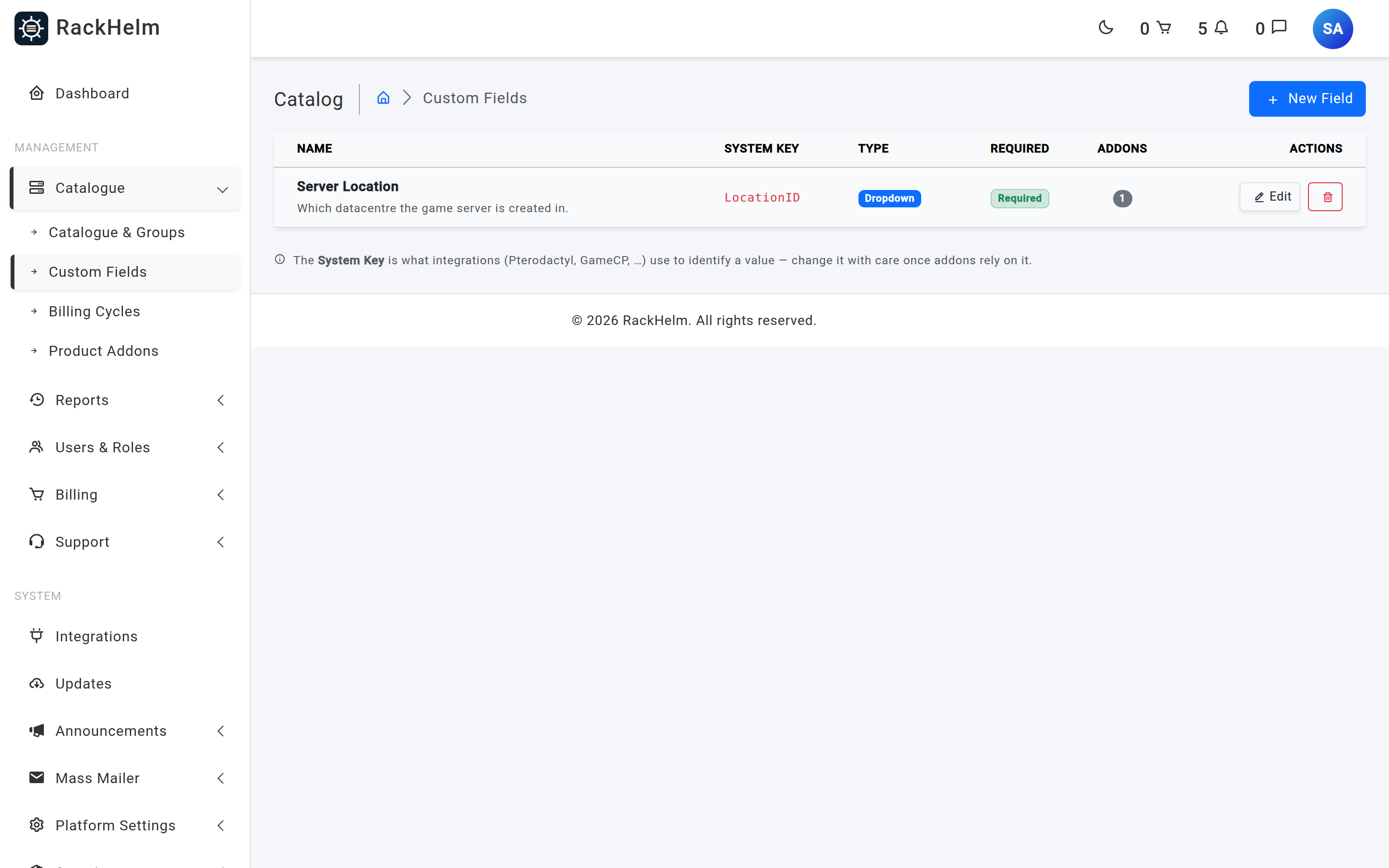
Open Catalogue → Custom Fields (/admin/custom-fields).
Creating a field #
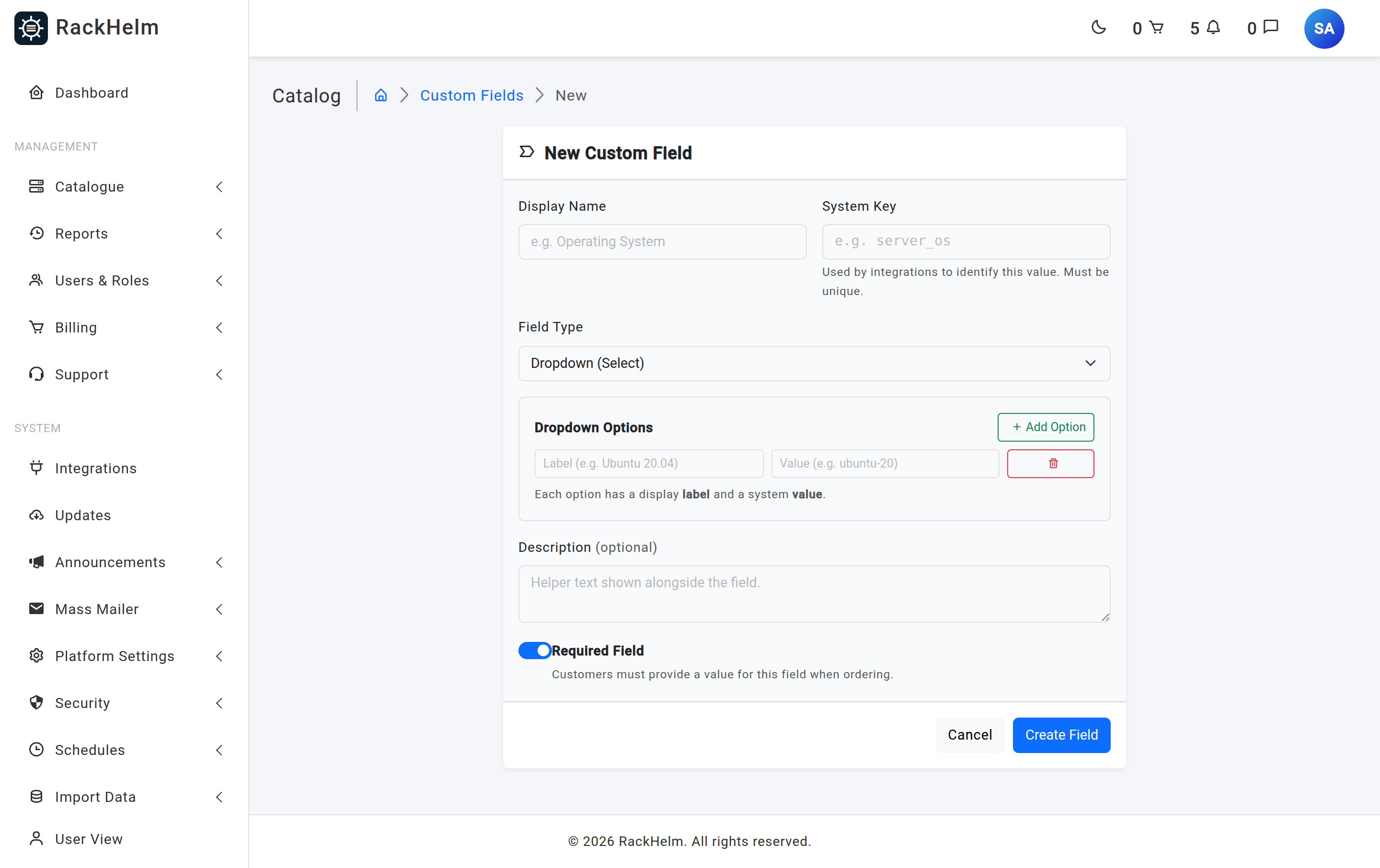
- Click New Field.
- Enter a Display Name — what the customer reads, for example “Operating System”.
- Enter a System Key — the machine name integrations look for, for example
server_os. It must be unique across the install. - Pick a Field Type. Choosing Dropdown (Select) reveals the options builder.
- Optionally add a Description, used as helper text and as the placeholder on text inputs.
- Decide whether the field is Required. New fields start with this switched on.
- Save.
Field reference #
| Field | Rules and effect |
|---|---|
| Display Name | Required, up to 255 characters. The label shown above the input on the order page. |
| System Key | Required, up to 255 characters, unique. This is the name the value is submitted and stored under, and the name integrations match on. Changing it later breaks any integration mapping that referenced the old key. |
| Field Type | Required. One of the six types below. |
| Dropdown Options | Required when the type is Dropdown. Each row is a label (shown) and a value (sent). Rows with either half blank are dropped silently on save. |
| Description | Optional helper text. On text, number and textarea inputs it doubles as the placeholder; if it is blank the placeholder falls back to “Type value…”. |
| Required Field | Defaults to on for a new field. Customers must supply a value when ordering. This is enforced on the server as well as in the browser. |
Field types #
| Type | Renders as | Typical use |
|---|---|---|
| Text Input | A single-line text box. | Hostname, domain name, licence name. |
| Dropdown (Select) | A select with a leading “— select —” entry. | Operating system, data centre, control-panel package. |
| Toggle (Checkbox) | A switch. Submits 1 when on, 0 when off. |
Domain privacy, auto-SSL, managed backups. |
| Text Area | A three-row multi-line box. | SSH keys, notes, a startup command. |
| Password | A masked input. The value is never pre-filled back into the form. | A root or panel password the customer chooses. |
| Date Picker | A native date input. | A requested start date. |
Note: These six are the only types the form will accept. The order-page renderer also understands
number,selectandcheckboxas legacy aliases, so a field created that way by an older install or a seeder keeps working — but you cannot create one through this screen. Anything unrecognised falls back to a plain text box.
Where fields surface #
On the customer’s order page #
Assigned fields appear under a Configuration heading on /order/{group}/{product}, above the add-ons. A required field is marked with a red asterisk. In a Domain Search group the domain configuration screen is used instead, and every assigned field is offered there.
Two per-assignment switches control visibility:
- Show on Order Page — off hides the field from the ordering customer entirely.
- User Changeable — off hides the input and makes the server discard anything the buyer submits for it, so the provisioner falls back to the value configured on the product or add-on. This is the correct way to fix a value like a location ID.
Validation at checkout #
Values are re-checked on the server when the item is added to the cart, not only in the browser:
- A required field left empty is rejected with “This field is required.” beneath the input.
- A numeric field with a non-numeric value is rejected with “Must be a valid number.”
- A toggle is normalised to
1or0; if it is required, leaving it off is rejected. - Values for fields marked not user-changeable are dropped before validation, so a tampered form cannot override them.
In the admin area #
Collected values are stored against the order item and travel with it into provisioning. Each assignment also carries a Show in Admin switch, but nothing currently reads it to filter an admin screen — treat it as recorded intent rather than an effective control.
On add-ons #
An add-on’s Linked Custom Field points at one of these fields. When a customer picks an add-on option, the option’s value is delivered as that field’s value. That is how “Extra Memory → 8 GB” becomes a memory limit on the panel.
Naming keys well #
Tip: Decide the key from the integration’s side, not from the label. If a panel expects a memory value, name the key for the thing the panel wants (
ServerMemory), then make the Display Name as friendly as you like (“How much RAM?”). You can rename the label freely afterwards; renaming the key is the change that breaks things.
Deleting a field #
Deletion is immediate and unguarded. The confirmation dialog warns you how many add-ons reference the field and will lose that link. Assignments to products and groups are removed by the database cascade. Values already collected on past orders are not rewritten, but there is no longer a definition telling you what the key meant.
Troubleshooting #
| Symptom | Cause and fix |
|---|---|
| “The key has already been taken.” | System keys are unique. Reuse the existing field by assigning it to another product rather than duplicating it. |
| A dropdown saves with fewer options than you typed. | Rows where either the label or the value is blank are dropped without a message. Fill both halves of every row. |
| The field never appears on the order page. | It has not been assigned to the product or its group, or its Show on Order Page switch is off, or its User Changeable switch is off — the last one hides the input deliberately. |
| The customer’s value is ignored by the provisioner. | User Changeable is off for that assignment, which is exactly what tells the server to discard buyer input and use your configured default. |
| Turning Required off does not stick. | This was a known bug and is fixed: the switch is now resolved explicitly on save. If it persists, confirm you are saving the field itself and not a stale browser tab. |
| A number field cannot be created. | The form offers six types and number is not among them. Use Text Input, or a Dropdown of permitted values, which also stops customers typing nonsense. |
| Values appear on the order but the panel gets nothing. | The integration matches on the system key. Compare the field’s key against the key named in the product’s integration configuration. |


