The Backups panel at the bottom of a site’s dashboard lists the snapshots your provider’s control panel holds for the site and, on Enhance hosting, lets you restore from one — all of it, or just the databases or mailboxes you name. Open My Sites → your site and scroll to the Backups card. This article covers what the card shows, what a restore actually does, and which parts of it your panel supports.
Which panels show the card #
| Panel | Backups card | Restore from the portal |
|---|---|---|
| Enhance | Yes, with a full size breakdown per snapshot. | Yes. |
| cPanel | Yes, listing the account backups WHM holds. Total size only. | No — your provider does it. |
| Plesk | No card at all. | No — your provider does it. |
Note: On Plesk hosting the Backups card is deliberately not shown, because Plesk keeps its backups per storage area rather than per subscription and cannot be asked for just yours. The Environment card at the top of the dashboard says so: “Backups is managed in Plesk directly.” Your backups still exist — they are taken and restored by your provider.
Reading the backup list #
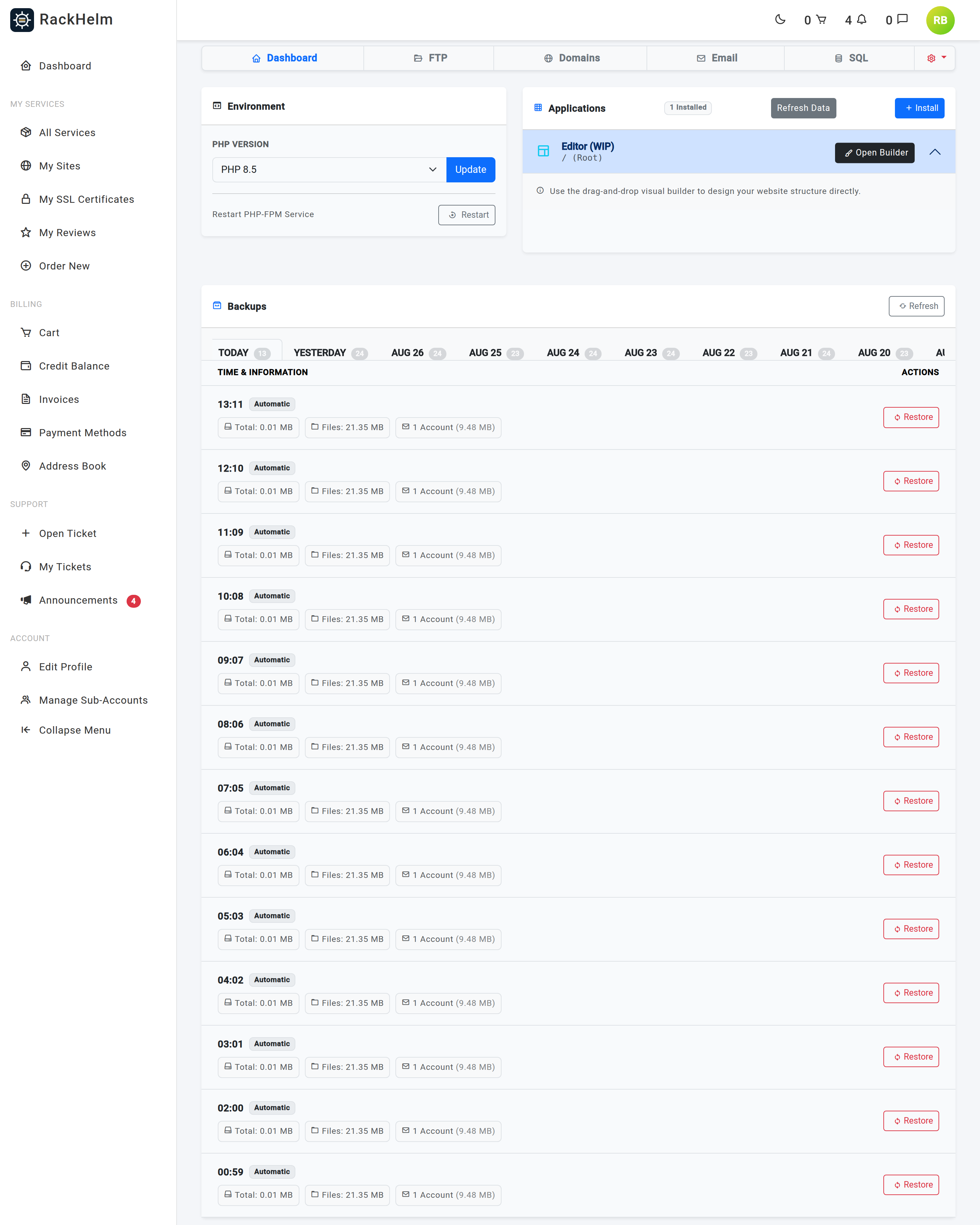
The panel loads after the rest of the dashboard, so a spinner on first paint is normal. Up to 30 recent snapshots are fetched and grouped into a tab per day, labelled Today, Yesterday or the date, with a count badge.
Each row shows the time the backup started and a badge marking it Manual or Auto, then a breakdown in megabytes:
| Figure | Meaning |
|---|---|
| Total | The whole snapshot. |
| Files | The website files portion. |
| DBs | How many databases are in the snapshot, and their combined size. |
| Accounts | How many mailboxes are in the snapshot, and their combined size. |
Note: Only Enhance reports that breakdown. cPanel’s backup listing carries a single size per snapshot, so a cPanel row shows Total alone. Nothing is missing from the backup itself; the panel simply does not publish the detail.
Note: The list is cached for two hours to keep the dashboard fast. Use Refresh on the card header to pull a fresh list from the panel.
Backups themselves are taken on the schedule your provider sets. There is no button in this release to start one on demand — ask your provider if you need an extra snapshot before a risky change.
Restoring #
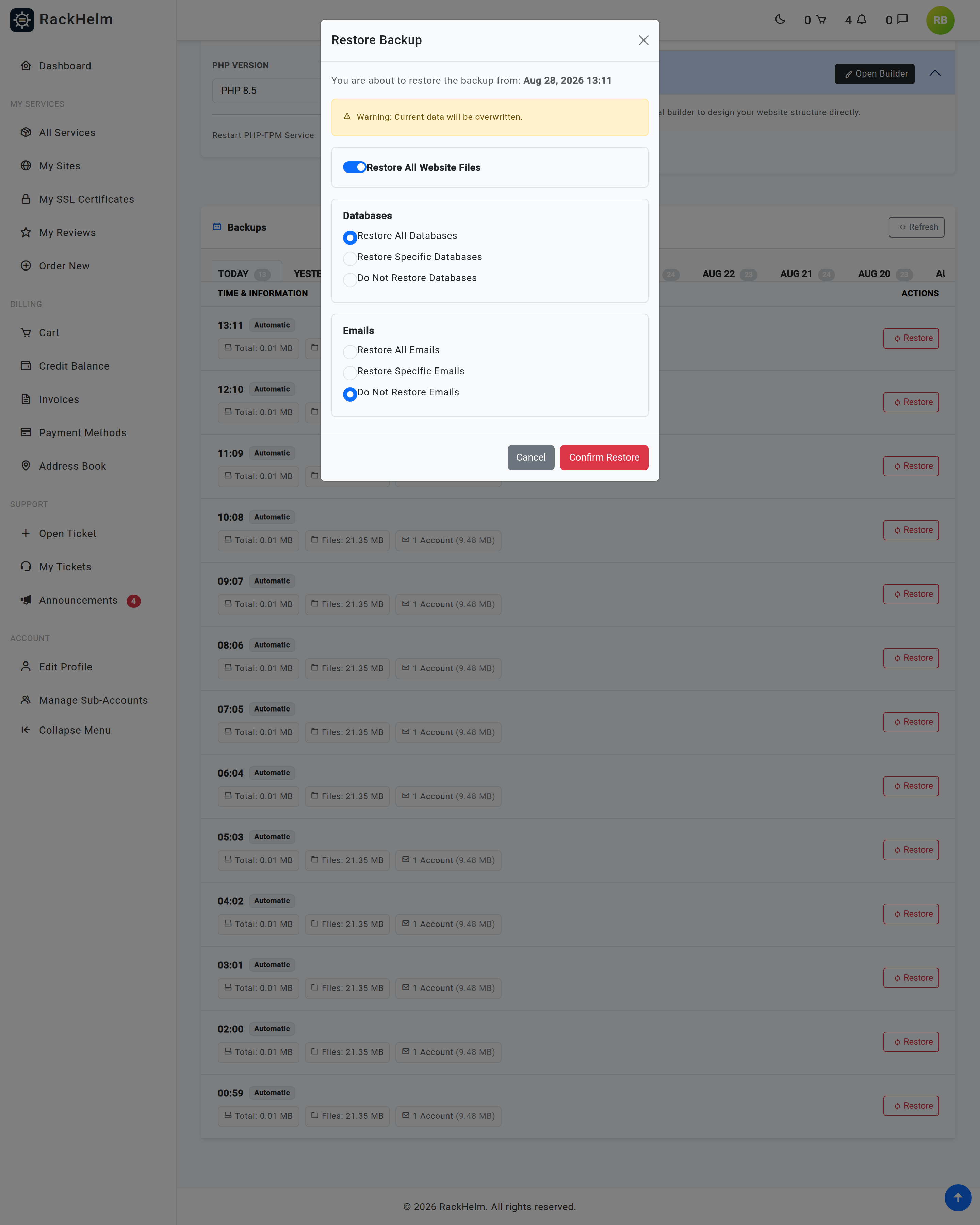
- Select Restore on the snapshot you want. The dialog names the date and time you picked and lists what that snapshot contains.
- Choose what to bring back:
- Restore All Website Files — a single switch, on by default. Files are all or nothing.
- Databases — Restore All Databases (the default), Restore Specific Databases, or Do Not Restore Databases.
- Emails — Restore All Emails, Restore Specific Emails, or Do Not Restore Emails (the default).
- Choosing Restore Specific … reveals a tick list read from the snapshot itself, so you only ever see what is actually in it.
- Select Confirm Restore.
The panel accepts the job and you are returned to the dashboard with “Backup restore requested successfully.” The restore then runs in the background — how long it takes depends on the size of the snapshot.
Warning: A restore overwrites current data, as the dialog states. Anything changed since the snapshot was taken — new orders in a shop database, new uploads, new mail — is lost for whatever you restore. Restore only the parts you need: if a database change broke the site, restore the database and leave files and mail alone.
Note: The tick list under Restore Specific Databases lists MySQL databases only. If your site also uses PostgreSQL, those databases are rolled back only when you choose Restore All Databases; picking specific databases, or Do Not Restore Databases, leaves PostgreSQL untouched.
Choosing what to restore #
| Situation | Suggested selection |
|---|---|
| A plugin or theme update broke the site. | Files only — switch on Restore All Website Files, set databases and emails to Do Not Restore. |
| Content was deleted from the CMS. | Databases only — turn the files switch off and pick the database that holds the content. |
| A mailbox was emptied by mistake. | Emails only — Restore Specific Emails and tick just that address. |
| The site was compromised. | Everything, from a snapshot dated before the compromise. Then change every FTP, database and mailbox password. |
Troubleshooting #
| Symptom | Cause / fix |
|---|---|
| “Please select at least one item to restore.” | Every option was left off. Choose at least files, one database, or one mailbox. |
| “Restore failed: …” with some other message. | The message after the colon is the panel’s own refusal — a snapshot that has expired, or a restore already running on the site. Wait and try again, or open a ticket quoting it. |
| “That backup could not be identified. Please reload the page and try again.” | The snapshot the dialog was holding is no longer one the panel recognises, usually because the list on screen is stale. Use Refresh and pick the snapshot again. |
| “Failed to load backups.” in the card. | The request to the control panel failed. Use Refresh; if it persists, open a ticket. |
| “Backups cannot be managed right now. The site is pending provisioning or missing its external ID.” | The site has not finished being created on the panel yet. |
| “No backups found.” | The panel is holding no snapshots for this site — normal for a site created in the last day or so. On cPanel it also means backups have not been switched on in WHM, which is a true “none” and not an error. If the site is older, ask your provider whether backups are enabled on the plan. |
| The specific-database and specific-email tick lists are always empty on cPanel. | Expected: cPanel’s backup listing carries no per-snapshot manifest, so there is nothing to enumerate. It makes no difference in practice, because cPanel restores are done by your provider. |
| “Loading databases from snapshot…” never finishes, or the tick lists show “Failed to load snapshot data.” | The snapshot’s contents could not be read. Use Restore All for that category, or try again shortly. |
| There is no Backups card on the dashboard at all. | You are on Plesk hosting, where backups are handled in Plesk by your provider. The Environment card says so. |
| The restore was accepted but nothing changed. | Restores run in the background and large snapshots take time. Wait, then reload the site. If it still looks wrong after an hour, open a ticket quoting the snapshot’s date and time. |


