Site builder templates are the ready-made blocks your hosting customers drop into their own websites — hero sections, pricing tables, headers, footers. You build them in a visual editor in the admin area and they appear, read-only, in the Library inside the customer’s site builder. This article is for operators.
Before you start #
Note: Requires the
manage_site_templatespermission, which the built-in Administrator role holds alongside Super Admin. The sidebar link, however, is shown undermanage_settings— a key with no permission record, so it cannot be granted from the Roles screen and only Super Admin ever sees the link. Anyone else withmanage_site_templatesmust navigate to/admin/site-templatesdirectly. See Roles & Permissions.
Warning: Do not confuse these with the store template setting under Platform Settings → General & System, which chooses the look of your store pages (
classic,modern_darkormodern_clean). Site builder templates are content blocks for your customers’ own sites.
The Site Templates screen #
Open Platform Settings → Site Templates (/admin/site-templates). Tabs across the top filter by type: All, Content, Header, Footer.
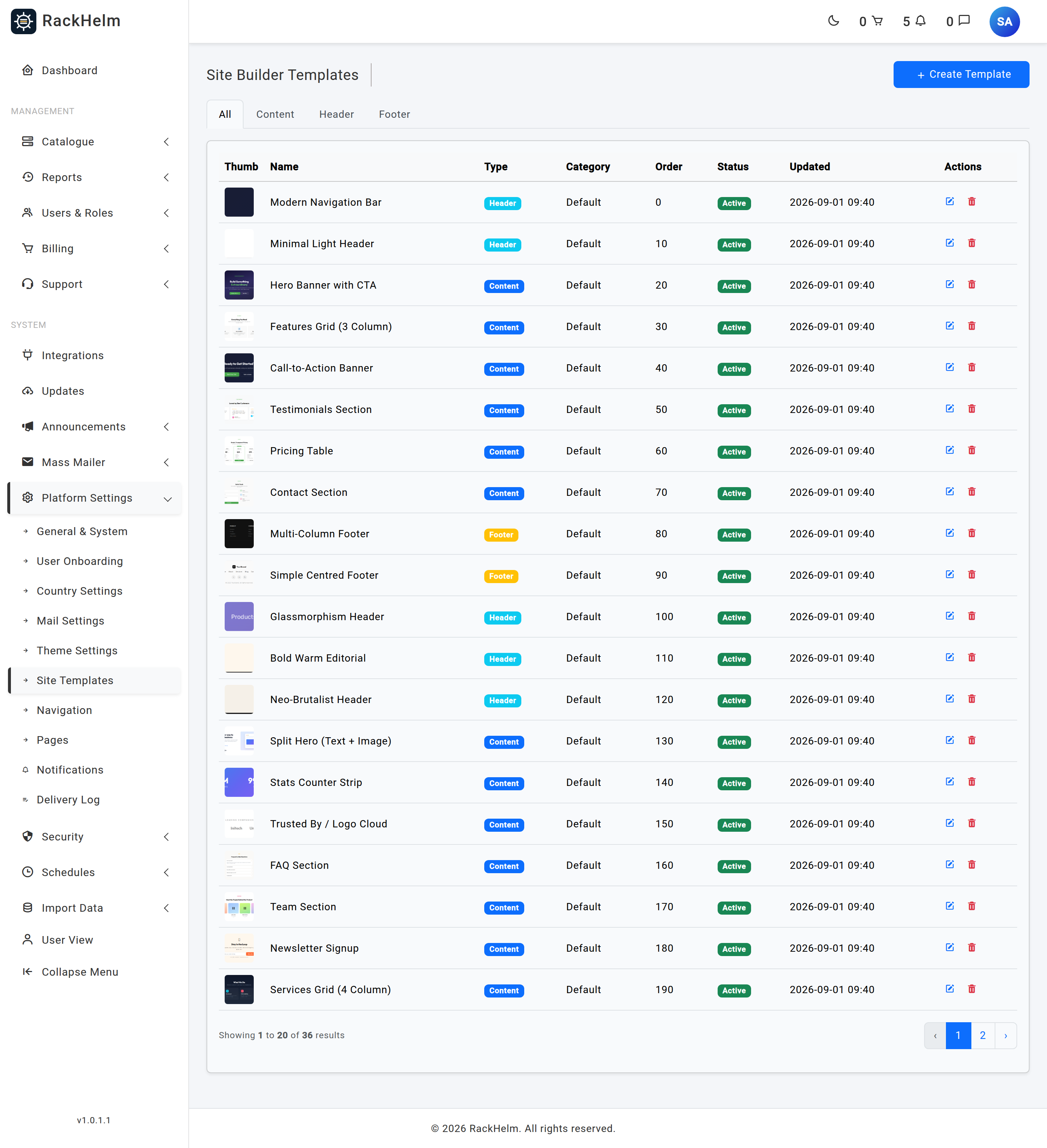
A fresh install is seeded with 36 templates — 15 content blocks, 11 headers and 10 footers — so the Library is never empty. Most sit in a Default category, with a handful under Hero, Store, Corporate, Tech SaaS, Creative Studio, Minimal E-Commerce and App. They are created only if a template of the same name does not already exist, so re-running the seeder will not overwrite your edits.
The three types #
| Type | Offered when the customer is editing |
|---|---|
| Content | Any ordinary page. This is the default and the largest category — heroes, feature grids, pricing tables, testimonials, calls to action, contact sections. |
| Header | The site header region only. |
| Footer | The site footer region only. |
Creating a template #
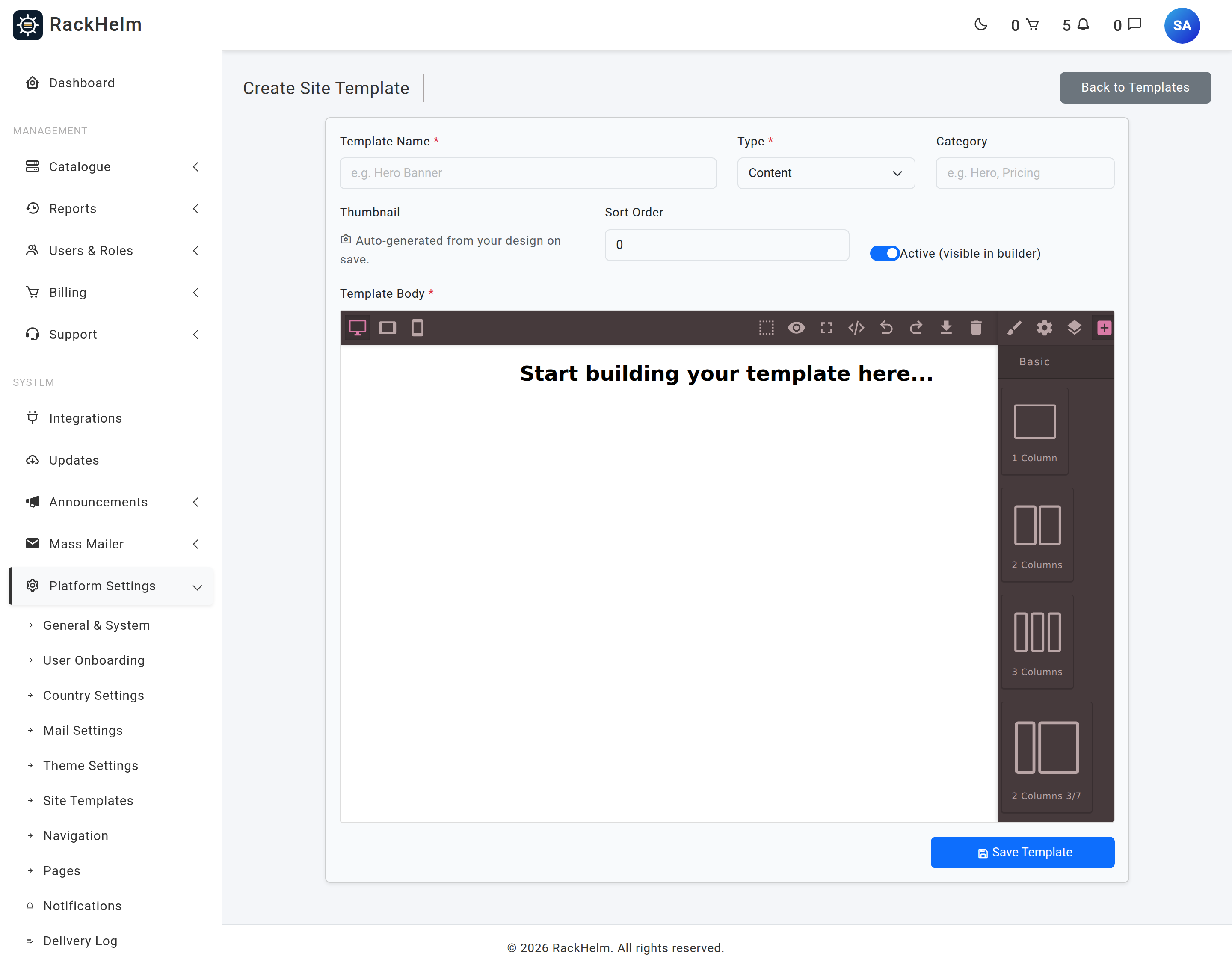
- Click Create Template.
- Fill in Template Name, choose a Type, and optionally set a Category.
- Set Sort Order and leave Active (visible in builder) on if you want customers to see it straight away.
- Build the block in the Template Body editor — a visual editor with a block palette, layer tree and style controls.
- Click Save Template.
Field reference #
| Field | Rules and effect |
|---|---|
| Template Name | Required, up to 255 characters. Shown as the tile caption in the customer’s Library. |
| Type | Required. content, header or footer. Decides which builder context offers it. |
| Category | Optional, up to 255 characters. Groups templates within a type, for example “Hero”, “Store”. Most of the seeded set use “Default”. |
| Thumbnail | Not a manual upload. A screenshot of your design is captured from the editor canvas as a downscaled WebP (maximum 600 px wide) and attached when you submit. Validated as an image — JPEG, PNG, JPG, GIF or WebP, maximum 2 MB. If the capture fails or times out after 8 seconds the form still submits, without a new thumbnail. On the edit form the current thumbnail is shown and is replaced only when a new capture succeeds. |
| Sort Order | Optional whole number, minimum 0, defaults to 0. Controls the order inside the Library. Ties are broken by name. |
| Active (visible in builder) | Defaults to on. Off keeps the template in the admin list but hides it from every customer’s Library. |
| Template Body | Required. The block’s markup, produced by the visual editor. Its stylesheet is stored alongside it. |
What customers see #
When a customer opens the site builder on a hosting service, the Library requests templates for the region they are editing — headers when the site header is selected, footers for the footer, content otherwise. Only Active templates of that type are returned, ordered by sort order then name, each with its name, category, markup, stylesheet and a resolved thumbnail URL. Ownership of the site is verified before anything is served.
Tip: Give every template a distinct Sort Order and put your best two or three at
0and1. The Library is a visual list and the top tiles get used most.
Editing and deleting #
Editing reopens the design in the same visual editor. Saving replaces the markup, the stylesheet and — if the capture succeeds — the thumbnail, deleting the previous thumbnail file. Deleting a template removes it and its thumbnail file permanently; customer pages that already used the block keep their copy of the markup, because inserting a template copies it into the page rather than linking to it.
Troubleshooting #
| Symptom | Cause and fix |
|---|---|
| “The template body field is required.” | The editor canvas was empty when you submitted. Add at least one block before saving. |
| The saved template has no thumbnail. | The canvas capture failed or exceeded its 8-second limit — usually a slow or blocked remote image inside the design. Replace remote images with ones hosted on your own site and save again. |
| A template is missing from a customer’s Library. | Check its Active switch and its Type — a content block never appears while the customer is editing the header region. |
| The thumbnail image is broken in the admin list. | Seeded thumbnails are served from the web root and admin-generated ones through the storage symlink. If uploaded thumbnails 404, the public/storage symlink is missing on that install. |
| The sidebar link is missing even though you can open the page. | Expected. The link is shown under manage_settings, which no role can hold, while the route needs manage_site_templates. Bookmark /admin/site-templates. |
| Web fonts look wrong in the thumbnail. | Font embedding is deliberately skipped during capture so a blocked font request cannot hang the save. The stored template still uses your fonts; only the preview falls back to a sans-serif. |
| Re-running the seeder did not restore a template you edited. | Seeded templates are matched by name and only created when absent. Rename or delete your edited copy first, then re-run the seeder. |


