Two-factor authentication (2FA) adds a six-digit code from your phone to the sign-in process, so a stolen password on its own is not enough to reach your services and billing details. This article shows how to switch it on, what recovery codes are for, and what to do if you lose your phone.
Before you start #
- Install an authenticator app on your phone — any app that supports standard TOTP codes will do.
- Have somewhere safe to store recovery codes, such as a password manager.
- You may be asked to re-enter your account password before 2FA settings can be changed.
Turning on two-factor authentication #
- Open Account → Edit Profile and select the Two-Factor Auth tab. You can also go straight there with
/settings?tab=twofactor. - Select Enable Two-Factor Authentication.
- Scan the QR code with your authenticator app. If you cannot scan it, use Or Enter Setup Key and the Copy button to paste the key into the app by hand.
- Enter the six-digit code the app shows in the Verify Code box and select Confirm & Enable.
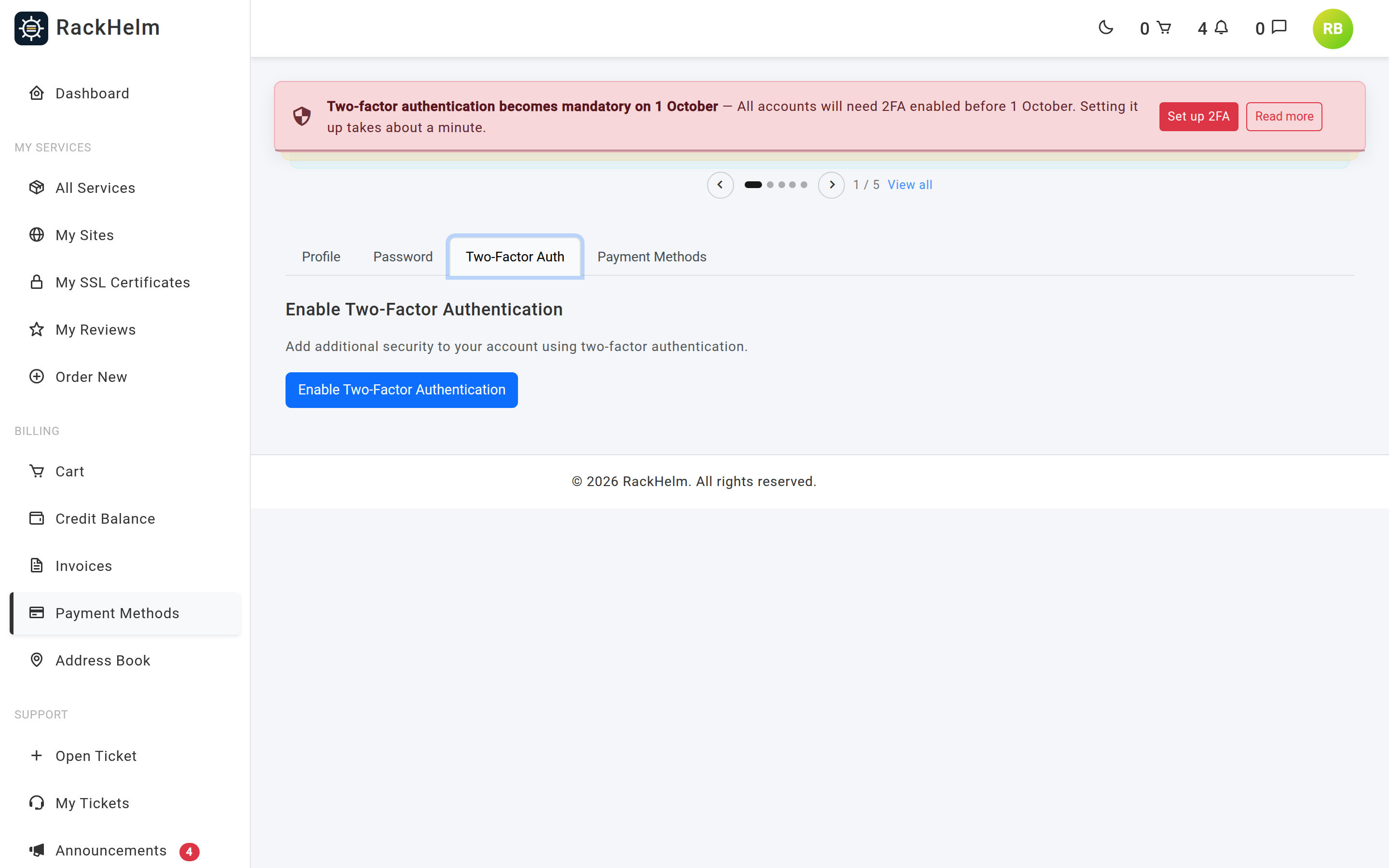
Note: Enrolment is only complete once a code is confirmed. If you close the page after scanning the QR code but before confirming, use Cancel Setup and start again rather than leaving a stale entry in your authenticator app.
Recovery codes #
Recovery codes are single-use replacements for the six-digit code, for when you cannot reach your authenticator app. They are shown once, immediately after you confirm setup or after you regenerate them. At any other time the page shows Recovery codes are hidden for your security instead.
- Copy them into a password manager as soon as they appear.
- Lost them? Select Generate New Recovery Codes. The new set is shown once and immediately replaces the old set — any codes you wrote down previously stop working.
Signing in with two-factor authentication #
- Enter your email address and password as usual.
- On the Two-Factor Authentication screen, type the current code from your app into Authentication Code.
- Tick Trust this device for the next 30 days if you want to skip the code on this browser for a month.
- Select Verify.
If you cannot reach the app, choose Use a recovery code and enter one of your stored codes in the Recovery Code field. Select Use an authentication code to switch back.
The challenge is limited to five attempts a minute.
How “trust this device” works #
Trusting a device stores a token in that browser and records it against your account. It is matched on both the token and the browser’s identifying string, and it expires automatically after 30 days. Changing browser, clearing cookies, or a browser update that changes that string all mean you are asked for a code again — that is expected, not a fault.
Revoking trusted devices and sessions #
If you lose a device or suspect someone else has your password, use the Device & Session Management panel on the same tab:
- Type your current password into the box.
- Select Forget Devices & Log Out.
This wipes every 30-day trusted device, signs you out of every other browser and device, and signs out the current one too. You are returned to the sign-in page with a confirmation message. Signing back in requires a fresh two-factor code.
Turning two-factor authentication off #
Use Disable Two-Factor Authentication in the Danger Zone at the bottom of the tab. Your recovery codes stop working at the same time.
Warning: Your provider can make 2FA compulsory. If it is required for your account, you are redirected to the Two-Factor Auth tab on every page until you complete enrolment, and disabling it sends you straight back there. Account owners can also require it for individual sub-accounts, though that switch only bites while the provider has forced two-factor authentication switched on for the portal at all — see Sub-accounts.
Troubleshooting #
| Symptom | Cause and fix |
|---|---|
| The code is always rejected | TOTP codes depend on the clock. Turn on automatic time sync on your phone, then try the next code rather than one that is about to expire. |
| “Too many attempts” on the code screen | Five attempts a minute are allowed. Wait a minute and try again with a fresh code. |
| Recovery codes are not shown on the settings page | By design — they only appear right after confirmation or regeneration. If you no longer have them, select Generate New Recovery Codes. |
| A recovery code was refused | Each code works once. Use a different one from your list, then regenerate the set. |
| You are asked for a code on a device you already trusted | The 30 days have elapsed, cookies were cleared, or the browser identifies itself differently after an update. Sign in with a code and tick the box again. |
| You are stuck on the Two-Factor Auth tab | Your provider requires 2FA on your account (or your account owner requires it on your sub-account). Complete enrolment to continue. |
| Phone lost and no recovery codes left | Nobody but your provider can clear 2FA. Contact them through the public contact page at /contact and expect identity checks. |


