All Services is the single list of everything you have bought — game servers, websites, domains, SSL certificates, licences and anything else your provider sells. Every purchased item has a page here, whatever runs behind it, including items that are still being set up and items with nothing to manage online. Open it from the sidebar under My Services → All Services, or go straight to /services.
The services list #
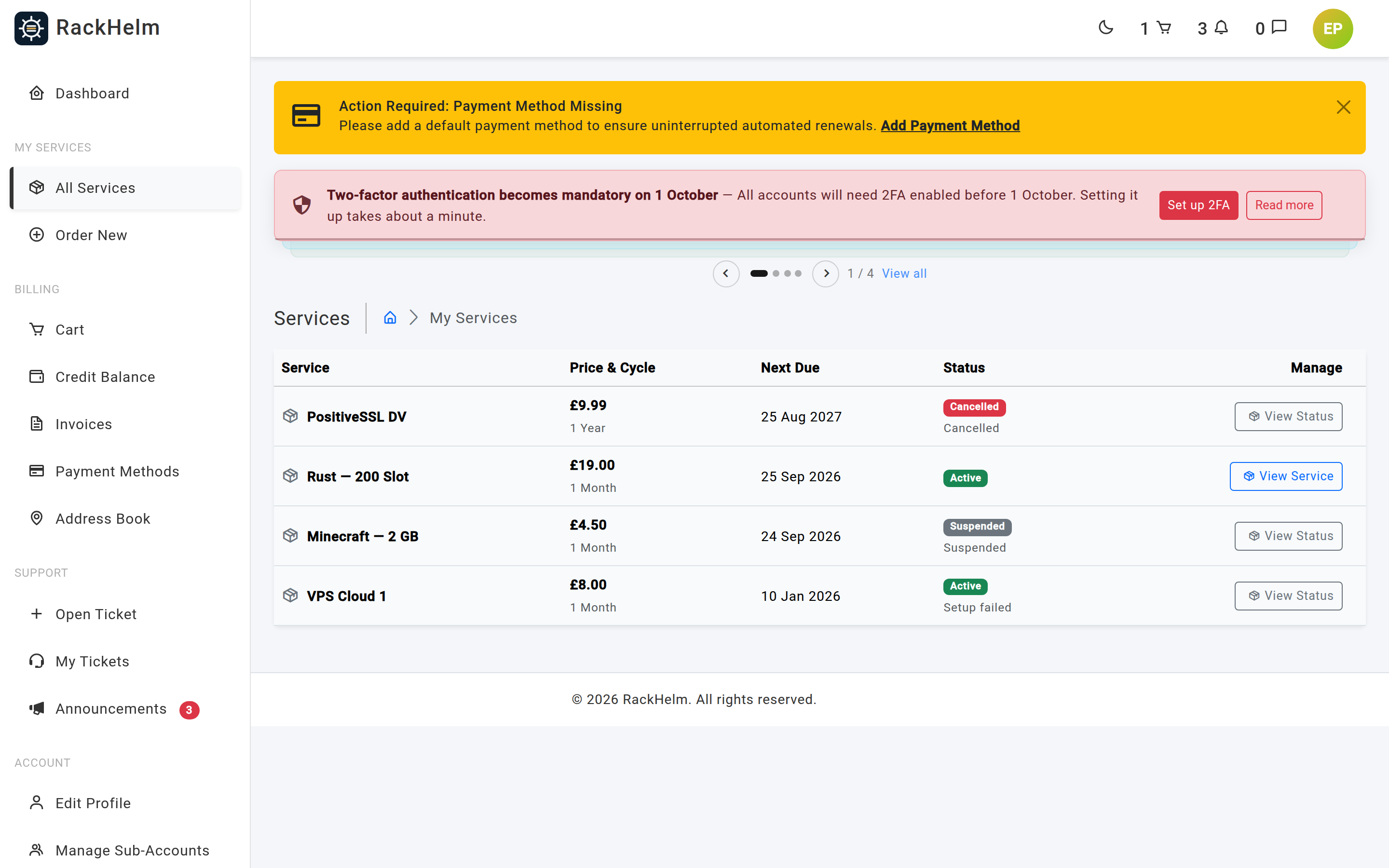
The table shows twelve services per page, newest first, with these columns:
| Column | What it shows |
|---|---|
| Service | The product name, the domain name where one was supplied at checkout, and a count of any add-ons attached to it. |
| Price & Cycle | The recurring price in £ — the package price plus the price of every add-on on it — and the billing cycle (or One Time). |
| Next Due | The next due date of the order the service sits on. |
| Status | The service status (Active, Pending, Pending Cancellation, Cancelled, Terminated), with a smaller line underneath for the setup state — for example Setting up, Awaiting configuration, Setup failed or Suspended. |
| Manage | Takes you to the right screen for that service. |
The chip row above the table filters the list. All is always present; Servers, Websites, Domains and SSL Certificates appear only if you own something of that kind. Your provider can add further chips for their own integrations. A bookmarked filter for a service you no longer own is ignored rather than shown as an error.
Where the Manage button sends you #
The button text tells you what you will get:
- Manage Server — the game-server console (see My Servers).
- Manage Website — the hosting dashboard (see My Sites: the site dashboard).
- Manage Domain — nameservers, DNS and the EPP code (see My Domains).
- Configure Certificate or View Certificate — the SSL wizard or status page (see My SSL Certificates).
- View Service — the generic service page described below.
- View Status — the same page, when the service is not ready to be managed yet.
Note: A service only gets its dedicated console once it has finished provisioning. Anything pending, failed, suspended, cancelled or terminated is sent to the generic status page instead, which explains the state rather than throwing you at a screen that cannot work.
The service page #
Selecting a service opens /services/{id}. The header carries the product name, the service noun (Server, Website, Domain, SSL Certificate, or whatever your provider named it), two status badges — the service status and the setup status — plus the next due date and billing cycle.
The cog button at the top right opens a short menu:
- Pay Invoice — shown only when the order has an unpaid invoice.
- Open a Ticket.
- Cancel Service — hidden once a cancellation has already been requested.
What the state panel is telling you #
| Panel | Meaning and what to do |
|---|---|
| We’re setting up your … | Provisioning is running. The page refreshes itself every 30 seconds, so you can leave it open; Check now reloads immediately. |
| Your … needs a few details | Setup is waiting on you. For an SSL certificate a Configure now button takes you to the wizard; otherwise use Contact Support. |
| Something went wrong | Setup failed. Your provider is notified automatically. Open a ticket if you need an update — the technical error is deliberately not shown to you. |
| This … is suspended | Suspended for non-payment. Settle the outstanding invoice and it is restored; Pay Invoice appears when one is pending. |
| This … has ended | Cancelled or terminated. The record is kept for your billing history and nothing further can be managed. |
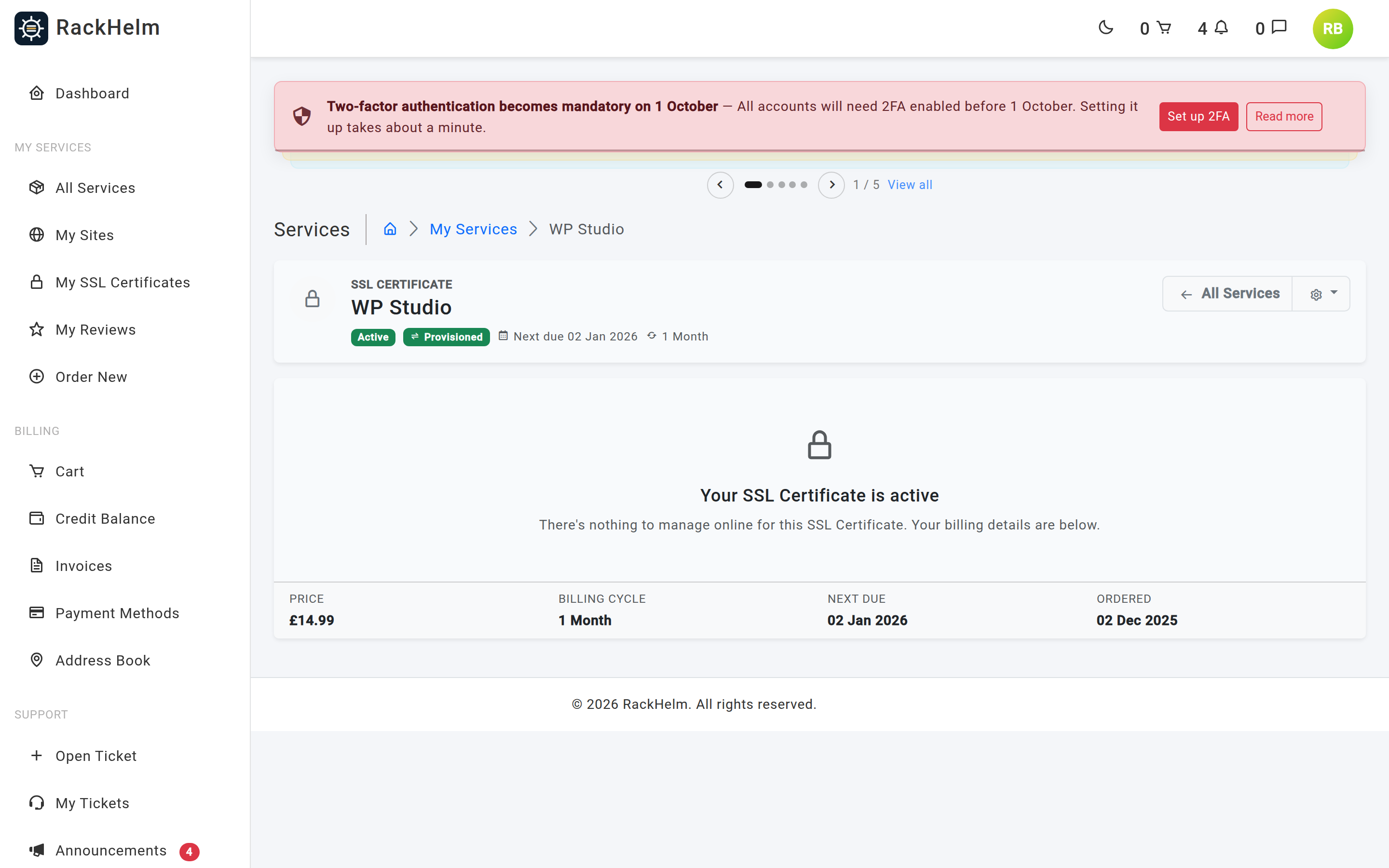
| Your … is active | Live, but with nothing to manage online. The billing facts below the panel are all there is. |
Underneath every state panel is a strip showing Price, Billing Cycle, Next Due and Ordered.
Service details, configuration and activity #
An active service whose provider has published details for it shows up to three further cards:
- … Details — the values captured from the system behind your service. Each one is formatted according to how your provider set it up: plain text, a coloured badge, a clickable link, a code block, a file size, a date and time, Yes/No, or a usage meter with a progress bar. Values marked as copyable get a copy button.
- Configuration — the options you chose at checkout. Anything you entered into a password field is shown as dots and is never displayed back to you.
- Recent Activity — the last ten events on the service, as event name, when, and Completed / Failed / In progress. Deliberately coarse: the underlying technical detail belongs to your provider.
Revealing a licence key or password #
Values your provider has marked as secret — licence keys, panel passwords — show as •••••••••••• with a Reveal button.
- Select Reveal.
- Confirm your account password when prompted. You are returned to the same service page.
- The value appears in a code block with the note Shown once — reload the page and it hides again, alongside a copy button.
Reload the page and it is masked again. Reveal is limited to ten requests a minute, and each reveal is written to your provider’s audit log — the fact that you looked, never the value itself.
Cancelling a service #
Choose Cancel Service from the cog menu and confirm. You will be asked for your password. The service moves to Pending Cancellation, stays live until the current term’s due date, and any add-ons attached to it are cancelled at the same time. Unpaid invoices that would have funded a future term are voided; the invoice covering the term you are still using is not.
Troubleshooting #
| Symptom | Cause / fix |
|---|---|
| The Refresh button on the details card says “Live refresh is not available yet.” | Expected. Live re-syncing of service details is not implemented in this release; the values shown are the ones captured when the service was last provisioned or updated. |
| Reveal returns “There is nothing stored for this yet.” | The value has not been sent back by the system behind your service. If the service has only just been set up, wait and try again; otherwise open a ticket. |
| The Manage column reads Unavailable instead of a button. | The console for that service type is not registered on this portal. Use Open a Ticket from the service page. |
| The list is empty but you know you bought something. | Clear the filter with Show all services. Cancelled orders are excluded from this list entirely, as is the “Credit Deposit” line used for account top-ups. |
| A service sits at Setting up for a long time. | Provisioning runs in the background and can queue. If it has not cleared after a few hours, open a ticket. |


