A panel connection stores the credentials RackHelm uses to talk to one control panel. You create it once, test it, and then point as many products at it as you like. This article covers the generic flow that every control panel shares — the fields, the Test button, certificate pinning, and the safety checks RackHelm applies to the base URL you enter.
Before you start #
- You need the
edit_integrationspermission. Super Admin and Administrator hold it by default; see Roles & Permissions. - Have the panel’s URL and an API token ready. The token must belong to an account with enough rights to create and delete accounts, or provisioning will succeed in testing and fail in production.
- The panel must be reachable from the RackHelm server. By default that means a public address: RackHelm refuses to store a URL that resolves to a private, loopback or reserved address. A panel on your own network can be allowed, but only from the server’s
.envfile — see Why an internal URL is rejected below.
Create the connection #
- Open System → Integrations. Every provider RackHelm supports is shown as a card, grouped into Control Panels, Domain Registrars, Analytics and AI SEO Reporting.
- Find the panel you want and press Configure (the button reads Manage once a connection exists).
- Fill in the form — the fields are listed below — and press Save.
- Press Test API and confirm you get OK.
- If Verify SSL is No, press Save once more after a successful test. The test reads the panel’s certificate; only Save stores it.
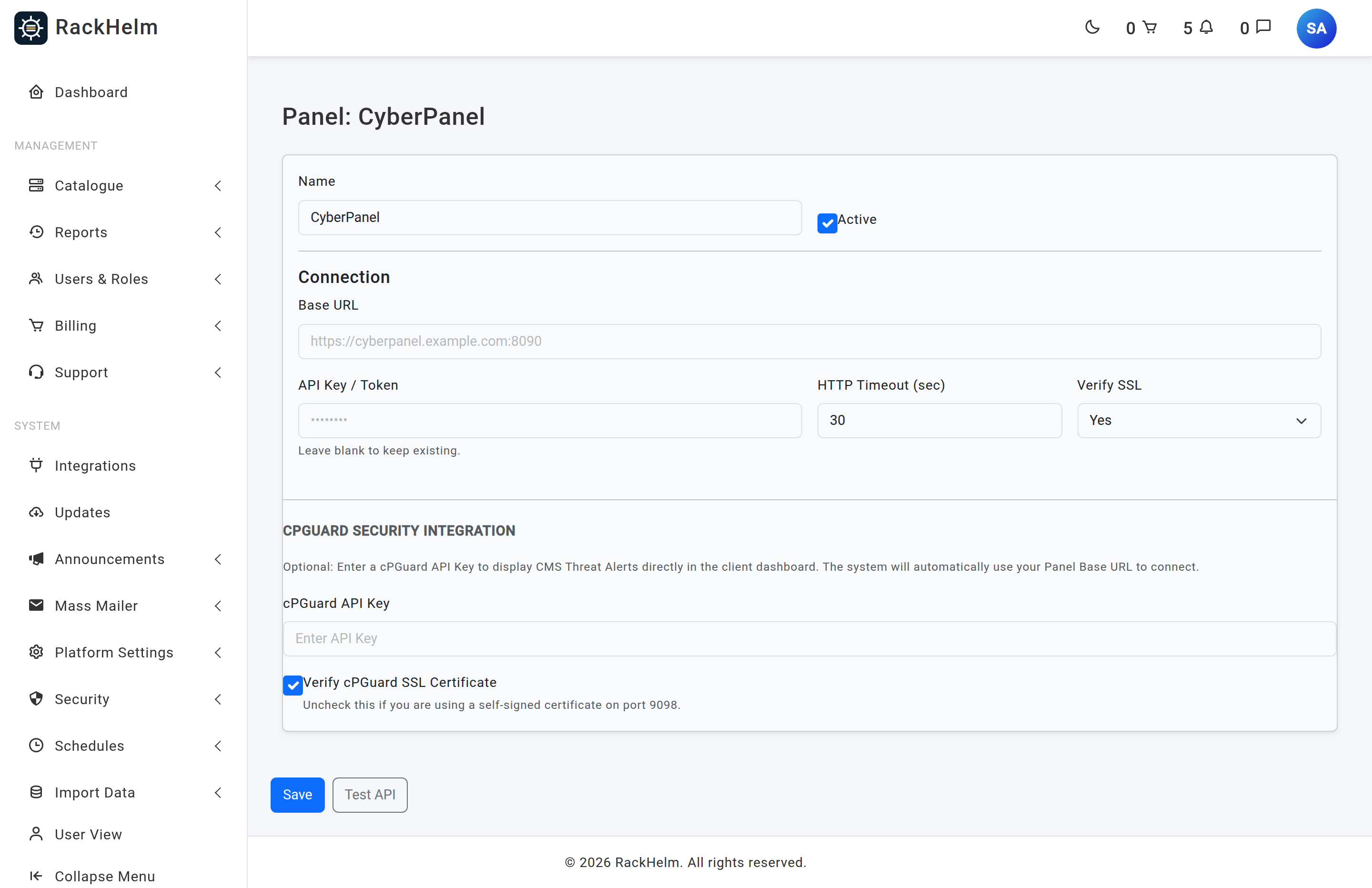
Field reference #
| Field | What it does |
|---|---|
| Name | A label for the connection, shown in the product’s Provisioning tab’s Panel dropdown. Up to 120 characters. Defaults to the provider name. |
| Active | Controls whether the provider is offered when binding a product. Unticking it does not break services that are already live, but the provider disappears from the Integration Type dropdown for anything not already using it. |
| Base URL | Required. The panel’s origin, including scheme and, where the panel needs one, the port — the form suggests https://cpanel.example.com:2087 for cPanel and https://plesk.example.com:8443 for Plesk. Must be an http or https URL that resolves to a public address, or to one you have allow-listed. |
| API Token | The credential. Leave blank when editing an existing connection to keep the stored token — RackHelm never displays a saved token back to you. On cPanel the help text points at WHM » Development » Manage API Tokens; on Plesk the field is labelled API Key and is sent as X-API-Key. |
| HTTP Timeout (sec) | The form’s minimum is 5 and it is pre-filled with 30. On cPanel and Plesk this is the timeout live provisioning calls use as well (a blank box falls back to 30, and anything under 5 is raised to 5). The other drivers ignore it for live calls and use a fixed timeout of their own — 20 seconds for Pterodactyl and GameCP, 30 for Enhance — so there it only governs the Test API button, which falls back to 15 seconds when the box is empty. |
| Verify SSL | On cPanel and Plesk this is honoured, and the second option is spelled No (pin certificate): see Pinning a self-signed certificate. On DirectAdmin, CyberPanel, ISPmanager and Enhance the field still exists and is still stored, but nothing reads it — those connections always verify against the system CA bundle, so the panel needs a certificate that validates. |
| cPGuard API Key | Optional. Enables the CMS threat panel on the customer’s site dashboard. Covered in Enhance, which is where the feature is documented in full. |
| Verify cPGuard SSL Certificate | On by default. Untick only if cPGuard on port 9098 presents a self-signed certificate. This is a separate setting from Verify SSL and is not pinned. |
Individual providers add fields of their own: cPanel a WHM Username (defaults to root, the WHM user the API token belongs to), Plesk a Generate an API key block that turns a Plesk login and password into a key without storing the password, and Pterodactyl, GameCP and Enhance a second token, an organisation ID or default IDs. Those are covered in each provider’s own article.
How credentials are stored #
The connection block — base URL, tokens, timeout, TLS flag and the pinned certificate — is encrypted at rest and excluded from the audit log. The server_config block, which holds non-secret defaults, is stored in clear and does appear in the audit log, which is why a cPGuard key typed into the form is moved into the encrypted block on save. Historic audit entries that still contain a cPGuard key are masked when the log is rendered.
Tip: Saved settings are cached for five minutes. Saving through the form clears that cache automatically; editing the database directly does not.
Testing a connection #
The Test API button posts whatever is currently in the form — it does not save first — and reports OK or the provider’s own error text. What it calls depends on the provider:
| Provider | What Test API calls |
|---|---|
| cPanel/WHM | WHM API 1 version, authenticated with the whm <username>:<token> header. Success reads WHM version …. |
| Plesk | GET api/v2/server with X-API-Key. Success reads Plesk … and the panel version. |
| Pterodactyl | A request for one application user. |
| GameCP | A request for one game. |
| Enhance | The API root. |
| DirectAdmin, CyberPanel, ISPmanager | api/v2/server with an X-API-Key header. |
Note: cPanel and Plesk are tested through the same API clients provisioning uses, so a passing test really does prove the credentials, the TLS settings and the SSRF checks that live calls will apply. DirectAdmin, CyberPanel and ISPmanager still run the older generic probe, which speaks Plesk’s REST path to whatever it is given and hard-codes certificate verification on. A pass there proves rather less, and a failure may only mean that panel does not answer on
api/v2/server.
Warning: If you leave the token box blank and press Test API, the browser sends the literal word
KEEPas the token. cPanel, Plesk, GameCP and the domain registrars substitute the stored secret for that placeholder; DirectAdmin, CyberPanel, ISPmanager, Enhance and Pterodactyl do not, and will all report an authentication failure. Re-type the token before testing one of those. Even whereKEEPworks, it is refused if you have also changed the Base URL in the same test — the answer is “Re-enter the API token when changing the Base URL”, so the stored token is never delivered to a host you have just typed in.
Pinning a self-signed certificate (Verify SSL: No) #
Control panels almost always ship a self-signed certificate on their admin port, so “Verify SSL: No” is a setting operators genuinely need. It used to mean “accept any certificate”, which let anyone on the network path between the portal and the panel read a root API token straight out of the Authorization header. Since 1.0.1.1 cPanel and Plesk use trust on first use instead — the same model SSH uses:
- Set Verify SSL to No (pin certificate). A line appears underneath reading “No certificate is pinned yet. Click Test API to read the panel’s certificate, then Save to pin it. Until then the portal refuses to connect with verification off.”
- Press Test API. RackHelm completes a verification-off handshake with the panel, reads the certificate it is presenting, and shows it to you — common name, self-signed or issuer, expiry date and SHA-256 fingerprint. The result line ends “· certificate pinned, click Save to keep it”.
- Check the fingerprint is the one your panel really serves, then press Save. The hash of that certificate’s public key is stored with the connection.
From then on every request insists on that exact public key. cURL enforces the pin even with peer verification switched off, so an interceptor would need the panel’s private key rather than merely a position on the wire.

Three consequences are worth knowing before you rely on it:
- Testing is not enough — you must Save. The test reads the certificate and puts it in a hidden field; only Save writes it to the connection. Leave the page without saving and the panel is still unusable.
- Replacing the certificate breaks the connection. A renewed self-signed certificate, or cPanel AutoSSL issuing a real one, changes the public key and every call then fails with the pin-mismatch message: “The panel’s certificate key no longer matches the pinned one. Open the panel settings, click Test API to see the new certificate, then Save to trust it.” Testing again refuses outright and tells you what the panel now presents — press Forget pinned certificate, test, check the new fingerprint, and Save. That refusal happens before the API token is sent, so a swapped certificate never receives your credentials.
- Pinning needs HTTPS. A panel URL on plain
httpcannot be pinned; the test answers “Certificate pinning needs an https:// panel URL.”
Note: Switching Verify SSL back to Yes drops the stored pin — with verification on it is meaningless and would only go stale. If you later switch back to No, you pin again from scratch.
Why an internal URL is rejected #
A panel base URL is an address the server will make requests to on your behalf, so RackHelm treats it as untrusted input and validates it on save, on test, and again every time a driver builds a client from it. The rule is deliberately strict:
- The scheme must be
httporhttps. Nothing else is accepted. - The host is resolved, and every address it returns — both A and AAAA records — must be public, or on the operator’s allow-list. A host with one public and one link-local address is rejected.
- IPv4 addresses hidden inside IPv6 (mapped, 6to4, Teredo, NAT64) are unwrapped and re-checked, so
::ffff:a9fe:a9feis rejected exactly like169.254.169.254. - A host that cannot be resolved at all is rejected — RackHelm cannot prove it is safe.
- Outbound calls are pinned to the address that was validated, so a DNS record that changes between validation and connection cannot redirect the request inwards.
- Redirects are refused or re-validated hop by hop, so a public URL that answers with a 302 to an internal address gets nowhere.
Note: The error message you will see on save is “The connection.base url must be a valid, publicly accessible URL. Internal or reserved IP addresses are refused unless listed in SAFEURL_PRIVATE_ALLOWLIST in the portal’s .env file.” A driver that hits the same check at connection time says “Refusing to connect to a private or reserved IP address (add it to SAFEURL_PRIVATE_ALLOWLIST in .env if it is yours).”
Allowing a panel on a private network #
A panel that genuinely cannot be made public — a Plesk or WHM on the office LAN, a VM reached over a VPN — can be allowed by naming its address in SAFEURL_PRIVATE_ALLOWLIST in the portal’s .env file:
SAFEURL_PRIVATE_ALLOWLIST="192.168.1.50,10.10.0.0/16"Then, on an install whose config is cached:
php artisan config:cachePoints to note:
- Entries are IP addresses or CIDR ranges, separated by commas, whitespace or semicolons. A bare address means that single host. Both IPv4 and IPv6 are accepted, and an IPv4-mapped IPv6 address is matched as the plain IPv4 address you would have written down.
- An entry that does not parse is ignored rather than treated as a wildcard, so a typo narrows the list — it never widens it. Everything private that is not listed stays refused.
- The list is an
.envsetting on purpose, not a checkbox. Widening the boundary takes shell access on the server, so a member of staff holdingedit_integrationscannot do it from the browser. - The allow-list applies everywhere the check runs: saving the URL, testing it, reading the certificate for pinning, and the live provisioning calls themselves.
- A LAN panel with a self-signed certificate still needs a pin. Use
https://, set Verify SSL to No (pin certificate), test, and save.
Only the Plesk form spells this out on screen, under Base URL; the rule is the same for every provider.
Turning a connection off #
Untick Active and save. The card on the Integrations screen turns amber and reads Inactive, and the provider stops appearing in the Integration Type dropdown for new bindings. Products already bound keep their binding — the dropdown re-adds the current type so you cannot lose it by accident — and their suspend, unsuspend and terminate actions still run.
Troubleshooting #
| Symptom | Cause and fix |
|---|---|
| “must be a valid, publicly accessible URL” on save | The base URL resolves to a private, reserved or unresolvable address. Use a public hostname, or add the address to SAFEURL_PRIVATE_ALLOWLIST; see the section above. |
| “Refusing to connect to a private or reserved IP address” | The same check, hit at connection time rather than on save — usually a hostname whose DNS record now points somewhere private. Fix the record or allow-list the address. |
| cPanel or Plesk stopped working right after the upgrade, with “has Verify SSL switched off but no pinned certificate” | The connection was saved with Verify SSL: No before pinning existed. Open it, press Test API, check the fingerprint, then press Save. |
| “The panel’s certificate key no longer matches the pinned one” | The panel’s certificate was replaced (a renewal, or cPanel AutoSSL). Press Forget pinned certificate, test again, verify the new fingerprint and Save. If a real certificate has taken over, consider switching Verify SSL to Yes instead and pointing the base URL at the hostname it covers. |
| “The panel’s certificate has changed since it was pinned” | The same thing, caught by Test API before the token was sent. The message names the certificate now being presented. Same fix. |
| Test reports HTTP 401 or 403 | Wrong token, or a token without the rights the endpoint needs. Re-issue it at the panel with full read/write access to accounts and servers. A Plesk key only works from the IP address that created it, so generate it from this server. |
| Test fails immediately after you re-open a saved connection | You left the token blank, so KEEP was sent, and this provider does not resolve it. Paste the real token and test again. |
| Test times out | Firewall on the panel side. The panel must accept connections from the RackHelm server’s IP on the port in the base URL. |
| Test fails with a certificate error but the panel works in a browser | Verification is on and the certificate does not validate — the message adds “If it is self-signed, set Verify SSL to No, click Test API, then Save to pin it.” On cPanel or Plesk, do exactly that. On DirectAdmin, CyberPanel, ISPmanager or Enhance there is no pinning, so install a certificate that validates on the panel’s hostname. |
| Saving gives a 404 page reading “Integration provider not found.” | The URL contains a provider slug RackHelm does not know. Go back to System → Integrations and use the card’s button rather than a hand-typed address. |
| Card still says “Not Configured” after saving | The save did not go through. A failed save returns to the form with a red banner beginning “Save failed: ” — panel saves report validation problems there rather than against individual fields, so read the whole line. A missing or unsafe Base URL is the usual cause. |


