Pending Provisioning is the operator’s work queue: every package and addon that has not finished being set up, whether it is waiting on the scanner, waiting on a person, or has failed outright. Clearing it is the daily routine that keeps paid services from quietly never arriving. This article is for operators and staff.
Before you start #
Note: Viewing the screen requires
view_orders. Mark Provisioned, Retry and the bulk actions neededit_ordersto reach the route andprovision_orders, which the controller checks itself. An account withedit_ordersalone sees the buttons and gets a 403 when it presses one — creating an account on a panel or registering a domain spends real money, so it is held apart from ordinary order editing.
Tip: The sidebar entry under Users & Roles only appears when there is something to do, and carries a red count badge. If you cannot see it, the queue is empty. The screen itself is always at
/admin/pending-provisioning.
What lands here #
Any order item — package or addon — whose provisioning status is one of four values:
| Status | Why it is here and what to do |
|---|---|
pending |
Waiting for the provisioning scanner. If it does not clear within a scan cycle or two, something in the pipeline is not satisfied — most often the order has no paid invoice, because the scanner only claims items whose order carries one. See How automatic provisioning works. |
queued |
Claimed by the scanner and handed to a worker. Should clear in seconds. Persisting here means the queue is not being worked. |
processing |
Either a worker is mid-call, or — for an addon flagged for manual provisioning — this is where it deliberately rests, waiting for you. |
failed |
The driver threw or the remote system refused. The reason is stored on the item and shown in the Status column. |
Items are listed oldest-touched first, twenty per page, so the ones that have been ignored longest are at the top.
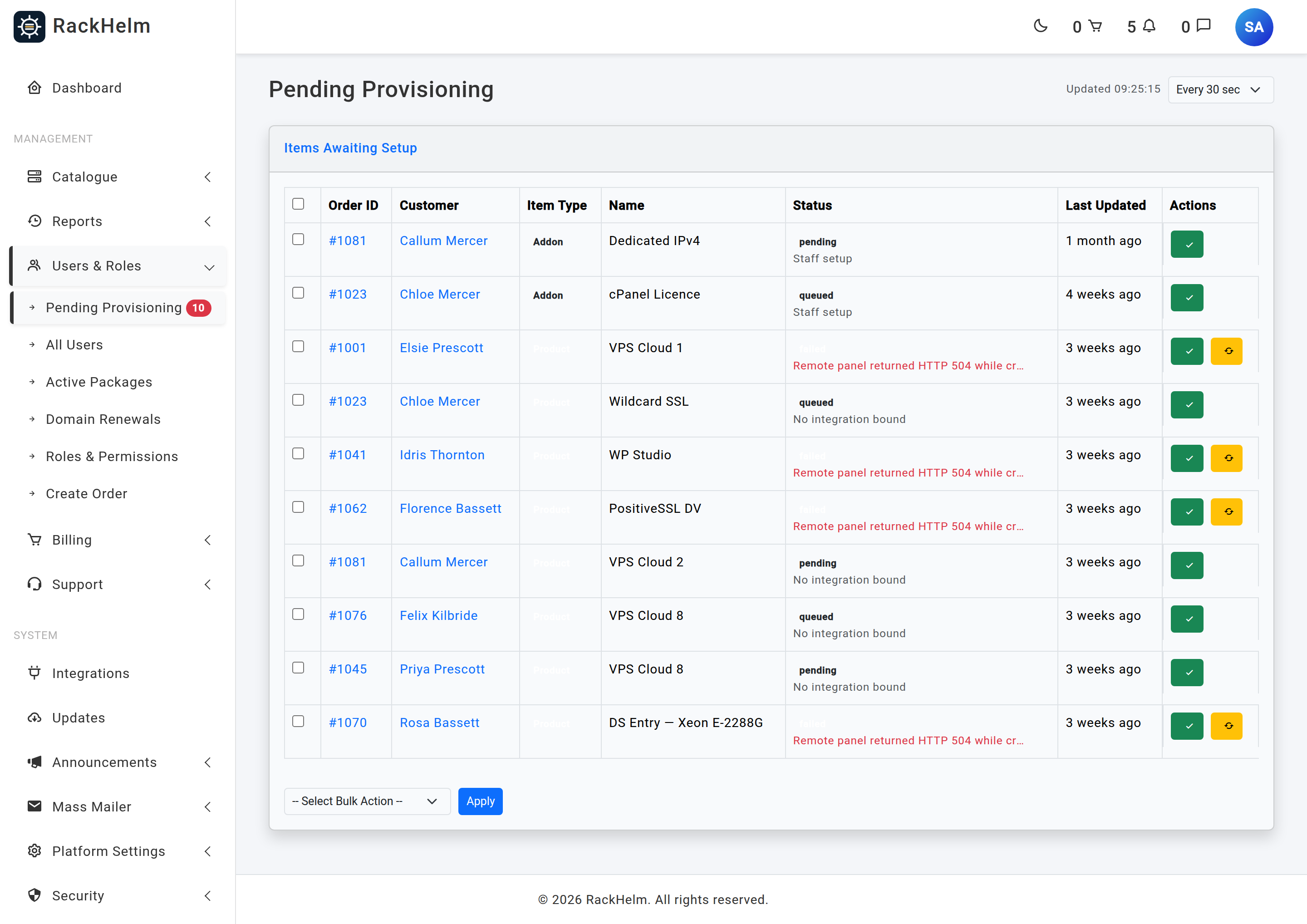
| Column | What it shows |
|---|---|
| Order ID | The order number, linking to the order detail screen. |
| Customer | The client’s name, linking to their admin record. |
| Item Type | Product or Addon. |
| Name | The product name, or the addon name for an addon row. |
| Status | The raw provisioning status, plus a second line saying why it is stuck: the stored failure text on a failed row (truncated, with the full text in the tooltip), Staff setup for a manual-provisioning addon, No integration bound for a product with no integration, and Awaiting automatic provisioning for everything else. |
| Last Updated | How long ago the row last changed, as relative time. |
Keeping the list current #
The page refreshes itself. The selector in the header offers Refresh: off, Every 15 sec, Every 30 sec, Every 1 min and Every 5 min; it starts on Every 30 sec and your choice is remembered in that browser. Each tick fetches the same page again — same ?page= — and swaps in just the table and its bulk form, so you never lose your scroll position.
It gets out of your way rather than fighting you:
- It pauses while the list is in use — the pointer is over it, a row is ticked, a bulk action is chosen, or something in it has keyboard focus — and the header reads Paused while you use the list. Otherwise it reads Updated and the time of the last swap.
- It stops entirely once you submit a form, because the page is about to be replaced and a poll landing first would take the flash message with it. Coming back with the browser’s Back button restarts it.
- It stops in a hidden tab and resumes when you return to it.
- If the session has lapsed and the fetch is redirected to the login page, it stops and says Auto-refresh stopped. Reload the page. A transient failure says Refresh failed, retrying and tries again.
Note: Rows move up the list as items finish, which is exactly why the refresh waits for the pointer to leave. Without that pause a swap could slide a different item’s button under a pointer that was about to click.
Clearing an item by hand #
Mark Provisioned #
The green tick sets the item’s provisioning status to provisioned, clears any stored failure text, and stamps the provisioned date. It makes no call to the control panel, the registrar or your Custom API.
It also promotes the item’s billing status: an item sitting at pending (or with no status at all) becomes active, so the service goes live in one step. A suspended, pending-cancellation or cancelled item keeps its status — those are decisions taken elsewhere that marking an item provisioned must not silently undo.
On a product row, its addon lines that need no provisioning ride along and are marked provisioned too: they were only ever waiting for their parent, and nothing else revisits them once the parent is delivered by hand. Addons that do need work stay listed for their own decision.
Use it when you have built the service yourself — a manual-provisioning addon, a licence issued out of band, an account created directly on the panel. Do not use it to clear a genuine failure you have not actually fixed: the customer’s dashboard will show the service as live when it is not.
Marking an item provisioned also tidies the paperwork. If the customer has an open ticket titled Addon Setup Request – Order #N for that order, and this was the last item on the order still awaiting setup, RackHelm closes the ticket and posts a note saying all manual setup items have been provisioned.
Retry #
The amber refresh button re-queues the item: it is marked queued (which increments its attempt count) and a fresh provisioning job is dispatched immediately, without waiting for the next scan.
The button is only rendered on failed rows. The action itself also accepts a pending item; anything else is refused with an informational message telling you what state the item is actually in — so a queued or processing item cannot be double-dispatched by accident.
Tip: Retry re-runs the same configuration that failed. If the cause was a missing integration, a bad panel credential or an invalid variable, fix that first — otherwise you are just incrementing the attempt counter.
Working through a batch #
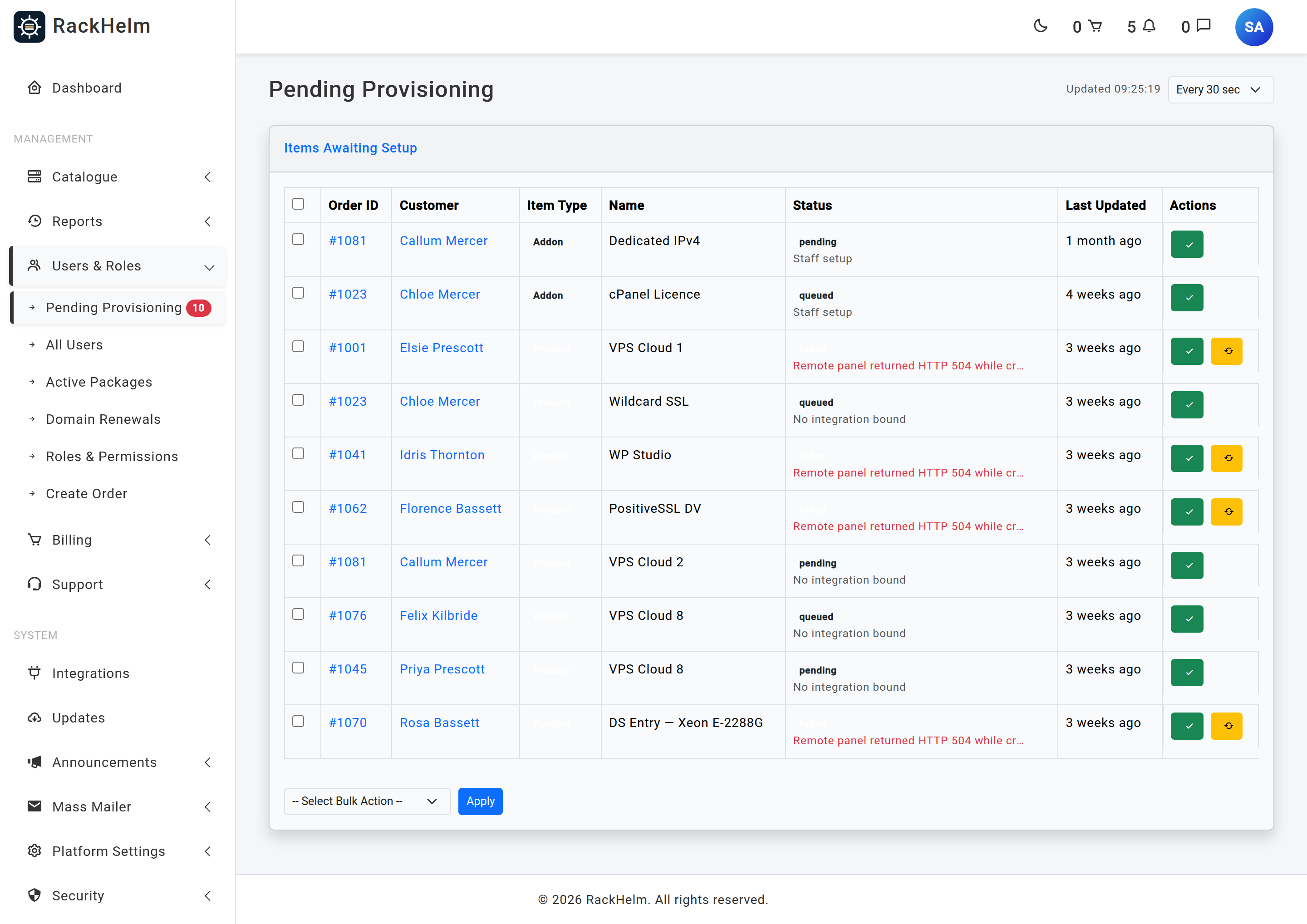
- Tick the rows you want, or use the header checkbox to select everything on the current page.
- Choose Mark as Provisioned, Retry Failed Provisioning or Force Provisioning from the selector at the foot of the table.
- Press Apply and confirm.
What each one does:
- Mark as Provisioned applies to every selected row regardless of its current status, and runs the addon cascade and the ticket-closing check for each.
- Retry Failed Provisioning only acts on rows that are actually
failed. Selecting a page of mixed rows is safe — the pending and processing ones are left alone. - Force Provisioning queues a provisioning run for every selected item whatever it is waiting on — the bulk form of Force Provision on a package’s General Options tab.
The select-all checkbox only covers the page you are looking at, so with more than twenty items you will work page by page.
Note: The success message for Mark as Provisioned and Retry Failed Provisioning reads “Successfully applied action to N items”, where N is how many rows you selected, not how many were changed. On a mixed selection, a bulk retry reports the full count while only the failed rows were touched. Force Provisioning reports honestly, because it counts what it actually queued.
Force Provisioning #
Warning: Force Provisioning skips the paid-invoice check. The confirmation says so — “Force provisioning queues every selected item to be provisioned now, even if its invoice is unpaid. This can create accounts or register domains at the provider. Continue?” — and it means it: a domain registration is a real transaction with real money behind it. Overriding the invoice condition is the whole point of the action, so it is not a safer Retry, it is a deliberate override.
It is still careful about double-delivery. Each item is re-read under a row lock before anything is dispatched, because the scanner or a worker can move it between the page rendering and your click. Two kinds are skipped:
- An item that is no longer awaiting provisioning. It was delivered in the meantime, and forcing it would provision a live service a second time.
- A
processingitem touched in the last 10 minutes, which may be on a worker right now. The provisioning job stamps the row when it claims an item and is killed at its 270-second timeout, so an item quiet for longer than that was abandoned; anything more recent is left alone.
A queued item is dispatched again on purpose: if its first job is still waiting, the atomic claim inside the job lets only one of the two through.
The result message is exact. “Provisioning has been queued for 3 items.” when work went out, “Nothing was queued.” when none did, and either is followed by “Skipped 2: already provisioned, or picked up by a worker in the last 10 minutes.” when some rows were passed over.
Where to look for the reason #
The Status column shows the stored failure text for a failed row, truncated, with the full string in the tooltip. For the whole message on one screen, open Active Packages, find the package and look at its General Options tab, where it is printed in a red Provisioning Failed panel. That tab is also where the single-item Force Provision button lives, for items at pending, failed or queued.
For the underlying exception and stack trace, use the Queue Monitor — every failed provisioning job also lands in its failed-jobs list. See The Queue Monitor and Horizon.
Troubleshooting #
| Symptom | Cause and fix |
|---|---|
| “Item #… is currently queued and cannot be retried.” | Retry only accepts failed and pending items. Wait for the in-flight attempt to finish, use Force Provisioning if it has clearly been abandoned, or set the package’s Service Status to Pending and save first. |
| A 403 when you press Mark Provisioned or Retry | Your role has edit_orders but not provision_orders. The buttons are rendered from the route’s permission; the controller checks the stricter one. |
| Force Provisioning reports “Nothing was queued.” | Every selected item was either already delivered or is a processing row touched within the last 10 minutes. Wait for the grace window to pass and try again. |
Rows sit at pending forever and Retry does nothing |
The scanner will not claim an item whose order has no paid invoice, and Retry hands it straight back to the same pipeline. Settle the invoice, or use Force Provisioning knowingly. |
| The queue never empties, and the same rows return | The items are being re-claimed and re-failed. Fix the cause on the product’s integration before retrying again. |
An addon sits at processing and nothing you do moves it |
That is the resting state for a manual-provisioning addon; the Status column says Staff setup. Build the thing it represents, then Mark Provisioned. |
| A row says No integration bound | The product has no provisioning integration, so nothing automatic will ever deliver it. Set the integration on the product, or deliver it by hand and mark it provisioned. |
| A setup ticket did not close after you marked items provisioned | Closure only fires when no item on that order is still pending, processing, queued or failed, and only for an open ticket whose subject is exactly Addon Setup Request – Order #N. Close it manually otherwise. |
| Nothing appears here but a customer reports a missing service | The item may be at awaiting_configuration (SSL, waiting on the customer) or at manual/active (an addon that needs no provisioning) — none of which are listed here. Check the package directly on Active Packages. |
| The list stopped updating on its own | Either the selector is on Refresh: off, the list thinks it is in use, or the session lapsed — the header says which. Auto-refresh stopped. Reload the page. means log in again. |
| The sidebar badge disagrees with the table | Both count exactly the same four statuses, but the badge is rendered per page load while the table refreshes itself. Reload the admin area after clearing a batch. |


