All Orders is the billing-side record of every purchase: who bought what, for how much, and which invoices came out of it. It is a read-only view by design — everything you can change about a running service lives on the package screen instead. This article is for operators and staff.
Before you start #
Note: Both the list and the detail screen require the
view_orderspermission. The Create Order button additionally requirescreate_orders.
Tip: There is no All Orders entry in the admin sidebar. Reach it from the All orders link on the admin dashboard’s recent-orders card, or go straight to
/admin/orders.
The order list #
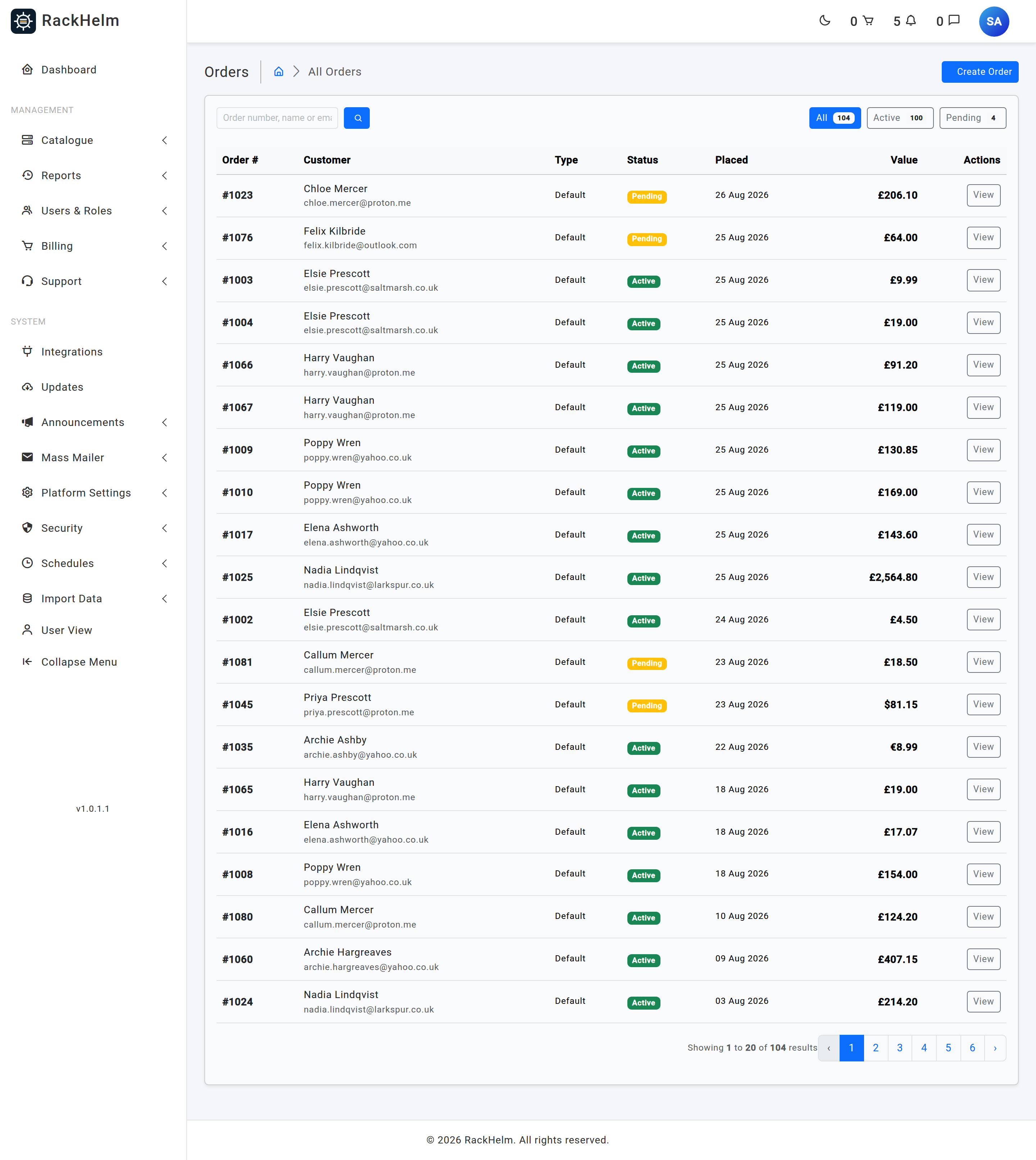
The table shows twenty orders per page, newest first, with these columns:
| Column | What it shows |
|---|---|
| Order # | The sequential order number. Orders imported without one fall back to the first eight characters of the internal ID. |
| Customer | Name and email, linking to the client record. Shows a dash if the customer account has been removed. |
| Type | default for a normal purchase, credit_deposit for an account-balance top-up, or invoice_import / new for imported records. |
| Status | The order status. Green for active, completed and paid; amber for pending; red for cancelled. |
| Placed | The creation date. |
| Value | Line items less discount. Imported orders carry no line items, so their value is taken from the attached invoices instead and marked invoiced. |
Searching and filtering #
- Type into the search box to match on order number, first name, last name or email. Matching is a partial “contains” match on all four.
- Click a status pill to filter. The count on each pill is the total for that status across the whole table and does not change when you search.
- The search box and the status filter combine, and both survive paging.
- Use Clear next to the search box to drop the search while keeping the status filter.
The order detail screen #
Click an order number, or View, to open /admin/orders/{id}. Every “order #” link elsewhere in the admin area points here.
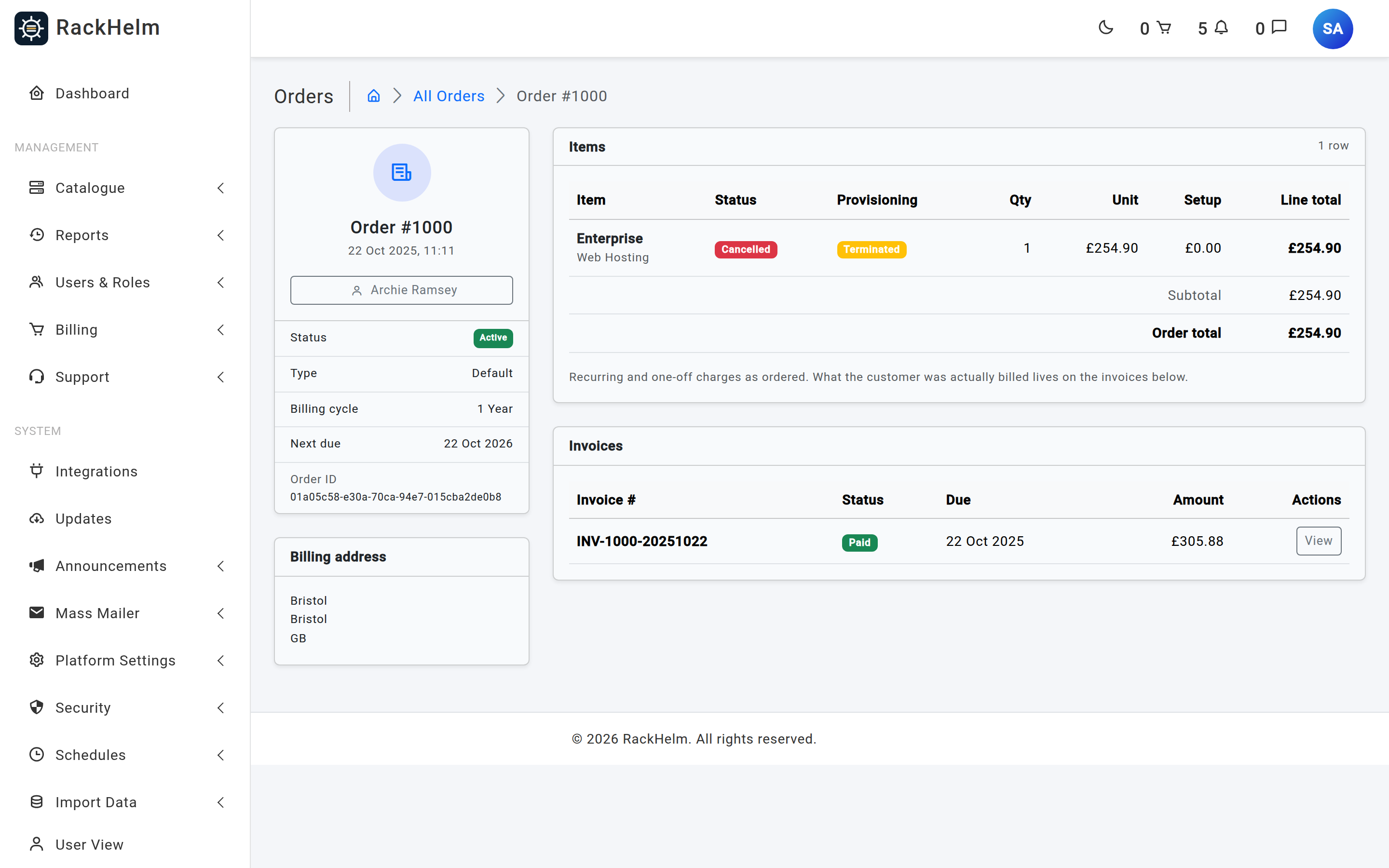
The summary sidebar #
| Field | What it tells you |
|---|---|
| Status | The order status. |
| Type | The order type. |
| Billing cycle | The cycle the whole order renews on. Blank for one-off and credit-deposit orders. |
| Next due | orders.due_date — the date the next renewal invoice is anchored to. |
| Coupon | Only shown when a coupon code was applied. |
| Deleted | Only shown for a soft-deleted order, with the date it was removed. |
| Order ID | The internal UUID. This is the value support and log searches use. |
A Billing address card appears below when the order carries a stored address snapshot.
Note: The billing address card renders the keys
address_1,address_2,city,state,zipandcountry. Orders placed through checkout snapshot the customer’s address book entry using its own key names (address_line1,address_line2,postcode), so those lines are blank on this card. The full address as billed is on the invoice.
The items table #
One row per product plus one row per addon. Addons are indented beneath their parent with an arrow marker, and only parent products link through to the package screen.
- Status and Provisioning are the two independent item columns shown side by side. When provisioning has failed, the reason is printed under the badge, truncated with the full text in the tooltip.
- Line total is
(unit price + setup) × quantity, which is exactly the basis invoice entries use. - The footer shows Subtotal, Discount (only when there is one) and Order total.
An order with no rows shows an empty state. That is normal for imported orders, whose detail only exists on the invoice.
The invoices table #
Every invoice raised against this order, newest first, with number, status, due date and amount. The View button is only shown to staff who hold view_invoices.
Warning: A customer with several services falling due on the same day gets one merged invoice, which is attached to their items rather than to a single order. A merged invoice will not appear in this table even though it bills this order’s items — look the customer up in Invoices instead.
What you cannot do here #
There is deliberately no order editor. To change anything about a live service — price, billing cycle, next due date, status, addons, or to force provisioning — open the package instead, either by clicking the product name in the items table or via Active Packages. See Active Packages.
Troubleshooting #
| Symptom | Cause and fix |
|---|---|
| An order shows £0.00 as its value | It has line items priced at zero, or it is an import with neither items nor invoices. Open the detail screen and check whether the items table is empty. |
| A status pill you expect is missing | Pills are built from the statuses present in the table. If no order currently holds that status, no pill appears. |
| An order number appears twice | Numbers are allocated as “highest so far plus one”, including deleted orders, and re-rolled on a collision. A genuine duplicate means two orders were created in the same instant before the unique index existed on that column. |
| A deleted order still appears in an invoice’s history | That is intended. Invoices resolve their order including soft-deleted ones so the billing history stays readable. |
| Searching a customer’s name finds nothing | The search matches first name, last name and email individually — not a combined “first last” string. Search one word or the email address. |


