The storefront is the public catalogue at /store — the pages a visitor browses before they buy. What appears there is driven entirely by your product groups and products; this article explains how those settings turn into pages, and where each route into the ordering flow starts. It is written for operators.
How the store is built #
The storefront has two levels.
The store index — /store #
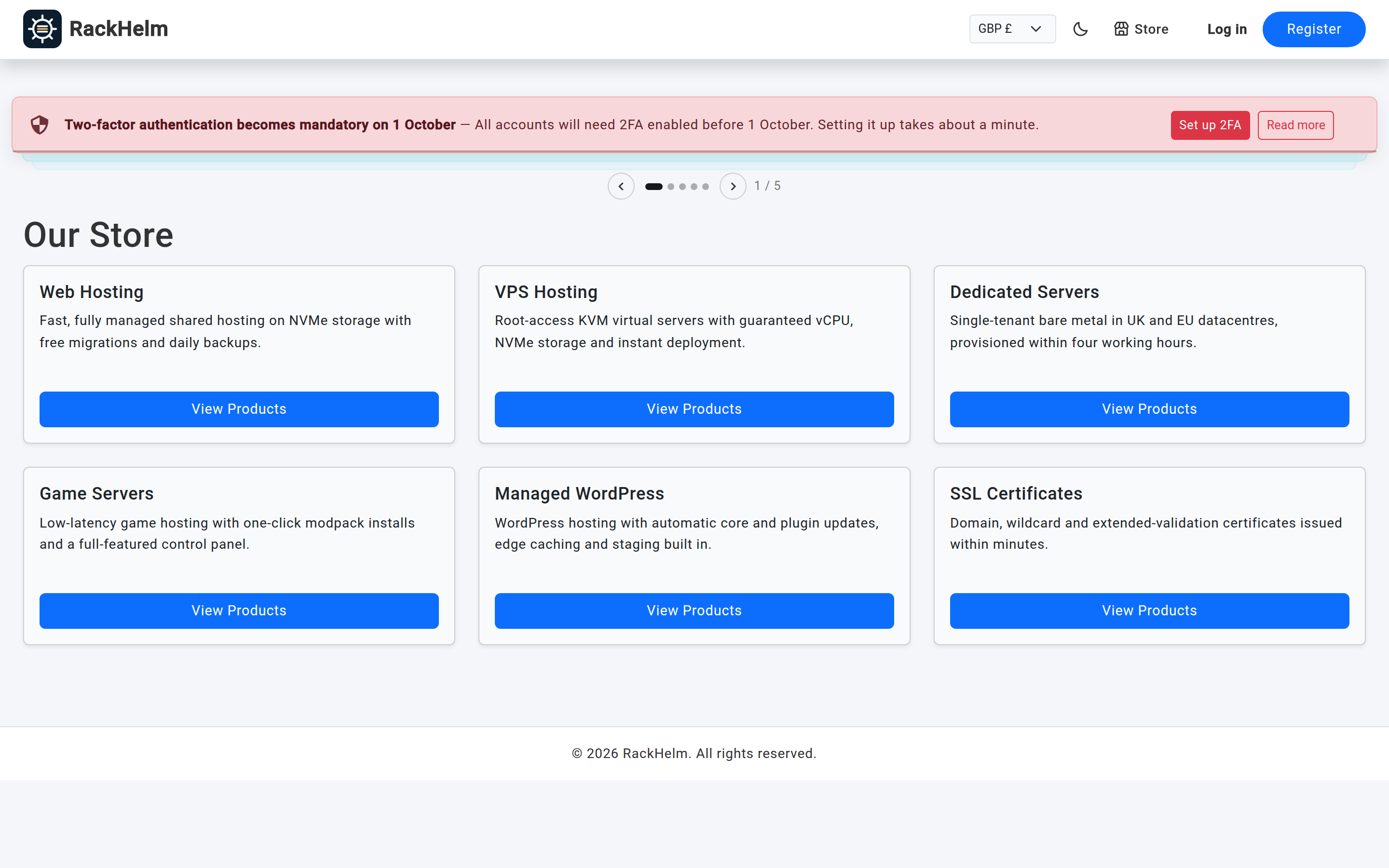
Lists every product group that has Include in Store switched on, in the group sort order. Each group renders as a card:
- A group with several visible products shows the group’s name and description, with a View Products button through to the group page.
- A group with exactly one visible product shows that product’s name and description, and the button goes straight to the product’s order page — labelled Order …, or Enquire about … for a quote-only product.
The group page — /store/{group} #
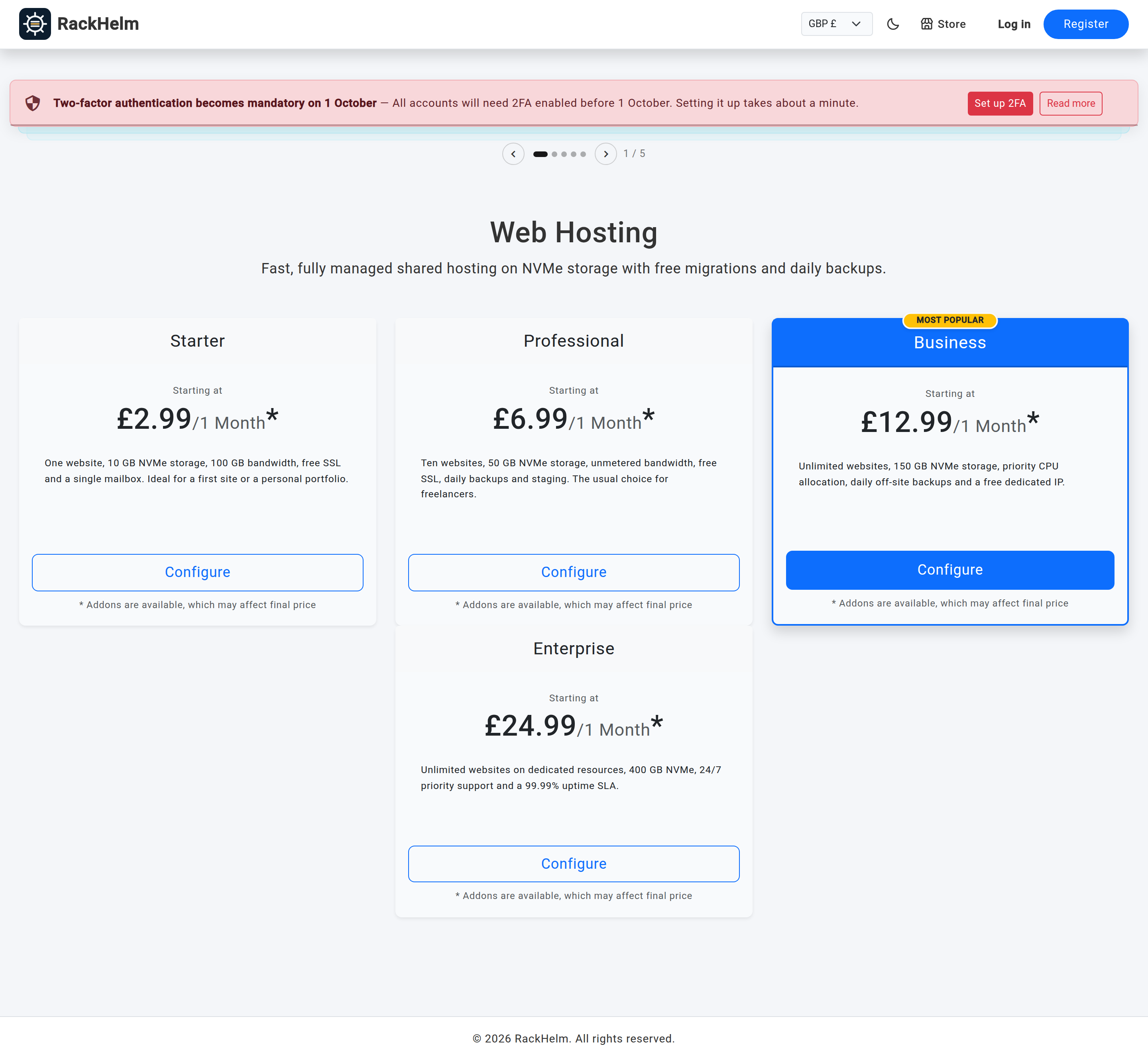
A group page renders in one of two layouts, chosen by the group’s Page Layout setting:
| Page Layout | What the visitor sees |
|---|---|
| Product Grid | A card per product with its description and price. Where a product has more than one billing cycle the price is shown as “starting at” the cheapest, with the cycle label after it. An asterisk marks products that have optional add-ons. |
| Domain Search | A domain search box. Results list availability with Add to Cart for available names and Transfer (which prompts for the EPP code) for taken ones. |
If the group has Show Cycle Savings Calculator on, longer billing cycles are annotated with the saving against the shortest cycle.
Visibility rules #
| Setting | Effect |
|---|---|
| Group — Include in Store | Off keeps the group off the store index. |
| Group — Allow Direct Link | On means /store/{group} still works even when the group is hidden from the index — useful for a private or campaign-only group. With both off, the URL returns 404. |
| Product — Active | The master switch. An inactive product is never listed and its order page returns 404, whatever the other two settings say. |
| Product — Include in Store | Keeps an active product out of the public listings. |
Note: Because Allow Direct Link is not a password, treat an unlisted group as unlisted, not as private.
Where ordering starts #
Every route into the basket goes through one of these entry points:
/order/{group}/{product}— the configure page for one product: billing cycle, custom fields and add-ons, then add to cart. This is where the store index, the group page and any direct link you publish all lead.- Quote-only products — instead of a configure page, the visitor is redirected to the ticket form with the subject pre-filled as “Quote Request: product name“.
- Domain search — results add straight to the cart, or start a transfer via
/domain/configure/{id}with the domain and EPP code carried across. /cartthen/checkout— the basket and the checkout, both reachable by guests.
These public routes are rate limited to 60 requests a minute per visitor.
Choosing the store’s look #
Under Platform Settings → General & System, Store Template selects the visual style of the public store pages:
- Classic (Default)
- Modern Dark
- Modern Clean
The template changes the storefront layout only. Colours are set separately under Platform Settings → Theme Settings.
Store SEO #
Two levels of SEO metadata apply to store pages:
| Setting | Where it is set | What it does |
|---|---|---|
| SEO Title (Fallback) | General & System → Global Store SEO | Page title and Open Graph title for any page that does not set its own. Falls back to your company name. |
| SEO Description | General & System → Global Store SEO | Meta description and Open Graph description fallback. |
| SEO Open Graph Image (Fallback) | General & System → Global Store SEO | Open Graph image used when a page has none of its own. Images up to 2 MB, JPEG/PNG/GIF/WebP. |
| Per-group SEO title, description and image | The product group editor | Override the fallbacks for that group’s page. |
Tip: You do not have to send visitors to the store first. Point your root domain at a marketing page instead — see Setting Your Landing Page — and link to
/storefrom it.
Troubleshooting #
| Symptom | Cause and fix |
|---|---|
| A product is missing from the store | It is inactive, or Include in Store is off. Both are on the product editor. |
| A group page returns 404 | The group has both Include in Store and Allow Direct Link off. |
| An order link returns 404 | The product is inactive, or it does not belong to the group named in the URL. |
| A product card shows no price | No billing cycle price is configured for that product. |
| The store page shows a domain search box unexpectedly | The group’s Page Layout is set to Domain Search. Change it to Product Grid. |
| Social previews show the wrong image | The group has no SEO image, so the global store image is being used. Set one on the group, or replace the global fallback. |
| Visitors get a “too many requests” error while searching domains | The public storefront allows 60 requests a minute per visitor. Repeated automated searching will hit it. |


