Table of Contents
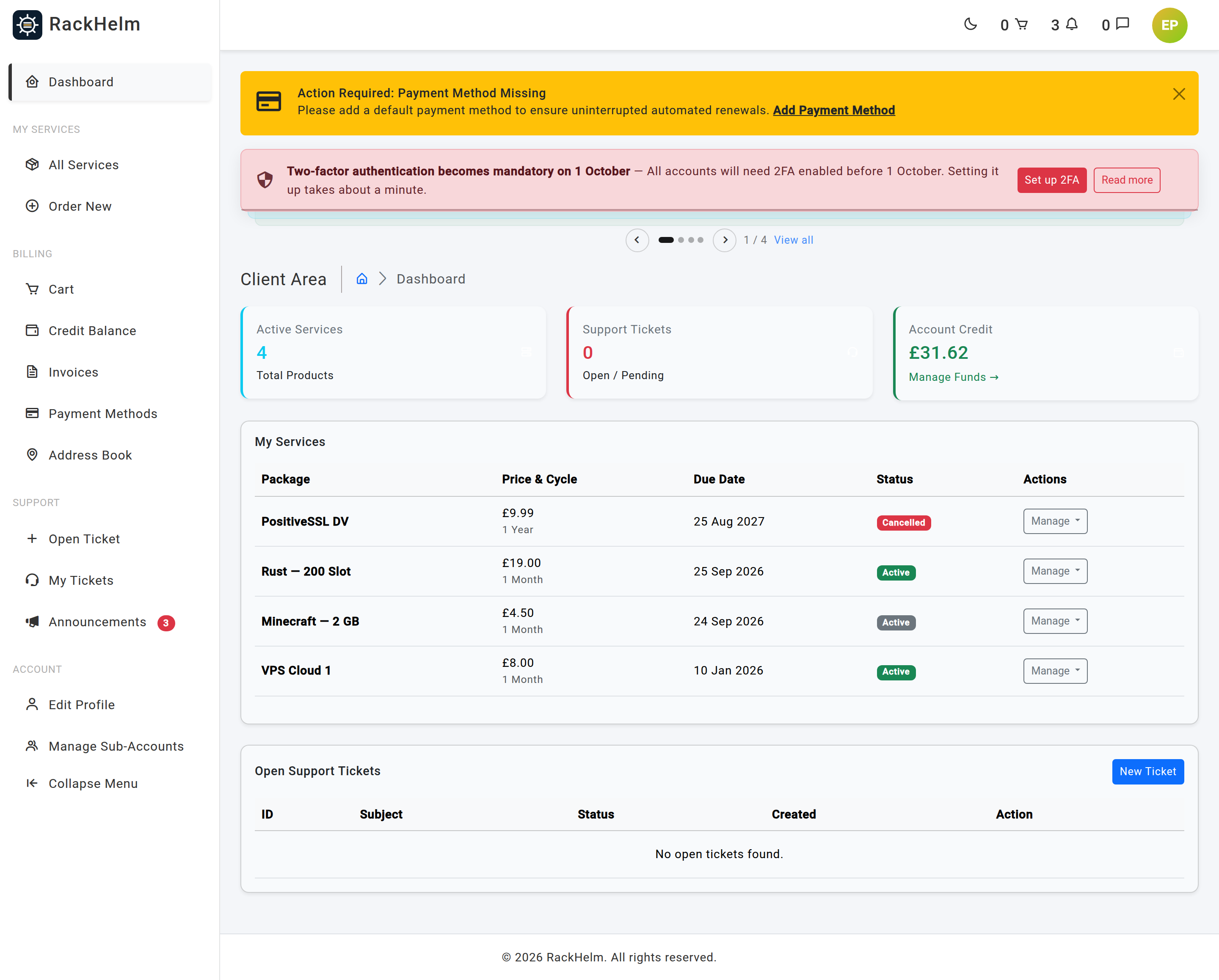
The dashboard at /dashboard is the first page you see after signing in. It summarises what you are paying for, what needs your attention, and how much account credit you hold. This article explains each part of the page and the actions behind the Manage menu.
The three summary cards #
| Card | What it shows |
|---|---|
| Active Services | The number of services on your account. Addons are not counted separately, and account-credit top-ups are excluded. |
| Support Tickets | How many of your tickets are currently open. |
| Account Credit | Your balance, with a Manage Funds → link to the credit page. |
My Services #
The table lists your services, newest first, ten to a page.
| Column | What it shows |
|---|---|
| Package | The product name, the domain it is attached to if there is one, and any addons you bought with it. Each addon shows its price and, while active, a Cancel link. |
| Price & Cycle | The recurring price including addons, and the billing cycle (or One Time). |
| Due Date | When the next payment falls due. |
| Status | Active, Pending, Cancelled or Pending Cancellation. |
| Actions | The Manage dropdown, described below. |
The Manage menu #
- The first entry takes you to the right management screen for that service — a hosting site, a game server, a domain, an SSL certificate, or the generic service page. If the service cannot be managed yet, the entry is greyed out and tells you why (for example Setting up, Suspended or Cancelled) but still links to its status page. A fully disabled entry means there is no management page for that product.
- Renew (Pay Invoice) appears when there is an unpaid invoice on the order and jumps straight to it. Otherwise you see No Due Invoices.
- Cancel Package requests cancellation. You are asked to confirm.
- Change Billing Cycle opens a dialog where you pick a different cycle. The change takes effect immediately: unused time on the current cycle is worked out as a prorated credit and applied to an invoice for the new cycle.
- Upgrade / Downgrade appears when your provider has defined upgrade paths for the product.
- Purchase Addon appears when there are addons you have not already bought for that service. The addon is added to your cart at the same billing cycle as the parent service.
Upgrading or downgrading #
- Select Upgrade / Downgrade from the Manage menu.
- Choose the new package under Select New Package, then a Billing Cycle.
- Decide about Activate Instantly:
- Ticked — an invoice is raised for the prorated difference and the package limits change straight away.
- Unticked — nothing changes until your current cycle ends and the next renewal invoice is paid.
- Select Confirm Change.
Open Support Tickets #
Below the services table are your five most recent open tickets, with a New Ticket button. Each row shows the ticket number, subject, status and creation date. See Getting support.
Finding everything else #
The sidebar groups the rest of the portal:
| Group | Entries |
|---|---|
| My Services | All Services, My Servers, My Sites, My Domains, My SSL Certificates, My Reviews, Order New |
| Billing | Cart, Credit Balance, Invoices, Payment Methods, Address Book |
| Support | Open Ticket, My Tickets |
| Account | Edit Profile, Manage Sub-Accounts |
Note: Providers can rebuild this menu, so yours may not show every entry — an item is hidden when the feature behind it is switched off.
Troubleshooting #
| Symptom | Explanation |
|---|---|
| A service you have only just ordered says Pending | Provisioning has not finished, usually because the invoice is unpaid or the setup job is still running. Pay any outstanding invoice first, then allow a few minutes. |
| The service link is greyed out | The label tells you the reason — set-up in progress, suspended, or cancelled. The link still opens the status page. |
| The Support Tickets card reads 0 but you have open tickets | The card counts tickets in the Open state only. Tickets a staff member has moved to another state — for example while awaiting a reply — are not counted. Open My Tickets for the full list. |
| Your account credit is not shown on a sub-account | Credit belongs to the billing account. Sub-accounts see the owner’s balance, not one of their own. |
| No Change Billing Cycle or Upgrade / Downgrade entry | The product has no alternative cycles or no upgrade paths configured. Raise a ticket to ask your provider. |
| An addon you cancelled still appears | Cancelled and terminated addons stay listed under the package with a status badge instead of a Cancel link. They are still counted in the Price & Cycle figure shown on this table, and the addon becomes available again under Purchase Addon. |


