Configurable options are custom fields attached to a product or a product group, each with its own visibility and locking behaviour. Defining a field creates it; assigning it decides where it is asked for, who may change it, and what the provisioner receives. This article is for operators.
Before you start #
- Create the fields you want to assign under Catalogue → Custom Fields. See Custom Fields.
Note: Assigning options to a product goes through the product editor (
edit_products, plus the unseededadmincapability the save path checks). Assigning to a group goes through the group modal, gated by the unseededstaff_panelcapability. In a default install both are effectively Super Admin only. See Roles & Permissions.
The options picker #
The same picker is used in three places: the product editor’s Options & Add-ons tab, the Create Product Group modal’s Configurable Options tab, and the Edit Group modal’s equivalent tab. It lists every custom field on the install, with a search box and a “N selected” counter.
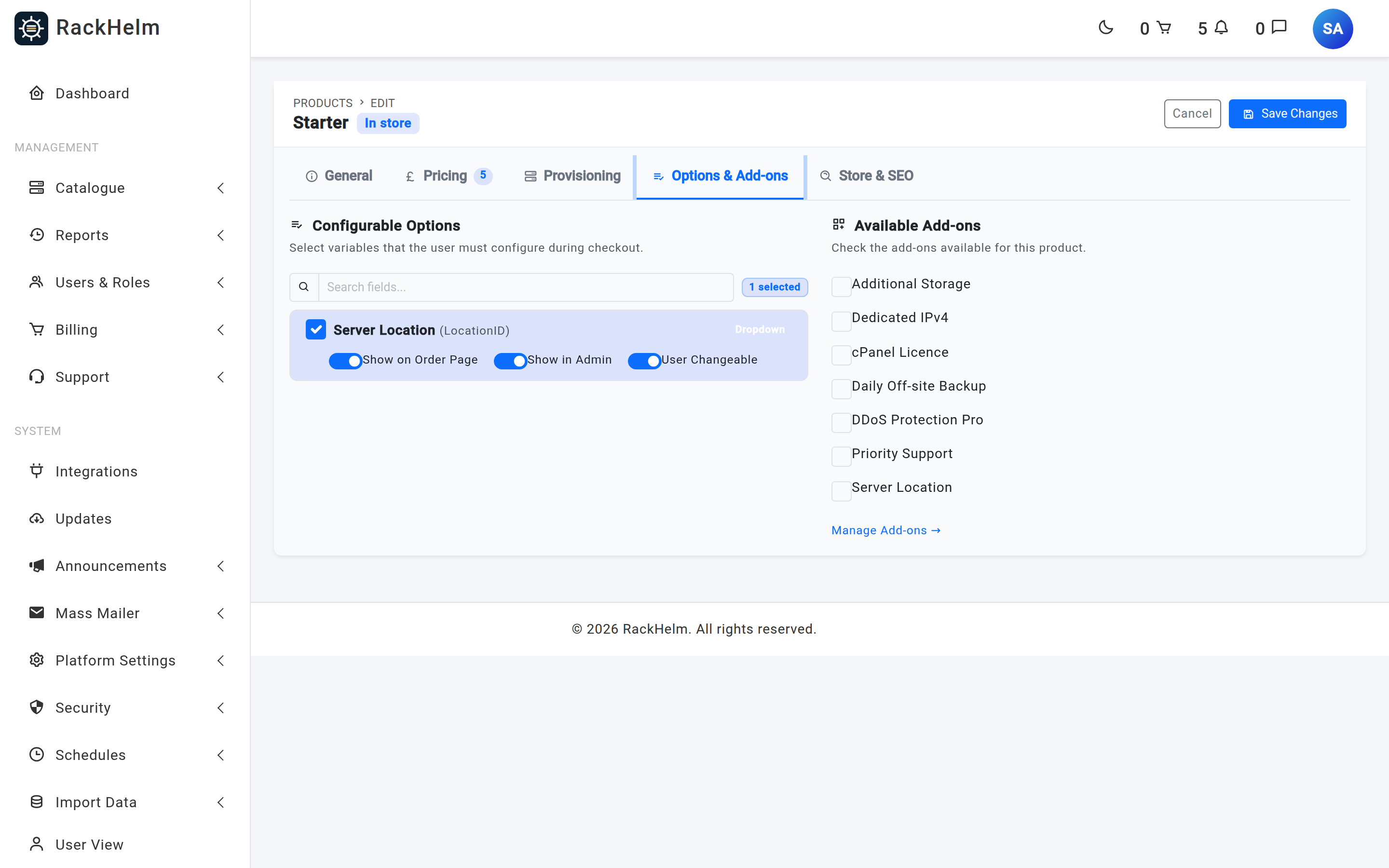
Each row shows the field’s display name, its system key in brackets and a badge with its type. Tick the checkbox to attach the field, then set its switches.
The three switches #
| Switch | Default | What it does |
|---|---|---|
| Show on Order Page | On | Offers the field to the customer on the product’s order page. Off keeps the field attached but never asks for it. |
| Show in Admin | On | Recorded against the assignment. Nothing currently reads it to filter an admin screen, so treat it as documentation of intent rather than an effective control. |
| User Changeable | On | Off does two things at once: it hides the input from the customer, and it makes the server discard any value the buyer submits for that key. The provisioner then falls back to the value configured on the product, add-on option or integration. |
Tip: User Changeable off is the correct way to pin a value such as a node or location ID. Hiding the input alone would not be enough — the switch is what makes the server ignore a hand-crafted form submission.
Product-level versus group-level #
You can attach a field in two places, and they combine:
- On the group — every product in the group inherits it. Use this for anything the whole range needs, such as a hostname on all VPS plans.
- On the product — applies to that product only.
When a customer opens an order page, RackHelm builds the list from the product’s own assignments first, then adds any of the group’s assignments the product does not already carry. That means:
Note: A product-level assignment overrides the group-level one for the same field. Assign the field on the product with different switches when one product needs to behave differently from the rest of its group.
Assigning options to a product #
- Open Catalogue → Catalogue & Groups and edit the product.
- Go to the Options & Add-ons tab.
- Search for a field, tick it and set its three switches.
- Save the product. The tab’s counter badge updates to show attached options plus attached add-ons.
Note: This picker reflects the product’s own assignments only. A field inherited from the group shows here unticked — that is expected, and it still reaches the order page. Tick it only when you want this product to override the group’s switches.
Assignments are replaced wholesale on save — a field you untick is detached, and its switches are forgotten. Duplicating a product carries the assignments and their switch settings across to the copy.
Assigning options to a group #
- On Catalogue → Catalogue & Groups, open a group’s ⋯ → Edit Group (or click New Group).
- Switch to the Configurable Options tab.
- Tick fields and set their switches.
- Click Save Changes.
Domain Search groups behave differently #
In a group whose Page Layout is Domain Search, every assigned field is offered on the order page regardless of its Show on Order Page switch. This is deliberate — it is what keeps the domain name field visible on a registration or transfer, which would otherwise be filtered out. User Changeable still applies as normal, and the domain-specific keys are re-injected from validated input after the locking pass, so registrations are unaffected.
What the customer sees #
Assigned, visible fields render under a Configuration heading on the order page, above the add-ons, each using the input type its definition specifies. Required fields carry a red asterisk. If a product has no fields of its own and no add-ons, its store card’s button reads Order Now instead of Configure — the link is the same order page either way.
Legacy “Product Variables” #
Warning: RackHelm previously had a separate Product Variables feature with its own screens and its own variable-assignment pages. Custom Fields replaced it. The old variables screens are no longer registered on any route, and the two remaining variable-assignment routes (
/admin/groups/{group}/variablesand/admin/products/{product}/variables) call relationships that no longer exist on the models, so they error rather than working. Do not use them — configure everything through Custom Fields and the pickers described above.
Troubleshooting #
| Symptom | Cause and fix |
|---|---|
| The picker says “No custom fields found.” | None are defined yet. Follow the “Create one” link, or go to Catalogue → Custom Fields. |
| A field assigned to the group does not show on one product. | The product has its own assignment for the same field, and that one wins. Check the product’s Options & Add-ons tab. |
| A field is ticked but the customer never sees it. | Either Show on Order Page or User Changeable is off. The second one hides the input on purpose. |
| A customer’s value is being ignored. | User Changeable is off for that assignment, so the server drops buyer input for that key by design. |
| Switches reverted after saving. | Assignments are synced wholesale from the form. If a switch was not visible because its field was unticked, its value was not submitted. Tick the field first, then set the switches, then save. |
| Opening a “variables” URL throws an error. | Those are the legacy Product Variables routes described above. Use Custom Fields instead. |
| Saving a group returns 403. | The group controller checks the unseeded staff_panel capability; only Super Admin satisfies it by default. |


