CyberPanel is offered in RackHelm’s control-panel catalogue with the same connection form as cPanel, Plesk, DirectAdmin and ISPmanager. This article covers what CyberPanel needs from you, the RackHelm fields, and the current state of the driver.
Before you start #
- The
edit_integrationspermission. See Roles & Permissions. - A CyberPanel server reachable from RackHelm over the public internet with a certificate that validates. CyberPanel’s interface normally listens on port 8090.
- An admin account with API access enabled in CyberPanel, and the token or key you want RackHelm to hold.
Note: CyberPanel is very often installed with a self-signed certificate on 8090. RackHelm always verifies TLS — the Verify SSL dropdown is stored but not read by any driver — so put a certificate that validates on the hostname you enter before you rely on this connection.
Add the connection #
- Open System → Integrations and press Configure on the CyberPanel card.
- Set Base URL to the CyberPanel origin including the port, for example
https://cyberpanel.example.com:8090. - Paste your credential into API Key / Token.
- Press Save.
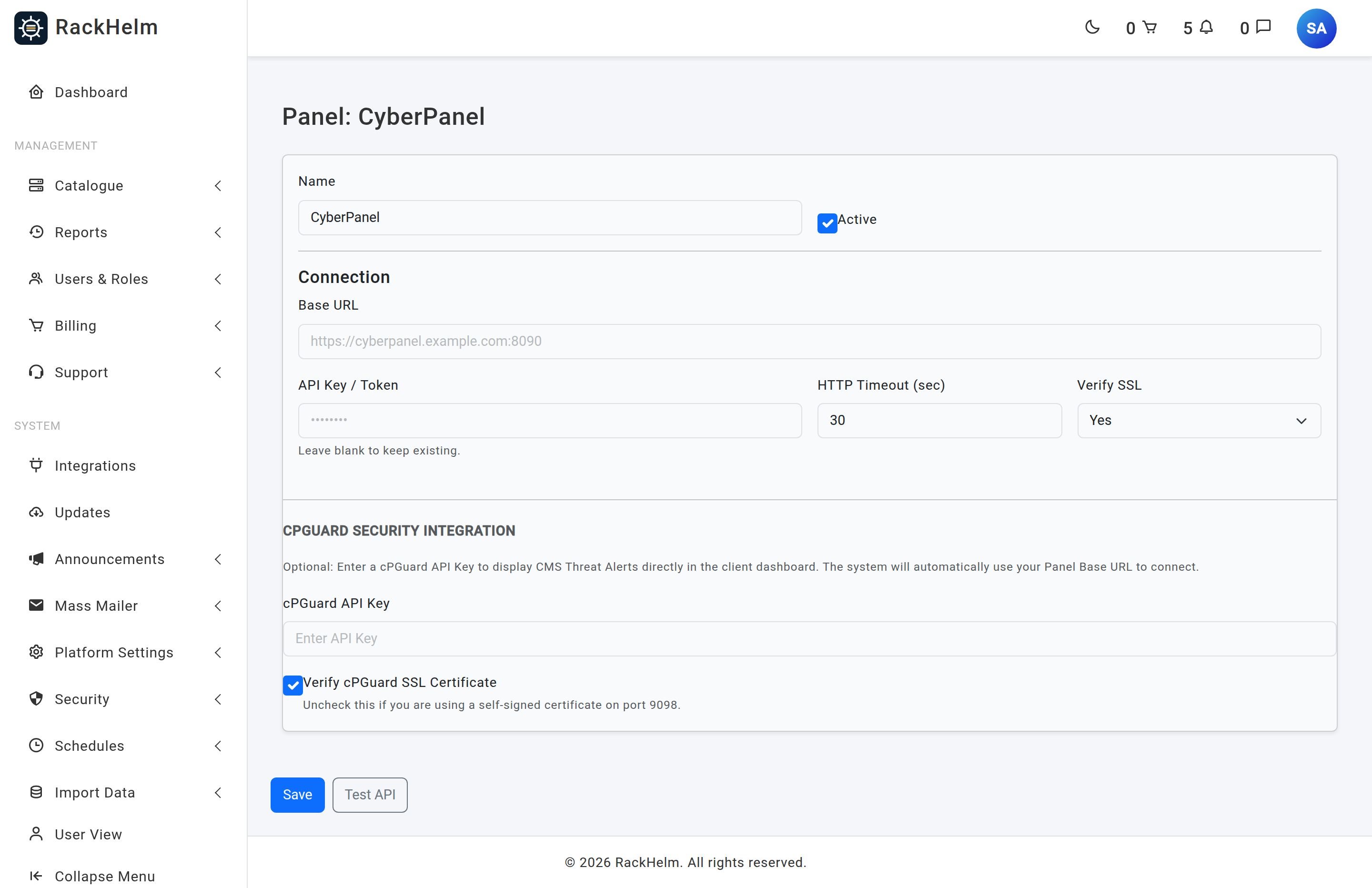
Fields #
| Field | Rule | Notes |
|---|---|---|
| Name | Optional, max 120 characters | Defaults to “CyberPanel”. |
| Active | Checkbox | Required for CyberPanel to appear as an Integration Type. |
| Base URL | Required, http/https, publicly resolvable | Placeholder https://cyberpanel.example.com:8090. |
| API Key / Token | Optional on edit | Blank keeps the stored value. Stored encrypted. |
| HTTP Timeout (sec) | Integer, minimum 1 (form minimum 5) | Applies to the Test API button. |
| Verify SSL | Yes / No | Stored but not read by any driver; TLS is always verified. |
| cPGuard API Key | Optional | Relocated into the encrypted credential block on save. |
| Verify cPGuard SSL Certificate | Checkbox, on by default | Untick for a self-signed certificate on port 9098. |
Testing the connection #
Test API sends GET {base_url}/api/v2/server with an X-API-Key header. That is the Plesk REST shape and CyberPanel does not serve it, so a 404 is expected and proves nothing about your credential. What the test does prove is reachability: a timeout means port 8090 is blocked to the RackHelm server, and a certificate error means TLS is not valid for that hostname.
Re-type the credential before testing a saved connection; a blank box sends the literal word KEEP.
Bind a product to CyberPanel #
Edit the product under Catalogue → Catalogue & Groups, open the Provisioning tab and choose CyberPanel. The fields are the shared hosting-panel set:
| Field | What it is for |
|---|---|
| Panel | Which saved CyberPanel connection to use. |
| Package / Plan ID | The CyberPanel package new websites are created on. |
| Site Template ID | Optional, free text. |
| Region / Cluster | Optional, free text. |
| AutoSSL | Enabled or Disabled. Stored with the product. |
| Suspend after (days past due) | Stored, default 1. The suspension schedule uses its own days option instead. |
| Terminate after (days after suspend) | Stored, default 7. Same caveat. |
| Provisioning Notes (internal) | Staff-only free text. |
CyberPanel has no required product field, so the product will save with an empty package. Fill it in regardless — it is what the driver will read when it ships.
What the customer sees #
A provisioned CyberPanel item appears under Sites in the client portal. The CyberPanel site driver returns empty results for every query in this build, so the page renders with nothing in it. Only Enhance has a complete site driver today.
Troubleshooting #
| Symptom | Cause and fix |
|---|---|
| Test API returns 404 | Expected — the shared tester requests a Plesk path. |
| Test API fails with a certificate error | The default self-signed CyberPanel certificate. Install one that validates for the hostname you entered. |
| Test API times out | Port 8090 is not reachable from the RackHelm server’s public IP. |
| Base URL rejected on save | The host resolves to a private, reserved or unresolvable address. See Adding a control panel connection. |
| CyberPanel missing from the Integration Type dropdown | The connection is saved but not marked Active. |


