Capturing a value from a provider’s reply stores it; it does not show it to anybody. The Service page tab is where you decide which captured values a customer sees at /services/{id}, how each one is rendered, and which are treated as credentials. This article covers building those fields — including the shortcut that reads a real response and creates them for you — and the reveal control customers use for masked values.
Why the two halves are separate #
An endpoint’s response map writes captured values into a plain key/value store against the order item. A field is a display rule that turns one of those keys into a labelled box on the customer’s page, and nothing renders until a field exists. If capturing and publishing were the same act, an API that returns a root password beside a hostname would put the password on a customer’s page the moment somebody mapped the hostname.
Build the fields from a real response #
The quickest route needs one successful call to have happened already — provision a service through the integration, or fire the Test tab once.
- Open the Service page tab.
- Choose the endpoint whose reply you want to read (it defaults to provision) and select Read last response.
- RackHelm flattens the stored reply into dot paths and offers them as a checklist, each with a suggested attribute name, label, rendering and a sample value.
- Tick the ones the customer should see, adjust the labels, and select Add ticked fields & map them.
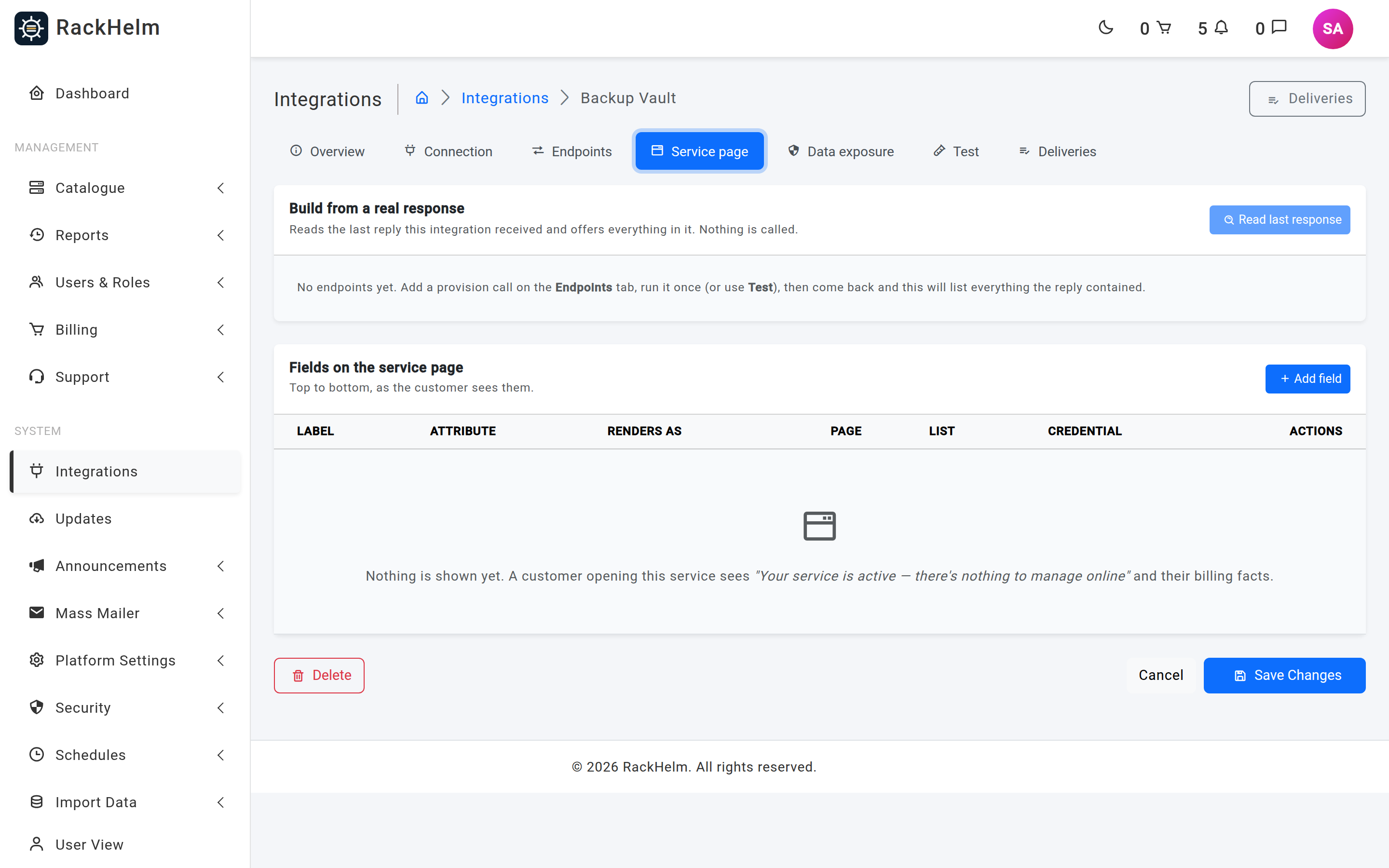
Two things happen in that one action: a display field is created for each ticked row, and the chosen endpoint’s response map is extended so the value is actually captured next time. Doing both together is the whole point — a field whose key nothing captures renders an empty box forever, and a capture with no field is invisible.
| Behaviour | Detail |
|---|---|
| Which response is read | The most recent stored reply for the integration (and endpoint, if you chose one), preferring a successful one — an error body is full of keys that are not the service’s shape. Discovery reads the delivery log and never calls the remote API. |
| How many paths | Up to 250, flattened to six levels deep. If there were more, you are told the list was truncated. |
| Credential detection | A path whose last segment looks like a credential (password, token, api_key, secret, private_key and similar) is pre-flagged, its sample masked and its rendering set to Secret. It is flagged, never pre-ticked. |
| Suggested rendering | Guessed from the value and the key name — booleans, URLs, timestamps, status-like names, byte-ish numbers and identifiers all get a default you can change. |
| Re-importing | A key you already have is not duplicated; it is re-mapped and reported as skipped, so a re-import after hand-tuning a field is safe. |
| Names created | A common wrapper (data, result, response, payload, attributes) is dropped from the front and the rest joined with underscores — data.product.name becomes product_name. |
Note: Two attribute names do extra work wherever they appear.
external_idis also written onto the service itself and is how every later call addresses the remote record;expires_atsets the service’s expiry date. Rename a discovered row to one of those if the provider’s reply carries them under another name.
Add or edit a field by hand #
Use Add field, or Edit on an existing row. The attribute-name box offers everything your endpoints already capture as a datalist, and warns you if you type a name nothing captures.
| Field | What it does |
|---|---|
| Attribute name | Must match the left-hand side of a response-map entry. Letters, numbers, dots, dashes and underscores, starting with a letter or number, up to 190 characters. Unique within the integration. |
| Label the customer sees | Required, up to 120 characters. |
| Render as | One of the nine display types below. |
| When there is no value | Up to 40 characters, shown before the remote has sent anything. Defaults to an em dash. |
| Sort order | 0–65535, low numbers first. |
| Help text | Optional, up to 255 characters, shown under the value. |
| Attribute holding the maximum | Meters only, and required for them — the attribute whose value the bar fills against. Both attributes have to be captured. |
| Badge colours | Badges only. JSON of value to colour. Only primary, secondary, success, danger, warning, info, light and dark are kept; anything else is dropped on save and renders grey. |
| Show on the service page | The switch that actually publishes the field. On by default. |
| Show in the services list | Stored, but currently inert — see below. |
| Show to staff | Stored, but currently inert — see below. |
| Give it a copy button | Adds a copy control beside the value. Forced off for credentials, which have their own. |
| Treat as a credential | Encrypted at rest, masked on the page, and revealed only after the customer re-enters their password. |
Warning: Show in the services list and Show to staff are saved and honoured by the data model, but nothing reads them yet — the services list renders cards without attributes, and the admin package view has no attribute panel. Setting them changes nothing you can see today. The switch that matters is Show on the service page.
Display types #
| Type | How it renders |
|---|---|
text |
Plain text. |
badge |
A coloured pill, using your badge map. Unmapped values render grey. |
meter |
The value, “of” its limit, and a progress bar. The bar turns amber at 75% and red at 90%. |
link |
A link, but only if the value is a valid http or https URL; anything else renders as inert text. |
code |
A monospaced block. Good for identifiers and licence keys. |
bytes |
A byte count formatted as B/KB/MB/GB/TB/PB. |
datetime |
Formatted as dd Mon yyyy HH:mm; an unparseable value falls back to the raw text. |
boolean |
A Yes/No badge. 1, true, yes, on, enabled and active all count as yes. |
secret |
Masked behind a reveal control, exactly as if Treat as a credential were ticked. |
Note: Encryption is applied when a value is captured. Ticking Treat as a credential on a field whose value is already stored does not re-encrypt what is there — it takes effect on the next call that captures that attribute.
What the customer sees #
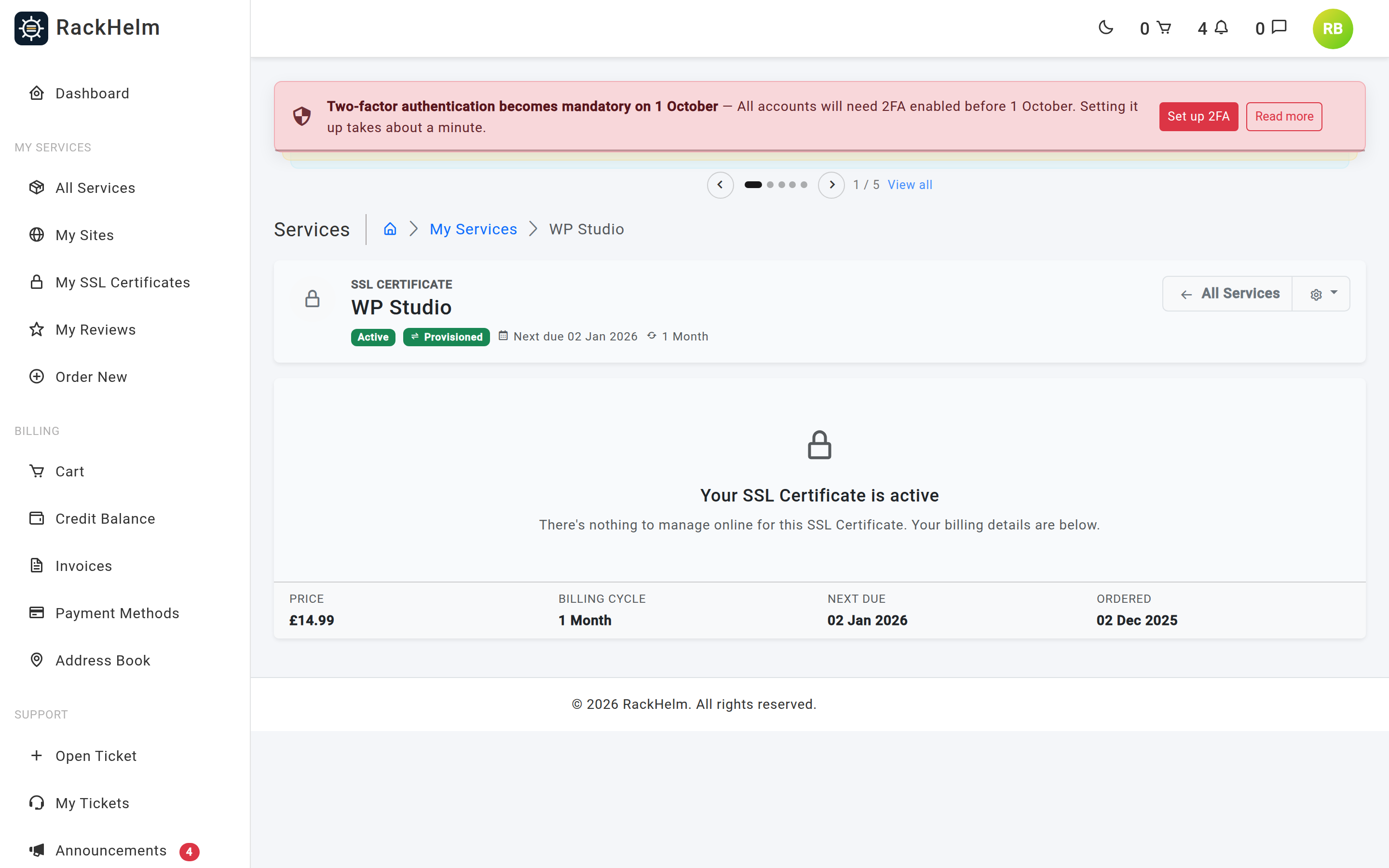
The service page is built from four cards:
- Status — provisioning, failed, suspended, ended, or active. A service still provisioning refreshes itself every 30 seconds.
- Details — your published fields, two per row, in sort order. The card is titled with the integration’s service noun, so a noun of
Licencegives Licence Details. Publish nothing and the customer sees “Your Licence is active” and their billing facts instead. - Configuration — what the customer chose at checkout. Password-type custom fields are never echoed back, even to the account owner.
- Recent Activity — the last ten events as event, when, and Completed / Failed / In progress. Deliberately coarse: the customer never sees the URL, headers, body or upstream status code.
Revealing a credential #
A masked field is never printed into the page on first render. The customer selects Reveal, which posts to /services/{id}/reveal/{key} behind a password re-confirmation and a limit of 10 requests a minute. Three gates apply: the service must belong to the account owner; a field must exist for that key and be published to the service page; and that field must be masked, since an unmasked value is already on the page.
The value is flashed for exactly one render — reload and it hides again — and comes with its own copy button. RackHelm records that a reveal happened, and against which key, but never the value itself.
The Refresh button #
The Refresh control on the details card is a placeholder. It is intended to re-run the integration’s sync endpoint and re-capture attributes, but today it returns a “not available yet” message. Values update when a lifecycle event fires, not on demand.
Captured but not shown, and the reverse #
Below the fields table, RackHelm lists every attribute your endpoints capture that has no display field — stored against every service and readable by your own endpoints as {{ attr.name }}, but invisible to the customer. Select one to open the field modal pre-filled with its name. The opposite case is flagged in the table itself: a field whose key nothing captures gets a not captured badge, because that box will render empty forever.
Deleting a field un-publishes a value. It does not delete what the provider told you — the captured attribute stays stored and stays available to your endpoints.
Troubleshooting #
| Symptom | Cause and fix |
|---|---|
| “No stored response to read yet.” | Nothing has ever come back through this integration. Provision a service or fire the Test tab first. |
| “The last response was not JSON, so there are no paths to offer.” | The provider answered with plain text or XML. Map it by hand, or ask them for a JSON content type. |
| A field shows the not captured badge, or renders permanently empty | Either no response map writes that name, or the dot path does not match the real reply. Use Read last response to compare. |
| “A meter needs the attribute holding its maximum.” | Meters need two captured attributes: the value and its limit. |
| A badge renders grey | The value is not in the badge map, or the colour is not one of the eight allowed. |
| A revealed value comes back “There is nothing stored for this yet.” | The display rule exists but holds no value — the capture has not happened yet. |
| Ticking Show in the services list changes nothing | Expected — that switch is stored but not yet read by any screen. |


