Most of what RackHelm does after a customer presses Pay happens on a queue: provisioning an account, raising invoices, sending mail, syncing domains. System → Queue Monitor is the screen that shows that work — what is waiting, what is running, what has finished and what has failed — and lets you retry a failed job. This article covers that screen. It is written for operators.
Opening it #
- Open System → Queue Monitor, or go to
/admin/queue-monitor. - The page refreshes itself, so you can leave it open while you watch a batch of orders go through.
Note: The Queue Monitor is restricted to accounts that can manage roles — in a default install, a Super Admin. It is not covered by the ordinary staff permissions, so a Support Agent or Billing Manager cannot open it even if they can see everything else under System.
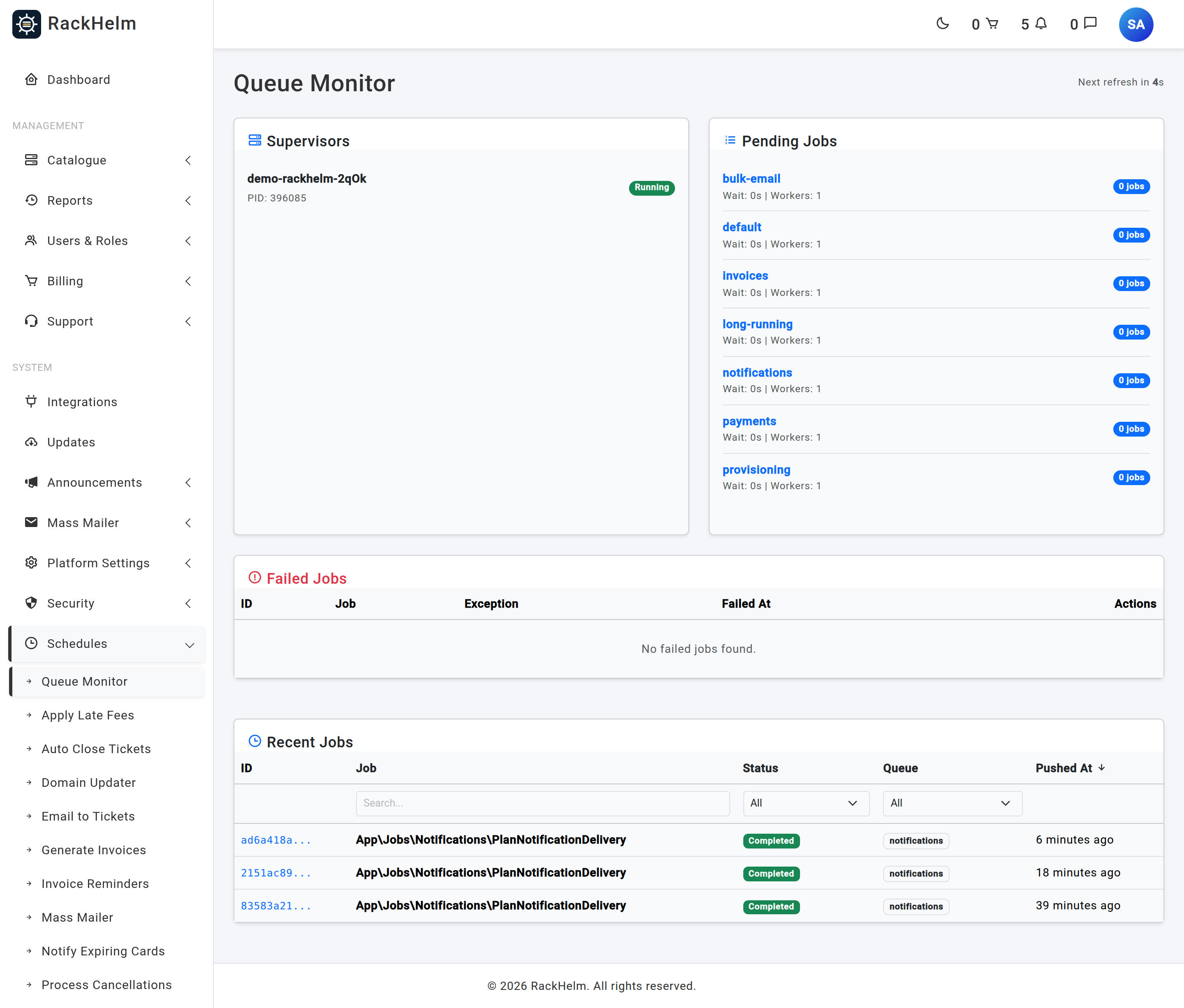
What the page shows #
| Panel | What it tells you |
|---|---|
| Workers | Each running worker process by name, with its status and process id. An empty panel means nothing is processing your queues — jobs will pile up and nothing will run. |
| Workload | One row per queue with how much is waiting on it. This is where a backlog shows first. |
| Recent jobs | The last 20 jobs, each marked Pending, Processing or Completed, with the time it was pushed. |
| Failed jobs | The last 20 failures, each with the job name, the exception and when it failed, and a Retry button. |
Finding one job #
The recent-jobs list can be filtered and sorted, which matters when you are chasing one customer’s order through a busy queue.
- Search matches the job name, so searching
Provisionnarrows it to provisioning work. - Status filters to pending, processing or completed.
- Queue filters to a single queue.
- The Job, Status, Queue and Pushed At columns all sort, newest first by default.
Selecting a queue name opens that queue on its own, listing what is still pending on it by Job ID, Job Name and Pushed At. Selecting a job opens Job Details: its name, queue, status, and the pushed, completed or failed timestamps.
Note: Both lists are capped at 20. They are a live view of what is happening now, not a history — if you need to prove what ran last week, use the job’s own audit trail or the application log rather than this screen.
Retrying a failed job #
- Find the job under Failed jobs.
- Read the Exception column first. A job that failed because a panel was unreachable is worth retrying; one that failed because a product is misconfigured will simply fail again.
- Select Retry. The job is pushed back onto its queue and reappears under recent jobs.
Warning: Retry re-runs the whole job, not the part that failed. For provisioning work, check the panel first — if the account was created and the failure came afterwards, a retry can leave a duplicate behind. Orders → Pending Provisioning is the safer place to drive a stuck order from, because it understands what has already been done.
What to look at when something has not happened #
| Symptom | Where to look |
|---|---|
| A paid order has not provisioned | Failed jobs first. If nothing has failed, check Workers — if that panel is empty, nothing is running the queue. |
| Everything is slow, nothing has failed | Workload. One queue carrying a large backlog will delay everything behind it. |
| Invoices or email have not gone out | Recent jobs, filtered by name. If they are Pending and never move to Processing, the worker for that queue is not running. |
| The same job fails repeatedly after a retry | The cause is in the job, not the queue. Read the exception and fix the underlying configuration before retrying again. |
| Long jobs stop part-way | Registrar sweeps and panel provisioning run on their own longer-timeout lane. See Queue Workers and the Scheduler. |
The scheduler is a different thing #
The Queue Monitor shows individual jobs. What decides that a job should exist at all — generating invoices, chasing overdue services, syncing domains — is the scheduler, under System → Schedules. If a schedule never fires, nothing appears here to find. Check that screen first when work is not merely slow but entirely absent. See System Schedules and the Scheduler.


