Automatic renewal billing depends on a saved payment method. This article covers how customers add one, what “default” means, how the automatic charge run picks a method and what it does when the charge succeeds, is declined or cannot be attempted at all. It is written for both operators and their customers’ support needs.
Before you start #
- At least one gateway must be active — see Payment gateways.
- Real card vaulting only exists for Stripe and Square. PayPal and Bank Transfer methods are recorded as a reference rather than a vault token.
- The Process Due Invoices schedule must be enabled, and a worker must be consuming the
paymentsqueue, or nothing is ever charged automatically.
Adding a payment method (customer) #
- Open Payment Methods in the client portal (
/payment-methods). - Select Add New. A Select a Payment Provider screen always appears first, listing every active gateway.
- Choose the provider and complete its form. For Stripe the page is titled Add a Credit Card and collects Name on card and Card details.
- Leave Make this my default payment method ticked (it is ticked by default) unless the customer is adding a spare card.
- Select Save Card.
Behind the scenes, for Stripe RackHelm creates or reuses a Stripe customer for the account, attaches the card, and confirms a setup intent marked for off-session use. For Square it creates a Square customer and a card-on-file. Either way the brand, last four digits and expiry are copied locally so screens can show them without calling the gateway.
Note: The first method a customer adds always becomes their default, whether or not the box is ticked. Only one method can be the default at a time — setting a new one clears the old.
Note: If the bank requires 3D Secure, the save pauses and the customer is asked to complete the challenge before the card is stored. A card that fails the challenge is not saved.
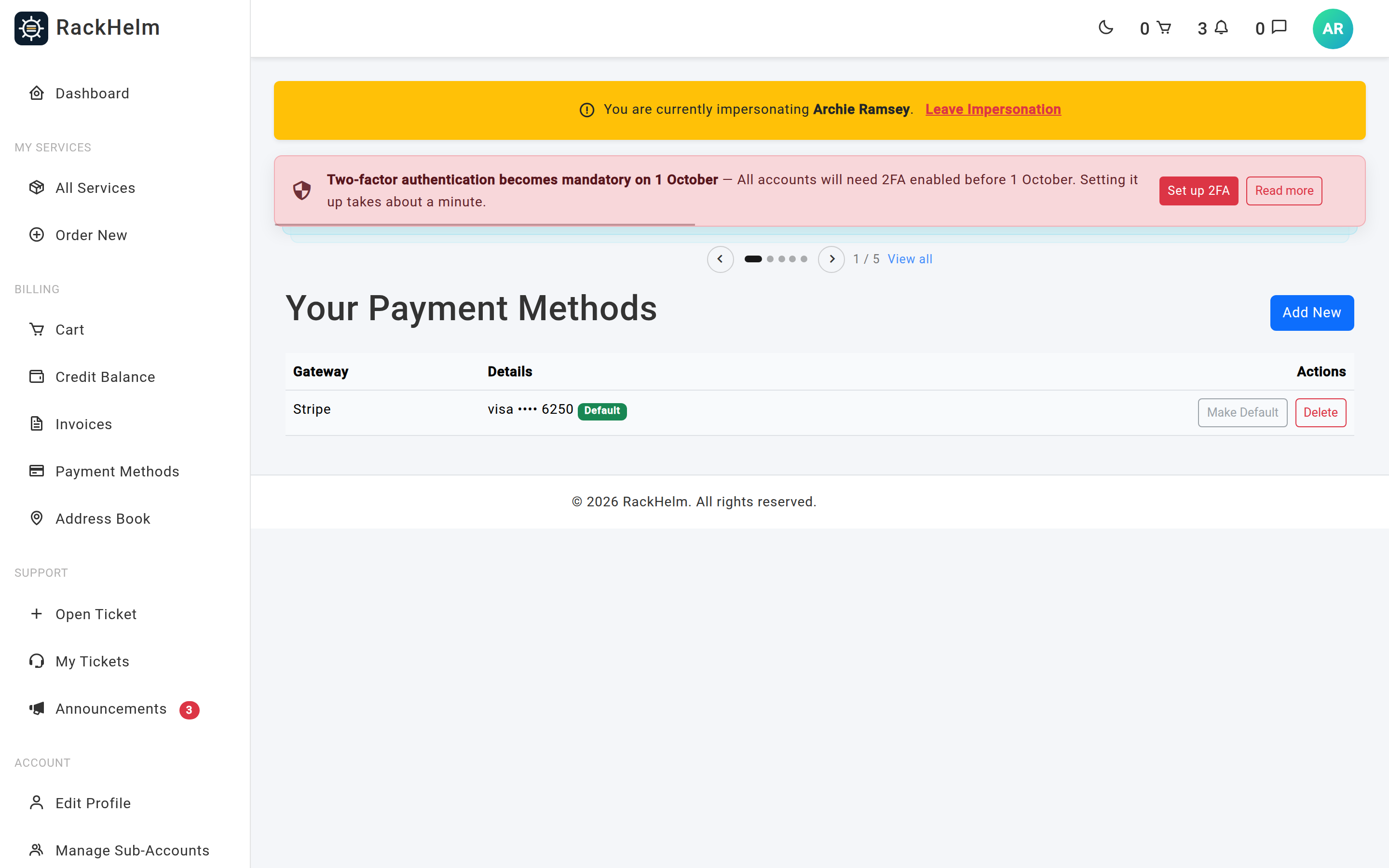
Warning: The Payment Methods list in the client portal has an Actions column that renders no buttons in this build, so customers cannot change their default or remove a card from that page. In practice they change the default by adding a card with Make this my default payment method ticked. There is no removal button on the staff side either — the admin Billing tab lists saved methods read-only — so a card can only be removed by someone working directly against the database.
Where else a card can be captured #
| Place | Detail |
|---|---|
| Checkout | A save card option stores the card used for the order for future renewals. |
| The onboarding wizard | New accounts can be asked for a card at signup. Controlled under Platform Settings → User Onboarding — whether the wizard runs, whether the customer may skip it, and which gateway the payment step defaults to. |
What staff can see #
Open Users & Roles → All Users → (customer) → Billing. The lower table lists every saved method with its Type, Details (card brand and last four, or the gateway name), whether it Is Default, and when it was Added. RackHelm never stores full card numbers — only the gateway’s token and the display fragments.
When you create an invoice by hand you can pin one specific saved card to it, so the automatic run charges that card rather than the account default. See Creating and editing invoices manually.
How automatic billing runs #
- The Process Due Invoices schedule finds every
pendinginvoice due today or earlier, skipping any whose order has been deleted. - It queues one payment job per invoice on the
paymentsqueue. Each job is unique per invoice for 10 minutes and is additionally serialised so two workers cannot charge the same invoice at once. - The job works out the split between account credit and card. Credit is only used if the customer has enabled Use Credit First; a residual card charge below 50p is raised to exactly 50p with credit covering the rest.
- It selects the payment method: the invoice’s pinned method if there is one and it still belongs to the customer, otherwise the account default.
- It charges through that method’s gateway, then settles the invoice — advancing due dates, queuing domain renewals, reactivating anything suspended for non-payment — and emails a receipt.
The outcomes #
| Outcome | What happens |
|---|---|
| Charged successfully | Credit is deducted, the invoice is settled in full, and the customer receives a “Payment Successful” email naming the amount. |
| Fully covered by credit | No gateway call is made. The invoice is settled and the transaction reference recorded as Account Credit. |
| Declined | The customer receives a “Payment Not Successful” email carrying the gateway’s reason. No credit is deducted and the invoice stays pending, so the next scheduled run tries again. |
| No default method | Nothing is charged. The customer is emailed “No default payment method found on your account.” and the invoice stays open. |
| Default method is Bank Transfer | No pull is attempted. The invoice moves to unpaid, the customer is asked to pay manually, and an operator alert is raised titled “Bank transfer awaiting confirmation”. |
| System or connectivity error | The job is failed so it appears in the failed-jobs list rather than silently swallowing the error. |
Warning: Because a decline leaves the invoice
pending, the customer is retried once per scheduled run — daily, by default — until the invoice is paid, voided, or the service is suspended by the overdue schedules. Expect a declined card to generate one failure email a day.
Expiring cards #
The Notify Expiring Cards schedule looks for saved cards whose expiry month and year fall in next month and emails those customers a warning. Each card is only ever warned about once for a given expiry date, so re-running the schedule does not spam anyone. It is seeded disabled — enable it under Schedules → Notify Expiring Cards.
An expired card is also flagged as such in the payment-method picker on the admin invoice creation screen, so you do not pin an invoice to a card that will fail.
Troubleshooting #
| Symptom | Cause and fix |
|---|---|
| “Add New” does not appear on the customer’s Payment Methods page | No gateway is active. Activate one under Billing → Payment Gateways. |
| Saving a card is rejected as an invalid gateway | The acceptable-gateway list is cached for an hour under the key active_payment_gateways. Clear the application cache after enabling a gateway. |
| Saving a card fails with a fraud message | Fraud screening runs before the card is stored. Review the fraud settings under Security → Fraud Protection. |
| “This payment method belongs to a different customer.” | The Stripe token is already attached to another Stripe customer. The customer must re-enter their card details. |
| Renewals are never attempted | Process Due Invoices is disabled, no worker is consuming the payments queue, or the invoices are in unpaid rather than pending status — the run only looks at pending. |
| The wrong card was charged | An invoice created by hand can pin a specific card in its metadata, which wins over the account default. Check the invoice, or create a replacement without a pinned method. |
| A customer wants a card removed | Neither the client portal nor the admin area renders a delete control in this build, so there is no supported way to remove a saved method from the interface. Have the customer add a replacement card and make it the default instead, or renewals will start failing. |
| A customer’s card expired and renewals stopped | Enable Notify Expiring Cards so this is caught a month early, and ask the customer to add a replacement card, which becomes the default. |


