A sub-account is a second login attached to an existing customer account. It exists so a business customer can give a colleague — a developer, a bookkeeper — their own username and password instead of sharing one set of credentials. Everything the sub-account touches still belongs to the parent account. This article is for staff: what a sub-account can reach, how customers and staff create one, and the password and verification rules that now sit around it.
What a sub-account can see #
Sub-accounts are a delegation mechanism, not a permission system. When a sub-account signs in, RackHelm resolves the account owner — the parent — and shows the parent’s data. Services, invoices, orders, credit balance, saved payment methods, addresses, domains and control-panel links are all the parent’s, and the sub-account works with them as though it were the account holder.
There are only four practical differences:
- A sub-account cannot manage sub-accounts. The Manage Sub-Accounts entry is hidden from its menu, and going to the URL directly returns “Sub-accounts cannot manage other sub-accounts.” Sub-accounts of sub-accounts are impossible by design; staff get “Sub-accounts cannot have their own sub-accounts.” if they try from the admin side.
- A sub-account can add and edit addresses in the shared address book, but cannot set the default address or delete an address — those two actions compare the address owner against the signed-in user rather than the account owner, so they are reserved for the account holder’s own login.
- A sub-account cannot choose a currency. The currency selector is hidden on its settings page, and any attempt is refused with “Sub-accounts use the account owner’s currency.”
- A sub-account has its own profile, password and two-factor settings, which the parent cannot see.
Warning: There is no way to give a sub-account a narrower view — no “billing only” or “read only” mode. Anyone the customer adds can order new services, cancel existing ones and use the stored payment methods. Tell customers to add colleagues they would trust with the main password.
Note: The
userstable carries asub_account_permissionsJSON column, but nothing in the application reads or writes it. It is groundwork for a future permission model, not a feature you can switch on, and there is no screen that populates it.
Adding a sub-account as a customer #
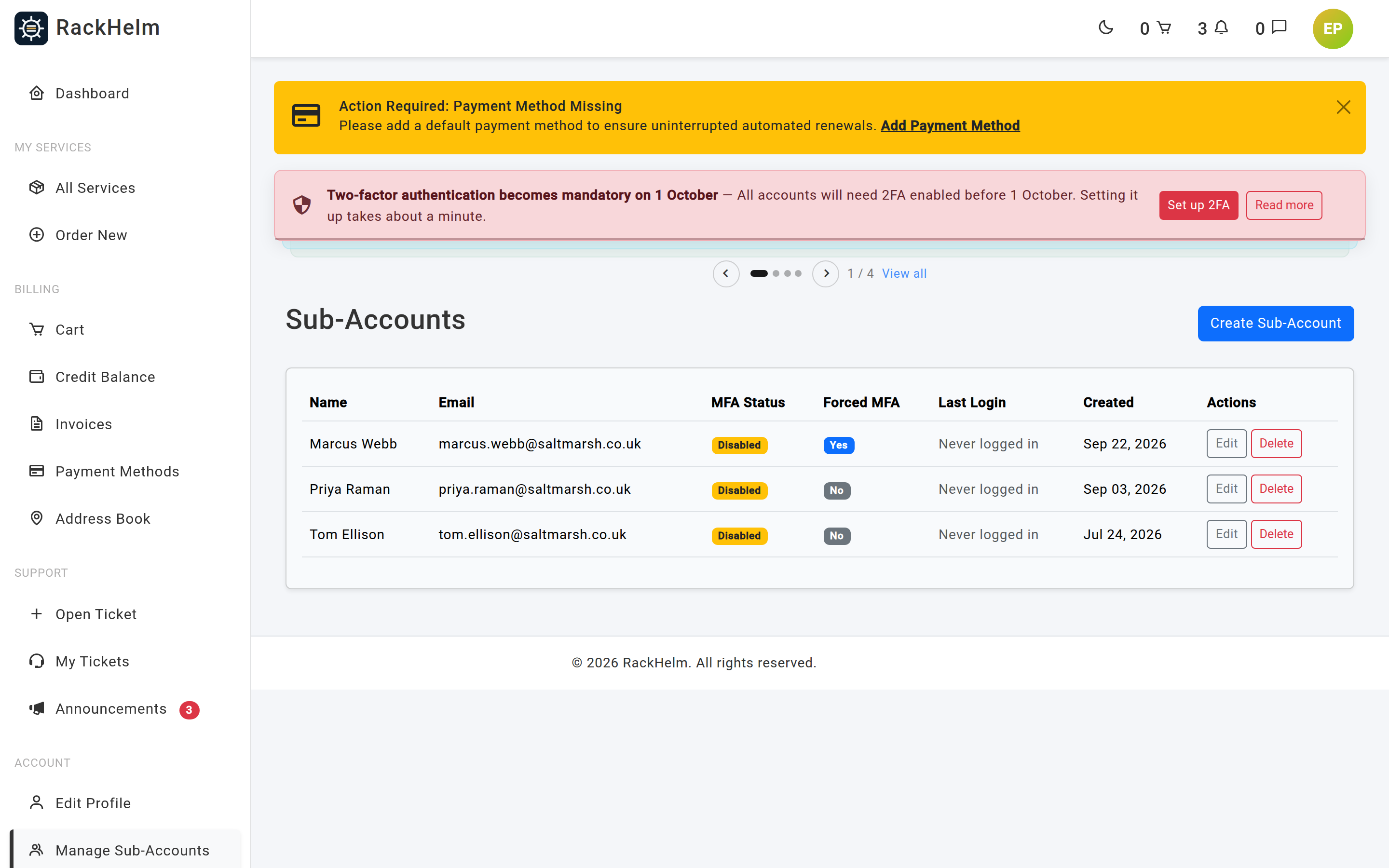
- In the portal, open Account → Manage Sub-Accounts.
- Select Create Sub-Account. RackHelm asks for the account password first — see Password confirmation below.
- Complete the form and submit.
| Field | Rules |
|---|---|
| First Name / Last Name | Required, up to 255 characters. |
| Email Address | Required, valid, and not already used by any account on the portal. This is the login. |
| Password / Confirm Password | Required, at least 8 characters, must match. |
| Force Two-Factor Authentication (MFA) | Optional switch, described on the form as “Require this sub-account to configure Multi-Factor Authentication upon logging in.” It is now honoured on its own, whatever the platform-wide MFA mode is set to. While it is on and the sub-account has not confirmed an authenticator app, every portal page redirects them to Edit Profile → Two-Factor Auth with “You must enable Two-Factor Authentication to continue.” |
The new login is created immediately but the email address is not treated as verified. RackHelm sends a verification link to it, and the colleague must click that link before they can use the portal — proof that the address really belongs to them. Staff can shortcut this; see Email verification and the staff override.
Editing and removing #
Use Edit on the row to change the name, email, password or the forced-MFA switch. Leave the password fields blank to keep the existing password. Changing the email address clears verification and sends a fresh link to the new address.
Delete removes the login permanently. Services and invoices are unaffected: they were never the sub-account’s.
Password confirmation #
Creating, editing and deleting a sub-account all sit behind a password re-prompt. The customer sees a page headed Confirm Password reading “Please confirm your password before continuing.”, enters their own account password and presses Confirm Password.
The reason is that a sub-account is a login that outlives the owner’s own password reset and their “sign out everywhere”: someone who walks up to an unattended session could otherwise mint a permanent second key to the account. The same prompt guards staff impersonation, deleting a saved address and deleting a saved card.
| Action | What the prompt does |
|---|---|
| Create Sub-Account | Prompts before the empty form opens, so the form you fill in is the form that submits. |
| Edit | Same — the prompt comes before the edit form, not on save. |
| Delete | Prompts on the delete itself. Confirming returns the customer to the sub-accounts list without deleting anything; they press Delete a second time to carry it out. |
Note: A confirmation lasts three hours by default, for the whole session — one prompt covers every guarded action until it lapses. Change it with
AUTH_PASSWORD_TIMEOUTin.env, in seconds; the default is10800. The entire/adminarea carries the same gate, so staff confirm once on entering it.
Adding a sub-account as staff #
Staff can create sub-accounts on a customer’s behalf from the Sub-Accounts tab of the client workspace. The tab refuses when the account you are looking at is itself a sub-account: “Sub-accounts cannot have their own sub-accounts.”
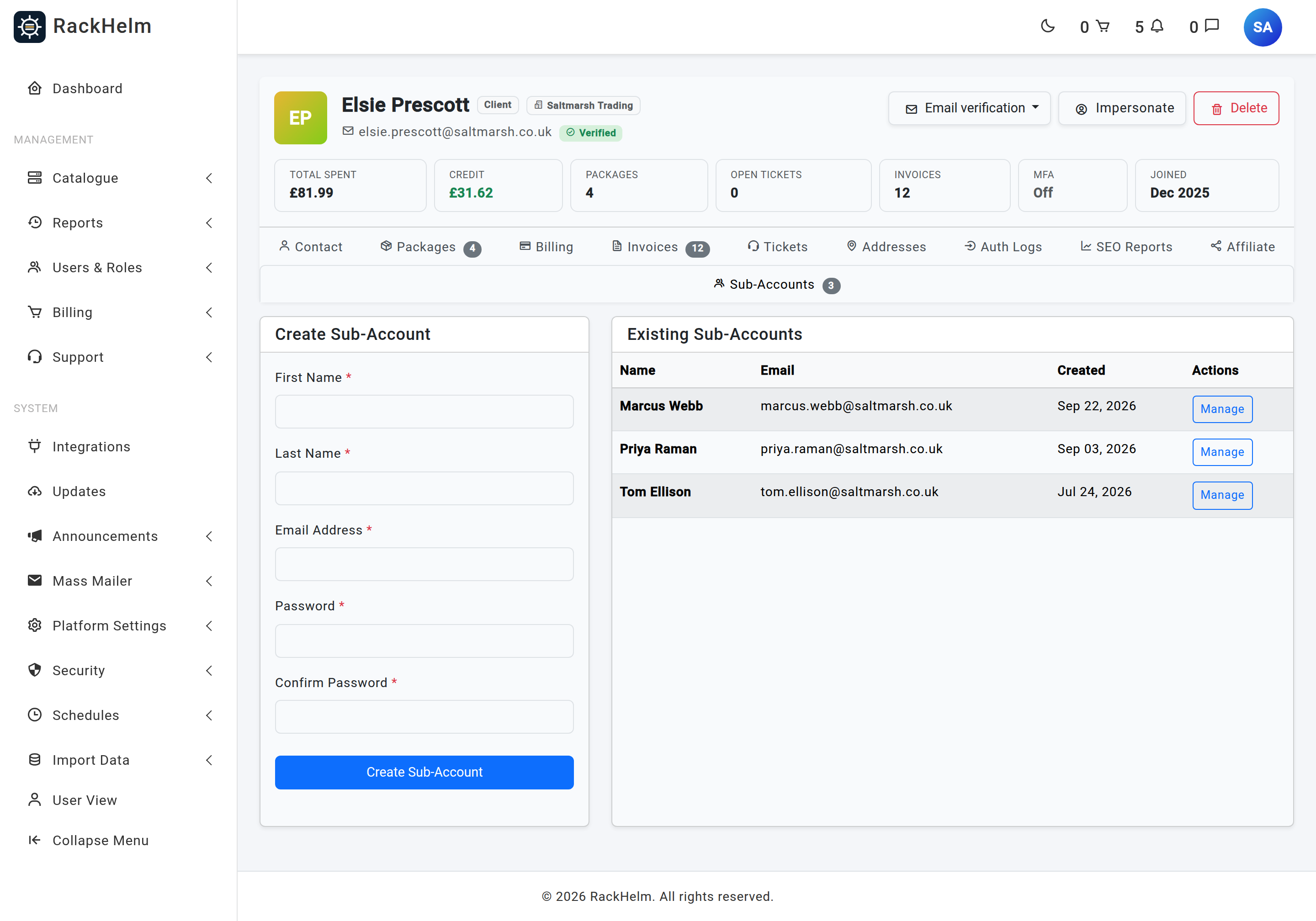
- Open the customer in Users & Roles → All Users and select the Sub-Accounts tab.
- Fill in first name, last name, email and a password twice.
- Select Create Sub-Account. A verification email goes to the new address; it is not pre-verified.
Note: This needs
edit_clients, and the usual rank rule applies — you can only add a sub-account to an account ranked below your own role. Each sub-account also appears in All Users under the Sub-accounts pill, with a “Sub of” link back to the parent, and can be managed like any other account from there.
Email verification and the staff override #
Every new login — a customer’s own sign-up, a sub-account created by the customer, a sub-account created by staff — starts unverified, and the verified middleware keeps it out of the client area until the link in the email is clicked. That is deliberate: a verified address is the platform’s only proof that the account holder controls it, and a pre-verified row could be used to claim guest tickets filed by the address’s real owner before they ever sign up.
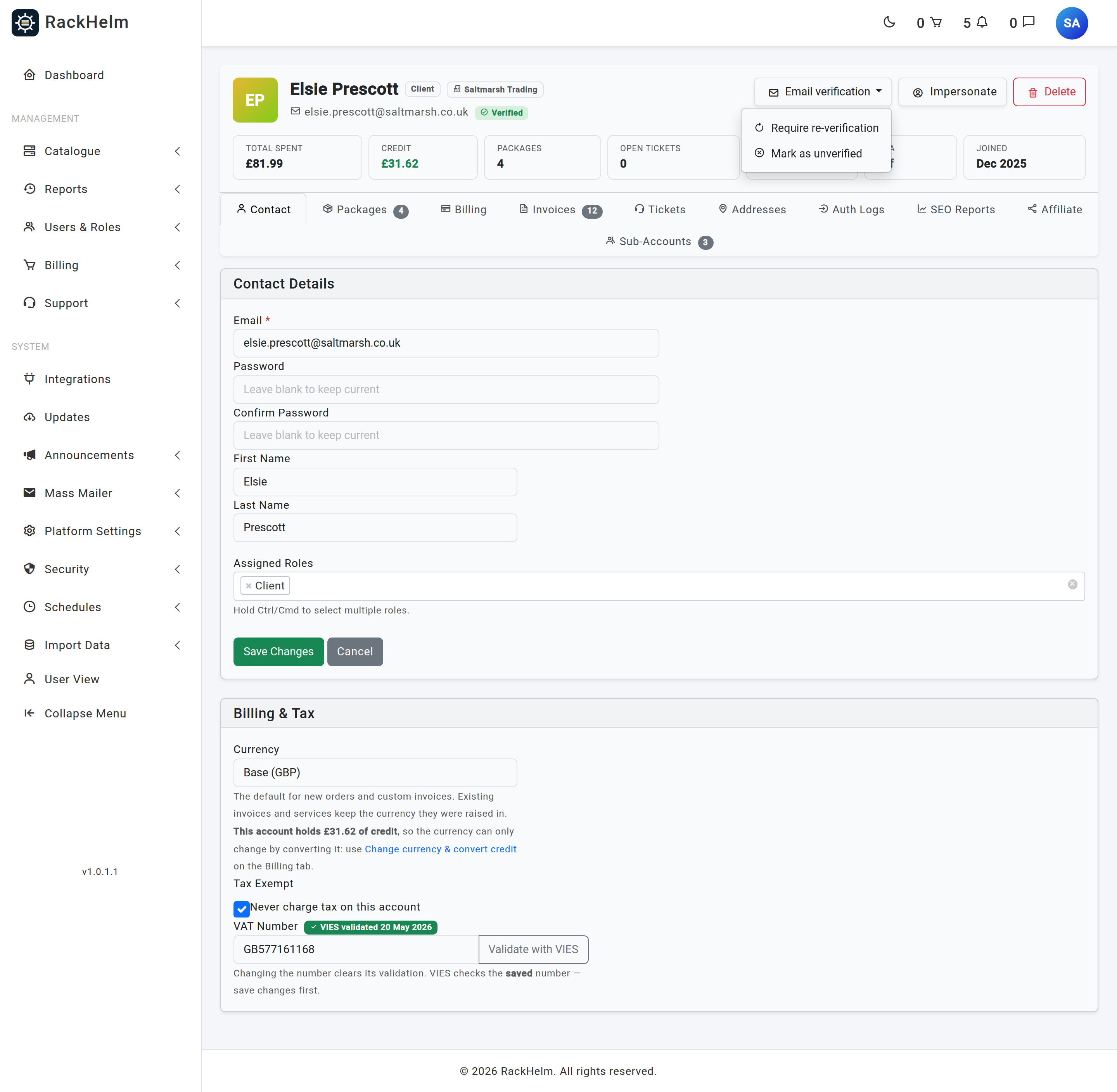
Staff can override that from the profile header of the client workspace, which sits above every tab. The header shows a Verified or Unverified badge next to the address, and an Email verification button whose menu changes with that state.
| Action | Offered when | What it does |
|---|---|---|
| Mark as verified | Unverified | Stamps the address verified without a link being clicked. Use it only when you are sure the account holder controls the address — you are vouching for it. |
| Resend verification email | Unverified, and not a guest | Mails a fresh link. Nothing else changes. |
| Require re-verification | Verified | Withdraws verification and mails a fresh link. The account is locked out of the client area until it clicks. |
| Mark as unverified | Verified | Withdraws verification and sends nothing. The account is locked out until it verifies by some other route. |
Each item asks for confirmation first, then reports what happened — for example “A new verification link has been sent to sam@example.com.” or “Verification withdrawn. No email was sent; the account must verify its address before it can use the client area again.”
- Guests get no link. Guest rows (created from inbound support email) cannot sign in, so the menu says “Guests cannot log in, so no link can be sent.” and the route refuses with “Guest accounts cannot log in, so a verification link would be a dead end. A password reset turns a guest into a full account and verifies the address.” Mark as verified is still offered.
- Sending is rate-limited to one email every 30 seconds per account, and the limiter is shared with the customer’s own Resend Verification Email button, so the two cannot stack duplicates. Too soon and you get “A verification email was sent to this address moments ago. Try again in 21 seconds.”
- A stale page is refused, not acted on. If the customer clicked their link — or another operator got there first — while your page was open, you get “This email address is already verified.” or “This email address is not verified, so there is no verification to withdraw.” and nothing changes.
- Every action is logged against the account, with the address, the action, whether a link was sent, and the previous verification timestamp: “Email address verified by staff”, “Verification email resent by staff”, “Email verification withdrawn by staff and a new link sent”, “Email verification withdrawn by staff”.
Impersonating a sub-account or an unverified account #
Impersonate in the same header signs you in as the customer; the yellow banner reads “You are currently impersonating name.” with a Leave Impersonation link. Taking an impersonation needs login_as_client and a password confirmation.
Leaving used to be the problem. While you impersonate, the session belongs to the customer, so the client-portal checks judged them: an unverified address sent the request to the verification notice, and a customer forced onto MFA sent it to the two-factor setup screen — both of which carry the banner whose link points straight back at leaving. The only escape was a full logout. From 1.0.1.1 the leave route sits outside that group, so it always works, whatever state the customer is in.
Rules the platform enforces #
- Staff cannot be sub-accounts. If an account holding a staff role has a parent, the link is cut when the account is saved.
- Deleting a parent account deletes its sub-accounts, because the sub-account rows hang off the parent. User accounts are not soft-deleted, so this is immediate and final.
- Email addresses are unique across the whole portal. A colleague who already has their own customer account with you cannot reuse that address as a sub-account.
Troubleshooting #
| Symptom | Cause and fix |
|---|---|
| “The email has already been taken.” | The address exists somewhere on the portal — often as a guest row created by a support email. Staff can check the Guests pill in All Users. |
| The colleague cannot get past “verify your email”. | They have not clicked the verification link. Have them request a new one and check spam, or use Email verification → Resend verification email. Changing their address sends a fresh link to the new one. |
| The sub-account cannot delete an address or set a new default. | Expected — those two actions belong to the account owner’s login. Ask the main account holder to do it. |
| “Sub-accounts cannot manage other sub-accounts.” | They are signed in as a sub-account. Only the parent account can add colleagues. |
| “Sub-accounts cannot have their own sub-accounts.” | Staff tried to use the Sub-Accounts tab on an account that is itself a sub-account. Open the parent instead — the header’s “Sub of” link goes straight there. |
| The Manage Sub-Accounts menu entry is missing. | The signed-in account is a sub-account. The entry is deliberately hidden there. |
| Pressing Delete asks for a password and then does nothing. | Expected. Confirming a password on a delete returns the customer to the list without carrying it out. Press Delete again; the confirmation now holds for three hours. |
| The sub-account is trapped on the two-factor setup screen. | Force Two-Factor Authentication (MFA) is on for that sub-account, or the platform-wide MFA policy covers them. The per-account switch now applies on its own, so check it first: the parent can turn it off from Edit. |
| Staff could not get out of an impersonation before upgrading. | Fixed in 1.0.1.1. Previously, impersonating an unverified or MFA-enforced customer trapped the session; a full logout was the only way out. |
| A sub-account’s currency selector is missing from their settings. | Expected. Only the account owner holds a currency preference: “Sub-accounts use the account owner’s currency.” |


