Canned replies are saved answers your agents can drop into a ticket in one click — “we have received your request”, “here are your nameserver details”, “your domain transfer needs an auth code”. They support a handful of {variable} placeholders that are filled in from the ticket you are working on.
Before you start #
Note: Support → Canned Replies requires the
manage_canned_repliespermission, which the built-in Support Agent role holds. There is no separate “use” permission — anyone who can reply to a ticket can insert an active saved reply. See Roles & Permissions.
Creating a canned reply #
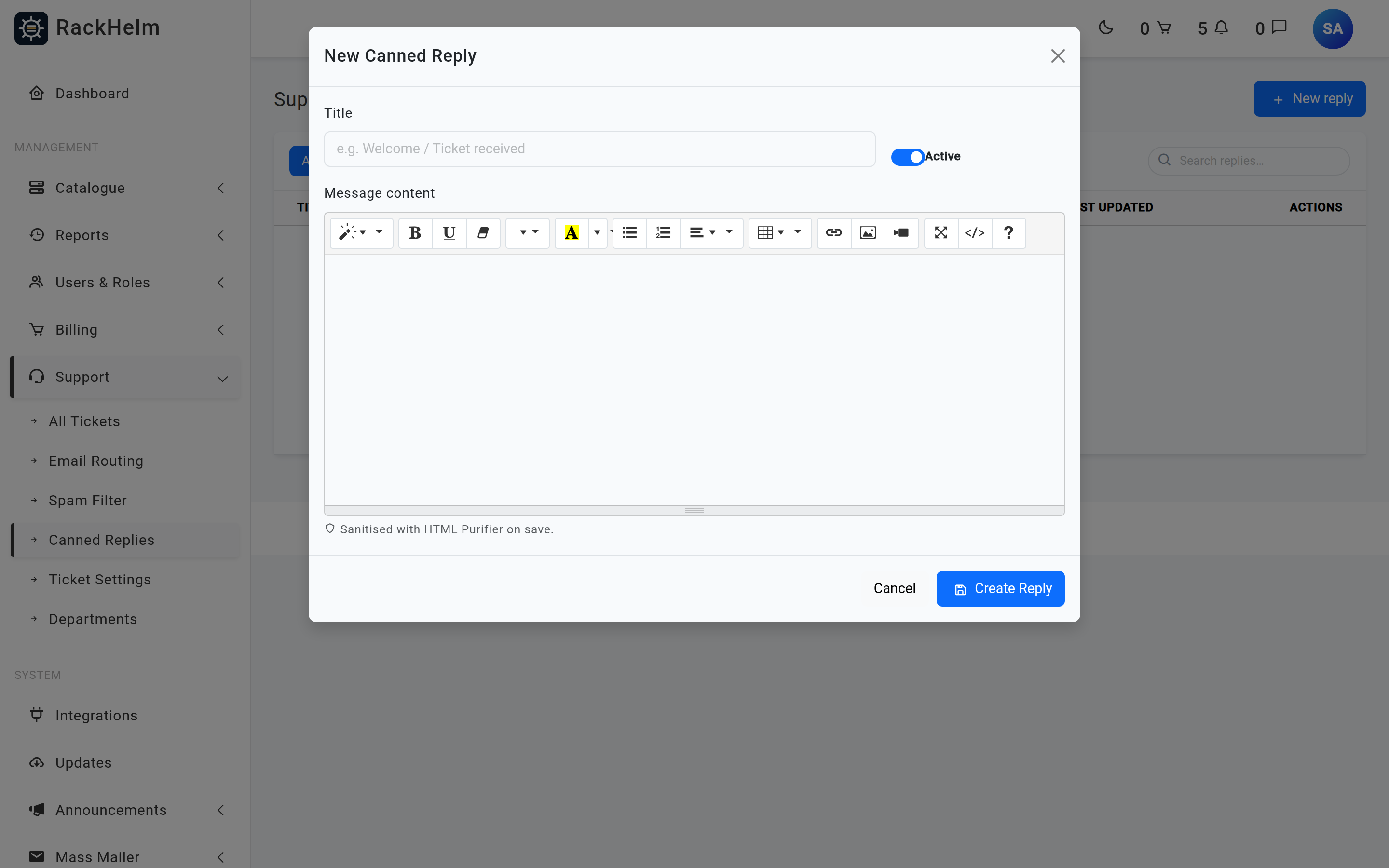
- Open Support → Canned Replies.
- Press New reply.
- Give it a Title. This is what agents pick from the dropdown on a ticket, so make it scannable — “Domain — auth code required” beats “Transfer 2”.
- Leave Active switched on unless you are drafting it.
- Write the body in Message content. It is a rich-text editor; use the code view if you would rather work in HTML.
- Press Create Reply.
Managing the library #
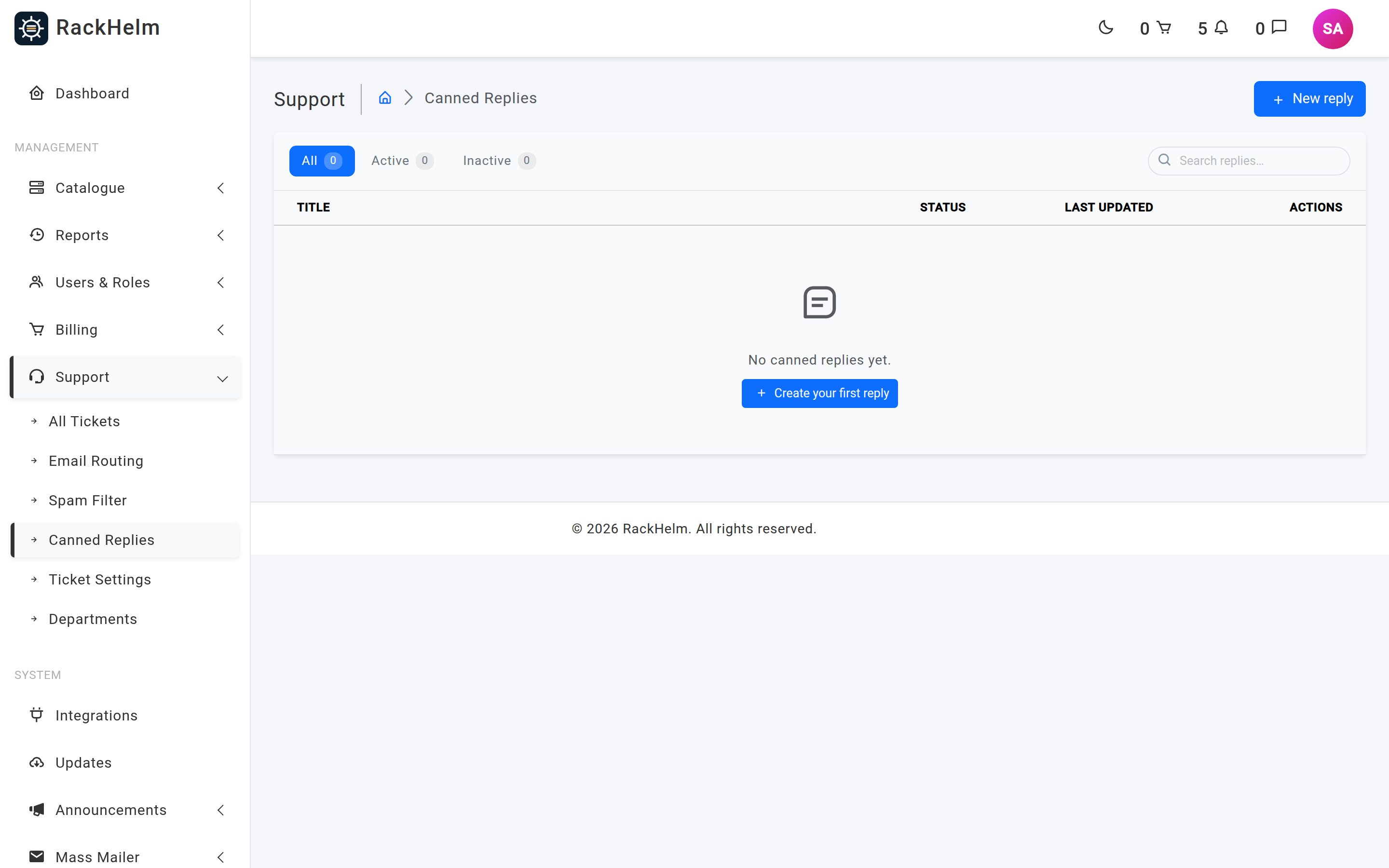
| Control | What it does |
|---|---|
| All / Active / Inactive | Filters the list; each pill carries a live count. |
| Search replies… | Matches on the title only — not on the body text. |
| The status switch | Activates or deactivates the reply immediately, without opening it. |
| Preview (eye icon) | Shows the rendered body without opening the editor. |
| Edit | Reopens the modal with the reply loaded. |
| Delete | Permanent, with a confirmation prompt. Replies already inserted into tickets are unaffected — the text was copied at insertion time. |
Tip: Deactivating is almost always better than deleting. An inactive reply keeps its history and stops appearing in the composer dropdown, which is the only thing agents actually notice.
Variables #
When an agent inserts a saved reply into a ticket, four placeholders are substituted with values from that ticket’s customer:
| Placeholder | Replaced with |
|---|---|
{name} |
The customer’s first name. |
{full_name} |
The customer’s full name. |
{email} |
The customer’s email address. |
{company} |
Your company name, from company settings. |
Write them exactly as shown, including the braces, and in lower case. A placeholder with nothing behind it — a customer record with no first name, for instance — is replaced with an empty string, so write “Hi {name},” rather than “Hi {name}” mid-sentence where a blank would read badly.
Warning: Substitution happens once, in the browser, at the moment the reply is inserted. It is not re-evaluated when you press Send. If you type
{name}into the editor by hand rather than inserting a saved reply, it is sent to the customer literally.
These are not the same placeholders as the ticket signature, which uses {Staff member name}, {Staff member role} and {Company name} and is appended to every staff reply automatically. See Ticket settings.
Using one on a ticket #
On an open ticket, the Canned reply dropdown sits directly above the composer and lists every active reply, alphabetically by title. Choosing one inserts it at the cursor — it never replaces text you have already written, so you can stack two saved replies or wrap one in your own wording. The dropdown resets to its placeholder afterwards, ready for the next insertion.
Note: If the dropdown is missing entirely, there are no active canned replies. It is hidden rather than shown empty.
Pasting HTML into the body #
Saved replies are stored as HTML and are put straight into another agent’s editor when inserted, so RackHelm runs every save through HTML Purifier. Scripts, event handlers such as onerror, and anything else that could execute are removed — this is a genuine protection, because a booby-trapped canned reply would otherwise run inside the session of whichever agent opened it.
Warning: Do not build canned replies by pasting HTML out of Outlook, Word or an existing email template. Those carry
<style>blocks, conditional comments,classhooks and vendor attributes that sanitising strips or that mean nothing in the ticket editor, and the result is usually a wall of unstyled text with stray table borders. Rebuild the content in the editor instead.
If you do need control over the markup, use the editor’s code view and stick to plain structural HTML: paragraphs, line breaks, lists, <strong>, <em> and links. Save, then use Preview to confirm what survived before an agent sends it to a customer.
Troubleshooting #
| Symptom | Cause and fix |
|---|---|
| A reply does not appear in the ticket dropdown | It is inactive. Switch it on from the list. |
| The dropdown is missing from the composer | No canned replies are active at all. |
A customer received a literal {name} |
The placeholder was typed by hand instead of arriving through an inserted saved reply. |
| Formatting disappeared after saving | HTML Purifier removed markup it does not allow. Rebuild it with the editor’s own formatting tools. |
| Searching for a phrase inside a reply finds nothing | Search only matches titles. Name your replies after what they say. |
| Inserting a reply wiped the draft | It should not — insertion is at the cursor. Check you did not select all the text first. |
| Validation errors after submitting the modal | Title and message are both required. On a create the modal reopens with your input; on an edit, re-open the reply and try again. |


