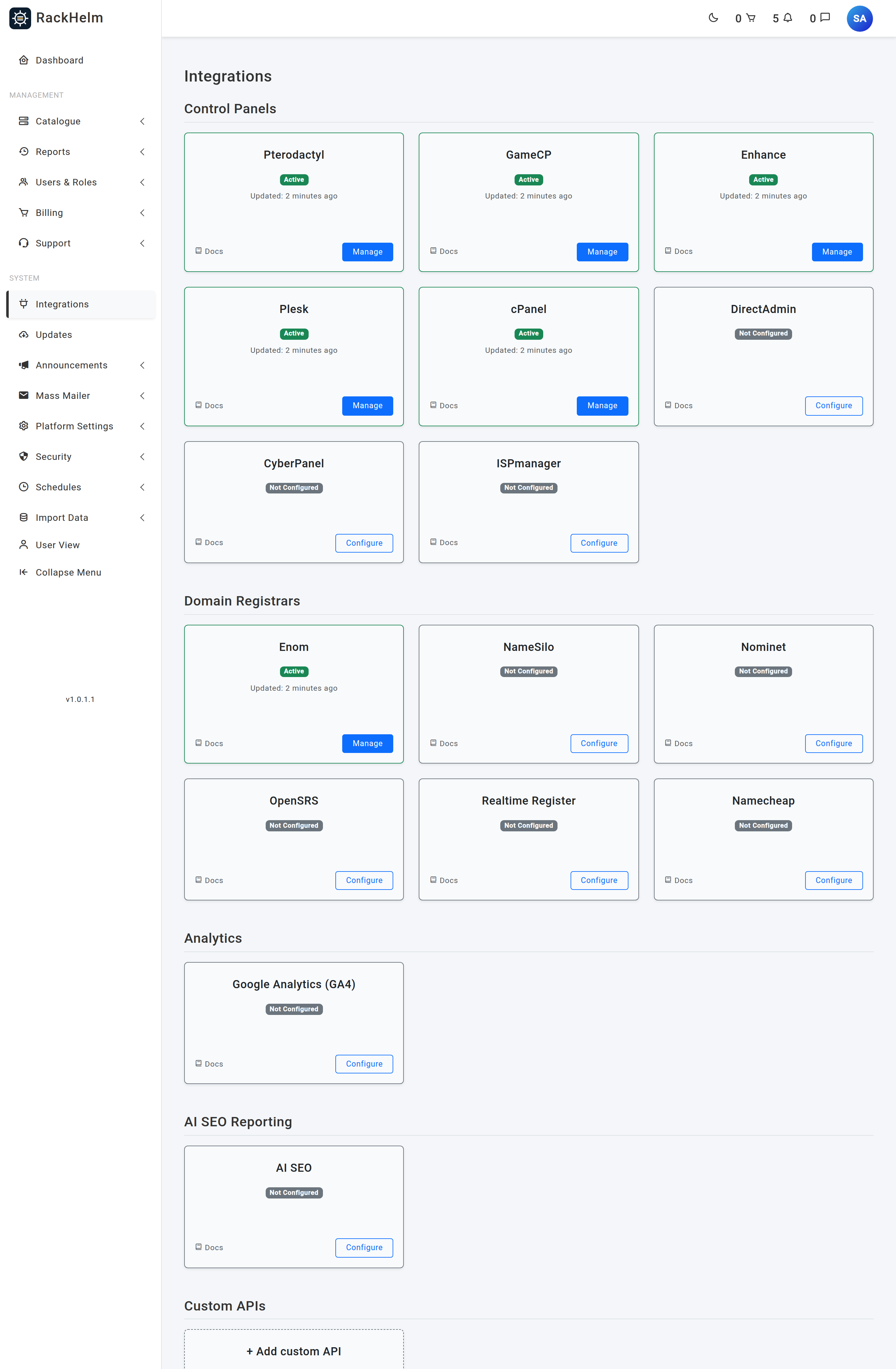
An integration is how RackHelm turns a paid order into a real hosting account, game server or domain without anyone touching a control panel. This article explains the three pieces you configure — the panel connection, the customer’s account on that panel, and the product binding — and exactly what RackHelm does at each stage of a service’s life. It is written for operators and staff.
Before you start #
- Panel connections live behind the
edit_integrationspermission. Super Admin and Administrator hold it by default. See Roles & Permissions. - Provisioning is driven by queued jobs. A queue worker must be running, and the Provision Orders task must be enabled under System → Schedules, or nothing will ever be built.
- Every panel RackHelm connects to must answer on a public address, unless its address is listed in
SAFEURL_PRIVATE_ALLOWLISTin the portal’s.envfile. That is the only way to reach a control panel on a private network; every other private, loopback or reserved address stays blocked, on save and again on every call.
The three layers #
RackHelm deliberately keeps credentials, customers and products separate, so one set of credentials can serve many products and one customer can hold services on several panels.
| Layer | What it holds | Where you edit it |
|---|---|---|
| Panel connection | One row per provider: base URL, API token, timeout, TLS setting, the pinned certificate where one applies, and provider defaults. Credentials are stored encrypted. | System → Integrations (/admin/panels) |
| Integration account | The link between one of your customers and their user/customer record on a panel. Created automatically the first time that customer is provisioned on that panel, and reused for every later order. | Created by RackHelm. Not edited by hand. |
| Product integration | Which provider a product uses, which panel connection, and the per-product settings (plan/package, resources, egg or game template). | The product’s Provisioning tab, under Catalogue → Catalogue & Groups → the product |
Binding a product to an integration #
A product is bound to exactly one integration. Open the product, go to the Provisioning tab and set Integration Type. The dropdown lists only providers whose panel connection exists and is marked Active, plus whatever the product is already bound to, so a panel you switch off never silently orphans a live product.
- Choose the Integration Type (or None / Manual Processing to handle the product by hand).
- Pick the Panel — the saved connection this product should provision against.
- Fill in the provider-specific fields that appear below (plan, resources, egg, game template).
- Press Save. Saving replaces any previous binding on that product.
Note: The Enable Provisioning switch in the card header is not saved — a binding is always written as active, whatever the switch says. To stop a product provisioning, set its Integration Type to None / Manual Processing. Changing the Integration Type on a saved product deletes the old binding and writes a new one. Services already provisioned keep working — their panel identifiers are stored on the order item — but future suspend and terminate actions run through the new driver.
The Provisioner contract #
Every provider is implemented as a driver with the same five actions. Knowing which action does what makes the audit trail and the error messages readable.
| Action | What RackHelm asks the provider to do |
|---|---|
| provision | Create the resource — a website and subscription, a game server, a domain registration. Writes the provider’s identifier back onto the order item. |
| renew | Extend the term at the provider. For every control panel — cPanel and Plesk included — this is a no-op that returns “Hosting renewal is billing-only. No remote action needed.” Renewal is a billing event only. Domain registrars do make a real call here. |
| suspend | Disable access while keeping the data. Reversible. |
| unsuspend | Re-enable a suspended resource. |
| terminate | Destroy the resource. Not reversible. |
Note: Every one of those actions builds an API client from the panel connection, and every client re-runs the same checks the connection form ran: the base URL must still resolve to an allowed address, the outbound connection is pinned to that address so a changed DNS record cannot redirect it inwards, redirects are refused, and on cPanel and Plesk the certificate must still match the pinned key. A panel that passed Test API months ago can therefore start failing without anything in RackHelm having changed — a replaced certificate and a moved DNS record are the two usual reasons.
What happens when an order is paid #
- The scheduled Provision Orders task (the
ScanPendingProvisioningjob) looks for order items whose provisioning status is empty orpending, whose order has at least one invoice with status paid, and whose product has an active integration row. - Each matching item is claimed atomically — status moves to
queued,provisioning_attemptsis incremented andprovisioning_started_atis stamped — then a provisioning job is dispatched. - The job claims the item again (moving it to
processing), merges any add-on variables from child items into the parent’s variable bag, resolves the driver and calls provision. - On success the item is marked
provisioned, the provider’s identifier is written toprovisioned_external_idwith the full detail inprovisioned_meta, child add-ons are resolved, and the customer is emailed a “service provisioned” notification. - On failure the item is marked
failedwith the provider’s message, and an admin notification is raised on theprovisioning.failedevent.
Warning: The provisioning job is configured for a single attempt. A failed item is not retried automatically — it waits on Users & Roles → Pending Provisioning until a member of staff presses Retry. That sidebar link only appears while items are outstanding; the screen is always at
/admin/pending-provisioning. Watch it after any panel outage, and after any upgrade that changes how RackHelm connects to a panel.
The Pending Provisioning screen has three bulk actions: Mark as Provisioned, Retry Failed Provisioning and Force Provisioning. Force Provisioning queues every selected item immediately, even if its invoice is unpaid, and the confirmation says so: “Force provisioning queues every selected item to be provisioned now, even if its invoice is unpaid. This can create accounts or register domains at the provider.” Use it to clear a backlog after fixing a panel connection, not as a substitute for checking the invoice.
Provisioning statuses #
| Status | Meaning |
|---|---|
(empty) or pending |
Waiting to be picked up by the scanner. Needs a paid invoice on the order. |
queued |
Claimed by the scanner; the job is on the queue. |
processing |
The job is running, or the item needs manual work (an add-on flagged for manual provisioning sits here). |
provisioned |
Live at the provider. |
failed |
The driver raised an error. The message is stored in provisioning_error and shown to staff only. |
suspended |
Suspend succeeded at the provider. |
terminated |
Terminate succeeded; the order item is also marked cancelled. |
awaiting_configuration |
SSL certificates only — the customer still has to complete the certificate wizard. |
Suspension and termination #
Suspension and termination are driven by two scheduled tasks, Suspend Overdue Services and Terminate Overdue Services, both configured under System → Schedules. Each takes a days option — how many days past the invoice due date to act. The seeded tasks ship with 7 days for suspension and 14 for termination, and both ship disabled, so enable them before you rely on them. Suspension also opens a ticket telling the customer why their service stopped.
Note: The Suspend after (days past due) and Terminate after (days after suspend) boxes on a product’s Provisioning tab are saved with the product but are not read by those schedules. Set the timing on the scheduled tasks.
Running the scanner by hand #
Two Artisan commands dispatch the same scan, which is useful when you are testing a new panel connection and do not want to wait for the cron tick:
php artisan app:scan-pending-provisioning
php artisan app:provision-pending
Troubleshooting #
| Symptom | Cause and fix |
|---|---|
| Paid order never provisions and nothing appears in the log | The scanner only claims items whose order has an invoice with status paid. Check the invoice, then check that the Provision Orders schedule is enabled and a queue worker is running. |
| Every cPanel or Plesk item fails with “has Verify SSL switched off but no pinned certificate” | The connection was saved with Verify SSL: No before 1.0.1.1 introduced certificate pinning, so it now fails closed rather than trusting any certificate. Open it under System → Integrations, press Test API, check the fingerprint, press Save, then retry the items. |
| cPanel or Plesk items fail with “The panel’s certificate key no longer matches the pinned one” | The panel’s certificate was replaced — a renewed self-signed certificate, or cPanel AutoSSL issuing a real one. Open the connection, press Forget pinned certificate, press Test API, verify the new fingerprint and Save. If the panel now has a certificate that validates, switch Verify SSL to Yes instead. |
| Items fail with “Refusing to connect to a private or reserved IP address” | The panel’s hostname resolves to an address inside a private or reserved range. Either give the panel a public address, or add the address to SAFEURL_PRIVATE_ALLOWLIST in the portal’s .env file (and run php artisan config:cache on a cached install). See Adding a control panel connection. |
| Item marked failed with “No integration is bound to …” | Somebody pressed Provision now on a product with Integration Type set to None. Bind an integration on the product’s Provisioning tab, then retry the item. |
| The provider dropdown on the product is missing a panel you configured | The panel connection is saved but not marked Active. Open it under System → Integrations and tick Active. |
| Customer stuck on “We’re setting up your service…” | The item is in processing. Open Users & Roles → Pending Provisioning and either retry it or mark it provisioned once you have completed the work by hand. |
| Add-on bought later did not change the server | Add-ons that adjust resources are applied by a recalculation job, not by re-provisioning. See Mapping panel resources to a product. |


