The Security section of the sidebar holds four configuration screens — fraud screening, CAPTCHA, two-factor enforcement and password policy — plus the audit and email logs. This article covers the four settings screens; the logs have their own articles.
Before you start #
Note: All four screens are gated by
edit_company_settings, and the sidebar section is additionally wrapped in amanage_settingscheck that no role holds, so in a default install these are Super-Admin-only screens. See Roles & Permissions.
Fraud protection #
Security → Fraud Protection (/admin/settings/fraud) screens orders against a third-party fraud service before they are taken.
| Field | What it does |
|---|---|
| Enable Fraud Protection | Master switch. With it off, nothing is screened regardless of the provider. |
| Provider | None or FraudLabs Pro. FraudLabs Pro is the only integration available. |
| API Key | Your FraudLabs Pro key. Stored encrypted and never rendered back into the form — leave it blank to keep the current key. |
When enabled with a key set, RackHelm screens two moments:
- Checkout. The customer’s IP, name, email, order value, item count, currency and chosen gateway are sent for scoring. Orders with a zero or negative total are skipped.
- Adding a payment method. Screened on the same basis, except for bank transfer, which is skipped.
A REJECT verdict blocks the transaction and the customer sees “Transaction declined due to security reasons. Please contact support.” Any other verdict lets the order proceed. If the service is unreachable or errors, the failure is written to the application log and the order is not blocked — screening fails open, so an outage at the provider cannot stop you taking money.
CAPTCHA protection #
Security → Captcha Protection (/admin/settings/captcha) puts a challenge in front of the four public forms that attract automated abuse.
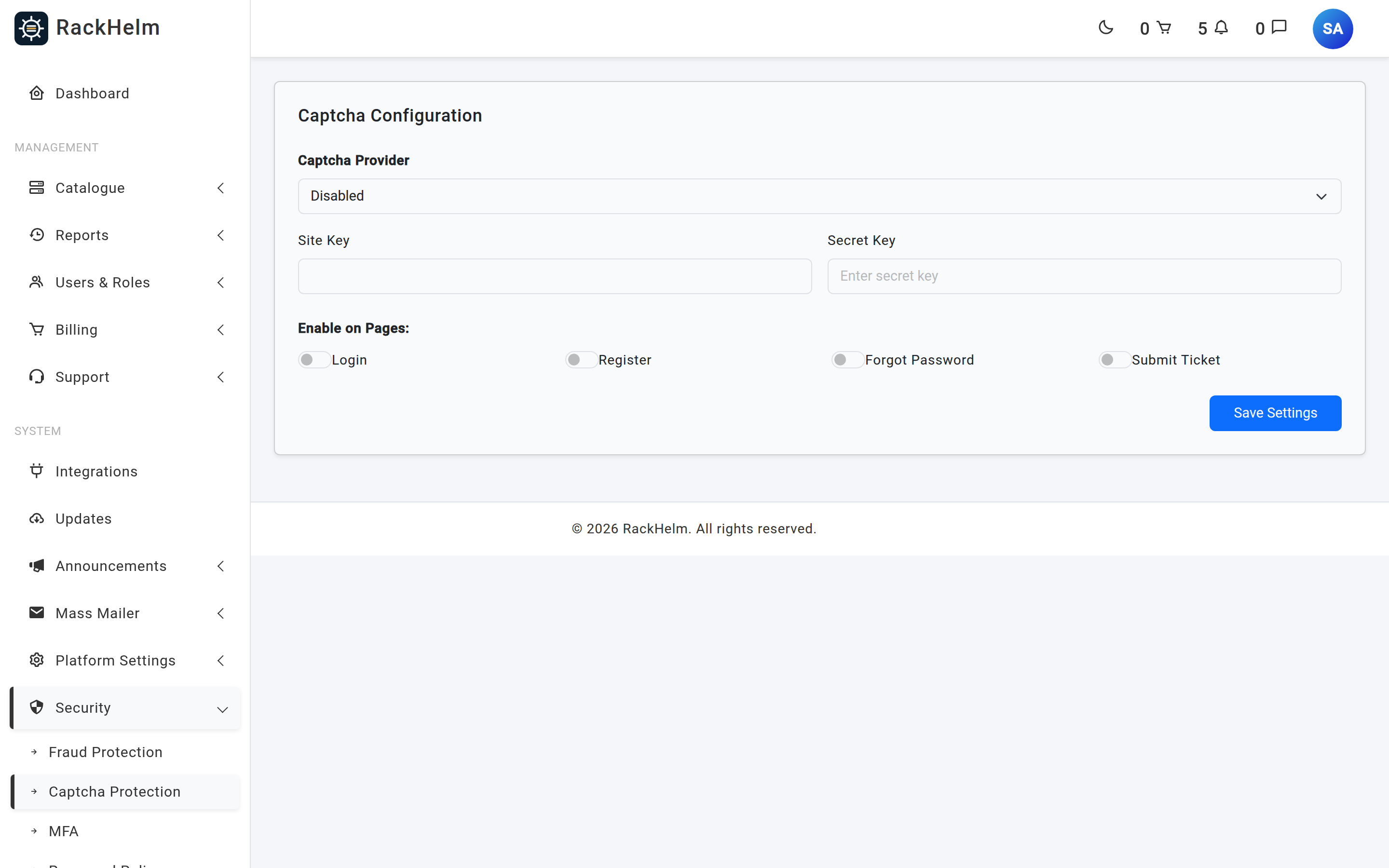
| Field | What it does |
|---|---|
| Captcha Provider | Disabled, Cloudflare Turnstile, hCaptcha or Google ReCaptcha v2. |
| Site Key | The public key, rendered into the page. |
| Secret Key | The private key used to verify the response server-side. Stored encrypted; blank keeps the current value. |
| Enable on Pages | Four independent checkboxes: Login, Register, Forgot Password and Submit Ticket. |
A challenge only appears where both conditions are true: the provider is not Disabled, and the page’s own checkbox is ticked. Verification is done server-side against the provider’s own endpoint, so bypassing the widget in the browser does not get past it.
Tip: Turn on Register and Forgot Password first. Those are the two forms that get abused on a public hosting portal — fake signups and password-reset flooding.
MFA / two-factor enforcement #
Security → MFA (/admin/settings/mfa) decides who is compelled to set up two-factor authentication. Users can always enable it voluntarily from their own profile.
| Field | What it does |
|---|---|
| Force Two-Factor Authentication | None (Optional), Force for All Users, or Force for Specific Roles. |
| Select Roles to Force | Only used in Specific Roles mode. Multi-select; hold Ctrl or Cmd to pick several. |
| Show Recommendation Banner | Shows a site-wide banner recommending two-factor authentication to anyone who has not enabled it and is not being forced. |
Enforcement works by redirect. A user who falls in scope and has not confirmed a second factor is sent to their own security settings with the message “You must enable Two-Factor Authentication to continue.” on every page they try to reach. The two-factor setup routes and logout are deliberately exempt, so nobody gets trapped in a loop. Enforcement applies across the whole admin area and the authenticated client portal.
Warning: Force for All Users means all users — your customers as well as your staff. On a consumer-facing portal that generates support tickets. Preferring Force for Specific Roles and selecting your staff roles is usually the right choice.
Password policy #
Security → Password Policy (/admin/settings/security) sets the rules applied when anyone chooses a password: registration, password reset, and staff-set passwords.
| Field | What it does | Default |
|---|---|---|
| Minimum Length | Required, between 6 and 64 characters. | 8 |
| Require Uppercase Letter | Requires mixed case — at least one uppercase and one lowercase letter. | Off |
| Require Number | Requires at least one digit. | Off |
| Require Special Character | Requires at least one symbol. | Off |
| Check Leaked Passwords | Rejects passwords that appear in known breach corpora, checked without sending the password itself. | Off |
The same policy is reused by the hosting-account password forms in the client portal — creating a mailbox, changing a mailbox password, resetting an FTP password — so tightening it here tightens those too.
Tip: A generous minimum length with Check Leaked Passwords on stops far more real account takeovers than a pile of composition rules. Composition rules mostly produce
Password1!.
Troubleshooting #
| Symptom | Cause and fix |
|---|---|
| No CAPTCHA appears on a form you enabled | The provider is still set to Disabled. Both the provider and the page checkbox must be set. |
| The CAPTCHA widget renders but every submission fails | The secret key is wrong, or the server cannot reach the provider. Check the application log for “Captcha network error”. |
| The secret or API key field looks empty | Expected — secrets are never rendered back. Blank means “keep the stored value”; type only to replace it. |
| Users are stuck on the two-factor setup page | They are in scope for enforcement and have not confirmed a second factor. They must complete setup, or you must remove their role from Select Roles to Force. |
| Fraud screening never blocks anything | Check the master switch, the provider, and that a key is set — with any of those missing, screening is skipped silently. Also remember that provider errors fail open by design. |
| Password rules are not being applied | Each rule is a separate switch and all four composition rules default to off. Only Minimum Length applies out of the box. |
| Someone changed a security setting and you want to know who | Every settings change is recorded. See Audit Logs — secret values are redacted there, the fact of the change is not. |


