The admin notification system is how your staff hear that something happened: a provisioning failure, an order, a payment that needs reconciling, a licence problem. You choose which events matter, where each one is sent, and who receives it — and every attempt is written to a delivery log so silence is visible rather than ambiguous.
Note: This system is staff-facing only. Customer email — invoices, ticket replies, provisioning confirmations — is separate and is never routed, suppressed or replaced by anything configured here.
Before you start #
Configuring notifications requires manage_notifications; reading the delivery log requires view_notification_logs. Neither is granted to the built-in Administrator role — a destination is an outbound copy of portal data, so whoever can create one can point every order, payment and ticket event at a server they control. Grant them deliberately from the Roles screen. See Roles & Permissions.
The three pieces #
| Term | What it is |
|---|---|
| Event | Something that happened, such as Provisioning failed. Events are defined in code — there are 32 of them and you cannot add one from the admin area. |
| Destination (channel) | A configured place to send to: an email transport, a Discord channel, a Slack or Teams webhook, or your own endpoint. Configure it once and any number of events can point at it. |
| Action (subscription) | One event routed to one destination, with its own audience, severity floor, throttle and retry state. Sending an event to both email and Discord is two actions, not one — so a Discord outage cannot delay the email. |
Warning: Routing is explicit. An event with no active action reaches nobody — there is no implicit fallback address. The events screen counts unrouted events at the top for exactly this reason.
What is configured out of the box #
Installing creates one destination, Default admin email, and an action on each of eleven events: scheduled job failed, critical application error, notification channel disabled, notification destination created or changed, licence validation failed, payment reconciliation required, bank transfer awaiting confirmation, provisioning failed, SSL certificate failed, domain renewal failed, and email campaign failed.
Each of those actions takes its recipients from the Application Error Notification Email(s) field on General & System, so editing that one field still redirects everything they cover.
The event catalogue #
Open Platform Settings → Notifications (/admin/notifications). Events are grouped and searchable; each row shows its current actions or a badge saying it reaches nobody.
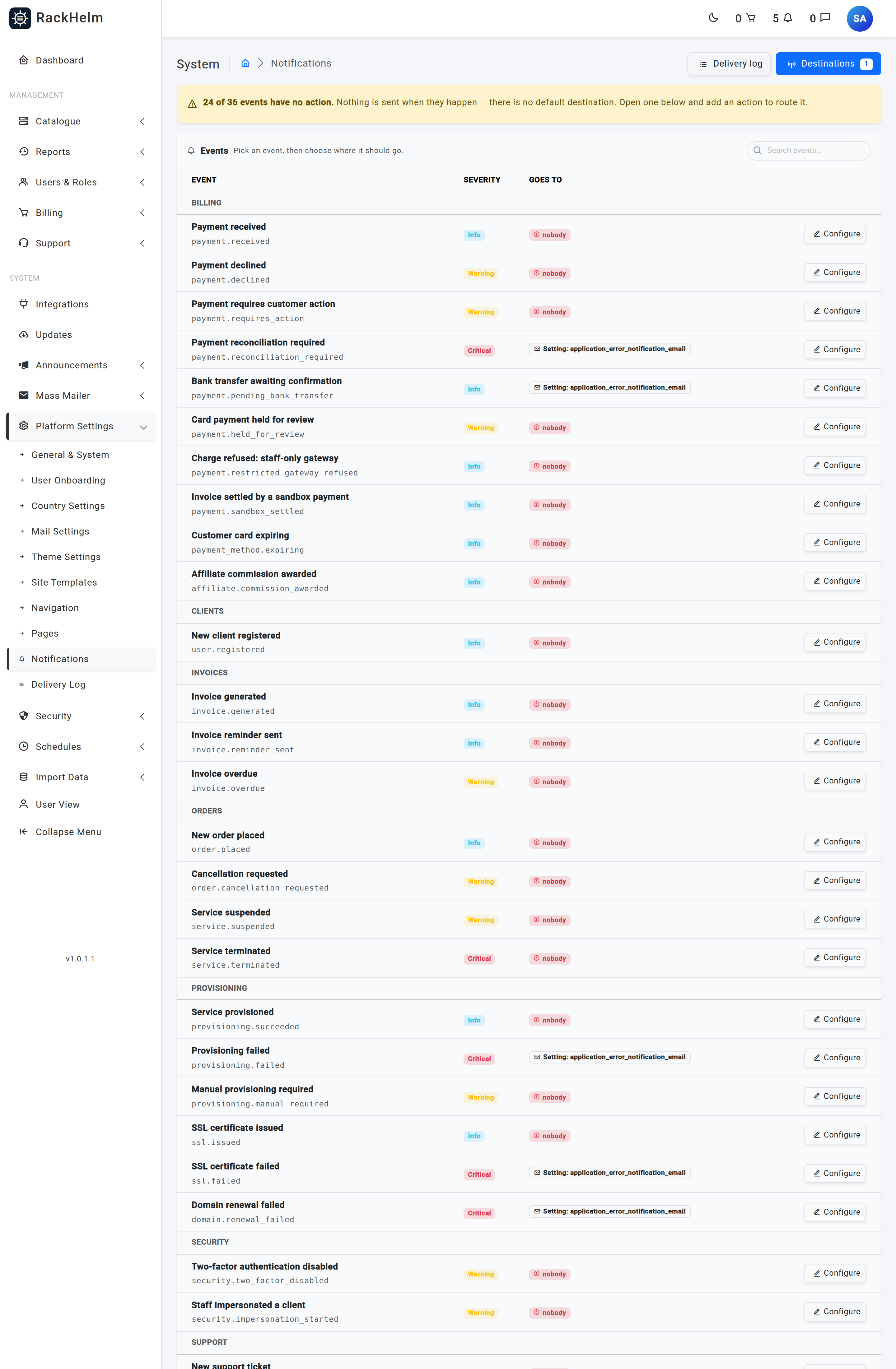
| Group | Events |
|---|---|
| System | Scheduled job failed, Critical application error, Notification channel auto-disabled, Notification destination created or changed, Licence validation failed |
| Clients | New client registered |
| Orders | New order placed, Cancellation requested, Service suspended, Service terminated |
| Billing | Payment received, Payment declined, Payment requires customer action, Payment reconciliation required, Bank transfer awaiting confirmation, Customer card expiring, Affiliate commission awarded |
| Invoices | Invoice generated, Invoice reminder sent, Invoice overdue |
| Provisioning | Service provisioned, Provisioning failed, Manual provisioning required, SSL certificate issued, SSL certificate failed, Domain renewal failed |
| Support | New support ticket, Customer replied to a ticket, Ticket closed, Email campaign failed |
| Security | Two-factor authentication disabled, Staff impersonated a client |
Each event carries a default severity of info, warning or critical; an action can raise the floor but not lower the event’s own severity.
Creating a destination #
Go to Destinations from the events screen, or /admin/notification-channels, and choose Add.
| Transport | Implemented | What you supply |
|---|---|---|
| Yes | Nothing — it uses your configured mailer. Recipients come from the action’s audience. | |
| Discord | Yes | A Discord webhook URL. Optional mention string and mention threshold, and a bot username. |
| Slack | Yes | A Slack incoming-webhook URL, plus the same mention options. |
| Microsoft Teams | Yes | A Teams Workflows URL. The retired Office 365 “Incoming Webhook” connector URLs will not work. |
| Custom webhook | Yes, and can be switched off | Your own HTTPS endpoint, which must resolve to a public address, and an optional signing secret. |
All five drivers are present and working. The custom webhook is the only one that posts wherever you point it, so it has a master switch: set NOTIFICATIONS_GENERIC_WEBHOOK=false in .env and the type disappears from the form and is rejected server-side too.
Other rules worth knowing:
- Type cannot be changed after creation — the stored configuration belongs to that provider. Create a new destination instead.
- Name must be unique within a transport, up to 120 characters.
- Webhook URLs are stored encrypted and never rendered back into the form; leave the field blank when editing to keep the stored one.
- The Test button sends a real message and is throttled to six attempts a minute.
Custom webhook signing #
Requests to a custom webhook carry X-RackHelm-Timestamp, X-RackHelm-Event and X-RackHelm-Signature. The signature is v1= followed by an HMAC-SHA256 of {timestamp}.{raw body} keyed with your signing secret. Leave the secret blank when creating and one is generated for you.
expected="v1=$(printf '%s.%s' "$timestamp" "$body" | openssl dgst -sha256 -hmac "$secret" -r | cut -d' ' -f1)"Verify the signature and reject timestamps more than a few minutes old, or a captured request can be replayed at you.
Adding an action to an event #
Open an event and choose Add action.
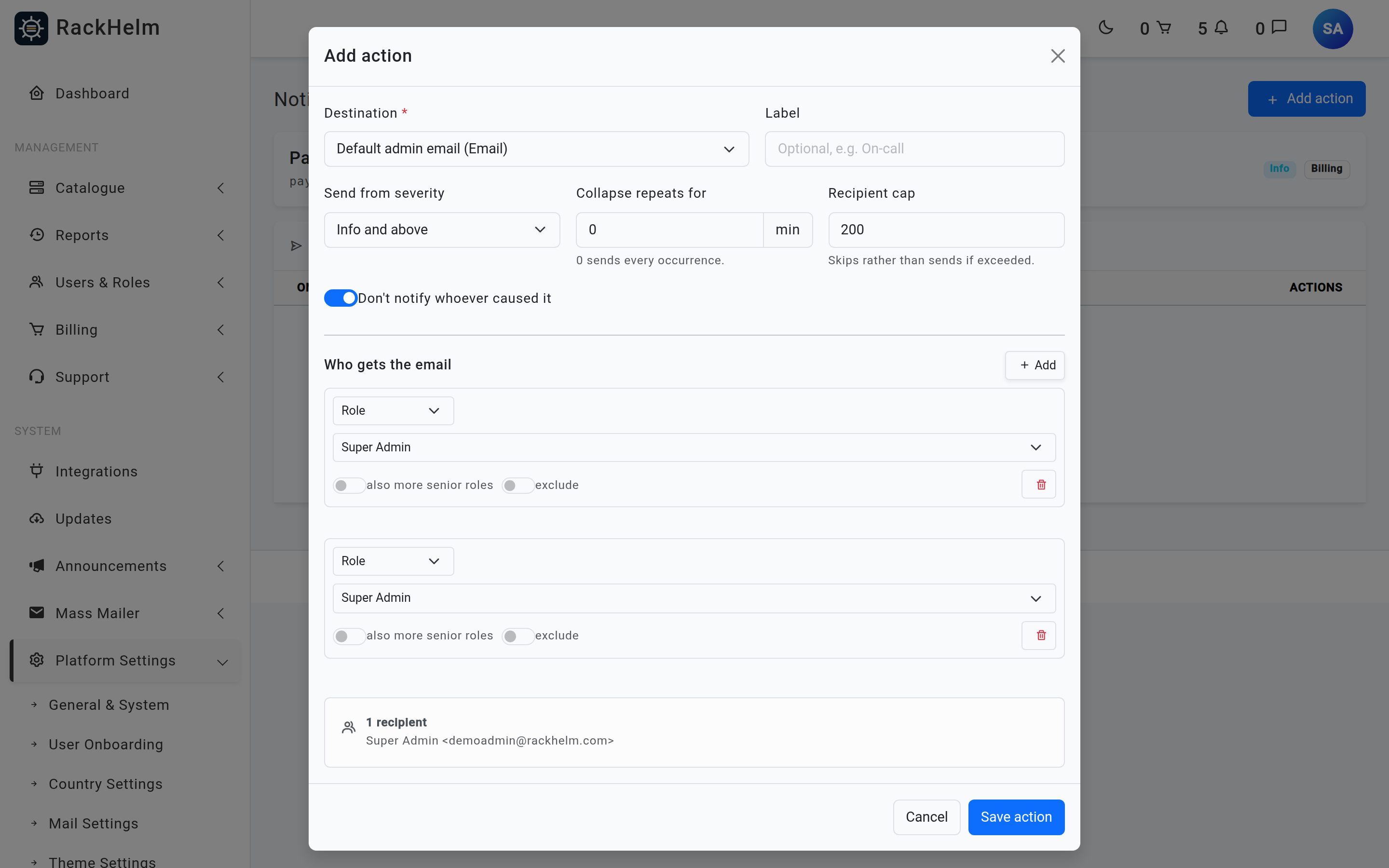
| Field | What it does |
|---|---|
| Destination | Required. Which destination this event should reach. |
| Label | Optional note, up to 120 characters, so a list of actions reads clearly. |
| Send from severity | Info, Warning or Critical and above. Raises the floor for this action only. |
| Collapse repeats for | Minutes to suppress an identical repeat. 0 sends every occurrence; the maximum is 10,080 (one week), because a longer window would hide a daily recurring incident. |
| Recipient cap | Between 1 and 2,000, defaulting to 200. Exceeding it records a skipped delivery rather than sending, so a mistyped role audience cannot become a mail bomb. |
| Don’t notify whoever caused it | On by default. Suppresses the alert for the staff member whose action triggered it. |
The audience builder #
Email actions need an audience. It is a list of clauses, each targeting exactly one thing:
- Role — everyone holding a staff role, optionally also more senior roles.
- Person — one named staff member.
- Email address — an address that need not be a portal user, such as an on-call alias.
- Settings list — the addresses stored in a setting, which is how the built-in actions read your admin address list.
The final audience is every non-exclusion clause, minus every clause marked exclude. A live preview shows the resolved count and the first 25 recipients as you build it. An email action with no non-excluded clause is rejected at save: silence is the failure this system exists to remove.
The delivery log #
Platform Settings → Delivery Log (/admin/notification-logs) is a read-only ledger of every delivery attempt, filterable by status, event, destination and recipient. Statuses are queued, sending, sent, failed, skipped and suppressed, and a skipped row records why: no recipients, no email address, audience too large, destination deleted, destination disabled, below the severity floor, or the actor was suppressed.
Nothing here can be edited or deleted. Retention is automatic: message payloads are cleared after 7 days and the rows themselves after 30, both driven by the scheduler.
Health and auto-disable #
A destination that returns five consecutive terminal failures — a deleted Discord webhook returning 404, for instance — disables itself and fires the Notification channel auto-disabled event. Transient failures such as timeouts, rate limits and 5xx responses are retried and do not count towards that total. Re-enabling a destination is a separate switch from the system’s own, so recovering from an outage never silently overrides a destination you had deliberately paused.
From the command line, php artisan notifications:doctor checks the things that make notifications stop working silently: whether the notifications queue is actually consumed by a worker, whether the cache store can hold locks, whether every configured transport has a driver, whether anything is unrouted, and whether retention is running.
Troubleshooting #
| Symptom | Cause and fix |
|---|---|
| An event fires but nothing arrives | Check the delivery log for that event. A skipped row names the reason; no row at all means the event has no active action. |
| Deliveries sit at queued | No worker is reading the notifications queue. Run php artisan notifications:doctor and check your queue workers. |
| A destination stopped working on its own | It auto-disabled after five terminal failures. Fix the URL, then re-enable it — and check the delivery log for the underlying error. |
| Teams webhook is rejected as not looking like a webhook URL | You are using an old Office 365 connector URL. Create a Teams Workflow with the “post to a channel when a webhook request is received” trigger and use that URL. |
| Custom webhook is refused | The endpoint must be HTTPS and must resolve to a public address, and the transport must not be disabled by NOTIFICATIONS_GENERIC_WEBHOOK=false. |
| “Add at least one recipient…” | The email action’s audience contains only exclusions. Add a role, person, address or settings list. |
| Alerts are too noisy | Raise Send from severity, or set Collapse repeats for to a few minutes on that action. |
| The test button returns a vague error for a custom webhook | Deliberate: your endpoint’s response detail is never echoed back to the browser. Read the delivery log and your own endpoint’s logs. |


