FTP accounts let you upload and download the files that make up your website with any FTP client. The FTP page of a hosting site creates those accounts, resets their passwords and deletes them. Open it from the site toolbar (My Sites → your site → FTP), or go to /sites/{id}/ftp. This article is for the customer, and covers the page on Enhance, cPanel/WHM and Plesk hosting.
What each panel does differently #
The page is the same on all three panels. What differs is the shape of the login, what the home directory is measured against, and — importantly — what a delete takes with it.
| Enhance | cPanel/WHM | Plesk | |
|---|---|---|---|
| Login shown in the list | Exactly what you typed | user@yourdomain |
Exactly what you typed |
| Which accounts are listed | The site’s FTP users | Sub-accounts only | Additional FTP accounts only |
| Home Directory is relative to | Sent to the panel as typed | The account’s home directory; a blank or / becomes public_html |
The subscription root; always made absolute |
| Deleting the account | Hands the delete to the panel | Removes the login and its directory | Removes the login; files stay |
Note: On cPanel and Plesk the account’s own main FTP login is deliberately left out of the list, along with cPanel’s log-access and anonymous entries. Showing them with a Delete button next to them would let you remove your own access. Use the main login from your welcome email; it is not managed here.
The account list #
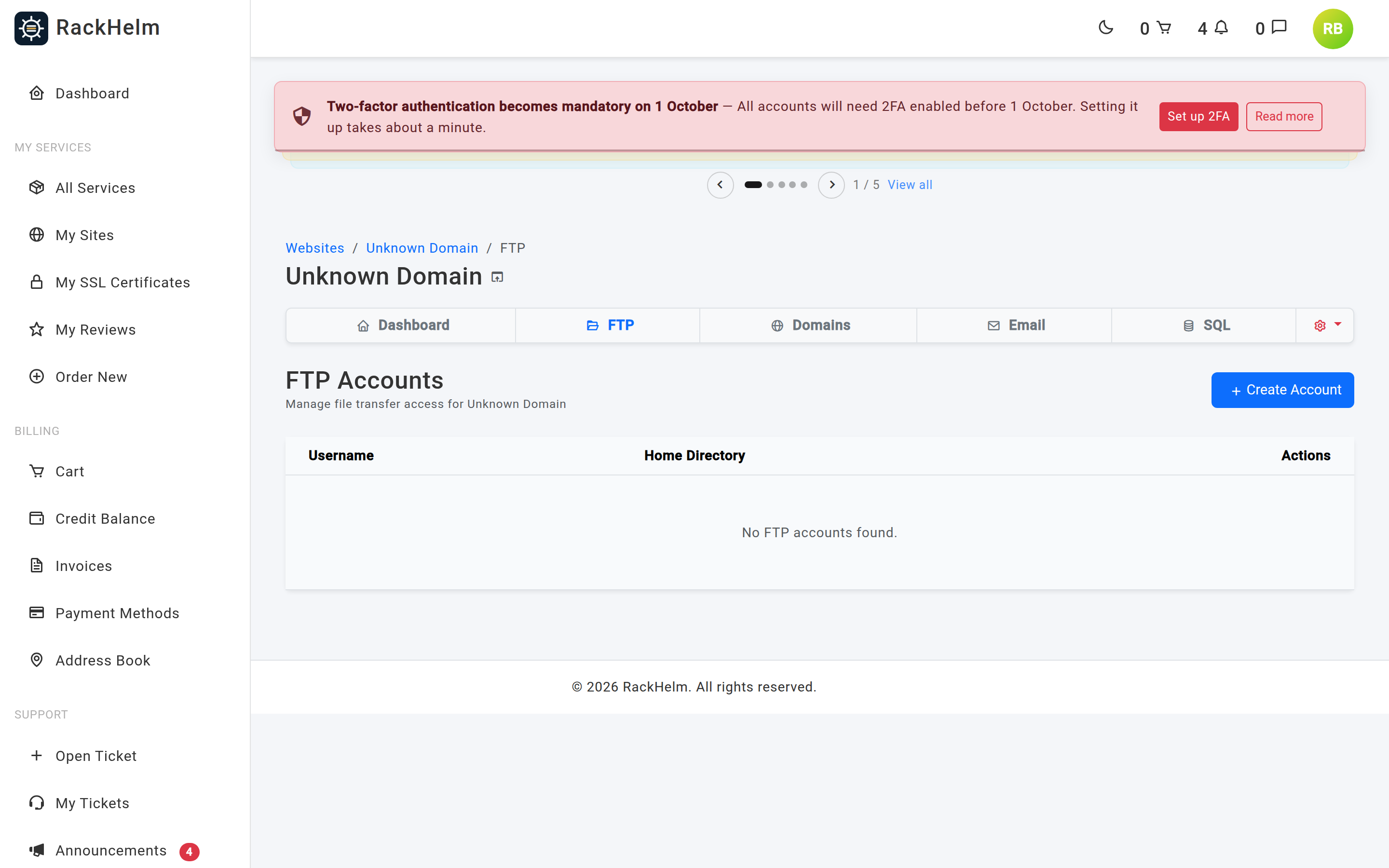
The table has three columns: Username, Home Directory — the folder the account is confined to — and Actions, holding Reset Password and Delete. With nothing to show it reads “No FTP accounts found.”
Creating an FTP account #
- Select Create Account.
- Enter a Username. The domain is shown after the box as a reminder of which site the account belongs to.
- Enter a Password. The requirements appear under the box as you type.
- Set the Home Directory — a path relative to the website root. The default is
/; use something like/public_htmlto confine the account to that folder. - Select Create Account.
| Field | Rules |
|---|---|
| Username | Required, 3 to 64 characters. |
| Password | Required, up to 72 characters. The minimum length is set by your provider and is 12 by default. Your provider may also require mixed case, a number, a symbol, and that the password has not appeared in a known data breach. |
| Home Directory | Optional, up to 255 characters. Relative to the website root. |
Note: The checklist under the password box always lists all four requirements — 12 characters, mixed case, a number and a symbol — whatever your provider has actually switched on. It is a fixed prompt, not a reading of the live policy, so a password that shows red crosses may still be accepted, and the real rule is whatever the portal returns as an error.
Warning: On cPanel a Home Directory of
/— the field’s own default — does not give the account the whole site. cPanel is sent the path with its leading slashes stripped, and an empty value falls back topublic_html. If you need a different folder on cPanel, name it:public_html/staging, not/.
Warning: Plesk applies a tighter rule to the login than the portal does. A Plesk FTP login may use only letters, digits, dots, underscores and dashes, must be no longer than 32 characters and may not start with a dash — anything else is refused with “That is not a valid FTP login.” even though the portal’s own field accepts up to 64 characters.
Note: The password is never shown again after you create the account. Record it somewhere safe, or use Reset Password to set a new one.
If the panel refuses the account you are returned to the page with its own message — for example that the username is already taken. The username and home directory you typed are kept; the password is not.
Note: On cPanel the login is stored as
user@yourdomainand that is how it appears in the list, so that is what you sign in with. The portal strips the part after the @ before every password reset and delete, because cPanel takes the bare user on those calls — passing the qualified form to a password change creates a second, differently named account instead.
Resetting a password #
- Select Reset Password on the account’s row.
- Enter the New Password. The same rules apply as when creating an account.
- Select Update Password.
The change takes effect immediately. Any client still connected with the old password will fail on its next login.
Deleting an account #
Select Delete, confirm the “Are you sure you want to delete the FTP user …?” prompt, then confirm your account password.
Warning: On cPanel a delete removes the account’s home directory and everything in it, not just the login. That is cPanel’s own “destroy” option, and it is used on purpose so that “delete this FTP account” means the same thing everywhere in the portal — but it means an account whose home directory is
public_htmltakes the website with it. Move or copy anything you want to keep first. On Plesk the login is removed and the files stay where they are. On Enhance the portal simply asks the panel to delete the user and does not ask for the files to go with it — if you are about to delete an account whose home directory holds anything you need, take a copy first anyway.
Connecting #
Use an FTP client that supports FTPS (explicit TLS). Sign in with the username exactly as it appears in the list — including the @yourdomain part on cPanel — and the password you set. Your provider publishes the server address and port to use: this page does not display them in the current release, on any panel.
Tip: Give each person or deployment tool its own account with a home directory scoped as tightly as the job allows, rather than sharing one account at the site root. Deleting one account then does not disturb anything else — and on cPanel, where a delete takes the directory with it, that is not just tidiness.
Troubleshooting #
| Symptom | Cause / fix |
|---|---|
| “API connection not configured or unreachable.” | The portal cannot talk to the control panel. This is a provider-side problem — open a ticket. |
| “Creation failed: …” with a message from the panel. | Usually a duplicate username or a password the panel rejects. Change one and try again. |
| “That is not a valid FTP login.” on Plesk. | The login is too long, starts with a dash, or uses a character Plesk does not allow. See the warning above. |
| “That FTP account is not part of this subscription.” on Plesk. | Plesk keys FTP accounts on the login alone, which is server-wide, so the adapter checks the account really belongs to your subscription before touching it. Reload the page and work from the list. |
| The password is rejected before it reaches the panel. | Your provider’s password policy applies here too — length, mixed case, a number, a symbol, and possibly a check against known breached passwords. The error names the rule that failed. |
| The account list is empty but you know accounts exist. | The list is fetched from the panel and left empty if that request fails, so the page still loads. Reload; if it stays empty, open a ticket. On Plesk the list parser could not be verified against a live server that had accounts on it, so an empty list there is worth reporting. |
| Your client connects but you land in the wrong folder. | The account is confined to its Home Directory. Create a second account with the home directory you need — the path cannot be changed on an existing account from the portal. |
| You do not know the FTP server address. | Ask your provider, or check the welcome email for the hosting package. |


