The country list decides which countries a customer can pick when they enter an address, at checkout, and when generating an SSL certificate. The address book is where those addresses live. This article covers both — the operator screen that controls the list, the customer screen that consumes it, and the staff Addresses tab, which from 1.0.1.1 can add, edit and remove entries rather than only display them.
Before you start #
Note: Country Settings sits under Platform Settings → Country Settings (
/admin/countries) and the route requiresedit_company_settings. The sidebar entry is drawn under a different check,manage_settings, which is not a seeded permission and therefore only ever passes for a Super Admin. An Administrator who holdsedit_company_settingscan open/admin/countriesdirectly but will not see it in the menu.
The country list #
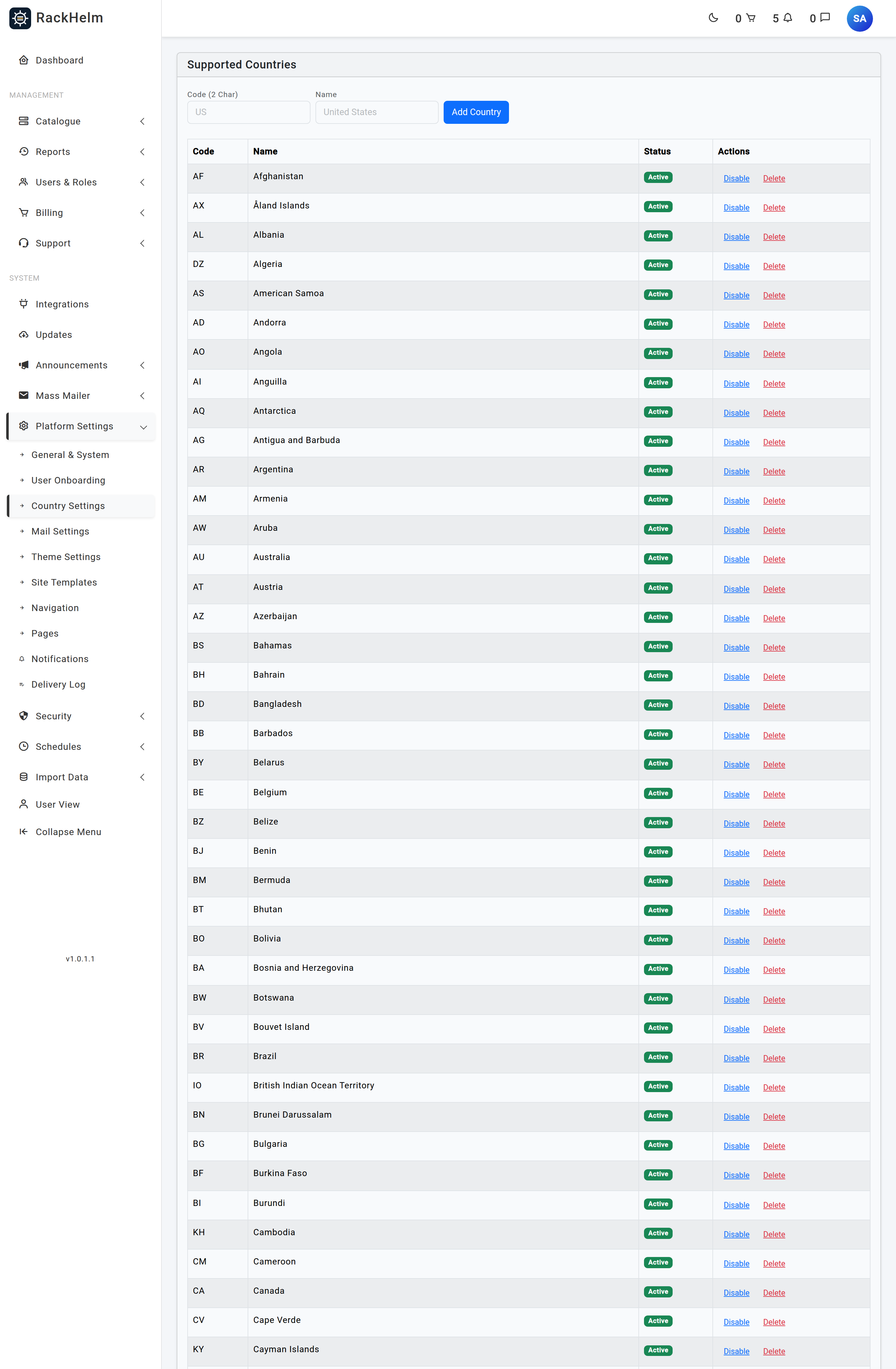
RackHelm seeds 245 countries and territories at installation, each with its ISO 3166-1 alpha-2 code and name, all active. In most installations you will never add one — you will only switch some off.
Adding a country #
- Enter a Code (2 Char) — exactly the ISO two-letter code, for example
GB. It is upper-cased on save and must not already exist. - Enter a Name.
- Select Add Country. It is created active.
Enabling, disabling and deleting #
Each row shows a status of Active or Hidden and an Enable/Disable link that flips it. Disabling removes the country from the selectors customers use, without touching any address already saved with that code.
Delete removes the record outright. Addresses store the two-letter code as plain text, so existing addresses keep displaying it — but see the warning below.
Warning: Prefer Disable to Delete. The onboarding wizard and the staff Addresses tab both validate the submitted country against the country table, so once a country record is deleted neither can save an address there at all. Disabling keeps the record intact for validation while removing it from the dropdowns.
Where the active flag is honoured #
| Screen | Shows |
|---|---|
| Customer address book | Active countries only, alphabetically. |
| Checkout | Active countries only. |
| SSL certificate configuration | Active countries only. |
| Staff Addresses tab (add/edit modal) | Active countries only, and the submitted code must exist in the table. |
| Tax rules, and the company address in settings | Active countries only. |
| Onboarding step 1 | Every country record, including hidden ones. |
That last row is a genuine inconsistency rather than an intention: if you disable a country and want it gone from onboarding too, delete the record and accept the validation consequence, or leave it visible.
Note: Validation is not uniform either. Onboarding and the staff Addresses tab require the submitted code to exist in the
countriestable; the customer’s own address book only checks that it is at most two characters, so a code posted by hand there is stored without complaint. Nothing in the UI offers a hidden or unknown code, so this only matters when you are diagnosing an odd stored value.
The address book #
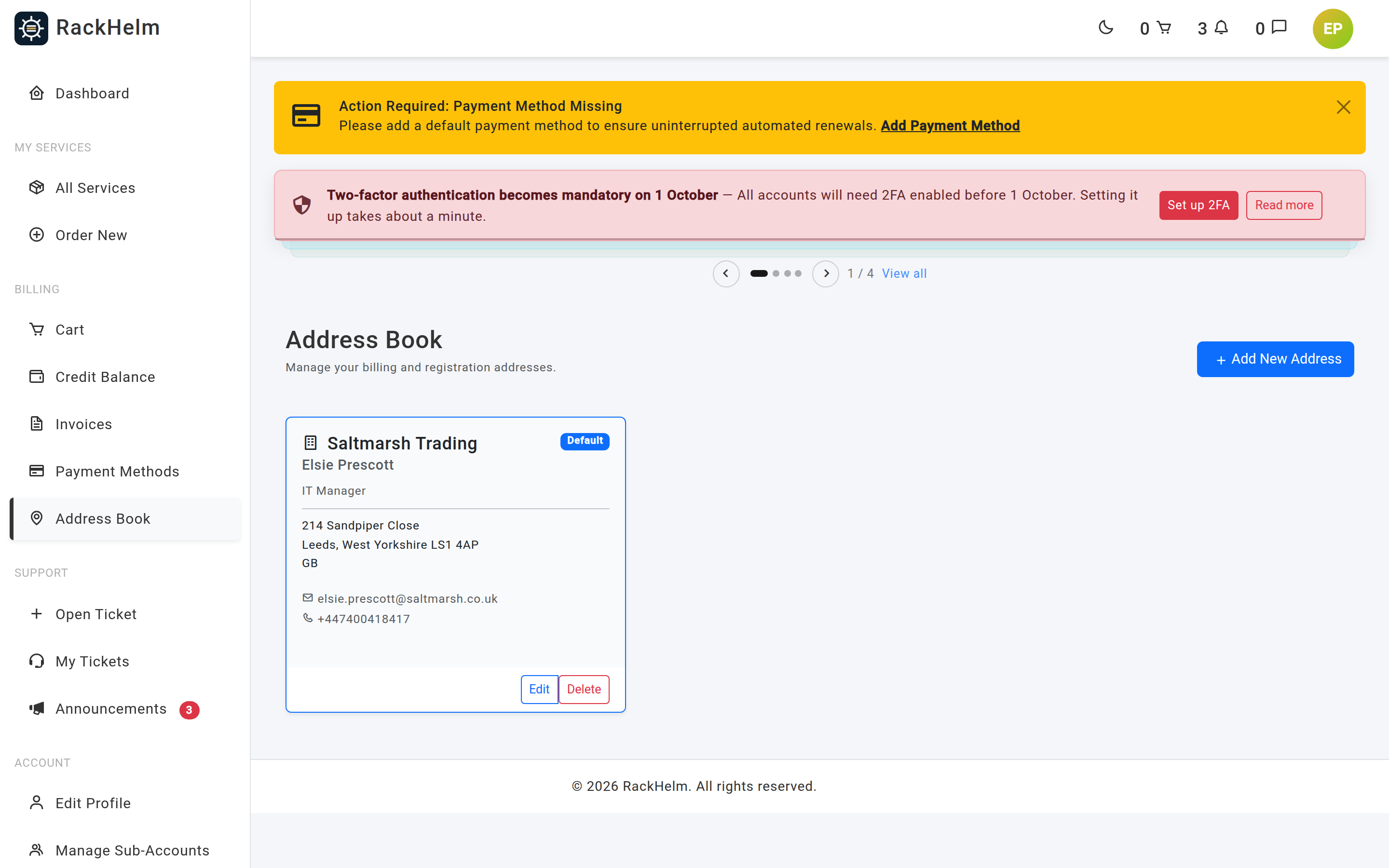
Customers reach it at Billing → Address Book. Each address is a card with a Make Default button, an edit action and a delete action; adding or editing opens the Add New Address dialog.
| Field | Required | Notes |
|---|---|---|
| Organization | No | Company name, printed on invoices. |
| Job Title / Role | No | |
| First Name / Last Name | Yes | The contact for this address, not necessarily the account holder. |
| Country | Yes | Drives phone number formatting as well as the address itself. |
| UK Legal Type | No | Nominet registrant type for .uk domains: IND, FIND, LTD, PLC, PTNR, LLP, STRA, RCHAR, FCORP, OTHER. |
| Registrant Name | No | The company or full name a .uk domain is registered to. “Leave blank to default to your profile’s First & Last Name.” |
| Address Line 1 | Yes | |
| Address Line 2 | No | |
| City | Yes | |
| State / Province | Yes | Required regardless of country. |
| Zip / Postal Code | Yes | Up to 20 characters. |
| Email Address | Yes | Billing contact address for this entry. |
| Phone Number | Yes | Validated against the selected country and stored in international +44… format. |
How the default address behaves #
- The first address on an account automatically becomes the default.
- Marking an address as default clears the flag on every other address — there is always exactly one.
- The default address cannot be deleted from the customer’s own address book. Make another one default first; the delete action then becomes usable.
- Deleting an address asks the customer to confirm their account password. Confirming returns them to the address book without deleting anything — they press Delete a second time to carry it out. The confirmation then holds for about three hours.
- Addresses belong to the account owner, so a sub-account sees and edits the parent’s address book. Setting the default and deleting are reserved for the account holder’s own login.
Managing addresses as staff #
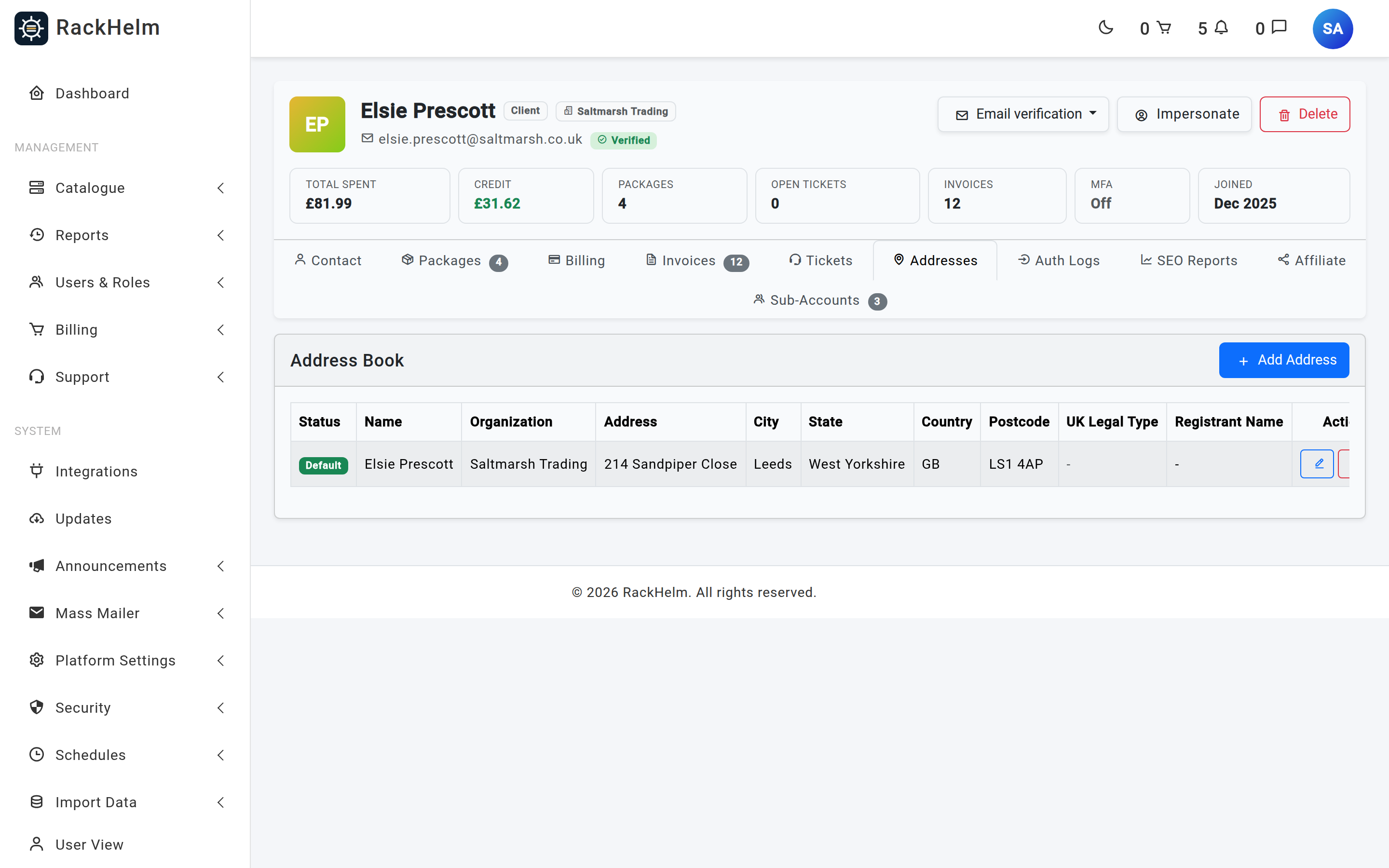
The Addresses tab of the client workspace lists everything on the account: status (Default or Secondary), name, organisation, both address lines, city, state, country, postcode, UK legal type and registrant name. It used to stop there. It now carries an Add Address button in the card header and per-row edit and remove buttons, all gated on edit_clients — without that permission the Actions column is not rendered at all and the table drops to ten columns.
Adding and editing #
Add Address opens a modal headed Add Address for the client’s name, pre-filled with the account’s own organisation, first name and last name, and with the country seeded from whatever this client already uses — their default address’s country, or failing that their most recent one. If the client has no address at all the country is left blank on purpose, so you make a deliberate choice rather than filing the address under whichever country sorts first.
The row’s edit button reopens the same modal, now headed Edit Address for the client’s name, with Save Changes in place of Save Address. A failed validation reopens the modal with what you typed still in it.
One field exists here that the customer’s own form does not have: the switch Make this the default address. It is one-way. Ticking it promotes this address and demotes whichever was default; leaving it unticked never demotes, because that would leave the account with no default at all. Editing the current default shows the switch already on and disabled — to move the default, promote a different address.
Note: If the account you are on is a sub-account, the modal says so, naming the parent it falls back to and warning that “An address saved here belongs to the sub-account and will not be used for invoicing.” Orders and invoices always resolve to the account owner, so an address you need on an invoice has to go on the parent. The alert links straight to the parent’s Addresses tab.
Removing an address #
The remove button opens a confirmation headed Remove Address, which names the entry it is about to remove — contact name, first line, city and postcode — and ends with “Addresses already snapshotted onto past invoices are unaffected. This cannot be undone.” Two rules can block the removal, and both are shown together rather than one attempt at a time:
| Blocker | What it means |
|---|---|
| “This is the default address. Make another address the default first (Edit → "Make this the default address").” | Only applies while the client has other addresses. An account’s only address can be removed, because there is nothing to promote. |
| “This address is still used by N active orders, so it cannot be removed. Edit it in place instead, or remove it once those orders have been cancelled.” | Orders point at the address book entry, and every domain registrar driver reads that address without a null guard, so removing it would make the next renewal or contact sync on those orders throw. Cancelled orders do not count. There is no screen that re-points an order at a different address, so editing in place is the honest remedy. The modal links to the client’s Packages tab. |
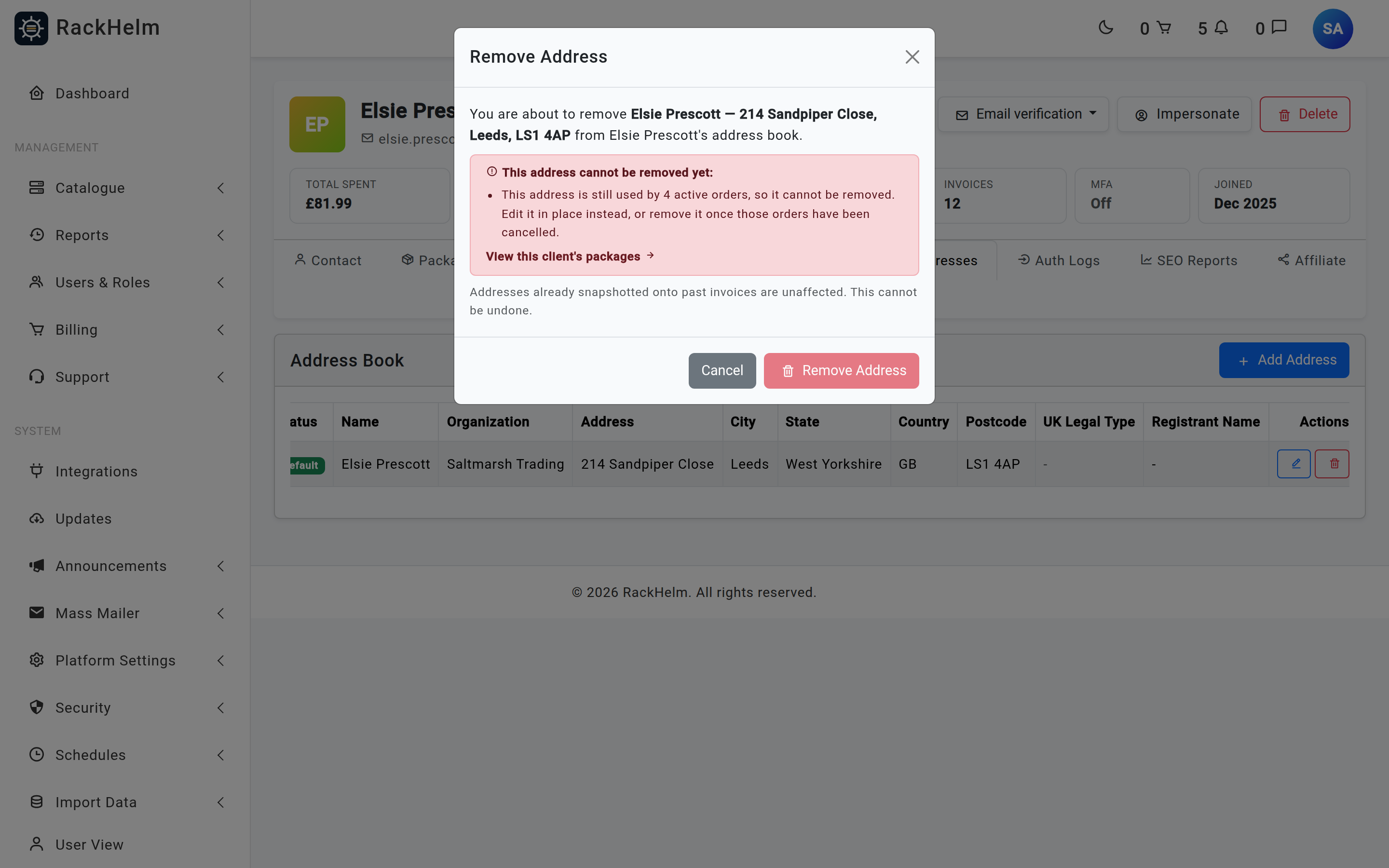
Warning: Removing a client’s last address is allowed, and the modal says what follows: “This is the client’s only address. Invoices and new orders will have no billing address until another is added.” Nothing breaks immediately — the next invoice is simply generated with an empty Bill To block, and country-based tax falls back to the Default Country set under Billing → Tax rather than escaping tax. Add a replacement in the same sitting.
Note: The profile header above this tab also carries the Email verification menu — mark an address verified, resend the link, or require verification again. It needs its own permission,
manage_client_email_verification, which an upgraded install does not have until you seed it. See Sub-Accounts.
Where invoices get their address #
An invoice does not read the address book when it is displayed. It snapshots the address at generation time into the invoice row, so editing or removing an address never rewrites an invoice already raised.
The snapshot comes from the order’s own address; if the order has none, from the account’s primary address, which means its default address, or failing that its most recent one. If there is nothing at all, the snapshot is empty.
Two things about empty snapshots changed in this release:
- The invoice templates no longer assume every field is present. An address that is missing entirely, or missing a line, now prints as a gap; before, a missing key ended the PDF render with an error, so accounts that had skipped the onboarding address step got an invoice with no PDF behind it.
- A custom invoice raised by staff for a client with no address falls back to the account’s own first name, last name and email so the Bill To block is not blank. No country is invented — an address without one is treated exactly as no address, so tax falls back to the account’s own primary address and then to the Default Country under Billing → Tax.
Customers can change the billing address on an unpaid invoice themselves from the invoice page. Changing the country re-quotes the tax for the new jurisdiction, so the amount can move. It is refused on a paid invoice, and refused while a card payment is being confirmed with “A payment on this invoice is being confirmed; the billing address cannot be changed until it is resolved.”
Warning: When a staff-created custom invoice is saved, the PDF is rendered there and then. If that render fails, the invoice still exists — you are redirected to it with a warning that the invoice “was created, but its PDF could not be generated, so the customer has not been emailed yet. Check the customer’s billing address and regenerate the invoice.” Do not raise the invoice again; fix the address and regenerate, or the client ends up with two.
Troubleshooting #
| Symptom | Cause and fix |
|---|---|
| A customer cannot find their country in the dropdown. | The record is disabled, or was deleted. Re-enable it under Country Settings. |
| A country you disabled still appears during onboarding. | Onboarding lists every country record regardless of status. Delete the record if it must not appear there. |
| “The selected country is invalid.” on the onboarding form or the staff address modal. | The country record was deleted after the page was rendered, or the browser posted a code that no longer exists. Recreate the country. |
| Country Settings is missing from the Platform Settings menu. | The menu entry is drawn under manage_settings, which is only ever granted to a Super Admin. Holders of edit_company_settings can still open /admin/countries directly. |
| The phone number is rejected. | It must be a valid number for the selected country. Choose the country first, then enter the number; a leading zero and the national format are both accepted. |
| “You cannot delete the default address.” | The customer must make another address the default, then delete. From the staff tab, use Edit → Make this the default address on the replacement first. |
| The staff tab refuses to remove an address that is used by active orders. | Working as designed. Edit it in place, or wait until those orders are cancelled — there is no screen that moves an order onto a different address. |
| There is no Add Address button or Actions column on the staff Addresses tab. | The signed-in staff member lacks edit_clients. The tab falls back to its old read-only form. |
| An address added on a sub-account never appears on an invoice. | Expected. Orders and invoices resolve to the account owner; put the address on the parent account. |
| A sub-account cannot press Make Default or Delete. | Those actions are reserved for the account owner’s login. See Sub-Accounts. |
| Deleting an address asks for a password and then appears to do nothing. | Expected. Confirming a password on a delete returns the customer to the address book without carrying it out; they press Delete again. |
| An invoice’s Bill To block is blank or partly blank. | The account had no address, or an incomplete one, when the invoice was generated. Add one and regenerate the invoice; the existing snapshot is not rewritten on its own. |
Saved addresses show GB rather than “United Kingdom”. |
Expected: address cards and the staff Addresses tab print the stored two-letter code, not the country name. |


