A coupon is a code a customer types at checkout to reduce the total. RackHelm coupons can be a fixed amount or a percentage, can be limited by date and by number of uses, and can be restricted to particular groups, products, billing cycles or add-ons. This article is for operators.
Before you start #
Note: Requires the
manage_couponspermission, which the built-in Billing Manager role holds by default alongside Super Admin and Administrator. See Roles & Permissions.
The Coupons screen #
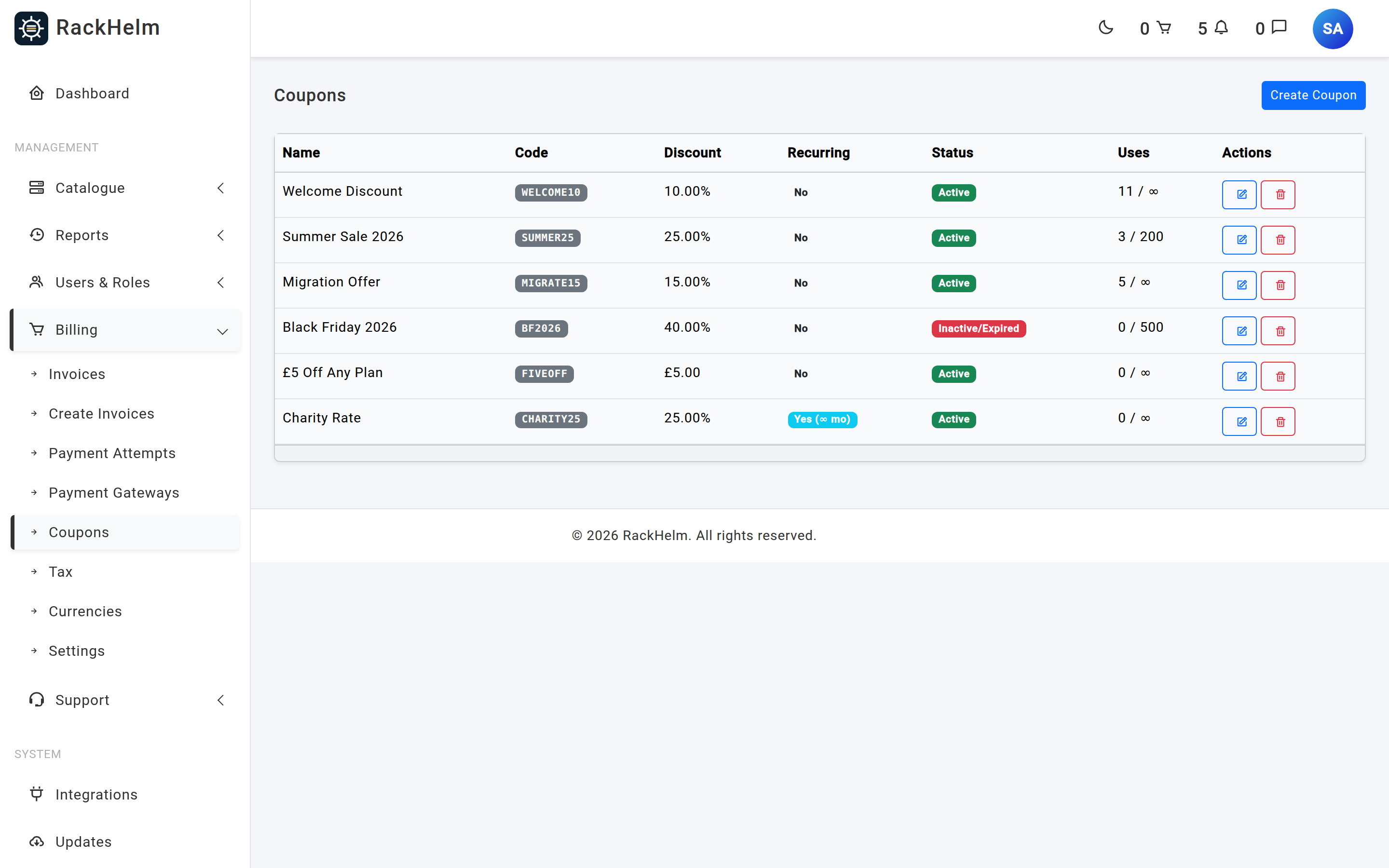
Open Billing → Coupons (/admin/coupons). The list shows the coupon name, its code, the discount, whether it is marked recurring, a live validity status and a uses counter in the form 3 / 100 (or 3 / ∞ when unlimited).
Creating a coupon #
- Click Create Coupon.
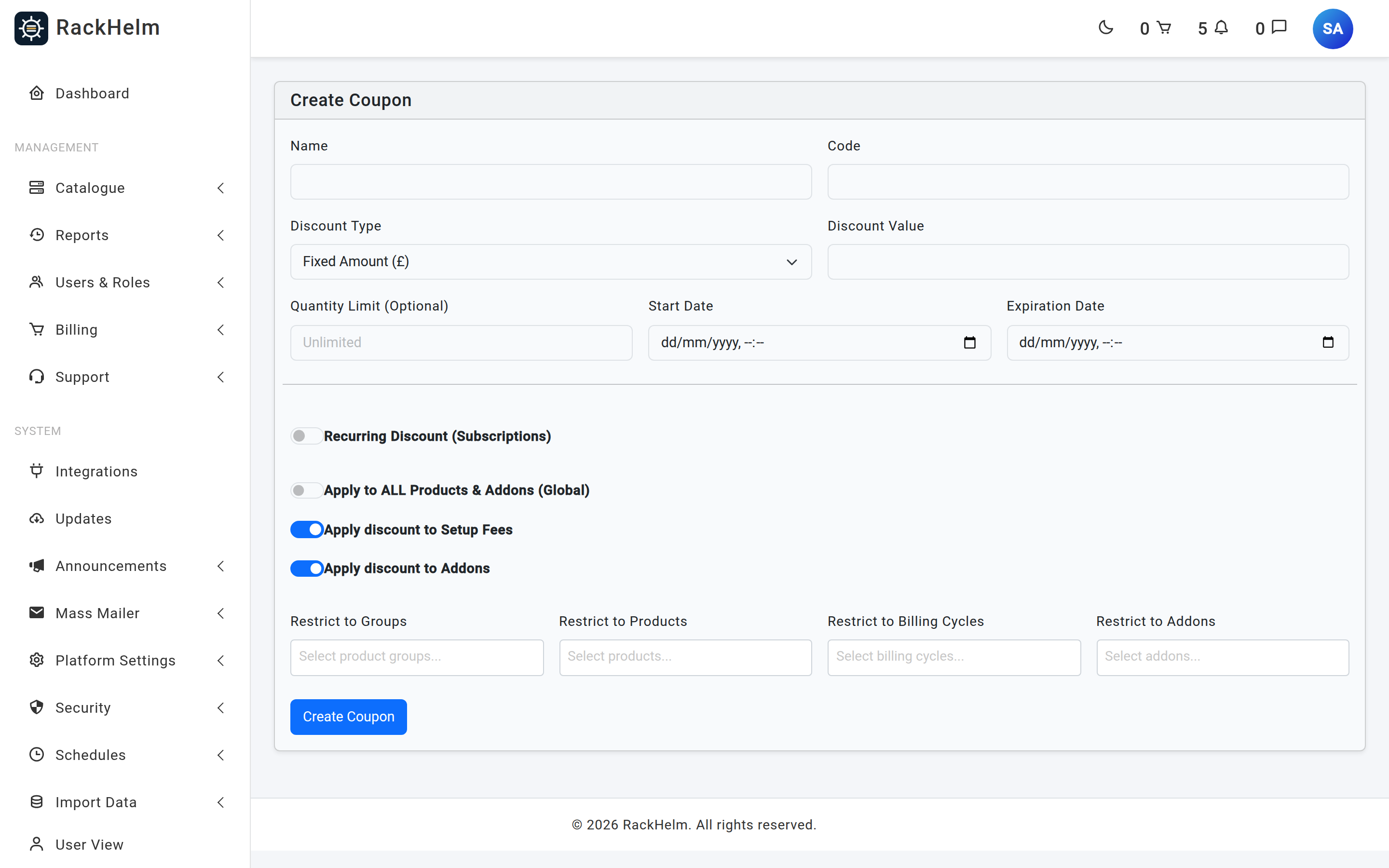
- Give it a Name (for your reference) and a Code (what the customer types). The code must be unique.
- Pick a Discount Type and enter the Discount Value.
- Set any limits: Quantity Limit, start date, expiry.
- Decide what it applies to — everything, or a restricted set.
- Click Create Coupon. New coupons are always created active.
Field reference #
| Field | Rules and effect |
|---|---|
| Name | Required, up to 255 characters. Internal label only. |
| Code | Required, up to 50 characters, unique. Typed into the Promo Code box at checkout. The input renders in upper case. |
| Discount Type | Required. Fixed Amount (£) or Percentage (%). |
| Discount Value | Required, numeric, at least 0. When the type is percentage it may not exceed 100. |
| Quantity Limit (Optional) | Optional whole number, minimum 1. Blank means unlimited. Once the use count reaches this figure the coupon stops validating. |
| Start Date | Optional date and time. Before it, the coupon is rejected. |
| Expiration Date | Optional date and time; must be on or after the start date. After it, the coupon is rejected. |
| Recurring Discount (Subscriptions) | See the warning below. |
| Duration (Months) | Only shown when Recurring is on. Optional whole number, minimum 1. See the warning below. |
| Apply to ALL Products & Addons (Global) | When on, the coupon has no restrictions and any existing ones are cleared on save. |
| Apply discount to Setup Fees | Defaults to on. When off, setup fees are excluded from the discountable amount. |
| Apply discount to Addons | Defaults to on. When off, add-on lines are excluded from the discountable amount. |
| Restrict to Groups / Products / Billing Cycles / Addons | Four multi-selects. Leaving one empty means “no restriction on this dimension”. |
| Coupon Active | Only present on the edit form. Untick to switch a coupon off without deleting it. |
Warning: Recurring Discount and Duration (Months) are stored and displayed in the coupon list, but no part of the billing pipeline reads them — renewal invoices are generated from the product’s own pricing. A coupon discounts the checkout it is used on, once. Do not promise customers “20% off for six months” on the strength of these two fields.
How a discount is worked out #
Discounting runs line by line over the cart. A line qualifies only if it passes all three restriction checks:
- Group — either no groups are listed, or the line’s product is in one of them.
- Billing cycle — either no cycles are listed, or the line’s chosen cycle is one of them. A line with no billing cycle can never match a cycle-restricted coupon.
- Product — either no products are listed, or the line’s product is one of them.
For a qualifying line, RackHelm then decides what part of it is discountable:
| What you restricted | Base price discounted? | Add-ons discounted? |
|---|---|---|
| Nothing (or Global) | Yes | Yes, if Apply to Addons is on |
| Products and/or groups | Yes | Yes, if Apply to Addons is on |
| Add-ons only | No | Only the listed add-ons |
| Products/groups and add-ons | Yes | Only the listed add-ons |
Setup fees are added to the discountable amount for whichever parts qualify, provided Apply discount to Setup Fees is on.
Finally the discount is applied:
- Percentage — each qualifying line is reduced by that percentage of its discountable amount, capped at the amount itself.
- Fixed amount — the amount is a single pot spread across qualifying lines in cart order until it is exhausted. A £20 coupon against a £12 line and a £15 line takes £12 from the first and £8 from the second.
The order total is never driven below zero.
Tip: An “add-ons only” coupon deliberately leaves the base product at full price. If you want the whole line discounted and want to name particular add-ons, list the products or groups as well.
How customers redeem a coupon #
The Promo Code box sits at the top of the order summary on the checkout page. Applying a code stores it against the customer’s session and re-prices the cart; an applied code shows an APPLIED badge with a remove button. An invalid or expired code is rejected with “Invalid or expired coupon code.”
The coupon is re-validated when the order is actually placed, and its use count is incremented in a single guarded update. If two customers race for the last use of a limited coupon, one of them is stopped with “Coupon has reached its maximum usage limit.” rather than both succeeding. On a successful order the code is cleared from the session.
Editing and deleting #
Editing works the same as creating, plus the Coupon Active switch. Turning Global on while saving clears every restriction the coupon had. Deleting removes the coupon outright; prefer switching it inactive if it has already been redeemed, so the record survives.
Troubleshooting #
| Symptom | Cause and fix |
|---|---|
| “Invalid or expired coupon code.” | One of four things: the code does not exist, Coupon Active is off, the use limit is reached, or the current time is outside the start/expiry window. |
| The code is accepted but the total does not change. | No cart line qualified. Check the four restriction selectors — remember that a cycle restriction excludes lines with no billing cycle, and that an add-ons-only restriction never discounts the base product. |
| A percentage coupon discounts less than expected. | Setup fees or add-ons are excluded because Apply discount to Setup Fees or Apply discount to Addons is off. |
| A fixed-amount coupon is only partly used. | Fixed amounts are capped at the discountable value of the qualifying lines. A £50 coupon on a £30 cart discounts £30. |
| Restrictions disappeared after saving. | Apply to ALL Products & Addons (Global) was left on. Saving with it on detaches every restriction. |
| The discount does not repeat on renewal. | Expected. Recurring and duration are stored but not applied — see the warning above. To give an ongoing reduction, price a dedicated product or cycle instead. |
| “Coupon has reached its maximum usage limit.” during checkout. | The last use went to another customer between the code being applied and the order being placed. Raise the uses limit or issue a new code. |
| Credit top-ups are not discounted. | Deliberate — a “Credit Deposit” line is skipped by the discount pass so coupons cannot be used to buy account credit cheaply. |


