- The shape of the journey
- 1. The catalogue quotes the price
- 2. The cart holds the intent
- 3. Checkout takes the money first
- 4. Orders and order items
- 5. The invoice records the money
- 6. Provisioning turns the item into a service
- 7. The service is the item, seen from the customer's side
- 8. Renewal closes the loop
- Troubleshooting
This article follows one purchase from the moment a customer clicks Order to the moment their renewal invoice is paid a year later. Knowing this path is what lets you diagnose a stuck order in thirty seconds instead of thirty minutes, so it is worth reading once even if you never touch the database.
The shape of the journey #
Every sale takes the same route, whatever it is you are selling:
store → cart → checkout → order → order items → provisioning job → service → invoice → renewal
Each arrow is a hand-off that can fail on its own. The rest of this article gives every step its real name.
1. The catalogue quotes the price #
Nothing is sold that is not in the catalogue. A Product belongs to a ProductGroup, and its recurring prices live in BillingCyclePrice rows — one per BillingCycle the product is offered on. Optional extras are ProductAddon records, priced the same way, per cycle.
The store at /store renders groups; /store/{group} renders the products in one; /order/{group}/{product} is the configure-and-add screen where the customer picks a billing cycle, fills in any custom fields and chooses addons.
Note: An addon with no price row for the cycle the customer chose cannot be priced, and the checkout aborts before any money moves rather than selling it for nothing.
2. The cart holds the intent #
Adding to the cart writes CartItem rows keyed to the browser session, and to the user once they sign in. The cart is not an order: nothing is reserved and no sale exists yet. Totals are recalculated from the catalogue on every render, so a price change is picked up immediately.
3. Checkout takes the money first #
Posting the checkout form runs one orchestrated sequence:
- Cart totals are recalculated server-side. A line that cannot be priced aborts here.
- Account credit is applied, if the customer ticked the option and has a balance.
- The chosen gateway is validated. If anything is left to pay, a gateway is mandatory.
- The order is screened by the fraud rules.
- The card is charged.
- Only then are the order and its invoice written, inside a database transaction.
Warning: Because money moves before the order is written, a failure at step 6 triggers an automatic compensating refund and raises a
payment.reconciliation_requiredadmin notification. If you ever see that alert, treat it as urgent: it means a customer may have paid and received nothing.
4. Orders and order items #
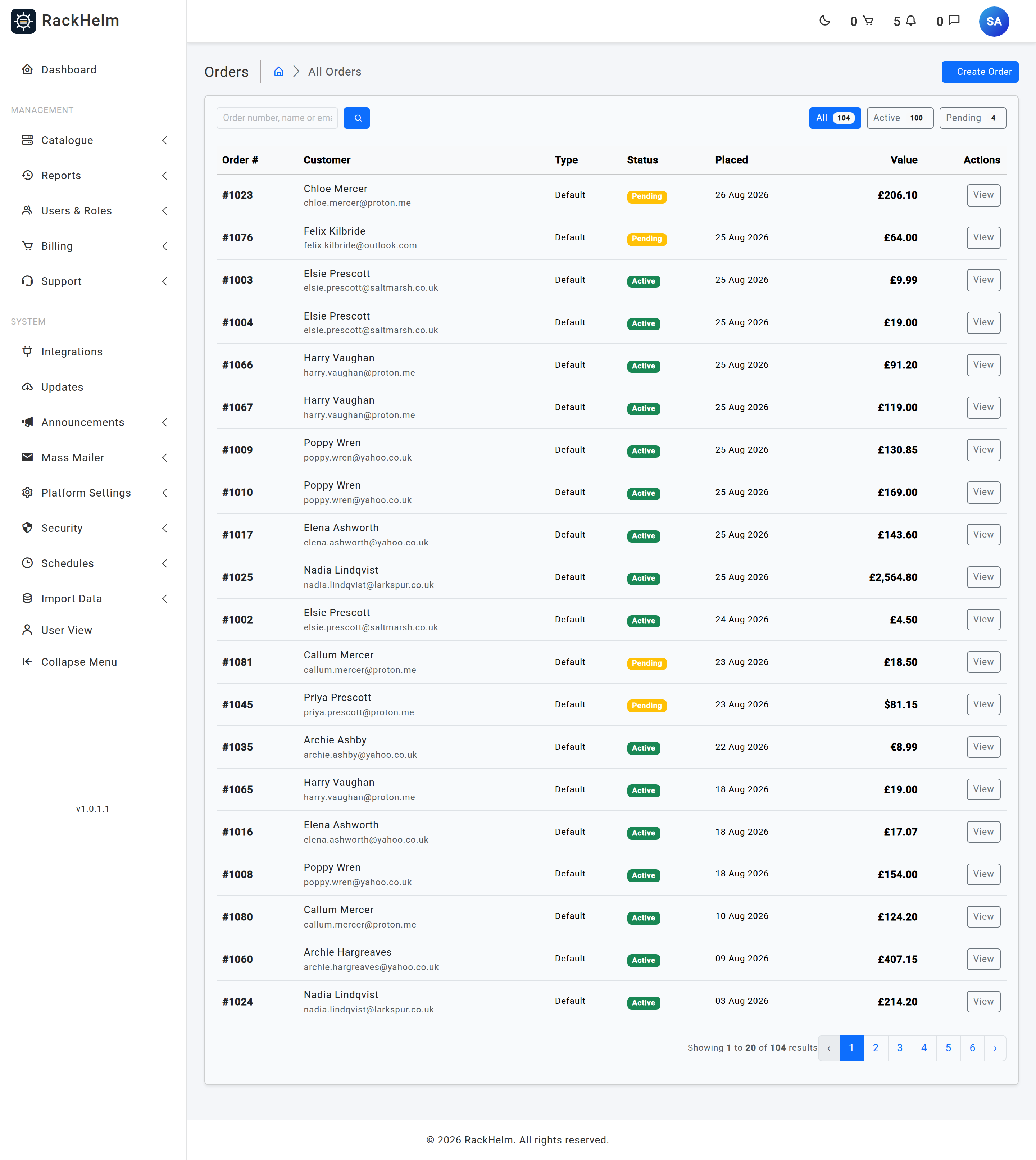
Checkout produces one or more Order records. An order is the container: the customer, the billing address snapshot, the coupon, the discount and the next due date. Its order_number is an incrementing number starting above 999, and invoice numbers are built from it.
The thing a customer actually owns is an OrderItem — the most important record in RackHelm, and one that goes by three names depending on where you are standing:
| Called | Where |
|---|---|
| Order item | In the database and in this documentation |
| Package | In the staff area — Users & Roles → Active Packages |
| Service | In the client portal — All Services |
Addons are order items too. They carry type = addon and a parent_id pointing at the master item they were bought alongside.
5. The invoice records the money #
An Invoice is created per order at checkout, with one InvoiceEntry per line — the product, each addon and any custom line. Entries store a snapshot of the description and price, so editing a product later never rewrites an invoice already issued.
The invoice is created as paid when a real payment reference came back from the gateway, or when the final amount is zero. Anything else — bank transfer in particular — is created as pending, because the funds have not arrived. Marking an invoice paid regenerates its PDF automatically.
6. Provisioning turns the item into a service #
This is the step new operators most often misunderstand. Provisioning is not part of checkout. It is background work, and it is driven by a scheduled scanner.
Every order item carries a provisioning_status — the full list of values is in Key concepts and glossary. At the moment of order it is set as follows:
| Status at order time | When it is chosen |
|---|---|
pending |
The normal case — a product waiting to be provisioned. |
awaiting_configuration |
SSL certificate products. They wait for the customer to run the configure wizard and paste a CSR before anything is submitted to the issuer. |
provisioned |
Products in the System product group (for example the credit-deposit product). There is nothing to create. |
active |
An addon whose Needs Provisioning flag is off — it is billing only. |
manual |
An addon flagged for manual provisioning. Staff handle it by hand. |
The Provision Orders schedule then runs the ScanPendingProvisioning job. On each tick it looks for order items that satisfy all three of these conditions:
provisioning_statusis empty orpending;- the item’s order has at least one invoice with status paid;
- the item’s product has an active integration bound to it.
Items that qualify are claimed atomically — moved to queued, timestamped, and their attempt counter incremented — and a ProvisionOrderItem job is dispatched for each. That job moves the item to processing, resolves the driver for the bound integration, merges any addon variables into the payload, calls the remote system, and finishes at either provisioned or failed.
Tip: Those three conditions are your entire provisioning checklist. If nothing is being created, one of them is false — no paid invoice, no active integration on the product, or the schedule is switched off.
The provisioning jobs #
All the integration work lives in one place. These are the jobs you will see named in logs and on the Queue Monitor:
| Job | What it does |
|---|---|
ScanPendingProvisioning |
The scanner described above. Runs on a schedule and refuses to overlap itself. |
ProvisionOrderItem |
Creates the account, server, domain or certificate for one item. Also drives the SSL submit-poll-finalise cycle. |
SuspendOrderItem / UnsuspendOrderItem |
Suspends or restores the remote account. |
TerminateOrderItem |
Deletes the remote account at the end of the lifecycle. |
RenewOrderItemAtRegistrar |
Renews a domain with the registrar once its renewal invoice is paid. |
RecalculateOrderItemResources and its per-panel variants |
Pushes a changed resource allocation (after an upgrade or a new addon) to the panel. |
SyncProviderDomains / SyncPendingEnomTransfers / UpdateDomainSettings |
Keep domain data, in-flight transfers and nameserver settings in step with the registrar. |
CustomApiEventJob |
Delivers a signed outbound webhook for an operator-defined Custom API integration. |
7. The service is the item, seen from the customer’s side #
Once provisioned, the same order item appears in the client portal under All Services — see A tour of the client portal. Where it links to depends on the integration type: game panels go to My Servers, web control panels to My Sites, registrars to My Domains, certificates to My SSL Certificates. Anything with no dedicated console — including Custom API services — is rendered on the generic service page from the attributes the integration returned.
While provisioning_status is pending, queued or processing, the customer sees a “setting up your service” state rather than a broken console. The failure message is deliberately never shown to them; it is staff-only.
8. Renewal closes the loop #
Recurring billing is a chain of scheduled jobs, each with its own row under Schedules:
- Generate Invoices looks ahead by the configured number of days and raises the next invoice for orders coming due.
- Invoice Reminders emails the customer on the configured day offsets.
- Process Due Invoices finds pending invoices due today or earlier and queues an automatic payment attempt against the customer’s stored payment method.
- Apply Late Fees adds a fee once the grace period has passed.
- Suspend Overdue Services suspends the item and opens a ticket after the configured number of days unpaid.
- Terminate Overdue Services terminates it after a longer window.
- Process Cancellations terminates items the customer asked to cancel, once their paid-up-to date has passed.
A successful payment advances the due date on every order the invoice covers, and the cycle begins again.
Troubleshooting #
| Symptom | Cause and fix |
|---|---|
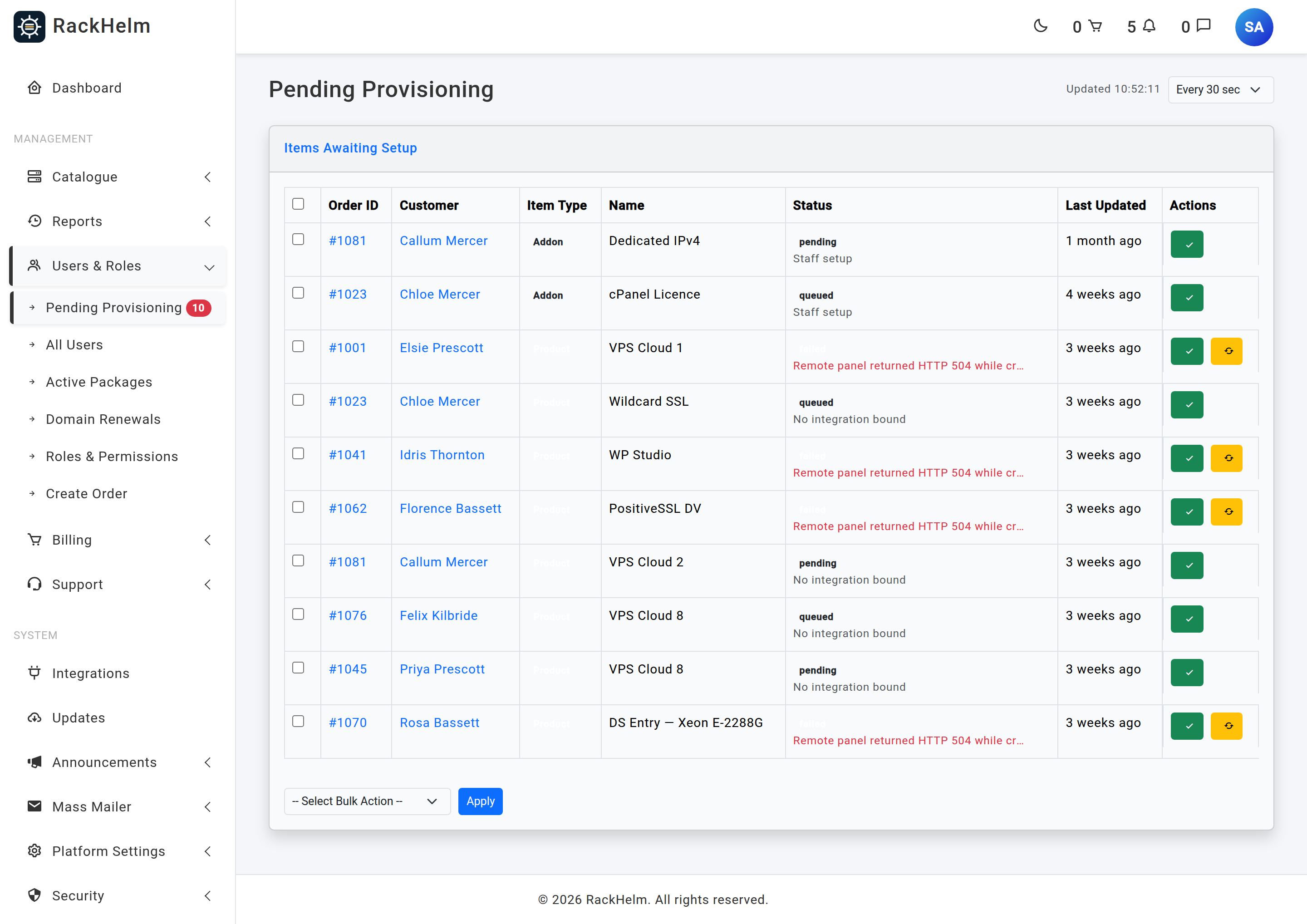
Order paid, item stuck at pending forever. |
Either the Provision Orders schedule is disabled, the scheduler cron is not running, or the product has no active integration. Check the product’s Provisioning tab first — an integration row that exists but is inactive does not count. |
Item stuck at processing and never moves. |
The provisioning job started and did not finish. Look at the failed jobs in the Queue Monitor. If a product with no integration bound was provisioned by hand, the item is failed with a message naming the fix. |
Item is failed. |
Open Users & Roles → Pending Provisioning, read the error, correct the integration or the product configuration, and press Retry. Retry only accepts items in failed or pending. |
| Invoice was raised but the order shows nothing provisioned. | The scanner requires an invoice with status paid. A bank-transfer order stays pending until you confirm the funds and mark it paid — provisioning then follows on the next scanner tick. |
| An SSL item never provisions. | That is correct behaviour. It sits at awaiting_configuration until the customer completes the configure wizard and supplies a CSR. |
| Renewals are never billed. | Check the Generate Invoices schedule is enabled and that its advance-days option is not empty. An empty day list collapses the look-ahead window to zero, so renewals only bill on the exact due date. |


