Impersonation — “log in as client” — puts you inside a customer’s own portal session so you can see exactly what they see. It is the fastest way to settle “the button isn’t there for me” arguments, and it is also the most powerful thing a staff account can do, so RackHelm gates it tightly and it is switched off for everyone but the owner by default.
Before you start #
Warning: While impersonating you are the customer. You can place orders, cancel services, delete addresses and open their control panels, and RackHelm records those actions against them, not you. Treat it as a look-only tool unless the customer has asked you to act.
Who can impersonate, and who can be impersonated #
To impersonate anyone you need both of the following:
- a role marked as a staff role, and
- the
login_as_clientpermission.
The permission is deliberately withheld from the built-in Administrator role, so out of the box only Super Admin accounts can impersonate. Grant it to a role of your own if your support team needs it — see Roles and Permissions.
On the other side, the target must be impersonatable:
| You are | You can impersonate |
|---|---|
| A Super Admin | Anyone except another Super Admin. |
Other staff holding login_as_client |
Customers and sub-accounts only. Never another member of staff. |
Starting a session #
- Open Users & Roles → All Users and find the customer.
- Either open the kebab menu on their row and choose Impersonate, or open their profile and use the Impersonate button in the header. The option is only rendered when it is actually available to you.
- Confirm your own password if prompted. Impersonation is one of the actions behind a password confirmation.
- You are taken to the customer’s dashboard, signed in as them.
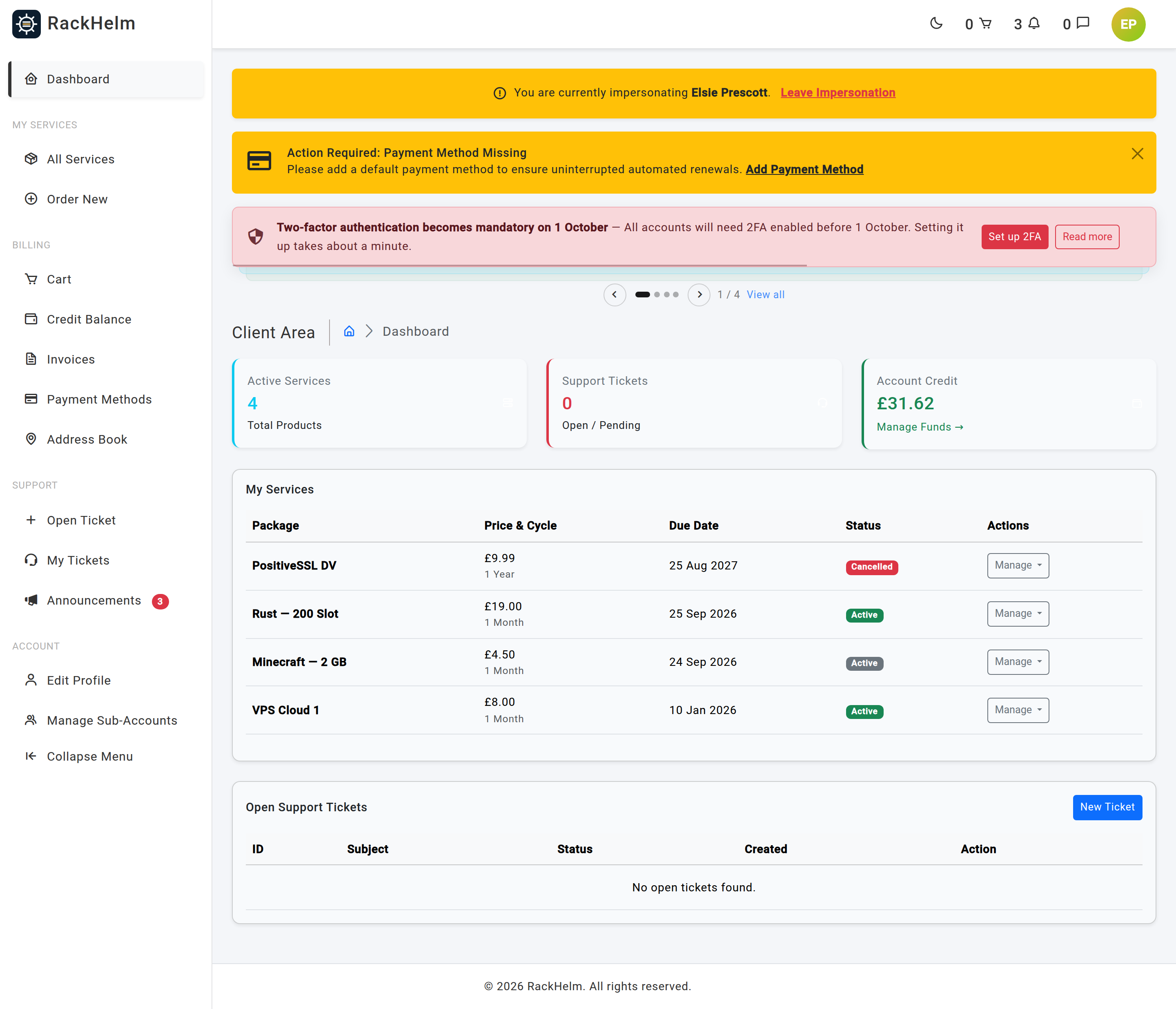
What changes while you are impersonating #
- A yellow banner sits at the top of every portal page: You are currently impersonating name, with a Leave Impersonation link.
- Your own admin session is held aside and restored when you leave; you are not signed out.
- The prompt asking customers to re-accept updated terms is skipped, so you cannot accept legal documents on their behalf by accident.
- If the onboarding wizard is being enforced and the customer has not finished it, you will land in the wizard exactly as they do. The Leave Impersonation route is deliberately exempt from the wizard’s redirect, so you can always get back out.
Leaving #
Select Leave Impersonation in the banner, or go to /impersonate/leave. You are returned to your own account. That route is intentionally not permission-checked: while impersonating, your session belongs to a customer who holds no staff permissions, so gating it would trap you.
Tip: Always leave rather than closing the tab. Closing the browser leaves the session as the customer, and your next visit to
/adminwill bounce you because that session is not staff — you would need to leave impersonation or sign out and back in.
The audit trail — and its limits #
Be clear-eyed about what is and is not recorded:
- Starting and ending impersonation is not logged. The switch is made without raising a sign-in event, so nothing appears in the customer’s authentication log and nothing appears in the audit log.
- Anything you change is logged against the customer. The audit log records the acting account, and while impersonating that account is theirs. A price change you make will read as though the customer made it.
- The customer’s own sign-in history is unaffected, which is useful — impersonation does not pollute the IP and location history you rely on when investigating an account.
Because RackHelm cannot reconstruct who impersonated whom, put the trail somewhere it will survive: note in the customer’s ticket that you logged in as them, when, and why. If you need a hard record of every use, restrict login_as_client to a small number of named accounts so the population of possible actors stays small.
Troubleshooting #
| Symptom | Cause and fix |
|---|---|
| No Impersonate option anywhere. | Your role lacks login_as_client, or the target is a staff account. Administrator does not hold the permission by default. |
| The option is missing for one particular account only. | That account holds a staff role — including the Super Admin you are not allowed to impersonate. |
| You are asked for your password when clicking Impersonate. | Expected. Password confirmation guards the action. |
| You land on the onboarding address form instead of the dashboard. | The customer has not completed the enforced onboarding wizard. Use Leave Impersonation, which the wizard always allows through. |
You are stuck as the customer and /admin refuses you. |
Go to /impersonate/leave. If the session has been lost entirely, sign out and sign back in as yourself. |
| An audit entry shows a customer doing something they deny. | It may have been done during an impersonation session. Check your team’s ticket notes; the platform does not attribute impersonated actions to the operator. |


