The landing page is what a visitor sees at the root of your domain. Out of the box that is the store, but you can point it at any published content page — either as a redirect, or served in place so the address bar stays on /. This article is for operators.
Before you start #
Note: This setting lives on the company settings screen and needs the
edit_company_settingspermission. It is deliberately withheld from the built-in Administrator role, so by default only a Super Admin can change it.
Only published content pages are offered in the picker. Build and publish the page first — see Content Pages.
Choosing what appears at / #
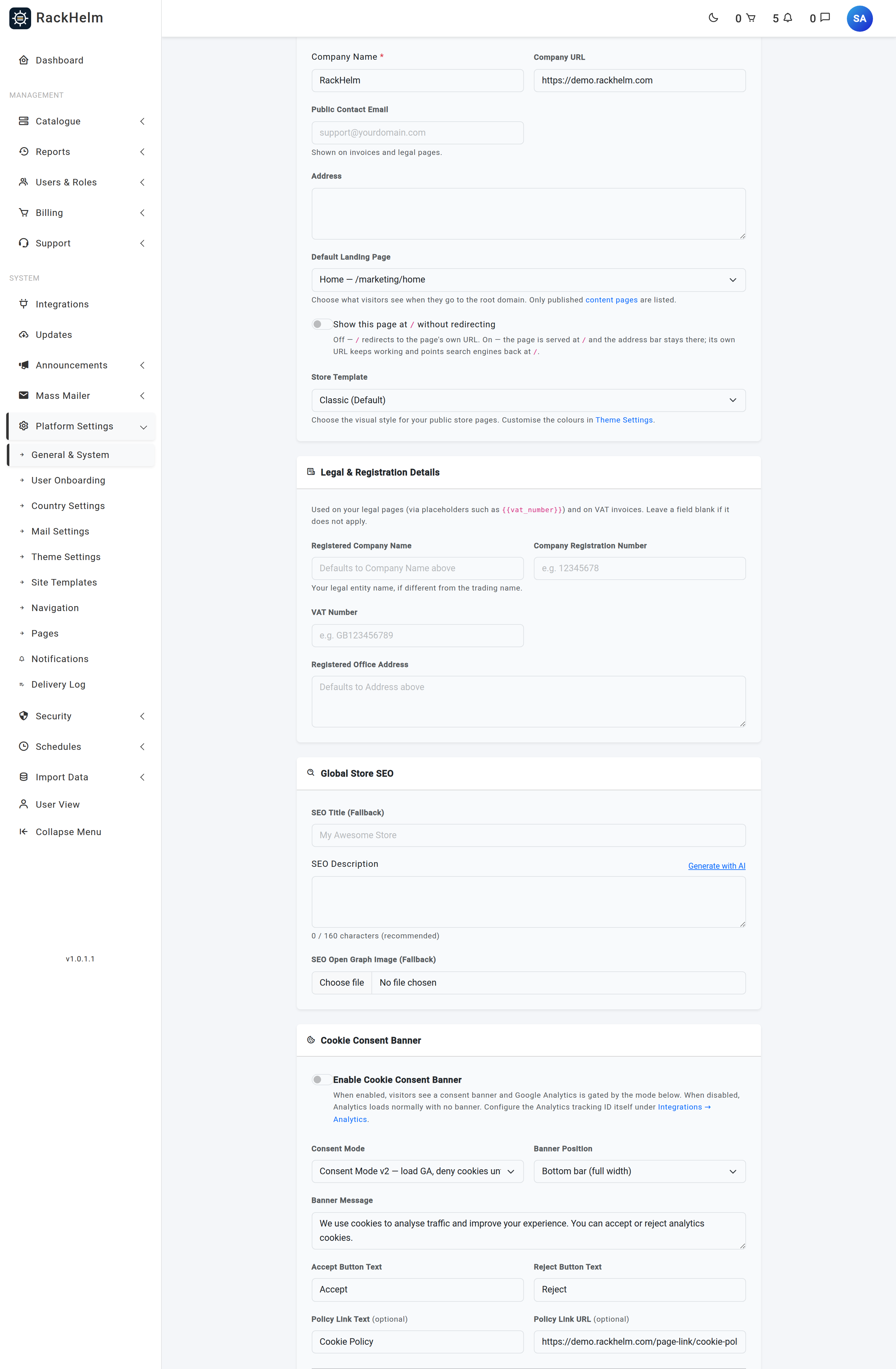
- Open Platform Settings → General & System.
- Find Default Landing Page.
- Choose Store Page (Default), or pick a page from the Content pages group — each option shows the page’s title and its current path.
- Decide whether to tick Show this page at
/without redirecting. - Save the form.
Redirect or serve in place #
| Setting | What a visitor to / gets |
|---|---|
| Store Page (Default) | The storefront at /store. |
| A content page, switch off | A temporary (302) redirect to the page’s own URL, for example /marketing/home. The address bar shows that URL. |
| A content page, switch on | The page’s content rendered at /. The address bar stays on the root, the breadcrumb is dropped, and a canonical link pointing at / is added so search engines index the root rather than the duplicate. |
The page’s own URL keeps working in both cases. The redirect is deliberately temporary rather than permanent, because you are expected to change this setting again one day and a permanent redirect would be cached by browsers.
Tip: Serve-in-place is the usual choice for a marketing homepage: one canonical address, no redirect hop, and the page is still editable in the page builder like any other.
It always degrades to the store #
The root of the site is the one URL that must never break, so every failure path lands on the storefront. If the configured page has been deleted, unpublished or is otherwise unavailable, / quietly shows the store instead of erroring.
Warning: Drafts are rejected even for signed-in staff. Unpublishing your landing page takes the whole homepage back to the store for everyone, with no warning on the page itself — check the Pages index if your homepage suddenly becomes the store.
The legacy custom homepage #
Older installs had a “Custom Homepage” option that rendered a fixed template only a developer could change. That template is now converted into an ordinary page — Home, in the Marketing group at /marketing/home — built in the visual builder, with its pricing section kept live as a dynamic block. Installs that have run the conversion have the setting repointed at that page automatically, with serve-in-place switched on.
If your install has not run the conversion yet, the dropdown shows an extra option, Custom Homepage (legacy template). It is offered only so that saving an unrelated change on this screen cannot silently rewrite your homepage to the store.
Troubleshooting #
| Symptom | Cause and fix |
|---|---|
| “Choose the store, or a published content page.” | The page you selected is no longer published. Publish it, then save again. |
| The page I want is not in the dropdown | Only published pages are listed. Publish it under Platform Settings → Pages and reload the settings screen. |
/ shows the store even though a page is selected |
The page has been unpublished or deleted. Every failure path falls back to the store. |
| The serve-in-place switch disappears | It is hidden while Store Page is selected, because it does not apply. Pick a content page to see it again. |
Search engines index both / and the page’s own URL |
Switch serve-in-place on; the canonical link then points both addresses at the root. |


