My Domains manages the domain names you registered or transferred through your provider: the nameservers they point at, the DNS records served for them, the registrar lock that protects them from being moved, the transfer authorisation code, and whether they renew. Open it from the sidebar under My Services → My Domains, or go to /domains.
Before you start #
The My Domains entry appears once you hold an active domain. A domain only becomes manageable after it has been registered at the registry — until then it appears on the list as Provisioning and opening it is refused.
Note: This page manages the registration. Attaching a domain to a website and editing that site’s zone is done under the site’s Domains page.
The domain list #
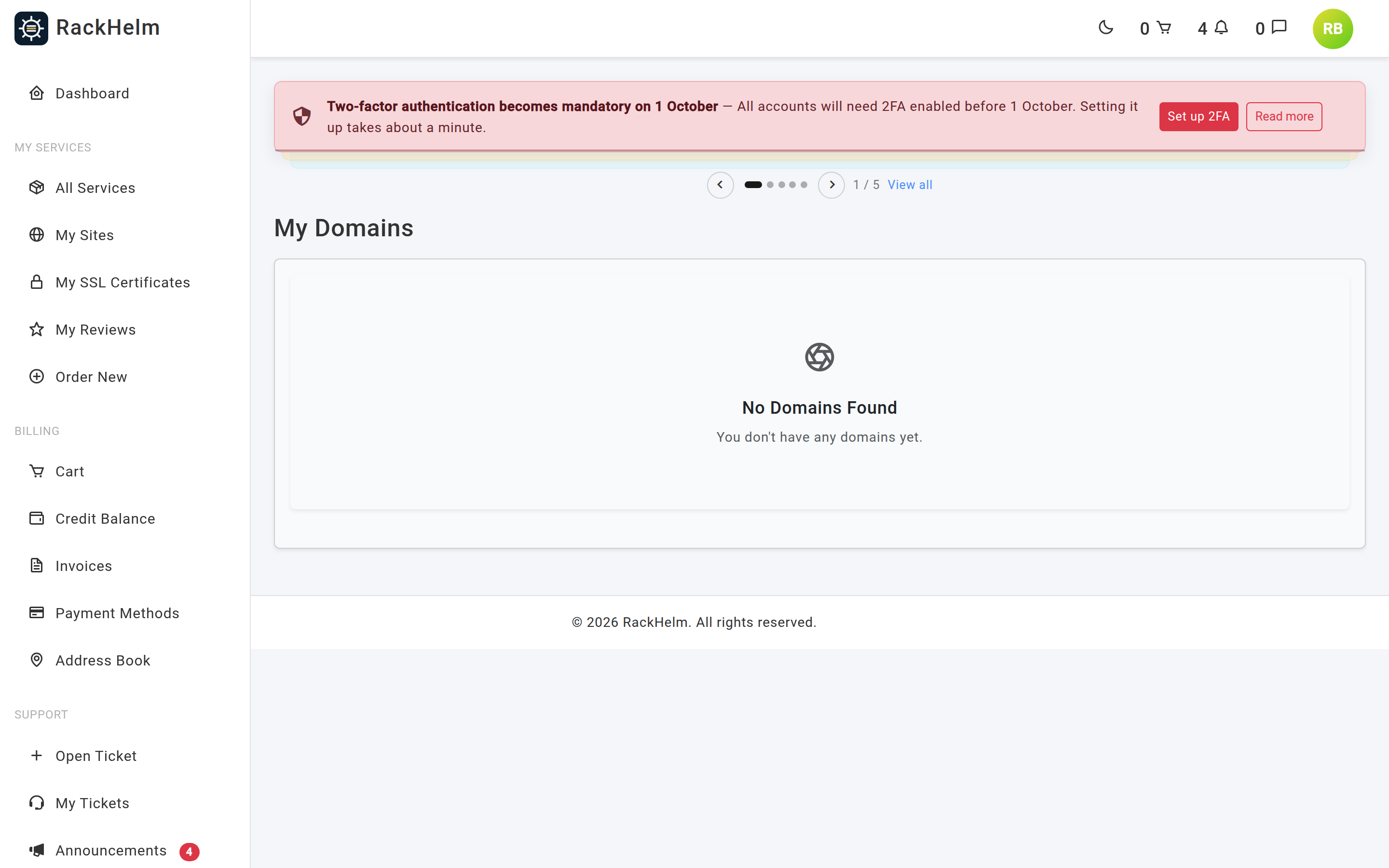
Columns are Domain, Registration Date, Next Due Date, Status (Active, Provisioning, or the raw status for anything else) and Action.
The domain page #
Opening a domain shows a sidebar of facts and controls, and a tabbed panel for nameservers, DNS and the transfer code.
Live registry data — the expiry date, lock state, nameservers and EPP code — is cached for 15 minutes. Refresh Data at the top right clears that cache and fetches it again.
Domain Details and renewal #
The first card shows the Registration Date and the Expiry Date reported by the registry, along with a Cancel at Expiry button. Selecting it warns “It will not renew at the next expiry date” and then asks for your account password. Once requested, the card shows Cancellation Requested — Will not renew instead.
Registrar Lock #
The registrar lock stops the domain being transferred away without your involvement. The card shows Lock is Active or Lock is Disabled, with a single button — Request Unlock or Request Lock. The change is queued and sent to the registrar: “Domain lock update queued. Please refresh in a moment.”
Tip: Keep the lock on. Only unlock it when you are actively transferring the domain to another registrar, and lock it again afterwards.
Nameservers #
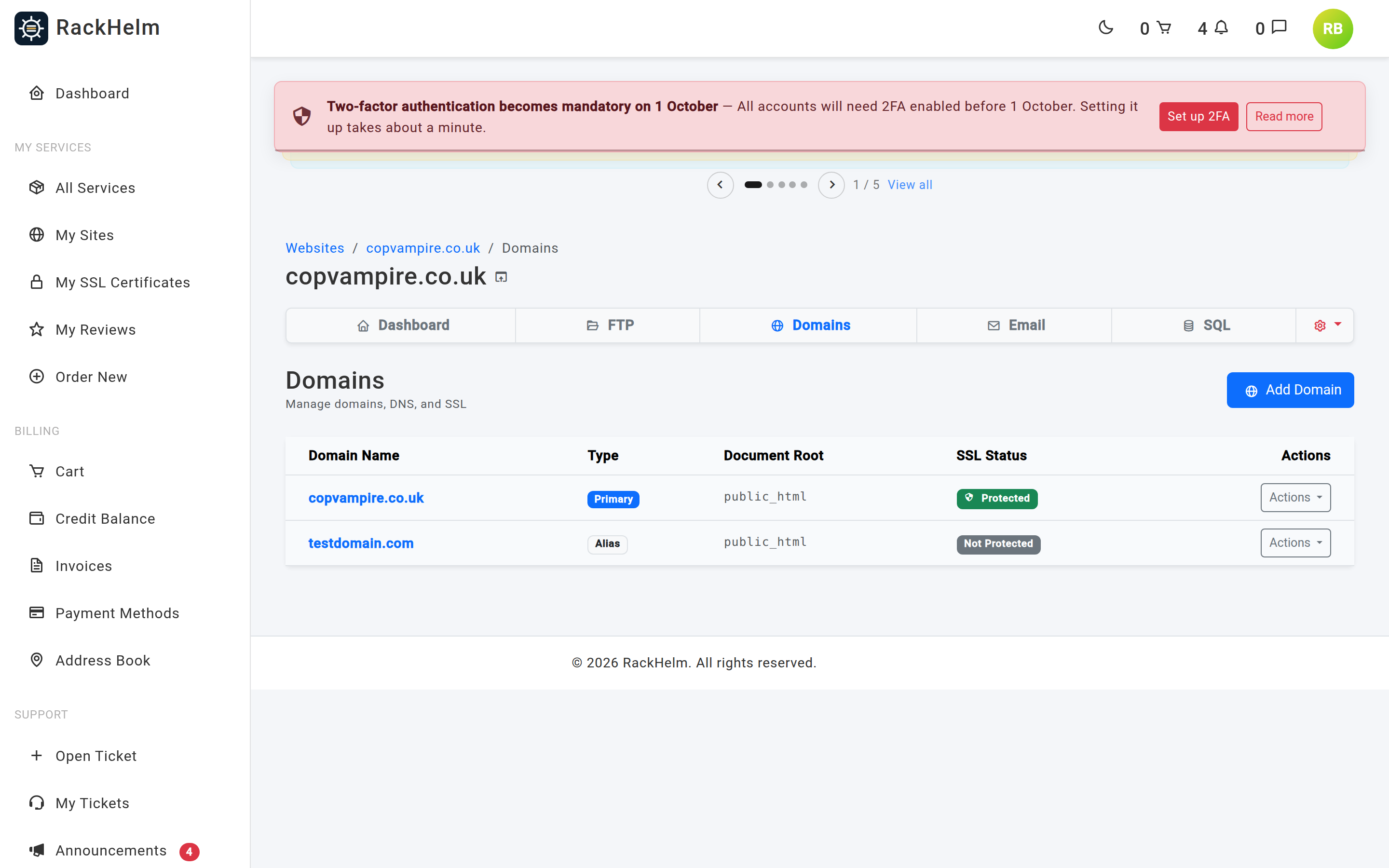
Nameservers decide who answers DNS queries for your domain — your provider, your hosting company, or a service such as a CDN.
- Open the Nameservers tab.
- Edit the rows, or use the add-row button to add more. Each must be a valid hostname such as
ns1.example.com. - Select Update Nameservers.
You need between 2 and 13 nameservers. The change is queued and applied in the background: “Nameservers update queued. Please allow a minute for processing.”
Reset to Defaults puts the domain back on your provider’s default nameservers (dns1.name-services.com through dns5.name-services.com). It asks you to confirm, because it will disrupt any custom DNS routing.
Warning: Nameserver changes take 24 to 48 hours to propagate worldwide, as the page states. Your website and email may be intermittently unreachable during that window. Set up the DNS records on the new nameservers before switching.
DNS records #
The DNS Records tab only appears when the domain is on your provider’s default nameservers — if you have pointed it elsewhere, the records must be edited there instead.
Records are edited as a table of Host Name, Record Type and Address / Value. Use the add-row button for a new record, the bin icon to drop one, then Queue DNS Update to submit the whole table.
| Field | Rules |
|---|---|
| Host Name | Required in the form, up to 255 characters. Use @ for the domain itself or www for a subdomain. |
| Record Type | The dropdown offers A (Address), CNAME (Alias), MX (Mail), TXT (Text), SRV (Service) and AAAA (IPv6). The server also accepts NS, CAA, ALIAS and ANAME. |
| Address / Value | Required, up to 2048 characters. |
| TTL | Optional, between 60 and 604800 seconds. |
| Priority | Optional, 0 to 65535. Used by MX and SRV records. |
Up to 200 records can be submitted at once. The update is queued: “DNS Records update queued. Please allow a minute for processing.”
Warning: The table replaces the zone as submitted. Removing a row and saving deletes that record, so check the whole table before you submit rather than only the row you changed.
Transferring the domain away #
The EPP Code tab holds the transfer authorisation code the gaining registrar will ask for.
- Unlock the domain using Request Unlock in the sidebar. The tab shows a reminder while the lock is still on.
- Copy the EPP Code.
- Start the transfer at your new registrar and supply the code there.
- Watch for the confirmation email sent to the domain’s registrant address.
Note: Registries have their own rules — most block a transfer within 60 days of registration or of a previous transfer. If the code is refused, check with the gaining registrar which rule applies.
Troubleshooting #
| Symptom | Cause / fix |
|---|---|
| Selecting Manage returns a “not found” page. | The domain is not both fully registered and active. Domains that are still provisioning, failed or cancelled cannot be managed. Check the status on the list. |
| “Nameserver management is unavailable while domain registration is pending.” | The registry has not confirmed the registration yet. Wait and use Refresh Data. |
| Expiry shows Unknown or the status reads Pending / Not Registered. | Live details could not be read from the registrar. Use Refresh Data; if it persists, open a ticket. |
The EPP code reads “Hidden for security” or N/A. |
The registrar did not return it. Refresh the data, and unlock the domain first — some registrars withhold the code while the lock is on. |
| The DNS Records tab is missing. | The domain is not using your provider’s default nameservers. Edit the records wherever the DNS is hosted, or reset the nameservers to the defaults. |
| Saving nameservers is rejected. | You need at least two entries and each must be a valid hostname. Blank rows are dropped, so remove any empty ones. |
| The change was accepted but nothing looks different. | Nameserver, lock and DNS changes are queued and applied in the background. Wait a minute, then use Refresh Data — the page reads from a 15-minute cache otherwise. |
| The website is down after a nameserver change. | Propagation takes up to 48 hours, and the new nameservers must already hold the correct records. Check them at the new DNS host. |


