The SQL page of a hosting site manages the databases behind your website: creating databases, creating the users that connect to them, granting and revoking access, allowing remote connections, and opening phpMyAdmin. Open it from the site toolbar (My Sites → your site → SQL), or go to /sites/{id}/db. It works on Enhance, cPanel and Plesk hosting, but the three panels behave differently in several places, and this article names each difference where it bites.
Note: The SQL tab only appears when the portal can manage databases on the panel your hosting runs on. Enhance, cPanel and Plesk all qualify. On any other panel the site toolbar shows no management tabs at all, and databases are handled in that panel’s own interface.
The layout #
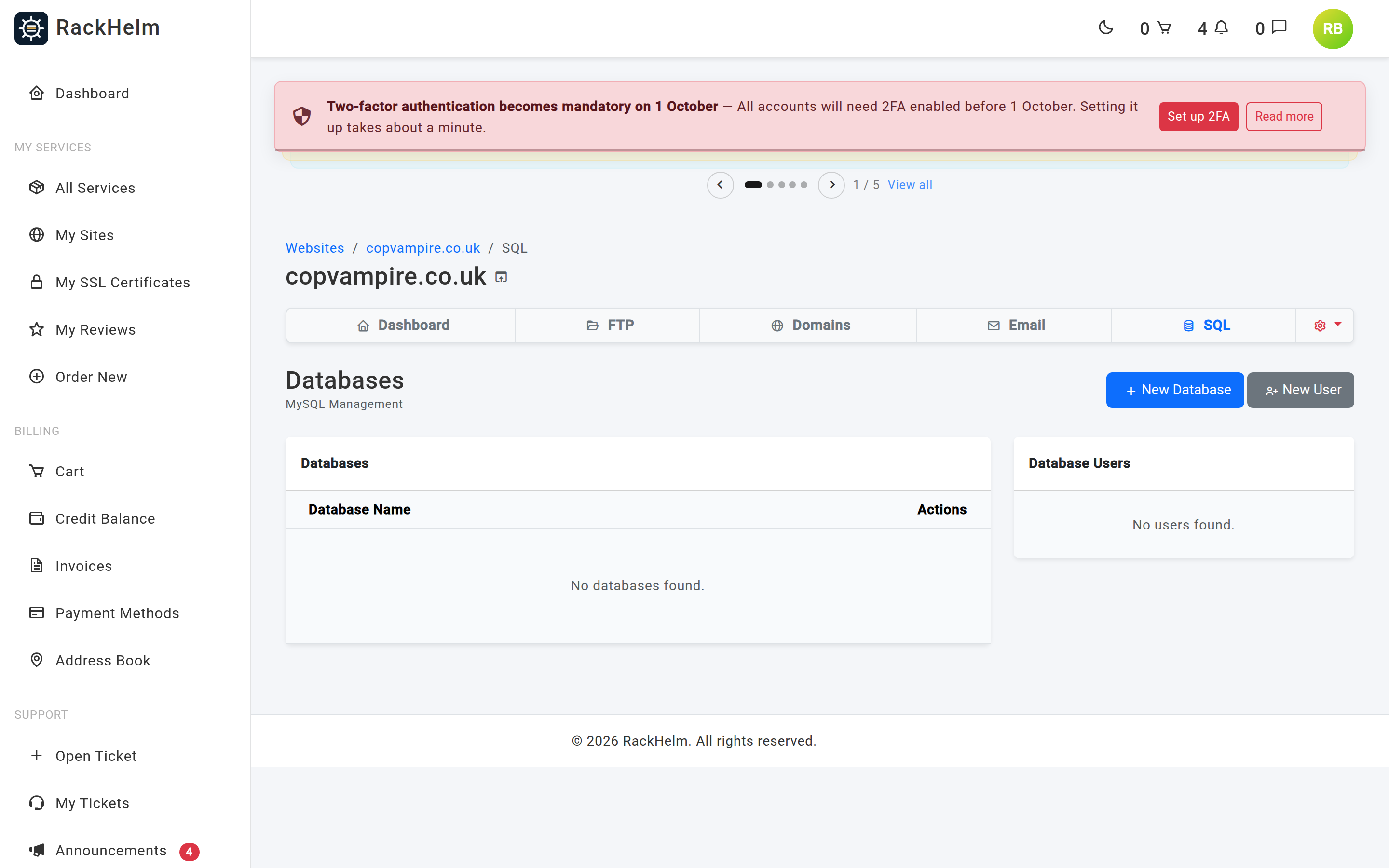
Databases and users are separate things. A database holds your data; a user is a login. A user can only reach a database once you have granted it access.
Each database row offers three actions:
- Users — opens Access Control for that database, listing every user with a switch for access.
- Log into PhpMyAdmin — opens a signed-in panel session in a new tab.
- Delete.
Each user row offers Manage and Delete.
Note: On Plesk the list shows every database on the subscription, including PostgreSQL ones. The page does not say which engine a row uses, and New Database always creates a MySQL database. If you have a PostgreSQL database, treat the row as read-only here and work on it in Plesk.
Creating a database #
- Select New Database.
- Enter the Database Name — 1 to 64 characters.
- Select Create Database.
Warning: Create Database still fails on every panel with “The name field is required.”, even when you have filled the box in. The form posts the name under a field the server does not accept, so the request is rejected before it reaches your panel. Release 1.0.1.1 fixed a separate fault behind this button — on Enhance it used to produce a server error page instead of a message — but the form itself has not been corrected. Ask your provider to create the database for you, or create it in the control panel directly, and it will then appear in this list and be manageable from here.
Note: cPanel forces an
<account>_prefix on every database and user name, and the portal adds it for you if you leave it off — so the name that appears in the list is longer than what you typed, and typing it with or without the prefix means the same database. Enhance normally prefixes too. Plesk does not. Whichever panel you are on, use the name exactly as shown in the list in your application’s configuration.
Creating a database user #
- Select New User.
- Enter a Username (up to 64 characters — the form notes that 16 is the usual panel limit).
- Enter a Password of at least 8 characters.
- Select Create User.
As with databases, cPanel prefixes the username with the account name and Enhance normally does the same. Check the list for the name to use in your connection string.
Note: On Plesk a database user cannot exist on its own — it belongs to a database. If the subscription has none yet, Create User reports “Failed to create user: On Plesk a database user belongs to a database, so please create a database first and then add the user to it.” Otherwise the user is attached to the first database on the subscription, and the access toggles below move it from there.
Granting and revoking access #
Access is all-or-nothing: a user either has full rights on a database or no access at all. There are two routes to the same switch.
- From a database — select Users on the database row. Access Control lists every user with a toggle.
- From a user — select Manage on the user row and use the Privileges tab, which lists every database with a toggle.
Toggling on reports “Success: Access to ‘…’ granted.”; toggling off reports “… revoked.”
Warning: On Plesk the toggle does not do what it appears to do. Because a Plesk database user exists because it is attached to a database, switching access on for a second database moves the user to that database rather than adding to what it already had — so the application still pointed at the first database stops being able to connect. Switching access off is refused outright with “Operation failed: On Plesk a database user belongs to a database, so access cannot be withdrawn on its own. Delete the user, or point it at a different database.” On Enhance and cPanel the toggle grants and revokes exactly as it reads.
The Manage User dialog #
Manage on a user row opens a three-tab dialog.

| Tab | What it does |
|---|---|
| Privileges | Grants or revokes this user’s access, one database at a time. Read the warning above before using it on Plesk. |
| Remote Access | Lists the hosts this user may connect from. Enter an address and select Add IP to add one; existing entries can be removed. |
| Password | New Password plus Update Password. Minimum 8 characters. This used to fail on Enhance and was fixed in 1.0.1.1. |
Warning: On cPanel, remote-access hosts are an account-wide setting, not a per-user one. Adding an address here opens MySQL to that address for every database user on the account, and removing one closes it for every user. That is also why each user shows the same list of hosts. On Enhance and Plesk the list really is per user.
Warning:
%is accepted in Remote Access as a wildcard meaning “from anywhere”, and the page itself flags it as not recommended. Add the specific address you connect from instead.
phpMyAdmin #
Log into PhpMyAdmin asks the control panel for a signed-in session and redirects you to it in a new tab. What you land on depends on the panel:
| Panel | Where the button takes you |
|---|---|
| Enhance | phpMyAdmin, opened against that database and already signed in. |
| cPanel | phpMyAdmin inside a one-time cPanel session. It opens on the server, not on one database — pick the database from its sidebar. |
| Plesk | A one-time Plesk session, on the control panel home. Go to Databases there and open phpMyAdmin from the database you want. |
Warning: If the panel does not return a link, the new tab simply lands back on the Databases page with nothing shown. The portal records “Unable to generate SSO link. API returned no URL.” internally, but that page does not display it, so a silent bounce back to the list is what a failure looks like. Try the button again; if it keeps doing nothing, open a ticket.
Deleting #
Deleting a database asks you to confirm “Delete Database? Data will be lost.” and then asks for your account password. Deleting a user asks you to confirm and then asks for your password as well. Neither can be undone from the portal — restore from a backup if you delete the wrong one, and note that backups cannot be restored from the portal on cPanel or Plesk.
Troubleshooting #
| Symptom | Cause / fix |
|---|---|
| Create Database returns “The name field is required.” even though you filled the box in. | A defect that is still present: the form sends the database name under a field name the server does not accept, so the request is rejected before it reaches the panel. Ask your provider to create the database for you, or create it from the panel directly. |
| The Create associated User tick box and its password have no effect. | Only the database name is acted on. Create the user separately with New User and grant it access. |
| “Failed to create user: …” — usually mentioning a conflict. | A user of that name already exists on the panel, or the password was rejected as too weak. Choose a different name or a stronger password. |
| “Failed to create user: On Plesk a database user belongs to a database…” | Exactly that — the subscription has no database yet. Create one first. |
| “Operation failed: On Plesk a database user belongs to a database, so access cannot be withdrawn on its own.” | Plesk cannot detach a user from its database. Delete the user, or switch it to a different database instead. |
| Your application cannot connect, but the user and database both exist. | Check the Privileges tab — a user with no grant on the database is refused. Also confirm you are using the prefixed names exactly as listed. |
| An application stopped connecting after you granted a user access to another database on Plesk. | The grant moved the user rather than adding to it. Point it back at the original database, or create a second user. |
| Connecting from your own machine fails. | MySQL only accepts connections from the hosts listed under Remote Access. Add the address you are connecting from. On cPanel that address is then open to every user on the account. |
| The Access Control dialog says “No users exist. Create a user first.” | Exactly that — create a database user before you can grant access. |
| phpMyAdmin opens but is not signed in, or opens on the panel home. | On cPanel and Plesk the button opens a panel session rather than one database; navigate to phpMyAdmin from there. If an Enhance session is genuinely expired, close the tab and select the button again. |
| The page reports “This site is not connected to its hosting panel yet. Please contact support.” | The portal has no working credentials for the panel this package is on. Nothing on the SQL page will work until your provider fixes the connection. |


