The Email page of a hosting site creates and manages the mailboxes on your domain — passwords, storage quotas, aliases, forwarders and the catch-all address — and links you through to webmail. Open it from the site toolbar (My Sites → your site → Email), or go to /sites/{id}/email. This article is for the customer, and covers the page on Enhance, cPanel/WHM and Plesk hosting.
What each panel can do from here #
The form is the same on every panel, but the panels do not all store the same things. Two of the fields on it do nothing at all on some panels, which is the single most important thing to know before you use this page.
| Field | Enhance | cPanel/WHM | Plesk |
|---|---|---|---|
| Create, change password, delete | Yes | Yes | Yes |
| Quota (GB) | Yes | Yes, rounded to whole megabytes | Yes |
| Aliases | Yes — the box replaces the whole list | Ignored on save | Additions only; removals are ignored |
| Forwarders | Yes — the box replaces the whole list | Shown read-only, ignored on save | Never shown, ignored on save |
| Catch-All Address | Yes, per mailbox | Yes — sets the domain’s default address | Ignored; no mailbox ever shows the badge |
| Quota usage figure | Yes | Yes | Always reported as 0 |
The mailbox list #
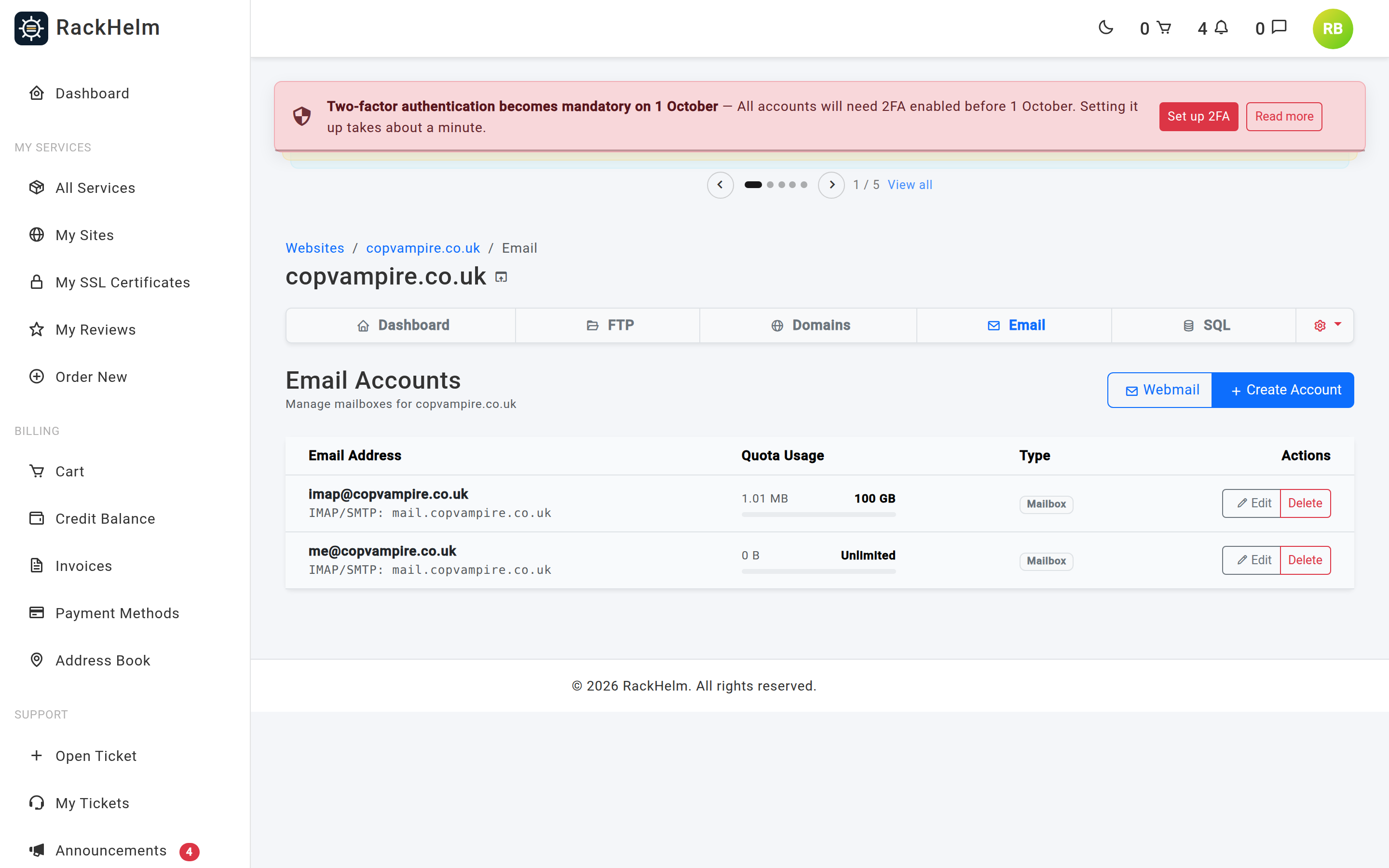
| Column | What it shows |
|---|---|
| Email Address | The mailbox, with the IMAP/SMTP hostname underneath — mail.yourdomain. |
| Quota Usage | Storage used against the limit, with a bar that turns amber past 75% and red past 90%. A mailbox with no limit reads Unlimited. |
| Type | Catch-All or Mailbox. |
| Actions | Edit and Delete. |
Note: The
mail.yourdomainline under each address is built by the portal from the domain it holds for this site. It is not read from the mail server, and it is the same text on every panel. If your provider publishes a different hostname, use theirs.
Note: On Plesk the usage figure is always 0, so the bar never fills even on a mailbox that is nearly full. The limit is real; only the usage is missing. Check the true figure in Plesk or with your provider.
Creating a mailbox #
- Select Create Account.
- Enter the part before the @ in Email Address and pick the domain from the dropdown beside it. Letters, numbers, dashes and underscores only.
- Set a Password of at least 8 characters.
- Set the Quota (GB). The default is
1; enter0for unlimited. - Tick Enable Catch-All if this mailbox should receive mail sent to any address on the domain that does not exist.
- Optionally list Aliases and Forwarders, comma separated.
- Select Create Account.
| Field | Rules |
|---|---|
| Email Address | Required. Letters, numbers, dashes and underscores. |
| Domain | Required. Chosen from the domains attached to this site. The value behind it is a UUID on Enhance and the domain name itself on cPanel and Plesk. |
| Password | Required, minimum 8 characters. The checklist under the box lists mixed case, a number and a symbol as well, but only the length is enforced by the portal — the panel may then apply its own policy. |
| Quota (GB) | Optional number, 0 or more. Converted at 1 GB = 1,000,000,000 bytes, so 5 means 5 GB. |
| Aliases | Optional. A comma-separated list of extra addresses that deliver into this mailbox. |
| Forwarders | Optional. A comma-separated list of addresses that mail is forwarded on to. |
Note: cPanel measures mailbox quotas in megabytes, so the value is converted again on the way in and rounded up to at least 1 MB.
0still means unlimited on all three panels.
Editing a mailbox #
Select Edit to open Manage Account. The current settings are fetched from the mail server before the form appears, so a short spinner is normal and Save Changes stays disabled until it loads.
| Field | What it does |
|---|---|
| New Password | Leave blank to keep the current password. |
| Quota (GB) | New storage limit. 0 removes the limit. |
| Catch-All Address | Whether this mailbox receives mail for addresses that do not exist. Only one mailbox on a domain should hold this. |
| Aliases | The complete alias list, comma separated. |
| Forwarders | The complete forwarder list, comma separated. |
If you change nothing, saving returns “No changes detected.” and leaves the mailbox alone.
Aliases and forwarders behave differently per panel #
Warning: On Enhance the Aliases and Forwarders boxes are replaced wholesale, not added to. Whatever is in the box when you save becomes the entire list — clearing it removes every alias or forwarder on the mailbox.
Warning: On cPanel both boxes are ignored. Aliases and forwarders are separate cPanel features and the portal does not write them: saving succeeds, the success message appears, and nothing is changed. Forwarders that already exist are shown in the Edit form, read-only in effect; the alias box always opens empty even when aliases exist. Manage both in cPanel.
Warning: On Plesk the alias box only ever adds. Deleting an alias from the box and saving leaves it on the mailbox. Forwarders are neither read from Plesk nor written to it, so the box always opens empty and saving it does nothing. Remove aliases and manage forwarding in Plesk.
Warning: On Plesk the Catch-All Address tick does nothing either. Plesk’s catch-all is a setting on the domain’s mail service rather than a flag on a mailbox, so no mailbox is ever reported as the catch-all and setting one here is not passed on. On cPanel the tick does work, but it sets the domain’s default address: unticking it puts the domain back to bouncing mail for unknown addresses.
Deleting a mailbox #
Select Delete and confirm the “Delete …? This cannot be undone.” prompt. You are then asked for your account password. Deleting a mailbox removes the stored mail with it.
Reading mail #
The Webmail button at the top of the page opens https://webmail.yourdomain in a new tab. That address is built from the site’s domain on every panel — there is no single sign-on from the portal, so sign in with the full email address and the mailbox password, not your portal login.
To use a desktop or mobile mail client instead, connect to the hostname shown under each address:
| Setting | Value |
|---|---|
| Incoming (IMAP) server | mail.yourdomain |
| Outgoing (SMTP) server | mail.yourdomain |
| Username | The full email address. |
| Password | The mailbox password. |
Tip: Use the SSL/TLS ports your provider publishes rather than the plain-text ones, and always enable authentication on outgoing mail.
Troubleshooting #
| Symptom | Cause / fix |
|---|---|
| “Failed to load emails: …” instead of the list. | The portal could not reach the mail server through the control panel. Reload; if it persists, open a ticket. |
| “Creation failed: …” when creating a mailbox. | The message after the colon comes from the panel. The usual causes are an address that already exists or a password the panel considers too weak. |
| “Creation failed: A password is required for a new mailbox.” on Plesk. | The password did not reach the panel. Reopen the dialog and re-enter it. |
| The Email Address field is rejected. | Only letters, numbers, dashes and underscores are accepted before the @. Full stops and plus signs are not. |
| Quota shows a far larger number than you set. | The value is entered in gigabytes and stored in bytes. 1 means 1 GB. |
| Aliases disappeared after an edit. | On Enhance the alias box replaces the whole list. Re-enter every alias you want to keep and save again. |
| Aliases or forwarders came back unchanged after an edit. | Expected on cPanel, and expected for removals on Plesk. See the warnings above and make the change in the panel. |
| The list is empty although mailboxes exist, on Plesk. | The Plesk mailbox parser was written against Plesk’s documented response and could not be checked against a live server that had mailboxes on it. It degrades to an empty list rather than erroring. If you see this, report it — it is a portal problem, not a mail problem. |
| “That mailbox no longer exists.” | The mailbox was deleted, here or in the panel, since the page was loaded. Reload the page. |
| Webmail will not load. | The webmail. hostname needs a DNS record pointing at your server. Check the site’s DNS records. |
| Mail is not arriving from outside. | The domain’s MX records must point at your mail server. Check them on the domain’s Zone Records tab, or at your DNS host if the domain uses external nameservers. |


