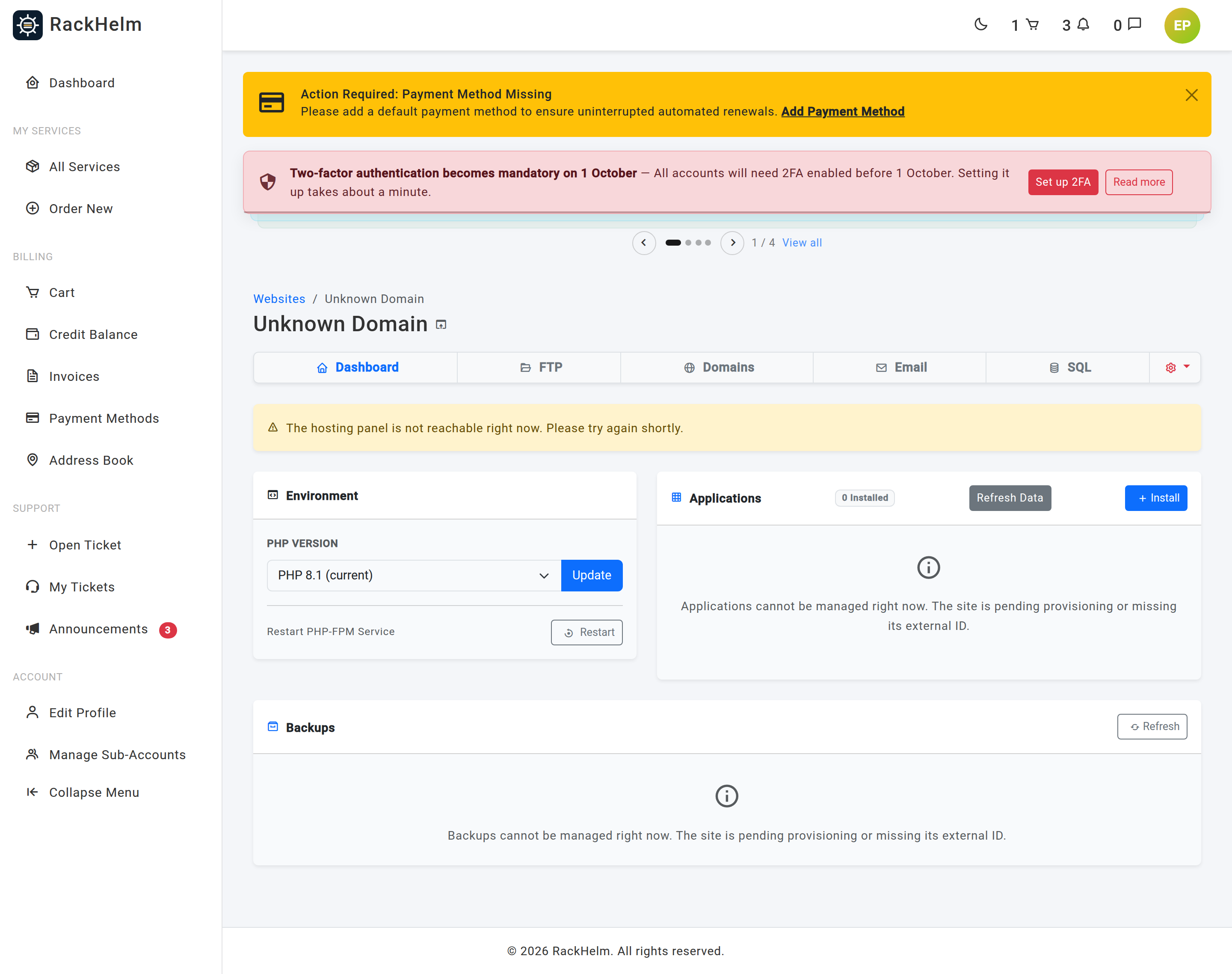
The Environment card on a site’s dashboard controls which version of PHP runs your website, and — on Enhance and cPanel hosting — lets you restart the PHP process pool when the site stops responding. Open My Sites → your site — the card sits at the top left. It is the only PHP screen in the portal; there is no separate PHP page.
What the card controls #
| Control | What it does |
|---|---|
| PHP Version + Update | Switches the PHP interpreter the site runs on. |
| Restart PHP-FPM Service + Restart | Restarts the PHP process pool serving the site. Not available on Plesk — see below. |
Note: The portal exposes the PHP version and the FPM restart only. Individual PHP directives such as
memory_limitorupload_max_filesizeare not editable from the portal — set them in a.user.iniorphp.inifile in your site if your platform reads one, or ask your provider.
The card also names anything your panel keeps to itself. On Plesk hosting it reads “Backups is managed in Plesk directly.”, which is why the Backups card further down the dashboard is missing there.
Changing the PHP version #
- Open the site dashboard.
- Pick the version you want from PHP Version.
- Select Update.
You are returned to the dashboard with “PHP version update requested.” The change is applied by the control panel and takes a few seconds; reload the site to check it.
Which versions are offered #
Since release 1.0.1.1 the portal asks the server which versions it actually has, rather than offering a fixed list — but only where the panel can answer that question.
| Panel | Where the list comes from |
|---|---|
| cPanel | The versions installed on the server, read live from the account. |
| Plesk | The enabled FPM handlers the server offers, read live. Disabled handlers and CGI handlers are left out, because a subscription cannot be switched to them. |
| Enhance | A fixed list — PHP 8.3, PHP 8.4, PHP 8.5. The Enhance adapter cannot yet be asked what the node has installed, so this list is not filtered. |
Warning: On Enhance the dropdown can therefore offer a version your server does not have. Choosing one fails at the panel, and you get “PHP version change failed:” followed by the panel’s own reason. Nothing is changed when that happens, so the site keeps running the version it was on.
Whatever the source of the list, the version your site is actually running is always shown. If the panel reports something the list does not contain — an older site, or a release newer than this build knows about — that version is added at the top of the dropdown and labelled, for example, PHP 8.1 (current). That is there so the selector cannot silently move your site off a version it is not offering.
Behind the label, each panel spells versions its own way, and the portal translates:
| Shown as | Enhance | cPanel | Plesk |
|---|---|---|---|
| PHP 8.3 | php83 |
ea-php83 |
plesk-php83-fpm |
| PHP 8.4 | php84 |
ea-php84 |
plesk-php84-fpm |
You never type these; they matter only when you are comparing what the portal shows with what you see inside the control panel itself.
Warning: Moving to a newer PHP version can break an application that has not been updated for it — typically WordPress plugins and themes that have not been maintained. Take a backup first if your hosting offers one, change the version, then load several pages of the site including a form and the admin area. If something breaks, switch back to the previous version and the site returns to how it was.
How to pick a version #
- Check the requirements published by your CMS or framework. WordPress, Laravel and most modern applications state a supported range.
- Prefer the newest version your application supports. Newer PHP releases are faster and receive security fixes for longer.
- Change one thing at a time. If you are also updating plugins, do the PHP change separately so you know what caused any breakage.
Restarting PHP-FPM #
PHP-FPM is the pool of PHP processes serving your site. Restarting it clears their state and reloads configuration.
Select Restart beside Restart PHP-FPM Service. You get “FPM restart requested.” There is no confirmation step, and no data is lost — but requests in flight when the pool restarts may fail, so avoid doing it during a busy period.
On cPanel the restart works by re-applying the account’s own PHP version, which is how cPanel rebuilds and reloads that account’s pool. It affects your account only, not other sites on the server.
Warning: On Plesk hosting the Restart button is shown but cannot work. Selecting it returns “FPM restart failed: Restarting PHP-FPM is a server-wide action on Plesk, so it is not offered per site. Switching the PHP version above reloads the handler for this site; contact support if a service restart is needed.” Nothing is restarted and nothing is broken — but if you need a restart on Plesk, switching the PHP version (even to the same one and back) reloads the handler, and otherwise open a ticket.
A restart is worth trying when:
- The site returns 502 or 504 errors, or hangs.
- You have edited
.user.iniorphp.iniand the change has not taken effect. - You have installed or enabled a PHP extension through your provider.
- Opcode caching is serving stale code after a deployment.
Troubleshooting #
| Symptom | Cause / fix |
|---|---|
| The dropdown shows a version you did not choose. | It reflects what the control panel reports, read fresh on every dashboard load. If it disagrees with what you expect, the panel is the thing that has moved — someone may have changed it in the control panel directly. |
| “PHP version change failed: That PHP version is not installed on this server. Available: …” | cPanel refused the switch and listed what it does have. Pick one of those. Nothing was changed. |
| “That is not a PHP version this panel understands.” | The value submitted was not a recognised version. Reload the dashboard and choose from the dropdown rather than editing the request. |
| The site returns errors immediately after a version change. | Something on the site is incompatible with the new version. Switch back to the previous version to restore service, then check the application’s error log under Logs. |
| “PHP version update requested.” appears but the site still runs the old version. | Restart PHP-FPM, then reload. On Plesk, where there is no restart, wait a minute and reload. If the version still has not moved, open a ticket. |
| “FPM restart failed: Restarting PHP-FPM is a server-wide action on Plesk…” | Expected on Plesk hosting. See the warning above. |
| The dropdown is replaced by the version in plain text, with “The PHP version for this site is changed in … directly.” | The portal can read your PHP version on that panel but not change it. Use the control panel for the switch. |
| The Environment card shows “This site is not connected to its hosting panel yet.” or “The hosting panel is not reachable right now.” | The portal cannot reach the control panel for this site, or the site has not finished provisioning. See the site dashboard article. |
| You need a PHP extension that is not loaded. | Extensions are enabled on the server, not from this page. Open a ticket naming the extension. |


