The website builder is a full-screen drag-and-drop editor for putting a site together without writing HTML. You build pages from blocks, style them visually, then Publish to upload static pages straight onto your hosting. It is aimed at brochure sites — a home page, an about page, a contact page — rather than at running a CMS.
Before you start #
Open the builder from the Applications card on your site dashboard: the Editor (WIP) row carries an Open Builder button. That row only appears while no application is installed on the site. The builder is also at /sites/{id}/builder.
Warning: Publishing writes
index.html, one file per page, and an.htaccessfile into the root of your site. If WordPress or another application is already installed at the root, publishing will overwrite files. Use the builder on an empty site, or take a backup first.
The workspace #
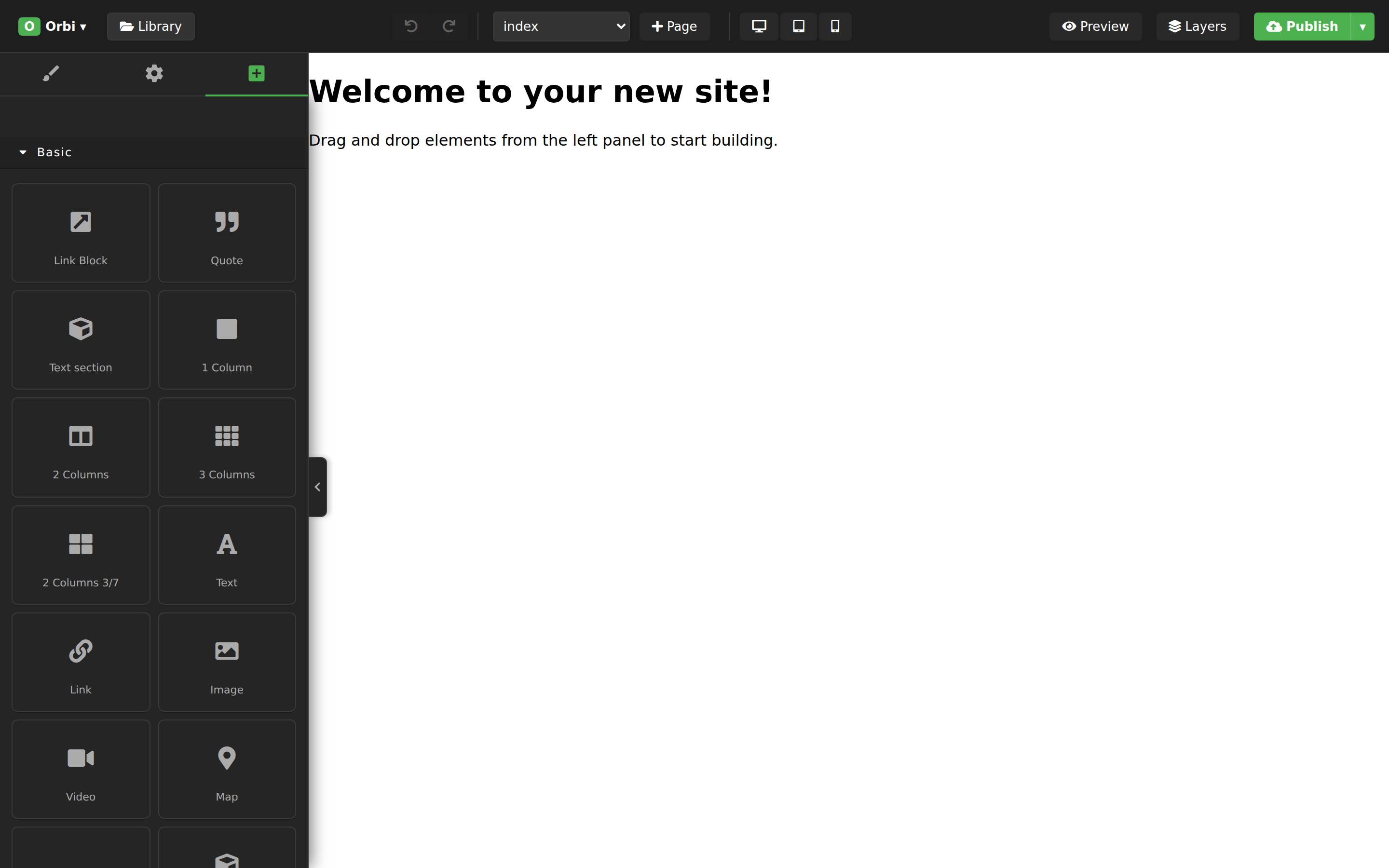
Drag blocks from the left panel onto the canvas, then select any element to style it. The tabs above the panel switch between the block list, the style settings and the selected element’s settings; the layer tree is not one of them — it lives in the floating Layers panel opened from the toolbar. The thin handle on the panel edge collapses the whole panel for more canvas.
| Toolbar control | What it does |
|---|---|
| Menu button (top left) | Opens Site Settings, Page Settings (SEO) and Global Styles. |
| Library | Opens the template library. |
| Undo / Redo | Ctrl+Z and Ctrl+Y also work. |
| Page selector | Switches between your pages and the two theme pages. |
| + (Add Page) | Prompts for a page name — enter something like about or contact. |
| Desktop / Tablet / Mobile | Resizes the canvas so you can check the layout at each width. |
| Preview | Opens the current page in a second browser window, refreshed each time you return focus to it. |
| Layers | Toggles a floating panel showing the element tree of the page. It can be dragged out of the way. |
| Publish (and its ▾ menu) | Publishes the site; the menu also holds Save Draft. |
Pages, header and footer #
The page selector holds your ordinary pages plus two special entries: Site Header and Site Footer. Whatever you build on those two is inserted at the top and bottom of every published page, so build your navigation once on the header page rather than on each page.
Page file names are derived from the page name, lower-cased and hyphenated: a page called about becomes about.html. A page named index or home becomes index.html. The published .htaccess then serves them at clean URLs (/about rather than /about.html), strips trailing slashes, and redirects plain HTTP to HTTPS.
Settings dialogs #
| Dialog | Fields |
|---|---|
| Site Settings | The site favicon. Select Image picks one from the asset manager, Remove clears it, then Save Site Settings. It applies to every page. |
| Page Settings (SEO) | Page Title, Meta Description and a Social Share Image, then Save Page SEO. These apply only to the page you currently have open — the dialog names it. |
| Global Styles | Primary Color, Secondary Color, Text Color, Primary Font and Secondary Font. They are applied across every published page. |
The template library #
Library opens a dialog with two tabs.
- My Templates — sections you saved yourself. Select any component on the canvas and use the save icon in its toolbar; you are asked for a name, and it is then available to insert on any page. Each entry has Insert and Delete.
- Templates — ready-made sections supplied by your provider. The list is filtered to match the page you are on: header templates while the Site Header page is open, footer templates on Site Footer, and content templates everywhere else. A badge at the top of the tab states which set you are seeing.
Note: My Templates is stored in the browser you are using, not on your account. They will not follow you to another computer or survive clearing your browser data. Anything you want to keep permanently should be published.
Images #
The asset manager opens when you work with an image on the canvas, and from the Select Image buttons in Site Settings and Page Settings (SEO). Drop files onto its dropzone — “Drop images here or click to upload” — or click to browse. Accepted formats are JPEG, JPG, PNG, GIF and WebP, up to 5 MB per file. SVG is deliberately not accepted.
Saving and publishing #
Your work is stored on the server as you go — the editor saves after each change — and Save Draft in the Publish menu forces a save immediately, confirming with “Draft saved securely!”. A draft is not visible on your website.
Publish uploads the site. The button shows “Publishing…” while it works and reports “Success! Your site is live.” when it finishes. Each page is published with your global header and footer, your global styles, the page’s own CSS, its SEO title and description, and the site favicon.
A single publish covers up to 50 pages, with a limit of roughly 500 KB of HTML and 250 KB of CSS per page.
Tip: Use Preview to check a page before publishing. The preview window updates whenever you switch back to it, so you can keep it open on a second screen.
Troubleshooting #
| Symptom | Cause / fix |
|---|---|
| “Failed to publish site. Please contact support.” | The upload to your hosting failed. Retry once; if it fails again, open a ticket — your provider can see why in their logs. |
| “A server error occurred.” when publishing. | The request did not reach the server or timed out. Check your connection and try again. Very large pages are the usual cause. |
| The publish is rejected without reaching your site. | You are over one of the limits: more than 50 pages, or a single page over the HTML or CSS size cap. Split the content across more, smaller pages. |
| An image will not upload. | Only JPEG, JPG, PNG, GIF and WebP up to 5 MB are accepted. Convert or compress the file — SVG will always be refused. |
| The header or footer is missing from published pages. | They come from the Site Header and Site Footer pages. Check you built them there rather than on an ordinary page. |
| A page publishes to the wrong URL. | File names come from the page name, lower-cased and hyphenated. Rename the page, or name it index for the home page. |
| Your saved templates have disappeared. | They live in the browser’s local storage. A different browser, a different machine, or clearing site data will lose them. |
| “No … templates available yet.” | Your provider has not published templates for that page type. Build the section yourself, or save one of your own. |


