Almost everything RackHelm does on its own — raising renewal invoices, charging stored cards, suspending unpaid services, pulling support email into tickets, reconciling domains at the registrar, refreshing exchange rates — is a system schedule. Each one is a row you can enable, retime, tune and run on demand from the admin area. This article explains how the scheduler is driven, what each seeded schedule does, what the Run now button really does, and the options that most often get set wrong.
Before you start #
Warning: Every seeded schedule except Refresh Exchange Rates ships disabled. A fresh install raises no invoices, takes no payments and reads no support mail until you enable the ones you want. This is deliberate — an install that started billing before you had finished configuring it would be worse — but it does mean “nothing happens” on day one is expected.
Note: Refresh Exchange Rates is the one exception: it is seeded enabled, because a currency whose “Auto-update rate” box is ticked but whose rate never moves is a silent pricing error. Until you flag a currency for auto-update the job returns without making any HTTP call at all.
Note: Editing schedules requires the
manage_schedulespermission, which is deliberately withheld from the built-in Administrator role — only a Super Admin holds it until you grant it on the Roles screen. The dashboard’s schedule-status panel requiresview_schedules, which Administrator does hold.
Warning: The Schedules menu in the admin sidebar is wrapped in a check for
manage_settings, and the Queue Monitor entry inside it in a check formanage_roles. Neither of those keys exists in the portal’s permission list, so neither can ever be granted to a role, and a check against an undefined permission passes only for a Super Admin — who bypasses every gate anyway. In practice the sidebar menu is Super-Admin-only. A staff member you have grantedmanage_schedulescan still reach a schedule by clicking its name in the dashboard’s System schedule status table, or by going to/admin/system-schedulesdirectly. Grant that permission first: an Administrator holdsview_schedulesbut notmanage_schedules, so the dashboard links give them a 403.
How the scheduler is driven #
RackHelm does not poll on its own. A single system cron entry must run the framework scheduler once a minute; that process reads your enabled schedule rows, works out which are due this minute, and queues their jobs. Without it, nothing on this screen ever fires.
* * * * * cd /var/www/rackhelm && php artisan schedule:run >> /dev/null 2>&1The automated installer writes exactly that line to /etc/cron.d/rackhelm, running as the web-server user, so a scripted install already has it. Confirm it with:
cat /etc/cron.d/rackhelmOn a manual install, or if that file is missing, add the entry to the crontab of the user that owns the application files (commonly www-data, nginx on RHEL):
sudo crontab -u www-data -eThe jobs it queues are then executed by your queue workers, so both pieces must be running. See Queue Workers, Horizon and the Scheduler.
Note: Only an explicit list of job classes may be launched from these rows, and the same list guards the Run now button. If a row’s job class is not on it — because it was edited directly in the database, for instance — the job is refused and a critical line is written to the application log rather than being run. A row whose class no longer exists at all is skipped with a
Scheduler: Job class does not existwarning.
Finding and editing a schedule #
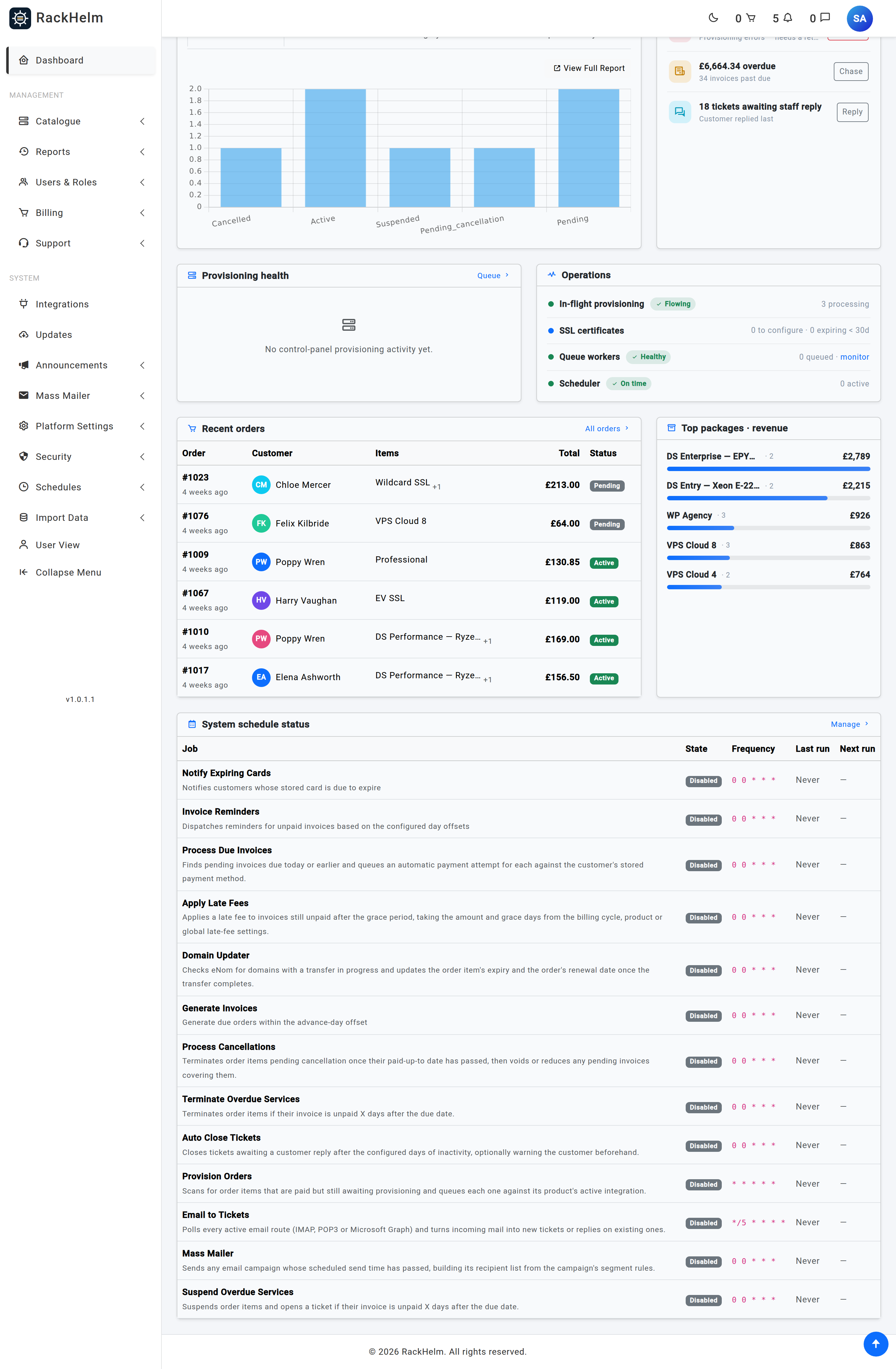
Expand Schedules in the sidebar: every schedule is listed there by name and links straight to its own editor. The dashboard also carries a System schedule status table showing each job’s state, cron expression, last run and next run, and a Scheduler line in the health strip that reads On time or N overdue alongside the number of active schedules.
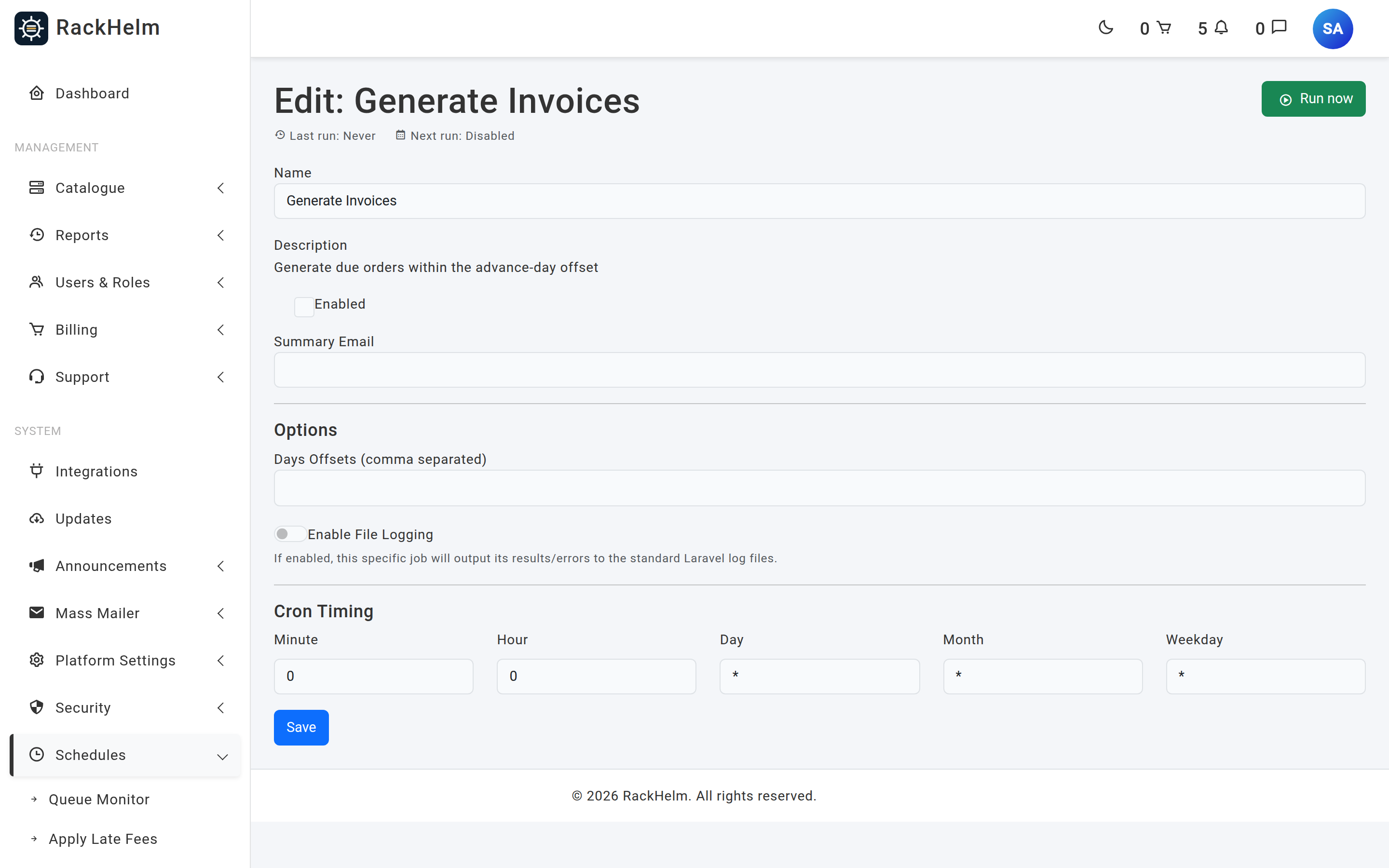
The editor header repeats Last run and Next run for that one schedule — Next run reads Disabled when the row is off — and carries the Run now button. Below it is one short form:
| Field | What it does |
|---|---|
| Name | Required. The label used in the sidebar, the dashboard and any summary email. |
| Description | Read-only. The seeded explanation of what the job does; the editor displays it but does not let you change it. |
| Enabled | Whether the schedule is registered with the scheduler at all. |
| Summary Email | Optional address that receives the job’s console output after each run. Must be a valid address. |
| Days Offsets (comma separated) | The job’s day-offset option. Only some jobs read it — see the table below. |
| Enable File Logging | Writes this job’s progress and errors to the standard application log. Off by default to keep the log readable. |
| Minute / Hour / Day / Month / Weekday | The five cron fields. All are required. |
The five cron fields are assembled into one expression and validated before saving. An invalid combination is rejected with “The schedule fields do not form a valid cron expression.” That check matters: a malformed expression is parsed while the scheduler runs, outside any error handling, so a single bad row would otherwise abort the entire run — invoicing, suspensions and inbound mail all at once.
Note: Days Offsets and Enable File Logging are the only options the editor exposes. Some rows carry further options that exist only in the database — the registrar sweep’s four section switches, for example. Saving from this screen merges your changes into the row’s existing options rather than replacing them, so those hidden settings survive a save; there is simply no admin control for them.
Note: A row’s job class is not editable from this screen, on purpose: it is the string the scheduler turns into an object. Moving a schedule onto a different job is done with a seeder, never by hand.
Tip: All schedules run on UTC. If you are in the UK, a job set to
0 0runs at midnight GMT and 01:00 BST. Pick times where the hour boundary does not matter.
Running a schedule now #
The editor has a Run now button, for the cases where waiting for the next cron window is not an option: proving a newly configured mail route works, forcing an invoice run after fixing a due date, or re-driving a sweep after a registrar’s API came back.
What it does, precisely:
- It asks “Queue this job to run now? It will start as soon as a queue worker is free”, then queues the job. It does not run it inside the web request — several of these jobs walk every due invoice or poll a remote panel, and a page timeout is the wrong place to discover that.
- It builds the same object the scheduler would have built: same class, same options payload, so your Enable File Logging flag still applies.
- It ignores Enabled. “The cron is off but I need this once, now” is the main reason the button exists.
- It does not update Last run. Only a successful scheduled run stamps that; all a click proves is that the job was enqueued.
- If no Horizon master is running it still queues the job but warns you: “No queue worker appears to be running, so it will sit in the queue until one starts.”
Note: There is a one-minute cooldown per schedule and a rate limit of twelve runs a minute per user. A second click inside the minute is refused with “That job was queued less than a minute ago — give it a moment before running it again.” Each of these jobs is a sweep over live billing or provisioning data, so the button is deliberately not a way to stack them up.
If the button is greyed out, the row’s job class is not on the scheduler allowlist — hover it for the class name. That is almost always a schedule left pointing at a job that was merged away; see the registrar sweep below.
The seeded schedules #
| Schedule | What it does | Default timing |
|---|---|---|
| Provision Orders | Scans for order items that are paid but still awaiting provisioning and queues each one against its product’s active integration. This is the sweeper that also retries stalled provisioning. | Every minute |
| Generate Invoices | Creates renewal invoices for orders whose due date falls inside the advance window. Reads Days Offsets — see the trap below. | Daily at 00:00 |
| Process Due Invoices | Finds pending invoices due today or earlier and queues an automatic payment attempt against the customer’s stored payment method. | Daily at 00:00 |
| Email to Tickets | Polls every active email route (IMAP, POP3 or Microsoft Graph) and turns incoming mail into new tickets or replies on existing ones. | Every 5 minutes |
| Process Cancellations | Terminates order items pending cancellation once their paid-up-to date has passed, then voids or reduces any pending invoices covering them. | Daily at 00:00 |
| Notify Expiring Cards | Notifies customers whose stored card is due to expire. | Daily at 00:00 |
| Domain Updater | The single registrar sweep, across every configured registrar: reconciles in-flight transfers, refreshes the provider domain cache, detects domains transferred away, and warms the per-domain details and DNS cache for the customer area. See below. | Hourly, on the hour (0 * * * *) |
| Invoice Reminders | Sends reminders for unpaid invoices at the offsets in Days Offsets. Negative values are days before the due date, positive values days after. Seeded as -1,1,7. |
Daily at 00:00 |
| Suspend Overdue Services | Suspends order items and opens a ticket when their invoice is still unpaid this many days after the due date. Reads a single number from Days Offsets; seeded as 7, and falls back to 3 if the value is missing or zero. |
Daily at 00:00 |
| Terminate Overdue Services | Terminates order items whose invoice is still unpaid this many days after the due date. Reads a single number from Days Offsets; seeded as 14, defaulting to 7. |
Daily at 00:00 |
| Apply Late Fees | Applies a late fee to invoices still unpaid after the grace period. | Daily at 00:00 |
| Auto Close Tickets | Closes tickets awaiting a customer reply after a period of inactivity, optionally warning the customer first. | Daily at 00:00 |
| Mass Mailer | Sends any email campaign whose scheduled send time has passed, building its recipient list from the campaign’s segment rules. | Daily at 00:00 |
| Refresh Exchange Rates | Refreshes the rate of every currency flagged auto-update from European Central Bank reference rates (api.frankfurter.app). The base currency and manually-rated currencies are never touched. Seeded enabled. |
Hourly at :17 (17 * * * *) |
Which schedules actually read Days Offsets #
The field appears on every schedule but only four jobs read it: Generate Invoices, Invoice Reminders, Suspend Overdue Services and Terminate Overdue Services. Setting it on any other schedule has no effect.
Three cases are worth calling out:
- Apply Late Fees ignores it. The fee amount, type and grace period come from the billing cycle price, then the product, then built-in defaults (disabled, 10%, 7 days’ grace). Configure late fees on the product or cycle, not here.
- Auto Close Tickets ignores it too. It reads its own option keys, which no admin screen writes, so it runs on its defaults: close after 7 days of customer inactivity, no advance warning.
- Domain Updater, Refresh Exchange Rates, Mass Mailer, Provision Orders, Process Due Invoices, Process Cancellations and Notify Expiring Cards ignore it. Some of them carry a leftover
daysvalue in their row; it is never read.
The Generate Invoices “days” trap #
Warning: If you save Generate Invoices with Days Offsets empty, the option is stored as an empty list rather than as “unset” — so the built-in fallback never applies, the advance window collapses to zero days, and renewal invoices are only raised on the exact due date. Customers get no notice, automatic payment has no lead time, and nothing errors. Keep the field populated.
The job takes the largest value in the list as its advance window: with 14,7,1,-1,-7,-14 it raises invoices up to 14 days before the due date. The negative entries are carried for the reminder cadence and do not shorten that window. The fallback that only applies when the key is absent entirely comes from INVOICE_SCHEDULE_DAYS in .env, defaulting to 14,7,1,-1,-7,-14.
To recover from an emptied field, open Generate Invoices, set Days Offsets back to:
14,7,1,-1,-7,-14and save. The next run picks up every order that should already have been invoiced. To see what that run will do before it happens:
php artisan test:invoice-schedule-dry-runNote: That preview only lists orders no item of which has ever been invoiced, while the job itself asks whether an item is invoiced for this due date. A service that has already renewed once never appears in the preview, however due it is — so treat an empty preview as “no new signups to bill”, not as “nothing will be billed”.
The hourly registrar sweep #
Domain Updater is now one sweep across every configured registrar rather than one job per registrar. In a single hourly run it:
- reconciles domains with a transfer in progress, writing the real expiry back onto the order item and its order once the transfer completes;
- refreshes the provider domain cache from each registrar’s domain list;
- detects domains that have been transferred away and cancels the order items behind them;
- warms the per-domain details and DNS cache the customer area reads.
Transfers are done first, because that is the cheapest and most time-sensitive section: a slow or broken registrar API further down the list cannot delay it.
The run carries a soft time budget — 180 seconds by default. When it is spent, the sweep stops cleanly between registrars rather than being killed mid-write by the worker timeout, logs “Stopping before <next step>: Ns spent of a 180s budget. The remaining work resumes on the next run”, and picks up where it left off an hour later. A killed run would cost a failed-jobs row and skip every later section for good, so stopping early is the better outcome.
Note: Each of the four sections can be switched off independently through the row’s options (
sync_transfers,sync_registrars,detect_transferred_out,warm_cache), along withcache_ttl_minutes(90),max_seconds(180) andstale_floor_hours(168). All default on. None of them has an admin control — they live in the schedule row itself. Keepcache_ttl_minutesabove the gap between runs, or warmed entries expire mid-hour and customer page loads refill them one live registrar call at a time.
Recommended starting point #
- Confirm the cron entry exists and queue workers are running.
- Enable Provision Orders — nothing provisions automatically without it.
- Enable Generate Invoices with Days Offsets set, then Process Due Invoices.
- Enable Invoice Reminders, and Email to Tickets if you use inbound mail.
- Enable Domain Updater if you sell domains — transfers do not complete in the portal without it.
- Leave Suspend Overdue Services and Terminate Overdue Services until you are confident the billing chain is correct — they act on live customer services.
- Check the dashboard’s schedule table the next day: each enabled row should show a recent Last run.
Troubleshooting #
| Symptom | Cause and fix |
|---|---|
| Every schedule shows Last run: Never | The per-minute cron entry is missing or running as the wrong user. Check /etc/cron.d/rackhelm, and crontab -l for the application’s user. |
| One schedule never runs while others do | It is disabled, or its cron expression does not match the times you expect. The dashboard shows the expression and the computed next run. |
| Schedules fire but nothing happens | They queue jobs; a worker executes them. Check the queue monitor for a backlog or failed jobs. |
| Run now says the job was queued, but Last run does not change | Expected. Only a successful scheduled run stamps Last run; a manual run only proves the job was enqueued. Watch the queue monitor, or turn on Enable File Logging. |
| “No queue worker appears to be running” | The job is on the queue but nothing is consuming it. Start Horizon; the job runs as soon as a worker is free. |
| Renewal invoices only appear on the due date | The Days Offsets trap above. Restore the list. |
| Reminders go out at the wrong time relative to the due date | Offsets are signed: negative is before the due date, positive is after. |
| Domain transfers never complete in the portal | Domain Updater is disabled, or still points at the deleted per-registrar job. Enable it and run the repoint seeder. |
| The registrar sweep only ever gets part-way | It is hitting its 180-second budget and resuming next hour — look for the “Stopping before …” line. That is by design; if it never catches up, one registrar’s API is slow enough to be worth investigating. |
| The whole scheduler stopped after a schedule was edited in the database | An invalid cron expression. The admin form refuses those, and the scheduler now skips them with a warning in the log, but a row edited directly can still be wrong. Fix the five fields and save from the admin screen. |
| You want to see what a job did | Turn on Enable File Logging for that schedule and read the application log, or set a Summary Email. |
| A job failed and nobody noticed | Route the Scheduled job failed event to an address or a chat channel — see Admin Notifications. |


