This article describes what RackHelm does about tax and currency, how to switch each on, and the traps in both. It is written for operators. Both features exist in the product from 1.0.1.1, and both do nothing at all until you configure them — which is the single most important thing to understand before reading on.
Two switches, both off on a fresh install #
Tax and multi-currency are independent. Neither is enabled by an upgrade.
| Feature | What makes it live | Until then |
|---|---|---|
| Tax/VAT | Enable Tax/VAT under Billing → Tax and at least one active tax rule. | No tax is calculated, no tax line appears anywhere, and totals are exactly what they were before. |
| Multi-currency | A second currency row, Active, with a real exchange rate, under Billing → Currencies. | The store runs in one currency. The switcher never appears and every price is the base figure. |
Warning: Enabling Enable Tax/VAT on its own charges nobody anything. The tax settings page says so — “Tax is only charged once it is enabled below and at least one active tax rule exists” — and tells you how many active rules you have. If you turn the master switch on, save, and check an invoice, you will see no tax and may conclude the engine is broken. Add a rule.
Turning tax on #
Go to Billing → Tax. A quick-links card at the top carries the Manage Tax Rules and Manage Currencies buttons; below it sit three cards of settings — Tax Engine, EU B2B Reverse Charge and Other — and a Save Tax Settings button.
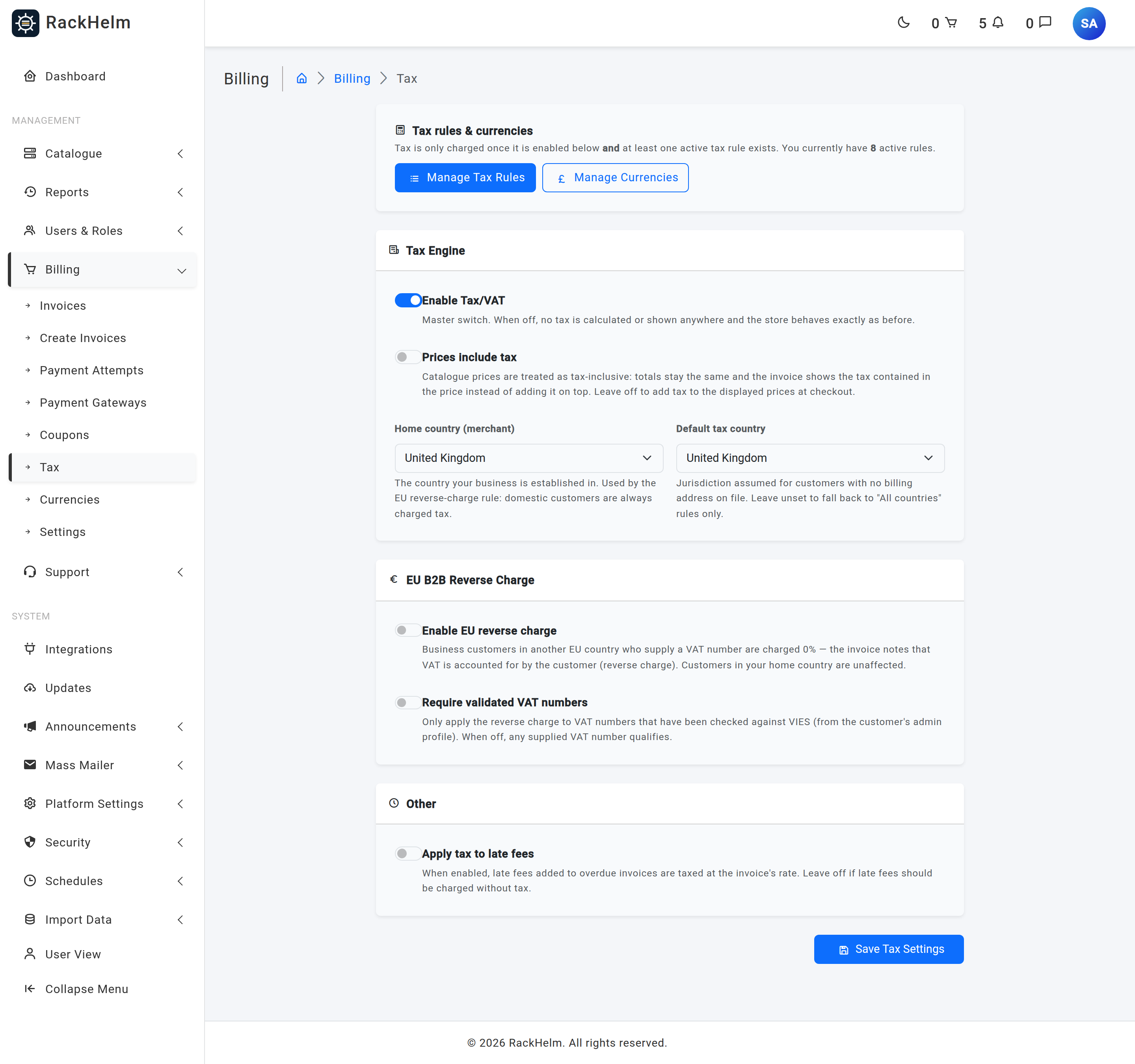
| Field | What it does |
|---|---|
| Enable Tax/VAT | Master switch. Off, nothing is calculated or shown anywhere. |
| Prices include tax | Off (the default), tax is added to the displayed prices at checkout. On, catalogue prices are treated as already containing tax: totals are unchanged and the invoice reports the tax contained in the price. |
| Home country (merchant) | The country your business is established in. Used only by the EU reverse-charge rule. |
| Default tax country | The jurisdiction assumed for a customer with no billing address on file. Onboarding is skippable, so without this those customers match only “All countries” rules. |
| Enable EU reverse charge | Business customers in another EU country who supply a VAT number are charged 0%, and the invoice notes that VAT is accounted for by the customer. |
| Require validated VAT numbers | Only apply the reverse charge to numbers that have been checked against VIES from the customer’s admin profile. Off, any supplied number qualifies. |
| Apply tax to late fees | Late fees added to overdue invoices are taxed at the invoice’s rate. Off, late fees are added untaxed. |
Warning: The reverse-charge rule is EU-only and the EU list in the engine does not contain
GB. A merchant whose Home country is the United Kingdom therefore never qualifies any customer for the reverse charge, whatever the setting says — the rule requires both your home country and the customer’s country to be EU member states, and to differ. UK operators selling B2B into the EU must handle that outside RackHelm.
Tax rules #
Rules live under Billing → Tax → Manage Tax Rules. Each rule carries a Name (printed on the invoice, e.g. “VAT” or “GST”), a Country (or “All countries”), an optional State / Region, a Rate (%), a Level, a Sort order, and the Compound and Active switches.
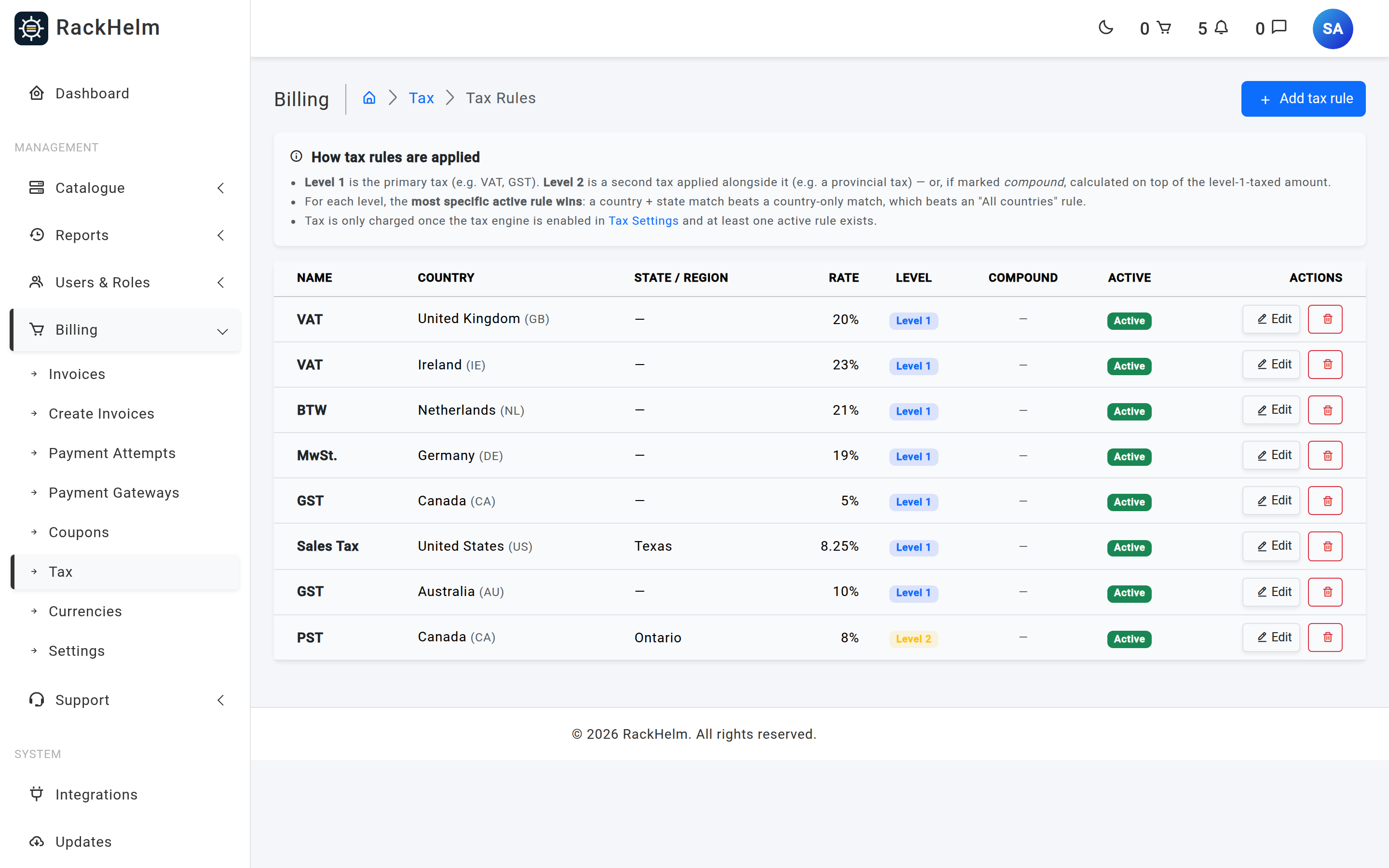
- Level 1 is the primary tax (VAT, GST). Level 2 is a second tax applied alongside it — a provincial tax, for example — or, when marked Compound, calculated on top of the level-1-taxed amount.
- At most one rule per level is used for any given jurisdiction, so an invoice carries at most two tax lines.
- The most specific active rule wins at each level: country + state beats country-wide, which beats the “All countries” catch-all. A state-scoped rule is skipped entirely when the customer’s state does not match it.
Note: A product can be excluded from tax with the Taxable switch on its pricing tab (“Tax rules apply to this product when the tax engine is enabled”). It is on by default. Credit deposits are never taxed regardless of the switch — a top-up is a payment on account, not a sale.
How tax reaches a total #
Tax is computed once per order, not once per basket: the cart groups its lines the same way checkout splits them into orders, so the total you are charged always equals the sum of the invoice amounts. Within a group, any coupon discount is allocated proportionally across the taxable lines first.
The order of operations matters and is fixed:
- Line prices, converted into the customer’s currency.
- Minus the coupon discount.
- Plus tax (exclusive mode only).
- Minus any account credit applied.
So an invoice’s amount is subtotal − discount + tax − credit in exclusive mode, and subtotal − discount − credit in inclusive mode, where the tax figure is informational. Because tax is added before credit, an order paid entirely from account credit still carries its VAT on the invoice.
Each invoice freezes its own jurisdiction, its rates, the customer’s VAT number and the inclusive/exclusive mode at the moment it is raised. Nothing later re-reads the live rules for it.
Warning: Flipping Prices include tax on a live store changes the meaning of every catalogue price without changing a single figure in it. Existing invoices keep the mode they were raised in, so your history becomes a mixture of the two. Decide inclusive or exclusive before you take the first taxed order, and treat a later change as a repricing exercise.
Per-customer tax facts #
Open the customer under Users & Roles → All Users and edit them. The Billing & Tax card carries:
| Field | Behaviour |
|---|---|
| Tax Exempt — “Never charge tax on this account” | The account is given an empty tax profile. It outranks every rule and the reverse-charge logic. |
| VAT Number | Up to 32 characters; the placeholder shown is GB123456789. Snapshotted onto the customer’s invoices and printed as VAT No: in the Bill To block. |
| Validate with VIES | Checks the saved number against the European Commission’s VIES service. Save the form first — the button reads the stored value, not the box. A successful check shows a green “VIES validated” badge with the date. |
Changing the number clears its validation, deliberately: a changed number is unproven until VIES says otherwise. Sub-accounts are billed against the account owner’s tax facts, never their own.
Note: VIES is unreliable and the validator treats a transport failure as “could not check”, not as “invalid” — so a VIES outage never silently starts charging a B2B customer VAT unless you have switched Require validated VAT numbers on. Numbers outside VIES’s scope (anything non-EU) can never be validated and will always fail that requirement.
At checkout #
The checkout billing block carries a VAT number (optional, businesses only) field. A number typed there only counts when the account has none saved — first write wins — and the checkout page re-fetches its totals from the server whenever the country, state or VAT number changes, so the figure on screen is the figure that will be charged.
What the invoice shows #
With tax active, an invoice gains a tax line per rule, named and with its percentage, for example “VAT (20%)”. In inclusive mode the block is headed Included tax and the totals are unchanged. Exempt invoices carry a short note instead of a rate: VAT reverse-charged to recipient (with the customer’s VAT number when there is one), or Tax exempt. Where account credit part-funded the invoice, a Credit Applied line shows the deduction.
Your own registration details #
The invoice document carries your VAT and company registration numbers, which is normally what a VAT invoice needs. Set them under Platform Settings → General & System, in the Legal & Registration Details card. The other two fields in that card do not reach the invoice at all — they only fill placeholders on your legal pages.
| Field | What it does | Rules |
|---|---|---|
| Registered Company Name | Your legal entity name, where it differs from the trading name. Used only by the {{company_registered_name}} placeholder on legal pages, which falls back to the Company Name when this is blank. It is not printed on the invoice. |
Up to 255 characters. |
| Company Registration Number | Printed on the invoice as Company No: when set. | Up to 50 characters. Example placeholder: 12345678. |
| VAT Number | Printed on the invoice as VAT No: when set. | Up to 50 characters. Example placeholder: GB123456789. |
| Registered Office Address | Your registered address, where it differs from the trading address. Used only by the {{company_registered_address}} placeholder on legal pages, which falls back to the Company Address when this is blank. It is not printed on the invoice. |
Free text. |
All seven shipped invoice templates print both numbers, and only when they hold a value — leave a field blank if it does not apply and nothing appears. Where they sit differs by template: the header block on most, the footer on modern. The same values also fill the {{vat_number}}, {{company_number}} and related placeholders in your legal pages, so they only have to be typed once.
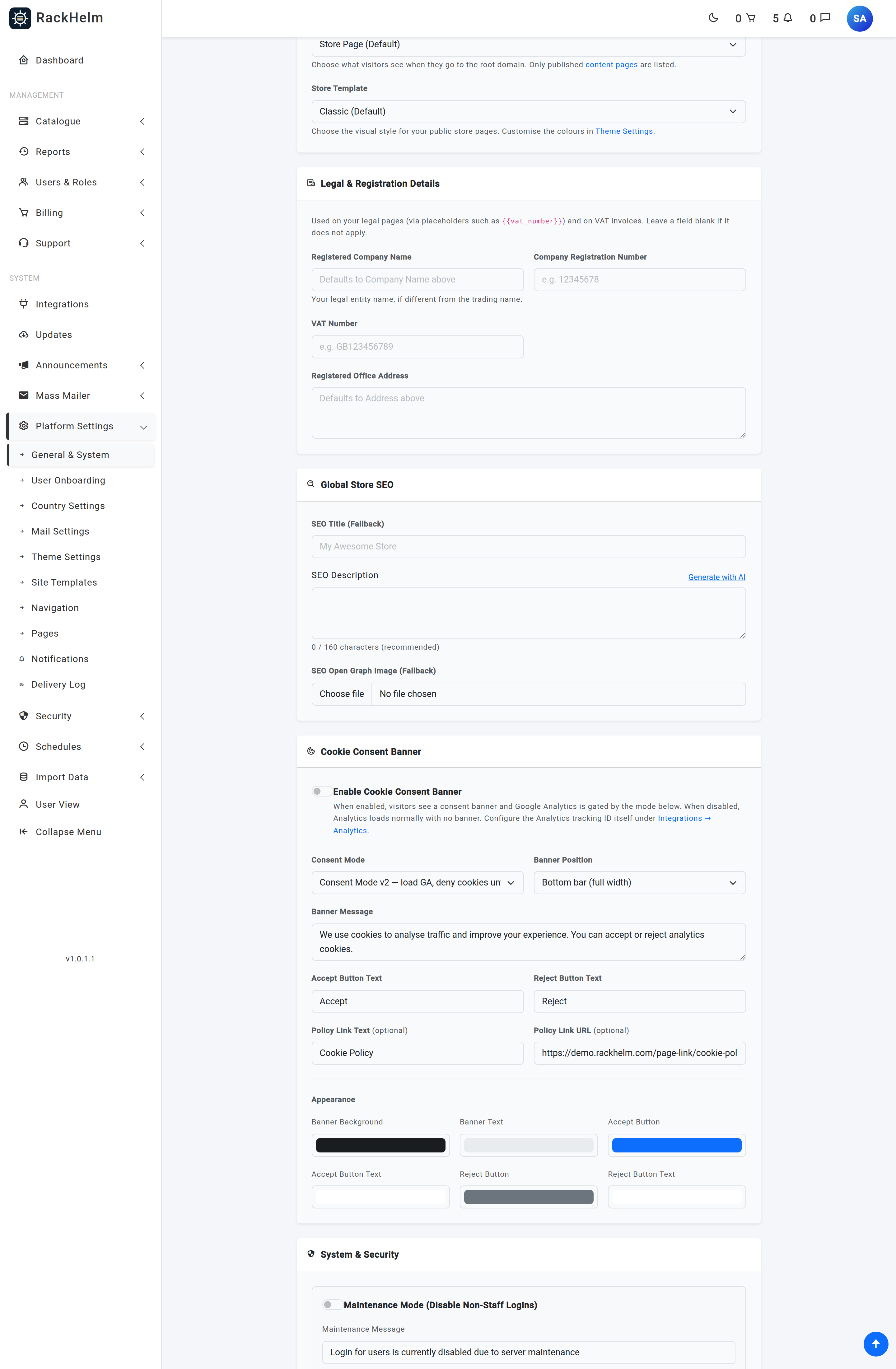
The invoice header also carries the Company Name, Company Address and Company Email from the same screen. The “Bill To” block is the address snapshot taken when the invoice was raised, not the customer’s current address.
Currency #
RackHelm holds one base currency and any number of additional ones. Every catalogue price you type is a base-currency figure; every order, invoice and credit ledger entry carries its own frozen currency code, so history never moves when rates or preferences change.
The currencies screen #
Billing → Currencies lists every currency with its code, name, symbol, suffix, exchange rate, and its Active and Auto-update states. The base row is marked with a Base badge.
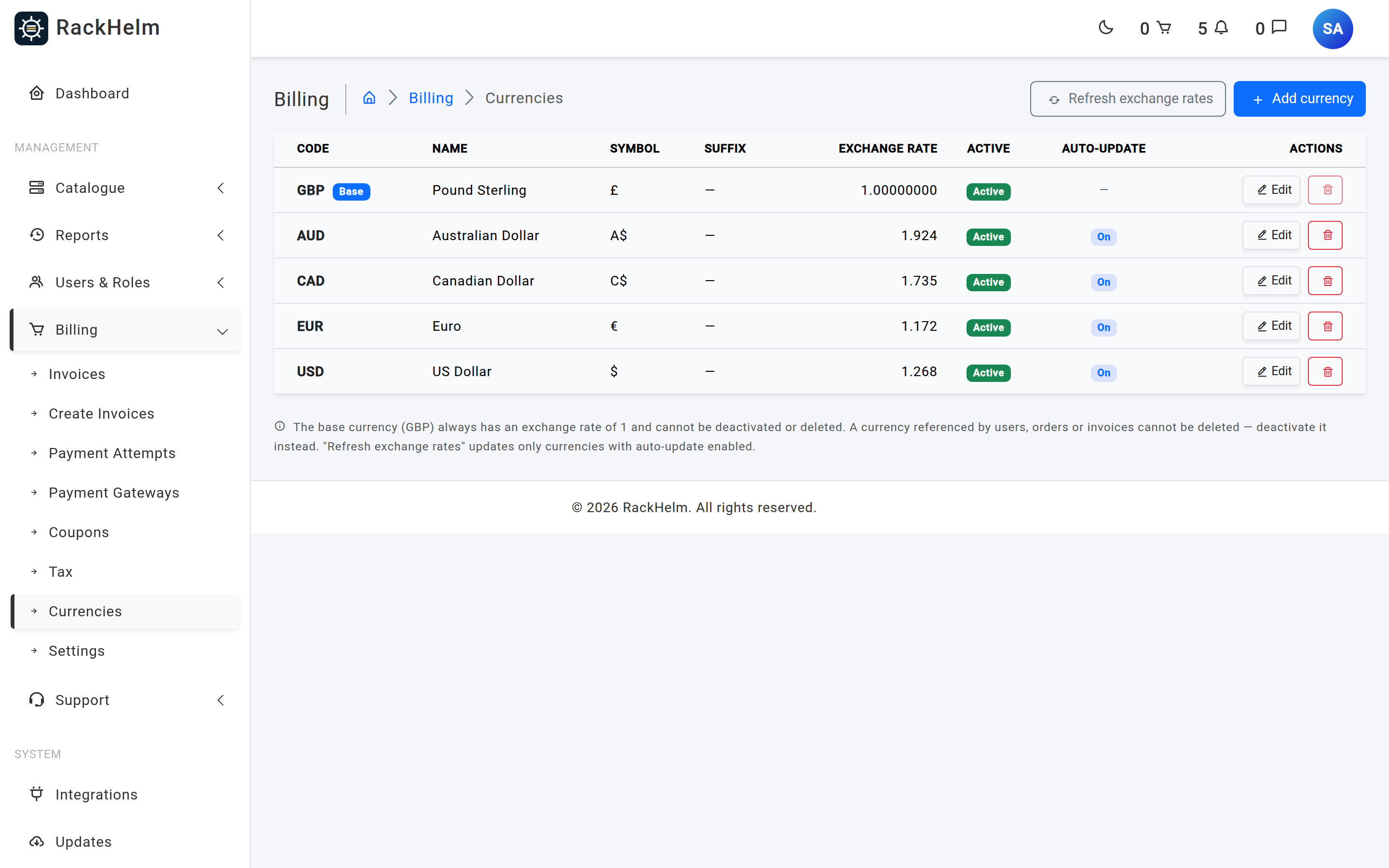
| Field | Rules |
|---|---|
| Code (ISO 4217) | Exactly three letters, unique, and not editable after creation — the code is the historical key stamped on orders, invoices and ledger rows. |
| Name | Required, up to 255 characters. Shown in the customer’s currency selector as “USD — US Dollar”. |
| Symbol (prefix) / Suffix | Up to 10 characters each. Formatting is symbol + amount + suffix, so a currency with no symbol usually wants a suffix such as USD. |
| Exchange rate | Units of this currency per one unit of the base currency. Minimum 0.000001. The base row is always 1 and is forced back to 1 on save. |
| Active | Whether customers may select it. The base row is always active and cannot be deactivated. |
| Auto-update rate | Include this currency in the hourly rate refresh. Off means the rate you typed stands until you change it. |
The base currency is fixed at install: it is seeded from the legacy currency setting (defaulting to GBP) and the screen deliberately offers no way to promote another row to base.
Warning: A new currency is created at rate
1.0, and an active non-base currency at 1.0 sells everything one-for-one against the base — £50 items appear as $50 and are charged as $50. Saving an active currency at that rate is now refused: “USD cannot be active with an exchange rate of 1.0 — that is the placeholder a new currency starts with, and the store would sell at 1:1 against GBP. Enter the real rate (or press Refresh rates), or leave the currency inactive for now.” Add the currency inactive, refresh or type the rate, then activate it.
Exchange rates #
Rates refresh automatically from European Central Bank reference rates, fetched from the keyless frankfurter.app endpoint. The schedule row is called Refresh Exchange Rates and appears under Schedules in the admin sidebar; it runs hourly at 17 minutes past, in UTC. Refresh exchange rates on the currencies screen does the same thing on demand and reports “Exchange rates refreshed: 3 updated, 1 skipped.”
- The base currency is never touched — its rate is 1 by definition.
- Currencies with Auto-update rate off are counted as skipped and keep their manual rate.
- A code the ECB does not publish is also skipped and keeps its manual rate, silently. Check the rate by hand for anything outside the ECB’s list.
- A failed fetch reports the reason (“Exchange rate refresh failed: HTTP 503”) and changes nothing.
Warning: Switching currency drops cart lines the new currency cannot buy — a credit top-up (typed as an amount in the currency it was entered in, never converted) and any product not sold in the new currency. That is deliberate; a “$50” top-up must not silently become “£50”. Tell customers their basket may change.
Prices in other currencies #
By default every price in another currency is the base figure converted at the table rate, rounded to that currency’s minor unit. A positive base price never rounds to zero.
You can override any of them. On a product’s pricing tab, the Currency prices switch reveals a fixed box per extra currency for each billing cycle — Price, Setup Fee, and for domains Renewal and Transfer. Add-on options carry the same under a Currency prices disclosure, with Price and Setup. A box left blank follows the exchange rate; only the fields you fill are pinned.
Note: Fixed prices are not exchange rates. A fixed USD price stays exactly where you put it when the rate moves, which is the point — it is how you price at $9.99 rather than $9.37. Review them when a rate moves far.
Selling a product in only some currencies #
The Sold in row on a product’s pricing tab lists every active currency with a tick. All ticked means no restriction, and a currency added later is automatically allowed. Untick one to stop selling that product in it. Existing services keep renewing in the currency they were bought in.
A shopper browsing in a currency the product is not sold in sees a Sold in USD only badge and a Shop in USD button that switches them over in one click. A customer who cannot switch — a sub-account, or one holding credit — gets the badge and a short explanation instead of the button.
Warning: Deactivating a currency that customers, orders, invoices or the credit ledger reference is refused outright (“Cannot deactivate USD: it is used by one or more customers.”), as is deleting it. Where deactivation does go through, a product whose Sold-in list is only that currency becomes unbuyable; the screen names those products in a warning rather than refusing. Deleting a currency also deletes its fixed catalogue prices and its Sold-in rows.
Staff-raised orders and invoices #
Manual orders (Users & Roles → Create Order) and custom invoices (Billing → Create Invoices) each carry a Currency select listing every active currency. Both default to the chosen customer’s currency. On an order, catalogue prices are converted at today’s rate and frozen on the order; on a custom invoice, prices are typed at face value in the selected currency and the invoice is frozen in it once created. Changing the currency on an order form clears the lines added so far, and asks first.
Minimum card charge #
Card networks reject very small charges, and the floor is per currency: 0.50 for GBP, USD, EUR, CHF, AUD, CAD, NZD, SGD, BRL and INR; 2.00 for PLN, RON, AED and MYR; 2.50 DKK; 3.00 NOK and SEK; 4.00 HKD; 10.00 MXN and THB; 15.00 CZK; 50 JPY; 175 HUF. Anything else falls back to 0.50. An invoice below its floor shows “Amount (£0.30) is too small to process via Stripe” instead of a payment form, and a credit-and-card split is adjusted so the card takes exactly the minimum and credit covers the rest.
Reporting #
Paid income is reported both per currency and normalised to base. The Income by Currency report and its dashboard widget group paid invoices by month and by the currency they were raised in; other income reports divide each invoice by its own frozen exchange rate to reach a base-currency figure, so a rate change today does not rewrite last quarter.
Practical guidance for a UK VAT-registered operator #
- Decide inclusive or exclusive before taking a taxed order, and set Prices include tax accordingly.
- Add a tax rule: Name “VAT”, Country United Kingdom, Rate 20, Level 1, Active. Add an “All countries” rule only if you genuinely intend to tax everyone.
- Set Home country (merchant) and Default tax country to United Kingdom so customers who skipped onboarding are still taxed.
- Turn Enable Tax/VAT on, then place one test order and check the invoice shows the VAT line you expect.
- Fill in VAT Number and Company Registration Number so they print on the invoice.
- Mark genuinely untaxed items — deposits are handled for you, but pass-through charges may need the product’s Taxable switch turned off.
- Handle EU B2B by hand. The reverse-charge rule cannot fire for a UK-established merchant.
- If you need extra wording on the document, extend the invoice template: the shipped templates are Blade views under
resources/views/invoices/templates/, and you choose which one is used under Billing → Settings.
Troubleshooting #
| Symptom | Cause and fix |
|---|---|
| Tax is enabled but no tax appears | There is no active tax rule matching the customer’s jurisdiction, or the customer has no address and Default tax country is unset. The quick-links card on Billing → Tax reports your active rule count. |
| A state rule never fires | A rule with a State / Region only matches when the customer’s address carries that exact state. Leave the field blank to match the whole country. |
| Only one of two rules at the same level applies | By design — at most one rule per level is picked, the most specific one. Use Level 2 for a genuine second tax. |
| A VAT-registered EU business is still charged tax | Enable EU reverse charge is off; or Require validated VAT numbers is on and the number has not been validated; or your Home country is outside the EU (including the UK); or the customer is in your home country, where the charge is always domestic. |
| “Validate with VIES” does nothing useful | It checks the saved number — save the form first. A transport failure reports as unknown, not invalid, and non-EU numbers cannot be checked at all. |
| The VAT number is missing from the invoice PDF | The field is blank, or the PDF predates you filling it in. Set it under Platform Settings → General & System, then use Regenerate All Existing Invoices under Billing → Settings. |
| Adding a currency fails on the exchange rate | An active currency may not sit at the 1.0 placeholder. Save it inactive, press Refresh exchange rates or type the real rate, then tick Active. |
| Rates never change | The Refresh Exchange Rates schedule has not been seeded on this install, the currency has Auto-update rate off, or the ECB does not publish that code. Press Refresh exchange rates and read the “N updated, M skipped” message. |
| The currency switcher is not shown | Only one currency is active; you are on a checkout page; you are in the admin panel; or the signed-in customer is a sub-account or holds account credit. |
| A product cannot be bought in a currency | Its Sold in list excludes that currency. The store shows a “Sold in CODE only” badge and, where possible, a one-click switch. |
| A currency cannot be deactivated or deleted | Customers, orders, invoices or credit ledger rows reference its code; the error names which. Codes on existing records are historical and are never rewritten. |
| A tiny invoice cannot be paid | It is below that currency’s card minimum. Settle it with account credit, merge it into the next renewal, or void it. |
| The registered name is not showing on the invoice | It never appears there — the invoice header uses the trading Company Name, Company Address and Company Email. The registered name is only used on legal pages, where it falls back to the Company Name when blank. |


