Support → All Tickets is where your team works. It offers two ways to look at the same queue: a searchable, sortable table with bulk actions, and a read-only status board that shows the shape of the backlog at a glance. This article covers both, plus the trash.
Before you start #
Note: The screen requires
view_tickets. Bulk actions additionally requireassign_tickets(andclose_ticketsordelete_ticketsfor those two specific actions). See Roles & Permissions. Everything you see is scoped to your departments — see How the helpdesk works.
The three views #
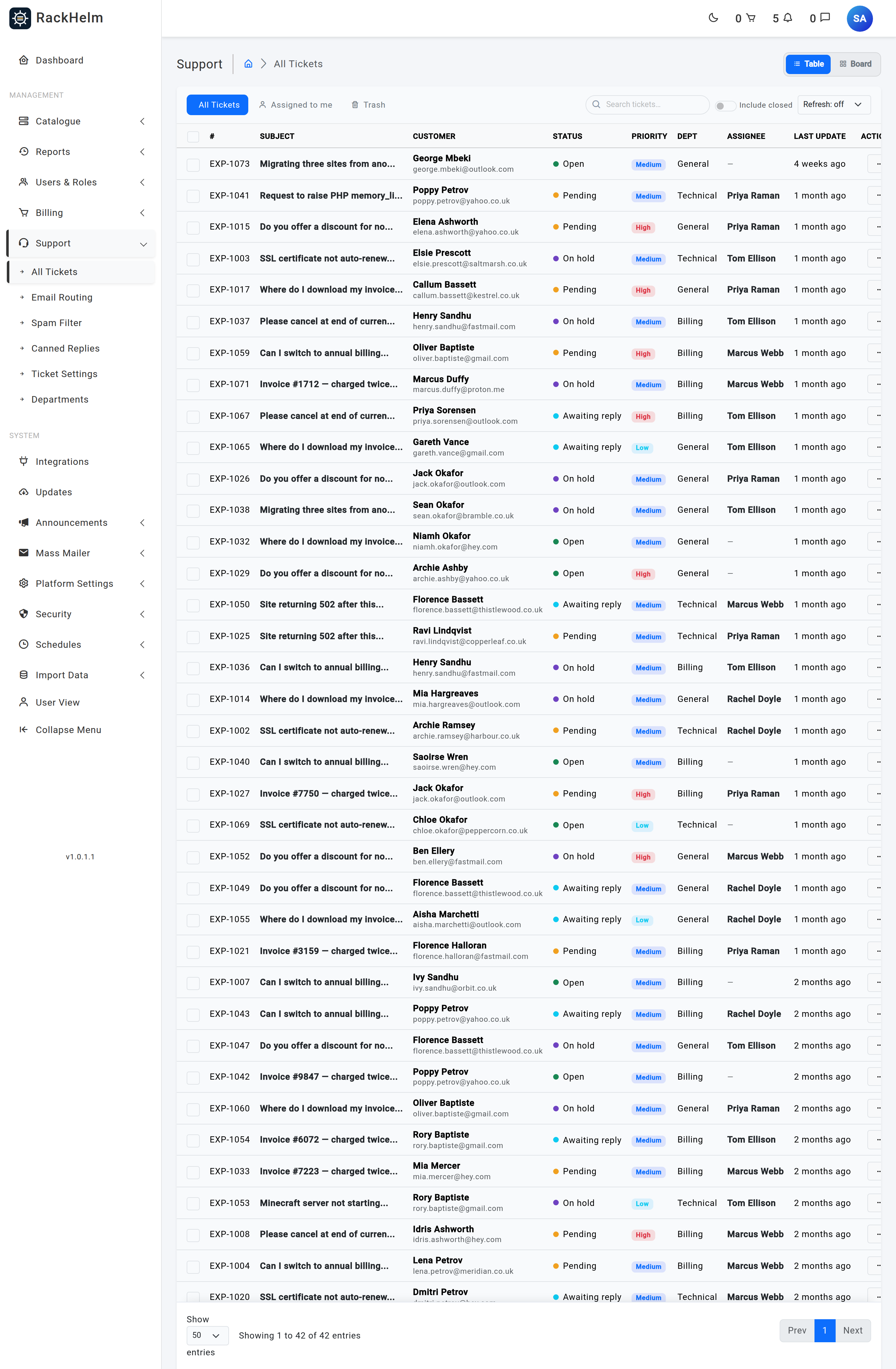
The pills at the top left of the card switch which set of tickets the table loads.
| View | What it shows |
|---|---|
| All Tickets | Every ticket in your departments except closed ones, unless you tick Include closed. |
| Assigned to me | The same set, narrowed to tickets whose assignee is you. |
| Trash | Deleted tickets, limited to those deleted within the last 30 days. Older deletions are no longer listed here. |
A submission from the public contact form is not a ticket until the sender confirms their address, so nothing appears in any view until then — see Guest tickets and the contact form. Tickets carrying the legacy pending_verification status are also filtered out of every view.
Searching and sorting #
The search box matches on three things at once:
- the ticket subject;
- the ticket number — a leading
#is stripped, so both1042and#1042work; - the customer’s first name, last name or email address.
Tip: Search on the number only, not the prefix. The lookup compares against the stored number, so searching
ORB-1042will not findORB-1042— search1042.
Click any column header to sort. Sorting is done in the database, not in the browser, so it applies across the whole queue rather than only the current page. The default order is Last update, newest first. Page sizes are 50, 100 and 300, defaulting to 50.
Auto-refresh #
The Refresh selector reloads the table every 3, 5, 10, 15 or 30 minutes, or never. Your choice is remembered in your browser, per browser rather than per account. A refresh is skipped whenever you have rows ticked, so an auto-refresh cannot clear a selection you are part-way through acting on.
Reading a row #
| Column | Contents |
|---|---|
| # | The display number — prefix plus ticket number. |
| Subject | Truncated to 30 characters and linked to the ticket. In the trash view it is struck through and not clickable. |
| Customer | Name over email address. |
| Status | Coloured dot plus label. Deleted rows show Deleted. |
| Priority | Low, Medium or High badge. |
| Dept | Department name, or None. |
| Assignee | The agent’s name, or an em-dash when unassigned. |
| Last update | Relative time; hover for the exact timestamp. |
| Actions | A menu with View, Close Ticket (when not already closed) and Restore Ticket (trash view only). |
Bulk actions #
Tick one or more rows — or the header checkbox to take the whole page — and a bar appears with a Bulk edit button. The modal offers five actions:
- Change status — Open, Pending, Awaiting reply, On hold or Closed. Closing sends each customer the standard closure email, and any ticket that had no assignee is assigned to you as it closes.
- Change priority — Low, Medium or High.
- Change department — moves the tickets to another department.
- Assign staff — pick an agent, or Unassigned to clear the assignee. Only accounts holding a staff role can be chosen; the server rejects anything else.
- Delete tickets — moves them to the trash.
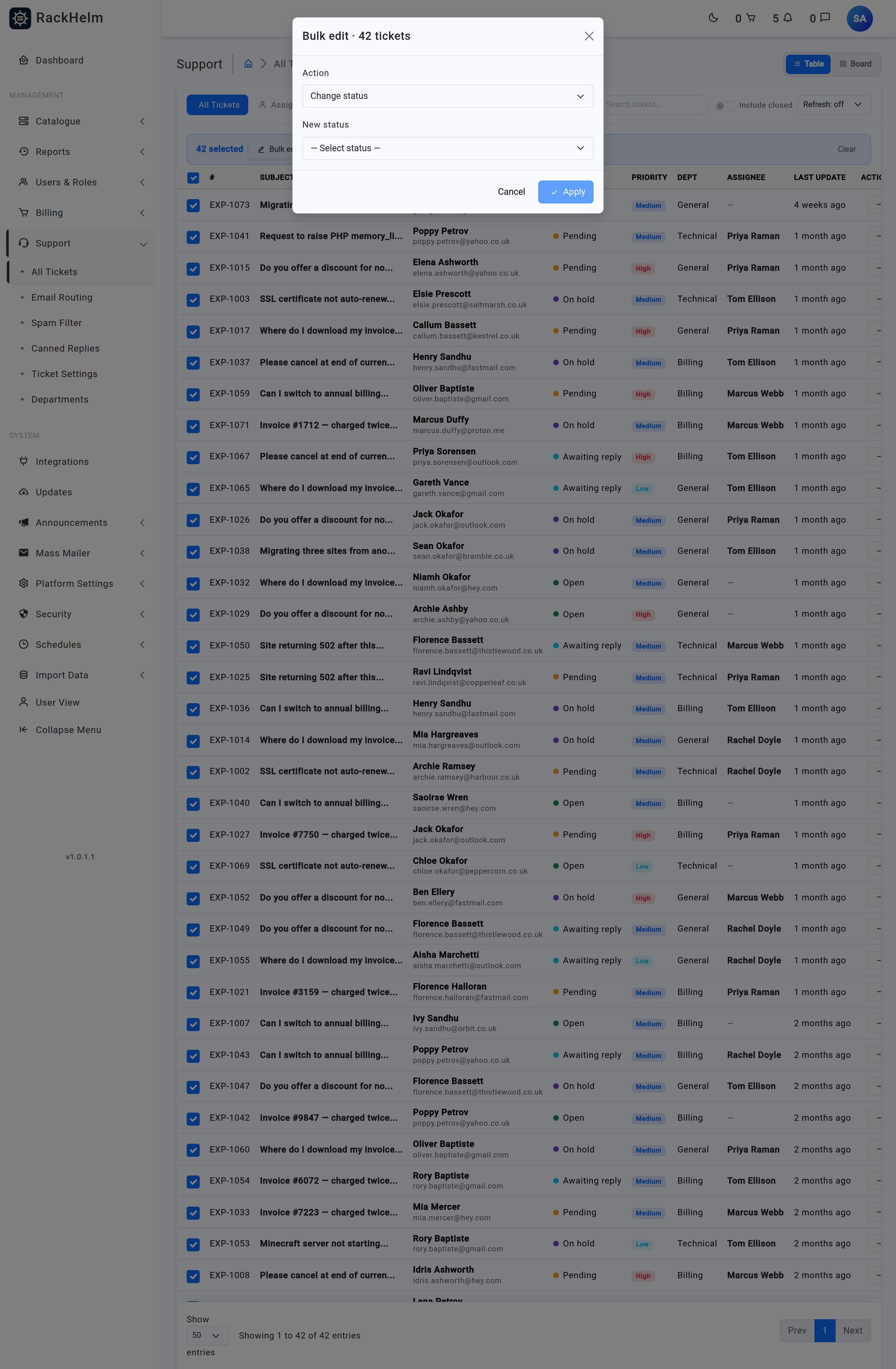
Note: Bulk actions are checked per ticket. Any ticket outside your departments, or beyond your permissions for that specific action, is skipped rather than applied, and the result message tells you how many were skipped — for example “12 ticket(s) updated successfully. 3 skipped (outside your departments or beyond your permissions).” A partially applied action is never reported as a clean success.
The status board #
The Table / Board toggle in the page header switches to a Kanban-style snapshot with one column per active status: Open, Pending, Awaiting reply and On hold. Each card shows the ticket number, department, subject, priority, customer name and the assignee’s avatar. Clicking a card opens the ticket.
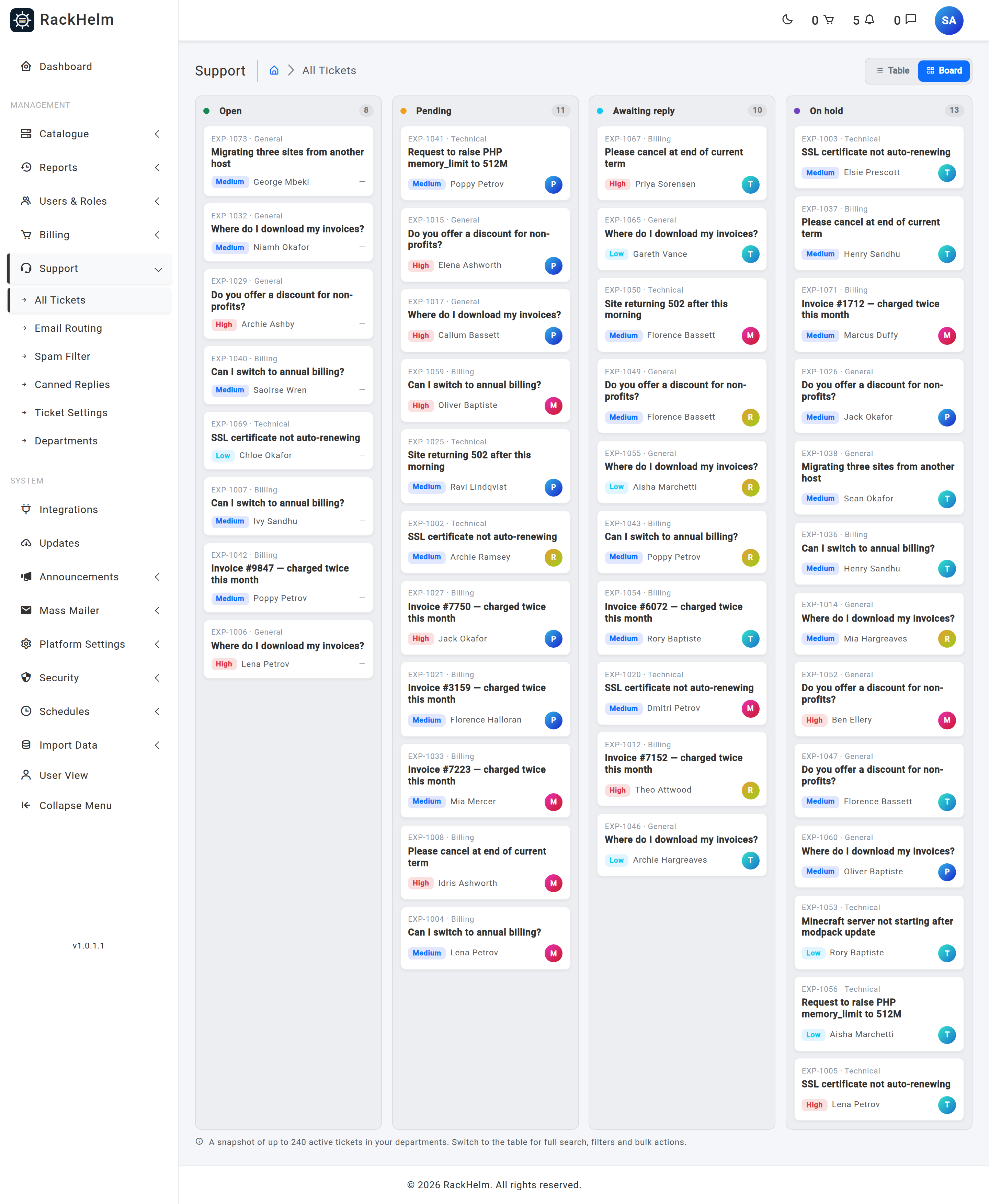
Warning: The board is a snapshot of at most 240 active tickets in your departments and cannot be searched, filtered or dragged between columns. On a busy desk it will not show everything — use the table when the count matters.
Your last choice of table or board is remembered in your browser. The toggle is hidden in the trash view.
The trash #
Deleting a ticket is a soft delete: the thread, its messages, notes and attachments all stay in the database. Restore it with Actions → Restore Ticket from the trash view. Both the deletion and the restore are written to the ticket’s activity log.
Note: Deleting requires
delete_tickets, which the built-in Support Agent role does not hold. Restoring requires the same permission.
Troubleshooting #
| Symptom | Cause and fix |
|---|---|
| A ticket you deleted is not in the trash | The trash view only lists tickets deleted in the last 30 days. The record still exists but is no longer surfaced here. |
| Bulk edit returns “You do not have permission to perform that action on the selected tickets.” | Every selected ticket was skipped. Closing needs close_tickets and deleting needs delete_tickets, on top of assign_tickets. |
| Assigning in bulk fails validation | The chosen account does not hold a staff role. Tickets can only be assigned to staff, otherwise a customer would see the thread in their own portal. |
| Searching the full reference finds nothing | Drop the prefix and search the number alone. |
| The board looks short compared with the table | It is capped at 240 tickets. Switch to the table. |
| The table never refreshes on its own | Auto-refresh defaults to off, and it is stored per browser. Set it again on this machine. |


