Create Order places an order on a client’s behalf: you pick the customer, configure one or more products, and decide whether RackHelm raises an invoice and charges their stored payment method. Use it for phone and email sales, migrations, and anything a customer cannot complete themselves. This article is for operators and staff.
Before you start #
Note: The screen is gated on
edit_orders, and submitting it additionally requirescreate_orders. Both are needed — creating an order can charge a card, so it is treated as a separate capability from editing one.
Tip: The sidebar’s Create Order link is gated on a permission key that is not defined in RackHelm, so in practice only a Super Admin sees it. Everyone else should use the Create Order button at the top of All Orders, which is correctly gated on
create_orders, or go straight to/admin/orders/create.
The client must already exist and should have a default billing address — that address is snapshotted onto the order. The products you want must be active and must have at least one billing-cycle price.
The three zones #
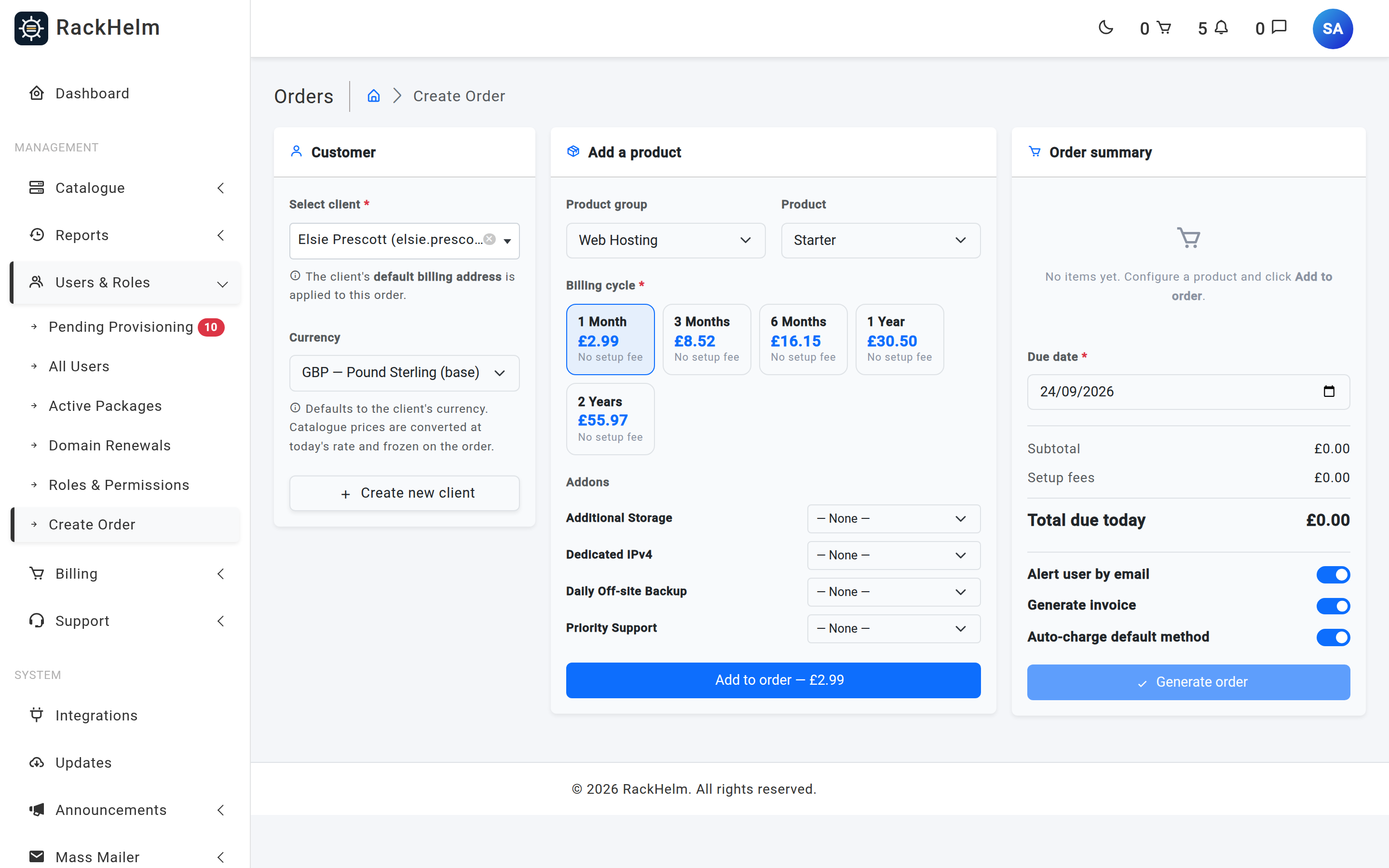
1. Customer #
- Open the Select client picker and start typing. It is searchable and lists every non-guest account as First Last (email).
- The client’s default billing address is applied automatically — there is no address chooser on this screen.
- Create new client opens the user creation form in a new tab if the customer does not exist yet. Come back to this tab and reopen the picker afterwards.
2. Add a product #
- Choose a Product group. The Product list is then filtered to that group and enabled.
- Choose a Product. RackHelm loads its live pricing, addons and custom fields.
- Pick a Billing cycle tile. Each tile shows the cycle name, the recurring price, and either the setup fee or No setup fee. The first tile is selected for you.
- Set any Addons. Each addon is a single-choice dropdown with a — None — option; option labels show the price for the currently selected cycle, and the setup fee where there is one. Changing the cycle re-prices every addon option in place.
- Fill in any Custom variables. These are the product’s own configurable fields — a domain name, a hostname, a licence email — and are rendered according to their field type.
- Press Add to order. The button label carries the running total for the line you are about to add.
The configurator resets after each line, so repeat the steps to add more products. The same product can be added several times.
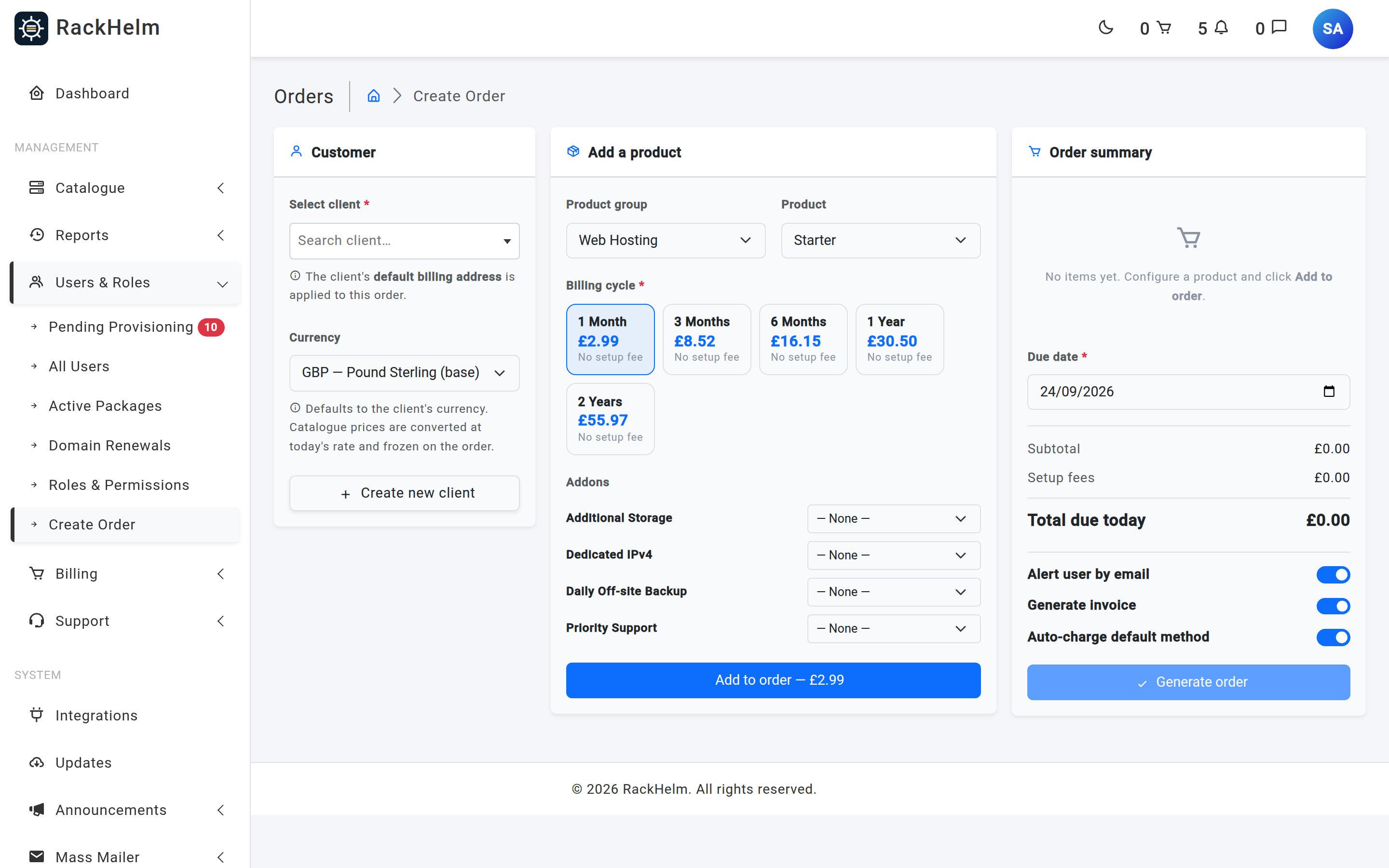
3. Order summary #
Each line you add appears here with its cycle, any setup fee, its addons and a bin icon to remove it. Below the lines:
| Field | What it does |
|---|---|
| Due date | Required. Becomes the order’s due_date — the date the next renewal is anchored to. Defaults to today. |
| Subtotal | Recurring prices, including addon prices, across all lines. |
| Setup fees | Product setup fees plus every selected addon’s setup fee. |
| Total due today | Subtotal plus setup fees. This is the basis the invoice uses. |
| Alert user by email | On by default. Sends the customer the order-created notification, and the matching staff copy. Turn it off for a silent correction. |
| Generate invoice | On by default. Raises an invoice for the order. Turning it off also forces Auto-charge default method off and disables it. |
| Auto-charge default method | On by default. Attempts an immediate payment against the customer’s stored payment method once the invoice exists. |
Generate order stays disabled until you have both a client and at least one line, and its label carries the total.
Warning: Auto-charge default method takes a real payment against the customer’s stored card. Turn it off if you are recording an order that has already been paid for by other means.
Quantity is always 1 #
Every line this screen creates is saved with a quantity of 1, regardless of the product. There is no quantity control. To sell three of the same package, add the same product three times — you will get three separate packages, which is also what lets each one be provisioned, suspended and cancelled independently.
What happens when you submit #
- The order is created with status
activeand typedefault, dated with the due date you chose, and stamped with the client’s default address. - The order’s billing cycle is taken from the first line only. If you mix cycles on one order, the order still carries just one cycle, which is what renewals are calculated from.
- Each product line becomes a package with status
pending, priced from the selected billing-cycle price row. - Each selected addon becomes a child item of its package, priced from that addon option’s price for the chosen cycle.
- Depending on the switches, RackHelm raises the invoice and, when asked, queues a payment attempt.
- You are redirected to the admin dashboard with one of three confirmations: Order created successfully. No invoice was generated., Order created successfully. Invoice generation queued., or Order created, invoice generated, and automatic payment has been initiated.
If any addon on the order is flagged for manual provisioning, or its chosen option is flagged to open a ticket, RackHelm also opens a support ticket titled Addon Setup Request – Order #N listing what needs setting up by hand.
Warning: Automatic provisioning only ever runs against an order that has a paid invoice. An order created with Generate invoice switched off, or one whose invoice is still unpaid, will sit at
pendingforever. Either settle the invoice or use Force Provision on the package. See How automatic provisioning works.
Field reference — what is validated on submit #
| Field | Rule |
|---|---|
| Client | Required; must be an existing user. |
| Due date | Required; must be a valid date. |
| Lines | Required; at least one. |
| Product on each line | Required; must be an existing product. |
| Billing cycle on each line | Required; must be an existing billing-cycle price row — that is, a price the product actually has, not just any cycle. |
| Addons and variables | Optional arrays. Required custom variables are only enforced in the browser, so they are not re-checked on submit. |
Troubleshooting #
| Symptom | Cause and fix |
|---|---|
| “No pricing configured for this product.” | The product has no billing-cycle prices. Add at least one price before it can be sold. |
| A product is missing from the dropdown | Only active products are listed, and the list is filtered by the chosen group. A product with no group will never appear here. |
| The submit button will not enable | You need both a selected client and at least one line in the summary. Adding a line without picking a client leaves it disabled and the label reads Select a client. |
| “Failed to create order: …” | The whole creation is one transaction, so nothing was saved. The message carries the underlying reason; your inputs are preserved. |
| The customer was emailed when you did not want them to be | Alert user by email was left on. It is on by default on every visit to this screen. |
| The order was created but no invoice appeared | With Auto-charge off, invoice generation is queued rather than immediate. If nothing arrives, check the queue monitor for a failed GenerateInvoiceJob. See The Queue Monitor and Horizon. |


