The onboarding wizard is a two-step run through billing address and payment method that a customer completes before using the portal. It exists so you are not chasing people for a postal address at invoice time, or for a card at renewal time. It is off until you turn it on.
Before you start #
Note: The settings screen is at Platform Settings → User Onboarding (
/admin/company-settings/onboarding) and requiresedit_company_settings. Step 2 is only useful once you have at least one payment gateway active — see the gateway articles.
Turning it on #
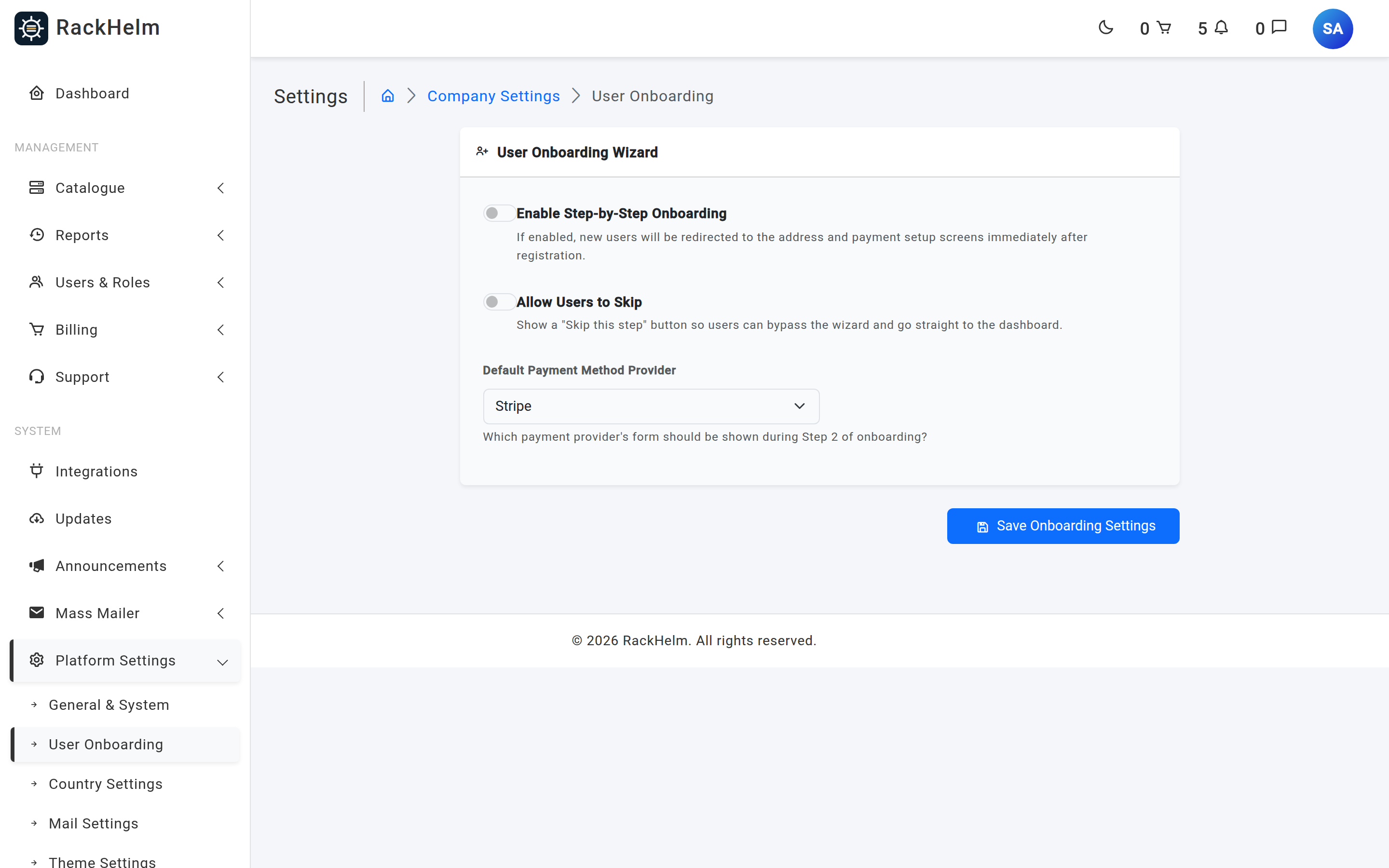
| Setting | What it does |
|---|---|
| Enable Step-by-Step Onboarding | Turns the wizard on. New customers are held at the address and payment screens until both are complete. |
| Allow Users to Skip | Adds a Skip this step button to both screens. Read the warning below before switching this on. |
| Default Payment Method Provider | Which gateway tab is selected when step 2 opens — Stripe or PayPal. Defaults to Stripe. |
Warning: Enforcement requires Enable Step-by-Step Onboarding on and Allow Users to Skip off. With skipping allowed, nothing redirects anybody: new customers land on the dashboard and never see the wizard, though the pages remain reachable at
/onboarding/address. Treat the second switch as “turn enforcement off”, not as “make it optional but prompted”.
What the customer sees #
Step 1 of 2: Billing Address #
Headed “Where should we send your invoices?”, with a progress bar. The address is saved to the account owner and marked as their default.
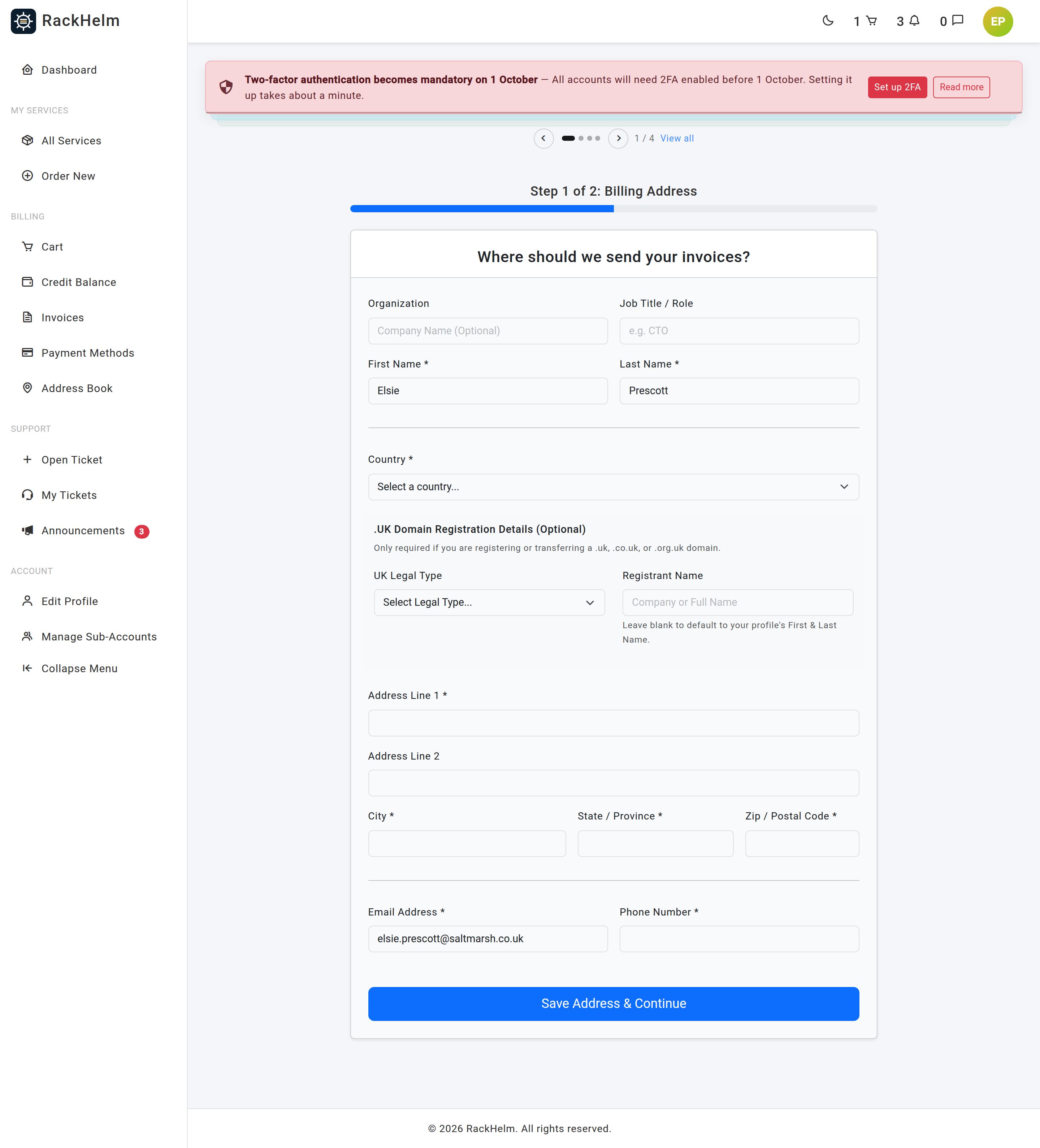
.uk domains; both of its fields are optional.| Field | Required | Notes |
|---|---|---|
| Organization | No | Company name. |
| Job Title / Role | No | |
| First Name / Last Name | Yes | |
| Country | Yes | Must match a country record in the platform. |
| UK Legal Type | No | Nominet registrant type: IND, FIND, LTD, PLC, PTNR, LLP, STRA, RCHAR, FCORP or OTHER. |
| Registrant Name | No | The company or full name a .uk domain should be registered to. |
| Address Line 1 | Yes | |
| Address Line 2 | No | |
| City, State / Province, Zip / Postal Code | Yes | State is required even where it is not customary — tell customers to repeat the town or county if in doubt. |
| Email Address | Yes | The billing contact for this address; it need not match the login. |
| Phone Number | Yes |
Step 2 of 2: Payment Method #
A tabbed form offering Stripe, PayPal, Bank Transfer and Square. A tab appears only if that gateway is active, and the Stripe tab additionally needs a working secret key: RackHelm creates a Stripe customer and a setup intent when the page loads, and if that call fails it logs the error and hides the Stripe tab rather than showing a broken form. If Stripe was your default provider and it is unavailable, the wizard falls back to PayPal, then to Bank Transfer.
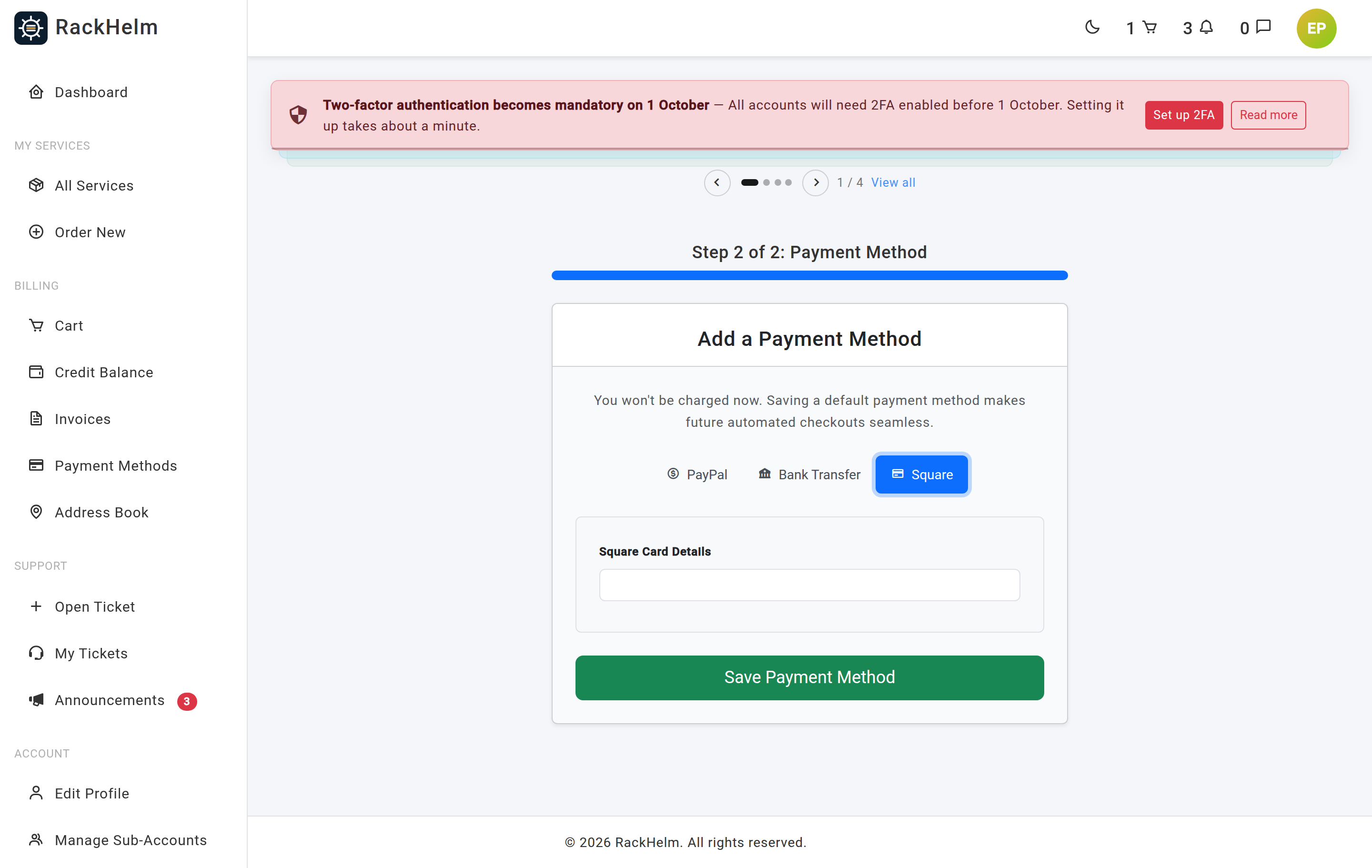
- Stripe and Square store a genuine saved card — brand, last four digits and expiry are kept locally and the card becomes the account’s default for future invoices.
- PayPal and Bank Transfer record a placeholder payment method identifying the chosen method. Nothing chargeable is captured, and RackHelm ignores any identifier the browser tries to supply on those two paths.
On success the customer is taken to the dashboard with “Account setup complete! Welcome.”
How enforcement actually works #
With the wizard enforced, every authenticated portal request is checked in this order:
- Requests for the onboarding pages themselves, for signing out, and for leaving an impersonation session are always allowed through — this is what stops the wizard becoming a trap.
- If the account owner has no address at all, the customer is sent to step 1 with “You must complete the onboarding process to continue.”
- If the account owner has no payment method, they are sent to step 2 with “You must add a payment method to continue.”
Because the check looks at the account owner, a sub-account inherits the parent’s completion state — it is never asked to supply an address of its own. Staff accounts are subject to the same rule when they use the customer-facing portal, so if you enforce the wizard, expect to complete it once on any staff account that visits /dashboard.
Tip: Enforcement is retrospective. Turning the wizard on affects everyone, not only new signups, so existing customers without a stored card will hit step 2 on their next visit. Turn it on knowingly, ideally alongside an email explaining why.
Troubleshooting #
| Symptom | Cause and fix |
|---|---|
| New customers never see the wizard even though it is enabled. | Allow Users to Skip is on, which disables enforcement entirely. Turn it off. |
| Existing customers are suddenly blocked. | Expected — the wizard applies to every account without an address or payment method, not only new ones. |
| The Stripe tab is missing. | The Stripe gateway is inactive, has no secret key, or the setup-intent call failed. The reason is written to the application log with “Stripe SetupIntent Error (Onboarding)”. |
| No tabs at all on step 2. | No payment gateway is active. Activate one, or the customer cannot finish. |
| “Skipping is not allowed.” after submitting a skip. | Someone posted to the skip route while Allow Users to Skip is off. Nothing to fix. |
| The country dropdown offers countries you disabled. | The onboarding step lists every country record, unlike the address book and checkout, which list only active ones. Delete the record rather than deactivating it if it must not be selectable here — see Countries and the Address Book. |
| The address saved but the wizard still asks for one. | The address belongs to a different account. The wizard reads the account owner’s address book; check whether you were signed in as a sub-account. |
| “Unable to save your card: …” on step 2. | The gateway rejected the card. The full message is passed through from Stripe or Square, and also written to the application log. |


