RackHelm creates, suspends, unsuspends and terminates cPanel accounts on your WHM server, and surfaces the resulting site on the customer’s Sites page. This article is for the operator who sets that up: what you need from WHM, every field on the RackHelm form, how a product is bound to a WHM package, what provisioning actually writes, and the traps worth knowing before the first paid order lands.
Before you start #
- The
edit_integrationspermission. See Roles and Permissions. - Your WHM hostname, reachable from the RackHelm server. WHM normally listens on port 2087.
- A WHM API token created under WHM » Development » Manage API Tokens, and the name of the WHM user it belongs to. The token is sent as
Authorization: whm <user>:<token>, so the username is part of the credential, not decoration. - That user must be allowed to create, suspend and terminate accounts. A reseller token works, with the limits described below; a root token sees everything.
Note: A base URL that resolves to a private, loopback or reserved address is refused with “The connection.base url must be a valid, publicly accessible URL. Internal or reserved IP addresses are refused unless listed in SAFEURL_PRIVATE_ALLOWLIST in the portal’s .env file.” Since 1.0.1.1 you can allow a WHM box on your own LAN by listing it there, for example
SAFEURL_PRIVATE_ALLOWLIST="192.168.1.50,10.10.0.0/16". Every other private address stays blocked. The reasoning is in Adding a Control Panel Connection.
Note: RackHelm stores one cPanel connection, not a list. The form saves into a single row keyed on the provider name, so one RackHelm install drives one WHM server. The Panel dropdown on a product exists because other panel types share the form; for cPanel it will only ever offer that one entry.
Add the connection #
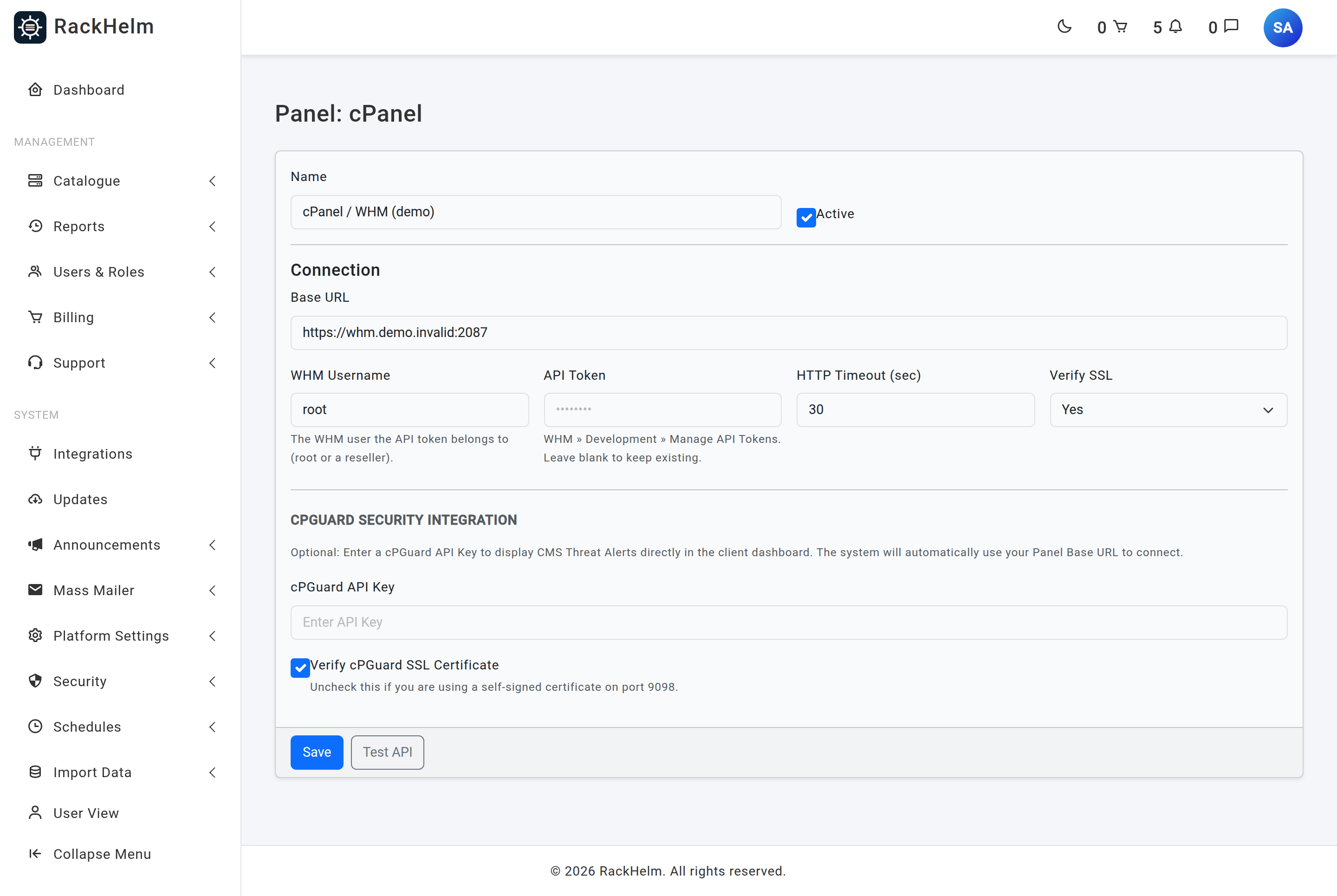
- Open Admin → Integrations and press Configure on the cPanel card (it reads Manage once a connection exists).
- Set Base URL to your WHM origin including the port, for example
https://cpanel.example.com:2087. - Set WHM Username to the user the token belongs to. It defaults to
root. - Paste the WHM API token into API Token.
- Leave Verify SSL on Yes if WHM presents a certificate that validates for that hostname. If it is self-signed, choose No (pin certificate), press Test API to read the certificate, then Save.
- Adjust HTTP Timeout (sec) if your server is slow to answer, then press Save.
Fields #
| Field | Rule | Notes |
|---|---|---|
| Name | Optional, max 120 characters | Defaults to “cPanel”. Shown in the Panel dropdown on a product. |
| Active | Checkbox | Must be ticked for cPanel to appear as an Integration Type on products. |
| Base URL | Required, http/https, publicly resolvable or allow-listed | Placeholder https://cpanel.example.com:2087. |
| WHM Username | Optional, max 190 characters | “The WHM user the API token belongs to (root or a reseller).” Blank keeps the stored value; if nothing is stored the client falls back to root. |
| API Token | Optional on edit | Blank keeps the stored token. Stored encrypted. |
| HTTP Timeout (sec) | Integer, minimum 1 (form minimum 5) | Default 30. Applies to every call; account creation and removal override it to 180 seconds, because createacct legitimately runs that long. |
| Verify SSL | Yes or No (pin certificate) | Read by the driver, the connection test and the product-form lookups. With No, the server’s public key is pinned and any other key is refused. |
| cPGuard API Key | Optional | Moved into the encrypted credential block on save, never left in the plain settings blob. Feeds the read-only CMS Threat Alerts report on the customer’s site dashboard. |
| Verify cPGuard SSL Certificate | Checkbox, on by default | cPGuard listens on port 9098; untick for a self-signed certificate there. |
The pinned certificate #
Choosing No (pin certificate) reveals a line under the dropdown. Before anything is pinned it reads “No certificate is pinned yet. Click Test API to read the panel’s certificate, then Save to pin it. Until then the portal refuses to connect with verification off.” After a successful test it reads Pinned certificate: followed by a description in the shape CN=cpanel.example.com, self-signed, expires 2027-03-14, SHA-256 A1:B2:…, plus a Forget pinned certificate link.

Warning: The pin is stored by Save, not by Test API. If you test, see “certificate pinned, click Save to keep it” and then navigate away, nothing is stored and the connection stays broken. When the certificate is later replaced — a renewed self-signed certificate, or AutoSSL taking over the hostname — calls start failing with “The panel’s certificate key no longer matches the pinned one. Open the panel settings, click Test API to see the new certificate, then Save to trust it.” That is the pin doing its job, not a fault.
Testing the connection #
Test API now goes through the same client provisioning uses. It posts json-api/version to WHM with your Authorization: whm <user>:<token> header and the TLS settings you have saved, and on success reports OK followed by the version WHM itself returned, for example OK · WHM version 11.136. A pass here means the hostname, port, certificate, firewall, WHM username and token are all correct.
Note: In 1.0.0.0 this button sent a Plesk REST path to every panel and a 404 was expected. That is gone. A failure now is a real failure.
Leaving the token box blank and pressing Test API re-tests with the stored token — the form posts the literal string KEEP and RackHelm substitutes the saved value. Two deliberate refusals:
- “Re-enter the API token when changing the Base URL.” — you edited the base URL and left the token blank. The stored token is never shown back to you, so resolving it onto a host you have just typed would be a way to have it delivered somewhere else. Paste the token again.
- “No saved API token; please enter it.” — nothing is stored yet, so there is nothing to re-use.
When WHM answers but rejects the credentials you get a fixed message: “WHM rejected the API token. Check the WHM username and the token (WHM » Development » Manage API Tokens).” Any other failure reads “The panel rejected the connection test. See the application log for the upstream response.” The wording is constant on purpose — varying it by what WHM returned would turn the button into a probe for whatever host was typed into Base URL. The real response is in the application log.
Bind a product to cPanel #
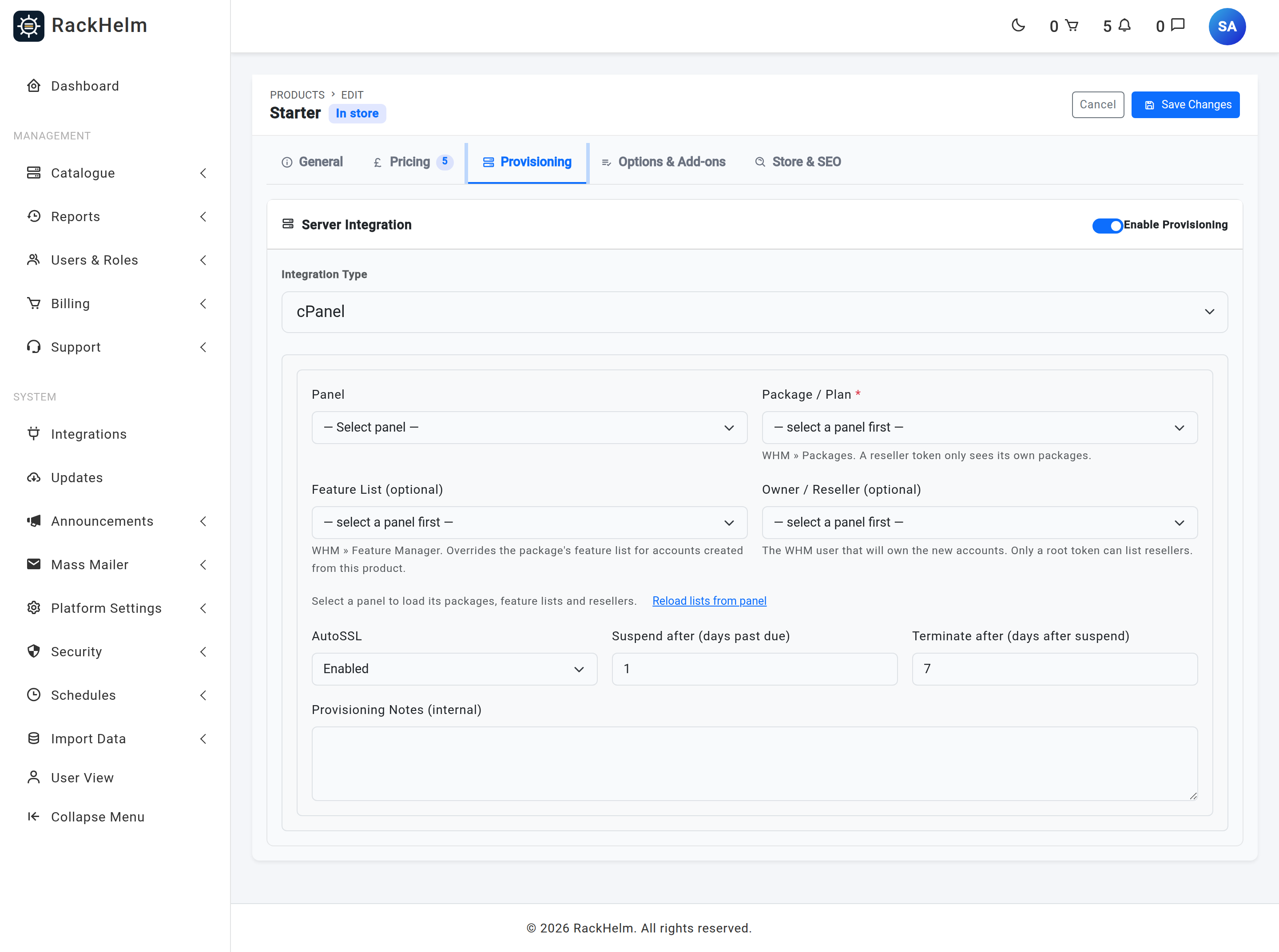
Open Catalogue → Catalogue & Groups, edit the product, and on the Provisioning tab find the Server Integration card. Set Integration Type to cPanel, pick the Panel, and the three dropdowns below it fill themselves from your WHM server.
| Field | What it is for |
|---|---|
| Panel | Which saved cPanel connection to use. Credentials come from this row and nowhere else — a product cannot supply its own base URL or token. |
| Package / Plan | Required. The WHM package new accounts are created on, chosen from WHM » Packages. Passed to createacct as its plan parameter. “A reseller token only sees its own packages.” |
| Feature List (optional) | From WHM » Feature Manager. Overrides the package’s feature list for accounts created from this product. Blank means the package decides, which is WHM’s own default. |
| Owner / Reseller (optional) | The WHM user that will own the new accounts. Blank means the API token’s own user. Only a root token can list resellers. |
| AutoSSL | Enabled or Disabled. Stored with the product; the driver does not send it to WHM. |
| Suspend after (days past due) | Stored, default 1. Not read by anything — see the warning below. |
| Terminate after (days after suspend) | Stored, default 7. Same. |
| Provisioning Notes (internal) | Free text for staff. Never shown to customers. |
Press Reload lists from panel after adding a package in WHM; the lists are cached for 60 seconds otherwise. If a saved value is no longer on the server it stays selected and is relabelled, for example Starter (saved value, not found on panel), so you can see the mismatch rather than lose it.
Note: If the panel cannot be reached, each dropdown turns into a plain text box with the message “Could not load the lists from the panel: … You can type the values instead.” and the placeholder “Package name exactly as shown in WHM”. The product still saves. Listing packages is the call that must succeed; feature lists and resellers degrade to an empty list with a warning such as “Resellers could not be listed (the API token is not allowed to).” — which is what a reseller token always gets, because
listresellersis root-only in WHM’s ACLs.
Note: Package / Plan is validated as required. Saving without it fails with “The integration.cpanel.package id field is required.” WHM itself would fall back to the default package, but RackHelm insists you choose one.
Warning: Suspend after (days past due) and Terminate after (days after suspend) are saved on the product and then ignored. The timing lives on the schedules Suspend Overdue Services and Terminate Overdue Services under Schedules, each with its own
daysoption, and both ship disabled. Until you enable them nothing is ever suspended or terminated automatically, however those product fields are set. See Suspending, Unsuspending and Terminating a Service.
Warning: The Enable Provisioning switch at the top of the Server Integration card is not written when a product is saved. Switching it off does not stop provisioning; the integration is rebuilt as active every time. To sell a product without automatic provisioning, set Integration Type to None / Manual Processing instead.
The domain the account is created for #
cPanel needs a domain name, and RackHelm takes it from the order item — the DomainName value the customer typed at checkout, or a domain value already stored on the item. Attach the seeded Domain Name custom field (key DomainName) to the product under Options & Add-ons → Configurable Options, or give the product a fixed saved value if every account uses the same name. See Custom Fields.
Without one, provisioning fails immediately with:
Missing DomainName (OrderItem.variable_values or product/group saved variable).What provisioning does #
Nothing provisions itself: the Provision Orders schedule finds paid items awaiting provisioning and queues each one, and like most schedules it ships disabled — enable it under Schedules. See How Automatic Provisioning Works. Once an item is queued the driver:
- Resolves the domain, and the customer’s email from the order’s user. A user with no email address fails with “OrderItem has no user (or user has no email) linked via order.”
- Invents a username from the domain: lower-case letters and digits, starting with a letter, at most 8 characters including a random numeric suffix. Eight rather than WHM’s current 16 keeps the name valid on older servers and clear of MySQL prefix truncation. A leading
testis stripped, because cPanel refuses usernames that begin with it. The name is checked against WHM before use; after five collisions it gives up with “Could not find a free cPanel username after 5 attempts.” - Generates a 16-character password containing upper case, lower case, a digit and a symbol from the set
!@*-_+=. - Calls
createacctwith the username, domain, password, package, the customer’s email ascontactemail, and any feature list and owner you set. - Records the username as the item’s external id, and writes
panel_id,username,domain,plan,featurelist,owner, the assignedipand the encrypted password under thecpanelkey of the item’s provisioned metadata.
Two failure modes are handled rather than surfaced. A reseller token cannot see other resellers’ accounts through listaccts, so a username can look free and still collide at createacct; when WHM answers “already has an account” or “already exists” the driver picks a new name and tries once more. And re-running provisioning after a partial failure adopts the account it already created — it does not build a second one under a fresh username.
Warning: The generated cPanel password is stored only as ciphertext and nothing reads it back. It is not emailed to the customer — the “Your Service is Ready!” notification carries a dashboard link and no credentials — and there is no screen that reveals it. Customers manage the account through the portal’s Sites area. If someone needs the cPanel password itself, reset it in WHM.
Warning: Provisioning is attempted once. A failed item is marked failed, an admin notification “Provisioning failed for order item #…” is raised, and nothing retries it on its own — the background scan only picks up items that are pending or unstarted. Clear it by hand from Pending Provisioning with Retry Provisioning or Mark Provisioned. See The Pending Provisioning Queue.
Renewal, suspension and termination #
| Action | What RackHelm does |
|---|---|
| Renew | Nothing on the server. The driver answers “Hosting renewal is billing-only. No remote action needed.” |
| Suspend | suspendacct with the reason “Suspended via billing panel”, which is what appears in WHM’s account list. |
| Unsuspend | unsuspendacct. |
| Terminate | Checks the account still exists, then removeacct with keepdns=0. An account already gone is reported as success: “cPanel account already removed”. |
All three read the username from the order item. If that is missing — a hand-created item, or one whose metadata was cleared — they fail with “cPanel username not found on OrderItem.”
What the customer sees #
A provisioned cPanel item appears under Sites in the client portal, and since 1.0.1.1 that area is real on cPanel, not just Enhance. The portal translates its own screens onto WHM API 1, cPanel’s UAPI and, where UAPI has no equivalent, cPanel API 2. The customer gets FTP, Domains and DNS records, Email, SQL databases and users, the PHP version and FPM restart, WordPress installs, and backups. That is the full set — cPanel is the only panel besides Enhance with backups in the portal.
A few things have no cPanel equivalent and say so plainly rather than erroring:
- Changing the primary domain: “On cPanel the primary domain is fixed when the account is created. Please contact support if it needs to change.”
- Forcing HTTPS: “Forcing HTTPS is not switched on from here for cPanel sites. Add the redirect in cPanel under Domains, or ask support to set it up.”
- WordPress core and plugin updates are applied from the WordPress dashboard, reached with the SSO button; and WordPress is installed at the site root only, so a non-blank installation path is refused.
See My Sites: the site dashboard for the customer’s view.
Troubleshooting #
| Symptom | Cause and fix |
|---|---|
| “cPanel panel has Verify SSL switched off but no pinned certificate” | The upgrade case. Open the connection, Test API, then Save. |
| “The panel’s certificate key no longer matches the pinned one” | WHM’s certificate was replaced. Test API to see the new one, then Save to trust it. |
| “The panel presented a certificate the portal cannot verify” | Verification is on and WHM’s certificate is self-signed or untrusted. Set Verify SSL to No, Test API, then Save to pin it. |
| “Missing cPanel panel settings (base_url, api_token)” | The connection was never saved, or was saved without a token. Open Admin → Integrations → cPanel and save it. |
| Order fails with “Missing DomainName …” | The product has no Domain Name configurable option and no saved value. Attach one and retry. |
| “Could not find a free cPanel username after 5 attempts.” | Five generated names were all taken. Usually a domain that has been ordered repeatedly. Create the account by hand and mark the item provisioned. |
| “WHM createacct failed: …” | WHM’s own reason, passed through. Quota exhausted, package missing, IP unavailable — fix it in WHM and retry. |
| Product will not save | Package / Plan is empty: “The integration.cpanel.package id field is required.” |
| Package dropdown is empty or has become a text box | WHM could not be reached or refused the token. The message on the form says which. A reseller token sees only its own packages. |
| Resellers list is empty with a warning | Expected with a reseller token — listresellers is root-only. Leave Owner / Reseller blank. |
| cPanel missing from the Integration Type dropdown | The connection is not marked Active, or was never saved. |
| Base URL rejected on save | The hostname resolves to a private or reserved address, or does not resolve. Use a public hostname, or list the address in SAFEURL_PRIVATE_ALLOWLIST. |
| Test API says “WHM rejected the API token” | The host answered and refused the credential. Check the WHM Username as well as the token — the two travel together. |
| Nothing is ever suspended for non-payment | The Suspend Overdue Services schedule is disabled by default. The product’s Suspend after value is not used. |
| Item stuck showing “We’re setting up your service…” | The job was killed mid-run, leaving the item in processing. Resolve it from Pending Provisioning. Account creation is allowed 180 seconds and the job 270, so the worker timeout must be at least that; see Queue Workers, Horizon and the Scheduler. |


