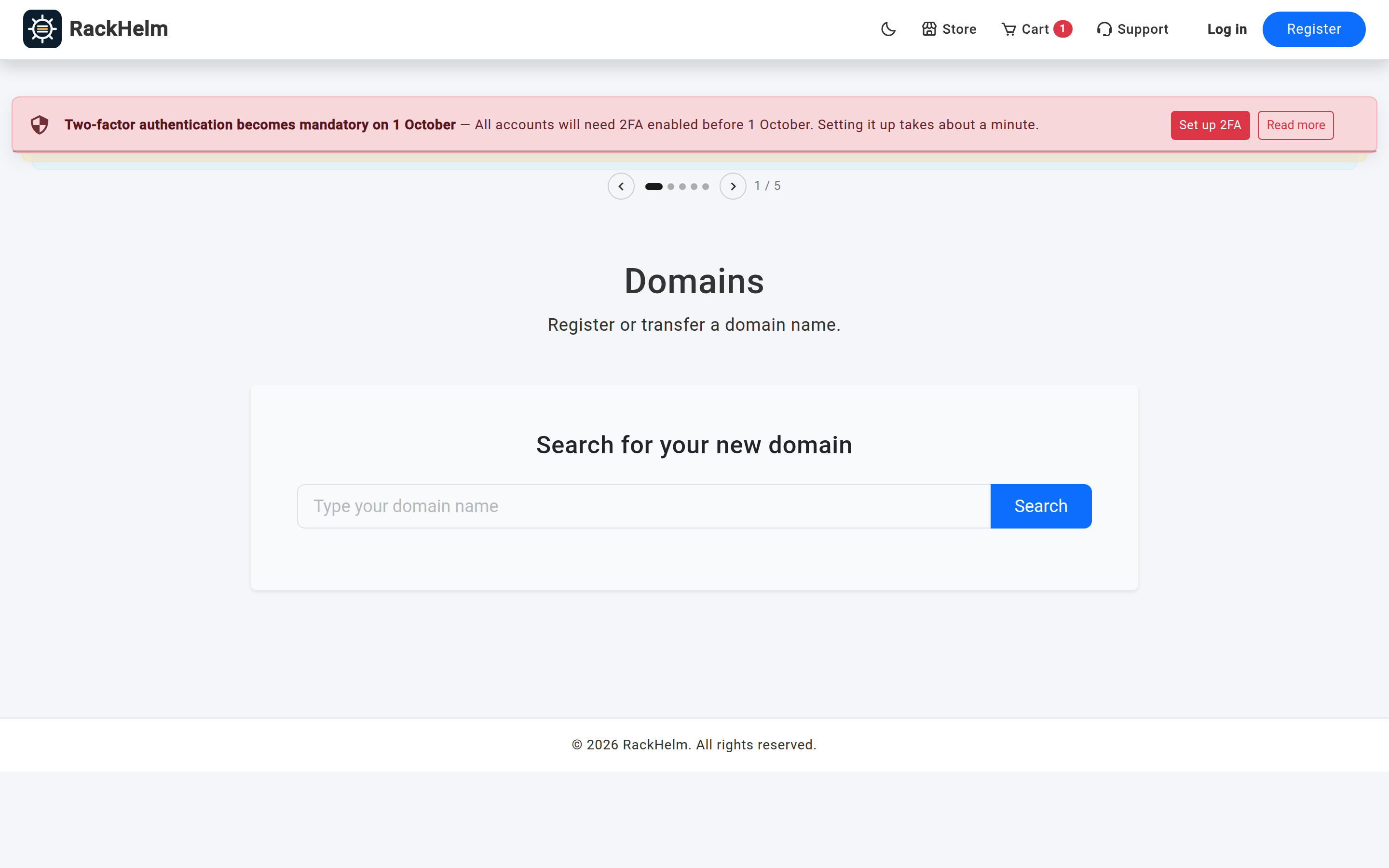
Domains are ordered through a search box rather than a normal product page: you type the name you want, RackHelm checks it live with the registrar, and you add the result to your cart. The same screen handles transferring a domain you already own. You do not need to be signed in to search.
Searching for a domain #
- Open Order New and choose your provider’s domain group, or go to
/store/{group}directly. - Type the name into Type your domain name under Search for your new domain. You can type a bare name (
example) or include the extension (example.co.uk). - Select Search.
Reading the results #
| Section | What it contains |
|---|---|
| Exact Match | The name and extension you asked for. |
| Popular Alternatives | Up to five other available extensions your provider sells. |
| Show More Extensions | Reveals the rest of the available extensions. |
| More Suggestions | Up to ten alternative names. Where the registrar supports it these come from its own suggestion service; otherwise RackHelm builds candidates by adding prefixes (get, my, the, go, try, hello, use, weare) and suffixes (app, online, site, store, shop, hq, inc, tech) and checks those for real. |
Each row ends with one of two buttons:
- Add to Cart — the domain is available to register.
- Transfer — the domain is already registered. Use this if it is yours.
Registering an available domain #
- Select Add to Cart on the name you want. The configuration page opens, headed Configure Domain: yourname.tld.
- Under Select Billing Cycle, choose the registration term.
- Fill in anything under Product Options — required fields carry a red asterisk.
- Pick any extras under Available Addons, such as ID protection.
- Select Continue to Cart.
Transferring a domain you already own #
- Select Transfer next to the domain. You are prompted for the EPP code (also called an auth code or transfer key) — get it from your current registrar first.
- Paste the code and confirm. The configuration page opens with the transfer already selected and the code filled in.
- Choose a billing cycle. Cycles priced for transfers are marked with a Transfer badge and use the transfer price rather than the registration price.
- Select Continue to Cart.
Warning: Before starting a transfer, unlock the domain at your current registrar and make sure its admin contact email is one you can read. Registrars send the approval message there, and a transfer that is not approved in time expires.
.uk domains #
Nominet requires two extra details on the registrant. Your billing address form — both in the address book and at checkout — has a .UK Domain Details section for them:
- UK Legal Type — for example UK Individual (IND), UK Limited Company (LTD), UK Sole Trader (STRA), UK Registered Charity (RCHAR), Non-UK Individual (FIND), Non-UK Corporation (FCORP).
- Registrant Name — the company or full name the domain is registered to.
Fill these in on the address you use for the order. Your provider may also require you to accept Nominet’s terms at checkout — see The cart and checkout.
What the search accepts #
- Letters, digits and hyphens only. A name may not start or end with a hyphen.
- Up to 253 characters in total, and up to 63 in the part before the first dot.
- One name per search — comma-separated lists are rejected.
Troubleshooting #
| Symptom | Cause and fix |
|---|---|
| “Search failed. Please try again.” | The registrar did not answer in time. Wait a few seconds and search again; if it persists, raise a ticket. |
| “No registrar configured for this extension.” | Your provider sells that extension but has not connected a registrar account to it yet. Raise a ticket. |
| An extension you expected is missing from the results | Only extensions your provider actually sells are checked. Extensions outside the priority list are checked only when you type them in full. |
| The results show “Check Cart” instead of a price | That extension has no annual price set. Add it to the cart to see the price for each available term, or ask your provider. |
| The transfer prompt will not accept your code | EPP codes are case-sensitive and expire. Request a fresh one from your current registrar and paste it without surrounding spaces. |
| “Error: No billing cycles configured for this product.” | The extension has no terms priced. Raise a ticket — this needs your provider to fix it. |
| The transfer price is not applied | Choose a cycle carrying the Transfer badge. Cycles with no transfer price fall back to the registration price. |


