The ClientExec importer reads an existing ClientExec installation’s MySQL database directly and rebuilds its catalogue, clients, services, invoices and tickets inside RackHelm. It lives at Import Data → ClientExec Data Import (/admin/import/clientexec) and is part of the import family described in Data Import Tools. If you are moving from WHMCS or Blesta instead, see Importing from WHMCS or Importing from Blesta.
Before you start #
Warning: Import into a fresh install, and take a database backup first. The importer writes directly into your live catalogue, users, orders, invoices and tickets. There is no undo.
You need read access to the ClientExec MySQL database — host, port, database name, username and password. A read-only account is sufficient, and importing from a restored copy of the database works just as well as the live one. In a default install only a Super Admin sees the Import Data menu; the permission details are in Data Import Tools.
What does not come across #
- Client passwords are not portable. They are one-way hashes, so imported clients are created with a random password and use Forgot password the first time they log in.
- Saved payment methods do not transfer. Stored card data is encrypted with a key that stays with the old installation, so customers re-authorise their payment method once after the move.
Connection #
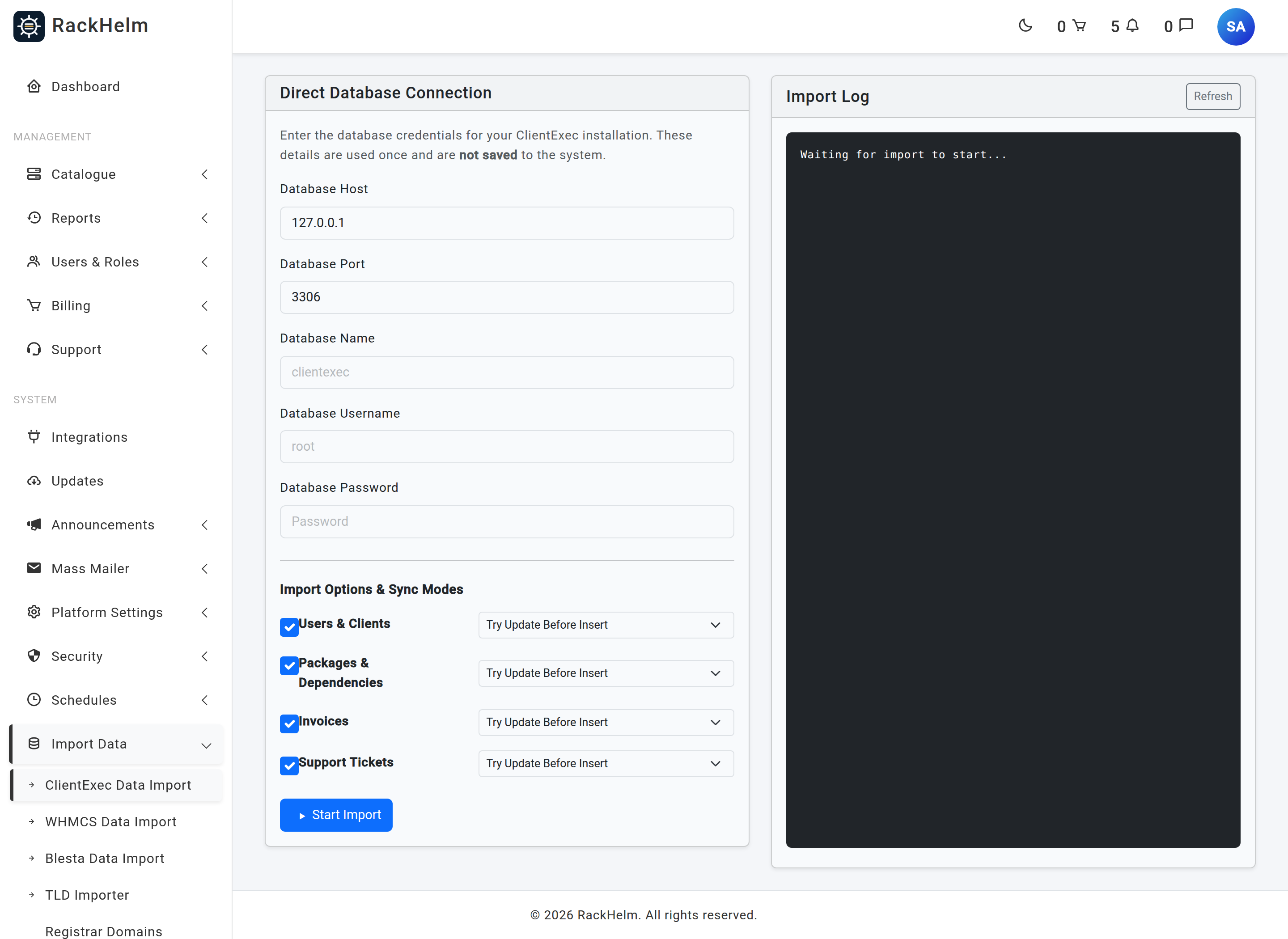
| Field | Notes |
|---|---|
| Database Host | Required. Pre-filled with 127.0.0.1 — but see the warning below. |
| Database Port | Required, 1–65535. Defaults to 3306. |
| Database Name | Required. |
| Database Username | Required. A read-only account is sufficient. |
| Database Password | Required. |
The credentials are used once to run the import and are not saved to the system.
Warning: By default the importer refuses private and reserved addresses, including
127.0.0.1and anything on your LAN — the host is resolved and pinned to a public IP before connecting, to stop the form being used to probe internal services. To import from a local or internal database, setIMPORT_CLIENTEXEC_ALLOW_PRIVATE=truein.envfirst — see The .env File Explained. Without it you get the same generic “Could not connect to the specified database” message as a genuine connection failure.
Import options and sync modes #
Four entity groups can be imported independently — Users & Clients, Packages & Dependencies, Invoices and Support Tickets — each with its own sync mode:
| Mode | Behaviour |
|---|---|
| Try Update Before Insert | Updates an existing record where one matches, otherwise creates it. The default and the right choice for a re-run. |
| Only Insert (Skip existing) | Creates new records and leaves anything already present untouched. |
| Only Update (Skip new) | Refreshes records that already exist and creates nothing. |
Tip: The modes make the import safely re-runnable. A common cutover plan: import everything early with Try Update Before Insert, keep trading in ClientExec, then run the importer again just before the switch to pick up the delta.
What runs, and in what order #
The import runs in five passes with real dependencies between them:
- Packages and dependencies — billing cycles, product groups, addons, products, addon prices and package variables.
- Users — custom field definitions, then the user accounts. Imported clients are given your default client role.
- Orders and services — requires both Users and Packages; skipped otherwise.
- Invoices and items — requires Users. Once imported, a PDF regeneration job is queued for every invoice.
- Support tickets — requires Users. Departments, tickets, messages and attachments.
A summary of counts is printed at the end. Tables that do not exist in the source database are skipped with a warning rather than failing the run.
Running it #
- Fill in the connection details and choose your entities and modes.
- Start the import. RackHelm tests the connection first and refuses to start if it fails.
- The import runs in the background; the log panel on the page polls for progress. You can navigate away — it keeps running.
The full log is written to storage/logs/import_clientexec.log and is reset at the start of each run. Credentials are held in the cache for five minutes under a single-use key and cleared as soon as the background process picks them up.
Tip: Do a first pass with Packages only and check the catalogue looks right before importing users, orders and invoices on top of it. Everything downstream inherits whatever the products pass produced.
After the import #
- Spot-check the catalogue, a few clients, their services and a handful of invoices against the ClientExec originals.
- Tell your customers to use Forgot password on first login, and to re-add their payment method.
- A PDF regeneration job is queued for every imported invoice — check your queue workers are running so those jobs are processed; see Maintenance, Logs and Health.
Troubleshooting #
| Symptom | Cause and fix |
|---|---|
| “Could not connect to the specified database” with details you know are correct | Almost always the private-address block. Set IMPORT_CLIENTEXEC_ALLOW_PRIVATE=true and retry. The message is deliberately identical for every failure reason, so it never reveals what the server can reach. |
| “Connection credentials expired or invalid” | The cached credentials live for five minutes. Start the import again. |
| Orders were skipped | Pass 3 needs both Users and Packages enabled in the same run. |
| Invoices imported but PDFs are missing | PDF regeneration is queued. Check your queue workers — see Maintenance, Logs and Health. |
| “Skipping table … it does not exist in the source database” | Normal for older ClientExec schemas. That entity is simply not present to import. |
| The log panel stops updating | Read storage/logs/import_clientexec.log directly on the server; the panel only mirrors that file. |


